Content Repository
Where the images, documents and files your marketing uses are stored. It used to be called Drive.
What it's for
Marketing runs on files: logos, product photography, brochures, the PDF you attach to a follow-up email. The Content Repository keeps them in one place, so anything you use in a campaign, email or social post is already to hand rather than sitting on someone's laptop.
Shared with your team and your agents
Files here are available to your whole team, and to the AI features that need them.
How to upload and organise files
- In the sidebar, choose Content Hub → Content Repository, or the repository icon in the top bar.
- Open a folder to work inside it.
-
Choose what to add, at the top right:
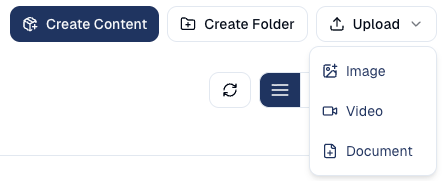
Button What it does Create Content Starts a new article or post in the Asset Studio (below). Create Folder Creates a folder. Upload → Image Adds pictures from your computer. Upload → Video Adds a video, up to 2 GB. Upload → Document Adds a file from your computer, with a marketing stage and, if it should not be used after a date, an expiration date. The same dialog offers Add Website (GoodBards reads a web page so the AI can use it) and Import WordPress (your existing WordPress articles; connect WordPress first under Connections).
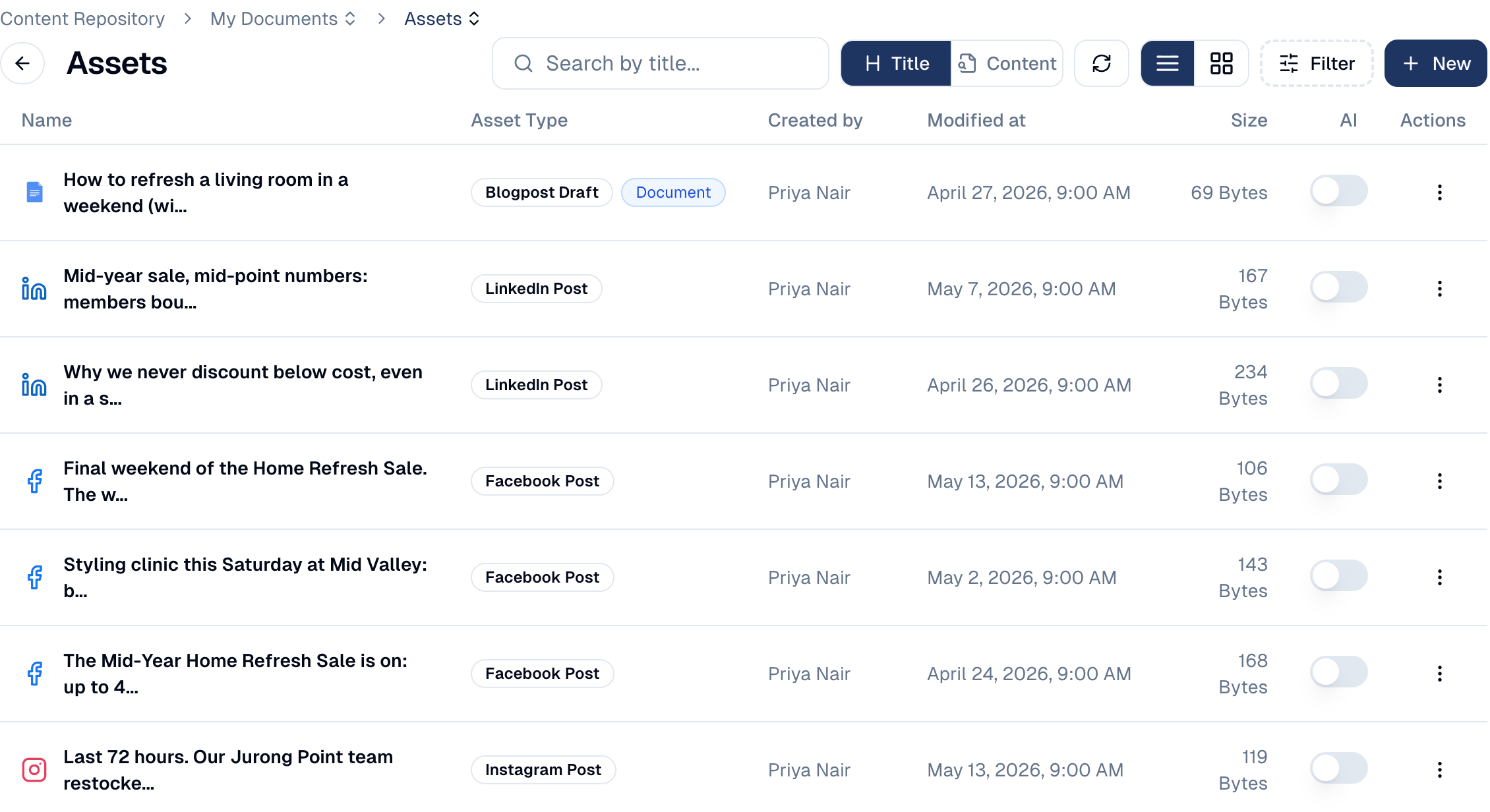
Each file's Actions menu lets you share, move, rename or delete it, and see where it is used, for example in which campaigns and tactics.
How to edit an article or a post
Open an article or a post to edit it in the Asset Studio.
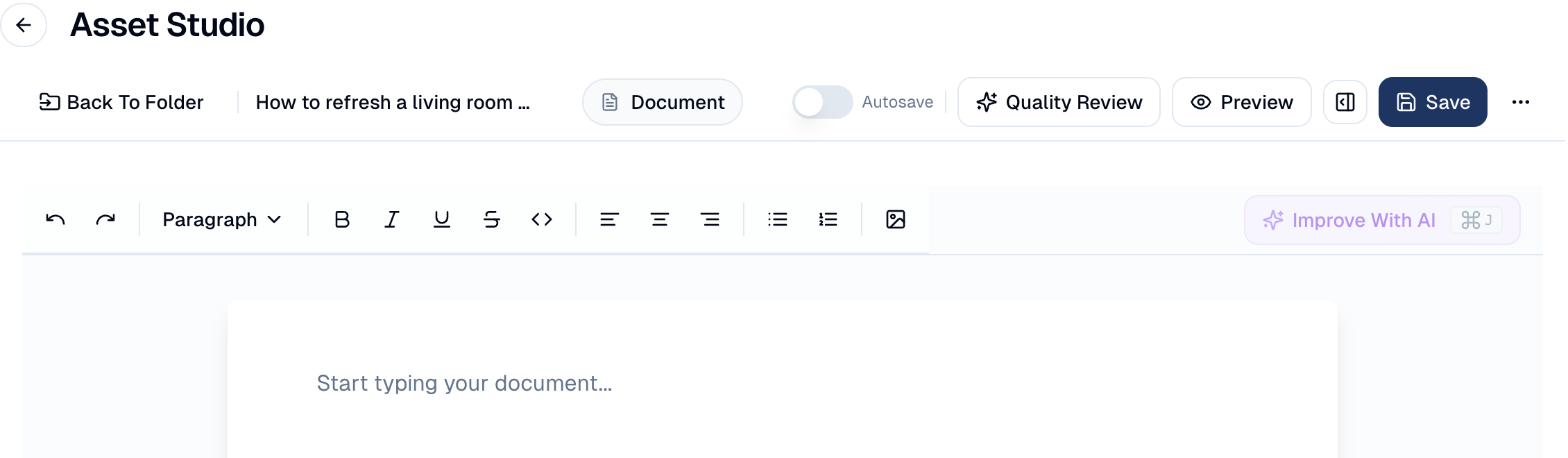
- Improve With AI (or Cmd+J) opens a small chat with the AI editor. Ask for a change, for example shorter and warmer, and the whole document is rewritten; the change applies straight away, and Revert undoes it. Paste links in your request (draft this from https://…) and the pages are read before the AI writes; the chat says which ones it could read.
- Quality Review scores the piece, as in the Content Workspace, and says what to improve.
- Preview shows it as it will be published; Autosave saves as you type.
- The ⋯ menu offers Create social posts (a series of posts from an article), exports to HTML, Markdown or JSON, Duplicate and Delete.
The default folders
A new account starts with three:
| Folder | What it holds |
|---|---|
| My Documents | Your team's content, in Assets (articles and posts), Emails, Images, Audios and Videos, plus anything you upload. |
| Shared With Me | What colleagues have shared with you. |
| System | Files GoodBards manages itself. Leave this alone. |
Do not reorganise System
The System folder holds files the platform depends on. Moving or deleting things here can break emails and campaigns that reference them.
How to find files
- Search by title… finds a file by name. Switch from Title to Content to search inside documents instead.
- Filter narrows by file type and other attributes.
- The two buttons beside Filter switch between list and grid view. Grid shows thumbnails, which is quicker for images.
- The refresh button reloads the folder if you have just uploaded something elsewhere.
Give the AI your key documents
The AI switch on a file lets the AI agents read it as background. Turn it on for files such as your brand guidelines or product sheets.
Good to know
- Name files so others can find them.
logo-primary-dark.pngis findable;Screenshot 2026-08-14 at 15.22.11.pngis not. - Upload once, use everywhere. A file in the Content Repository can be used in any email, campaign or post, with no need to re-upload it each time.
- Videos up to 2 GB. Use Upload → Video; a percentage shows the upload's progress. Videos and PDF, PowerPoint or Word files can then be attached to LinkedIn and Instagram posts. See Videos, documents, Reels and stories.
Deleting affects everything using it
If an email references an image and you delete that image, the email breaks. Check where a file is used (its Actions menu) before removing it.
Still stuck? Contact support.