Meta Ads
See the results of your Facebook and Instagram ads in GoodBards.
What it's for
The Meta Ads connector links one Meta ad account to your workspace. GoodBards uses it in:
- Digital Ads: the Meta Ads tab shows your ad account's spend, impressions, clicks and conversions, and each campaign with its results. See Digital Ads.
- Ad campaign tactics: link a campaign tactic to an existing Meta campaign and follow its results in the campaign report, next to your other tactics.
GoodBards only reads your ads
You keep creating and changing them in Meta Ads Manager.
Setting up with us
Meta's screens are made for developers: if you would rather not do the setup alone, contact support and we do it with you on a short call.
Before you start
- Meta Ads is included in the Pro and Full plans.
- You must be an administrator or the owner of your GoodBards company account.
- You need a Facebook account that is an administrator of your company's Meta business portfolio (business.facebook.com), and the portfolio must own the ad account, or have been given access to it.
- Allow 15 to 20 minutes. You do this once.
Already connected WhatsApp?
You can reuse the Meta app and the system user you created for WhatsApp: add the Marketing API to the app (step 1), then give the system user your ad account and create a new token that includes ads_read (steps 2 and 3).
What GoodBards asks for
| Field in GoodBards | What it is | Where Meta shows it | Looks like |
|---|---|---|---|
| Access token | The key that lets GoodBards read your ads. Shown only once. | Business settings → System users → Generate token (step 3) | A long text starting with EAA |
| App secret (optional) | Only needed when your Meta app is set to require an app secret proof. | Your app → App settings → Basic → App secret → Show | 32 letters and digits |
Both are stored encrypted and are never shown again in GoodBards.
How to set up Meta Ads in Meta
1. Create a Meta app, or reuse yours
- Go to developers.facebook.com, log in, and choose My Apps.
- Open the app you already use for GoodBards, or choose Create App and connect it to your company's business portfolio.
-
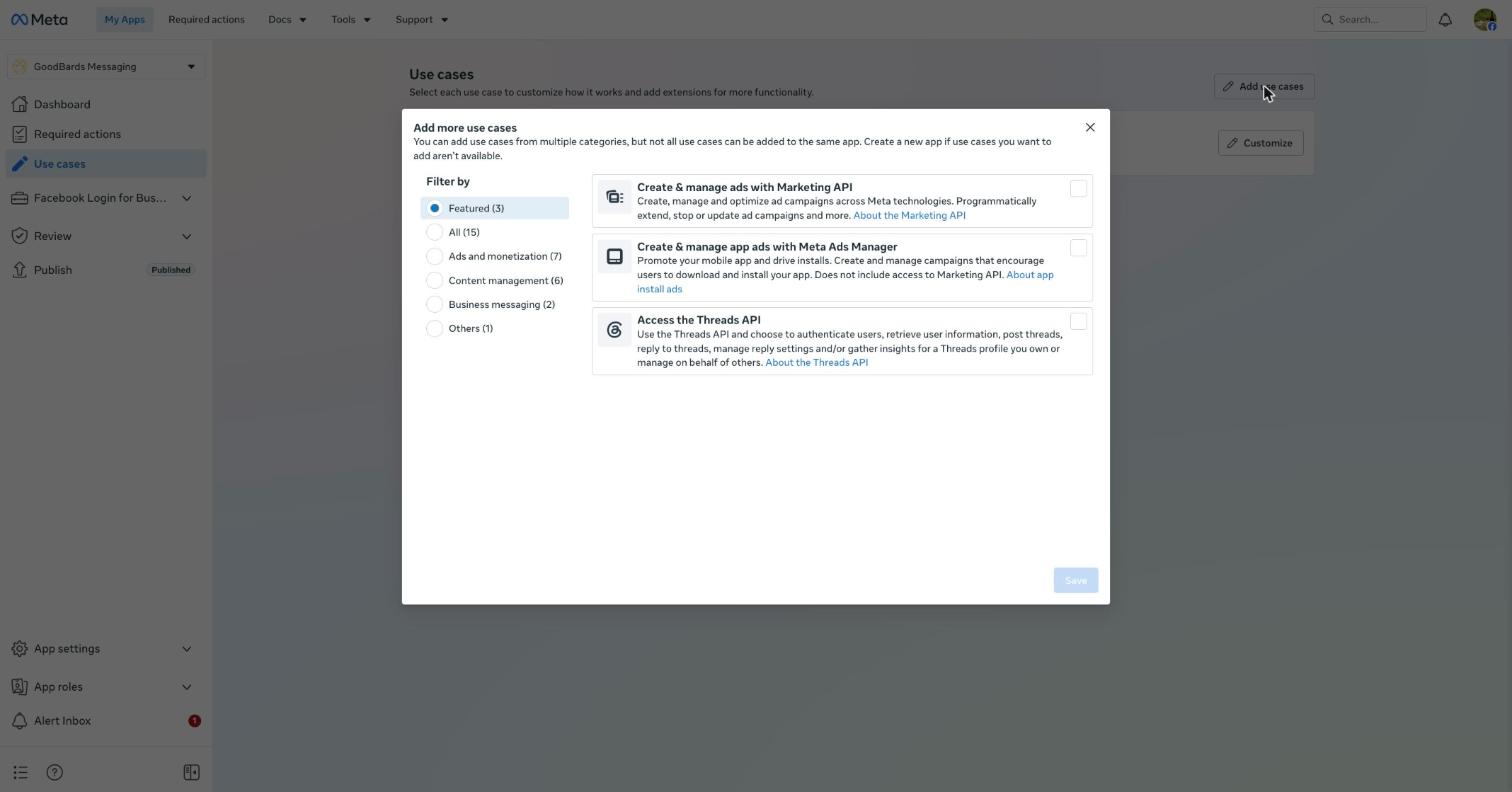
In the app, open Use cases, choose Add use cases, tick Create & manage ads with Marketing API, then Save.
-
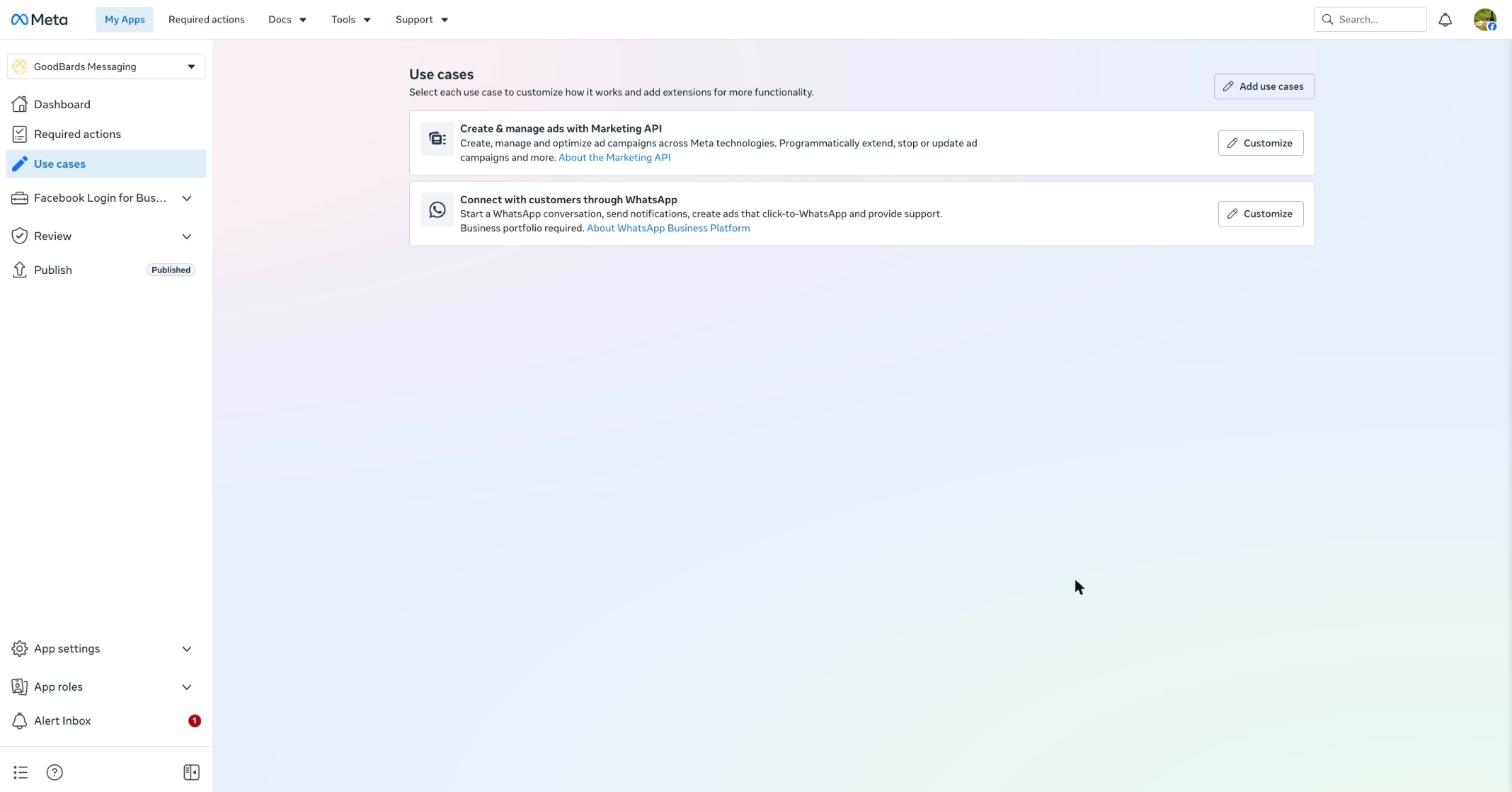
The use case now appears in the list. Choose Customize to check that ads_read shows Ready for testing: that is all GoodBards needs.
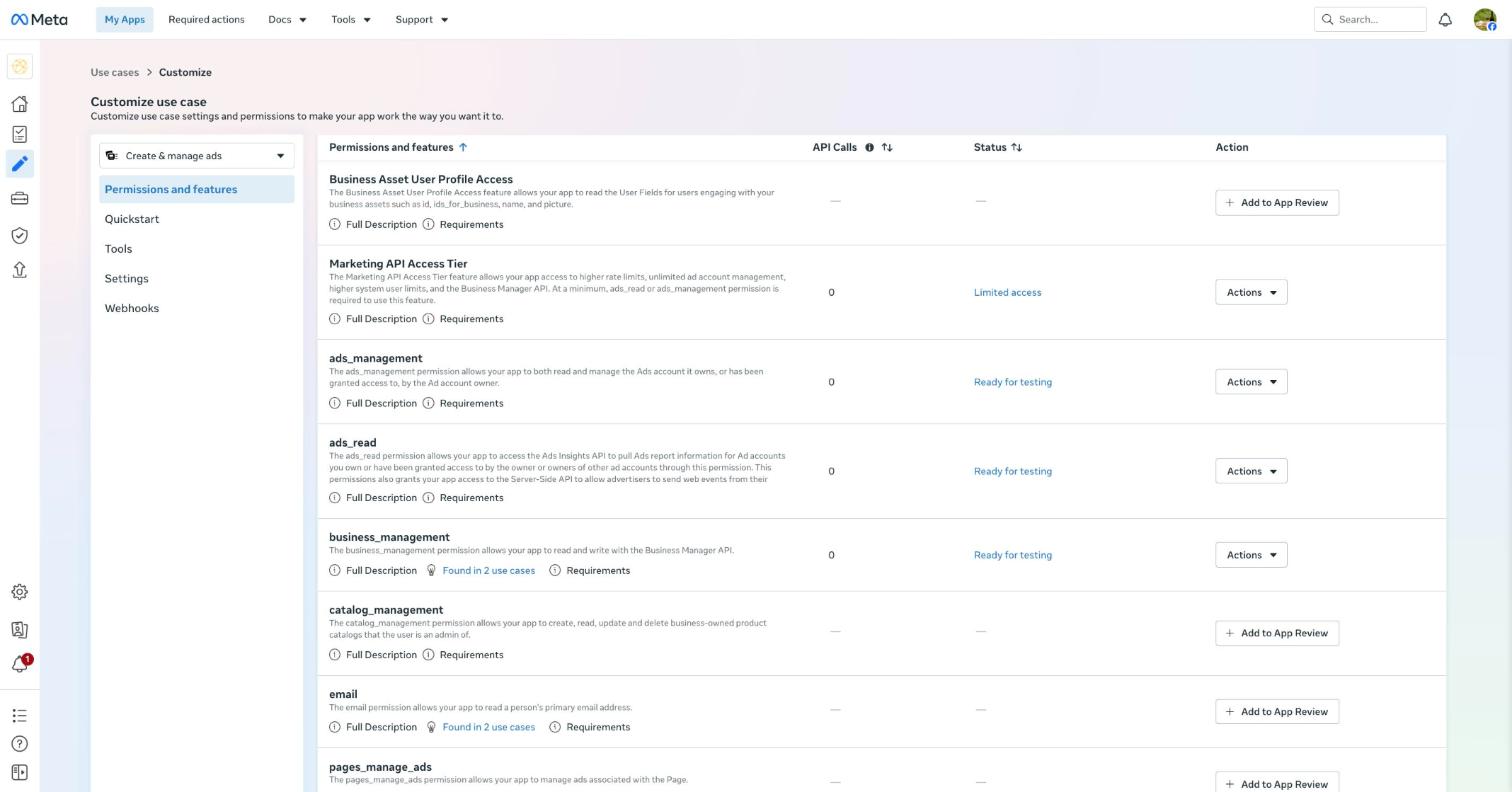
Do not add anything to App Review
Leave the Add to App Review buttons alone. Meta's App Review is only for apps that read other businesses' ad accounts. Here your app reads your own, which works with Ready for testing.
2. Give a system user access to your ad account
- Open business.facebook.com, then Settings → Users → System users.
- Select your system user, or choose Add to create one.
-
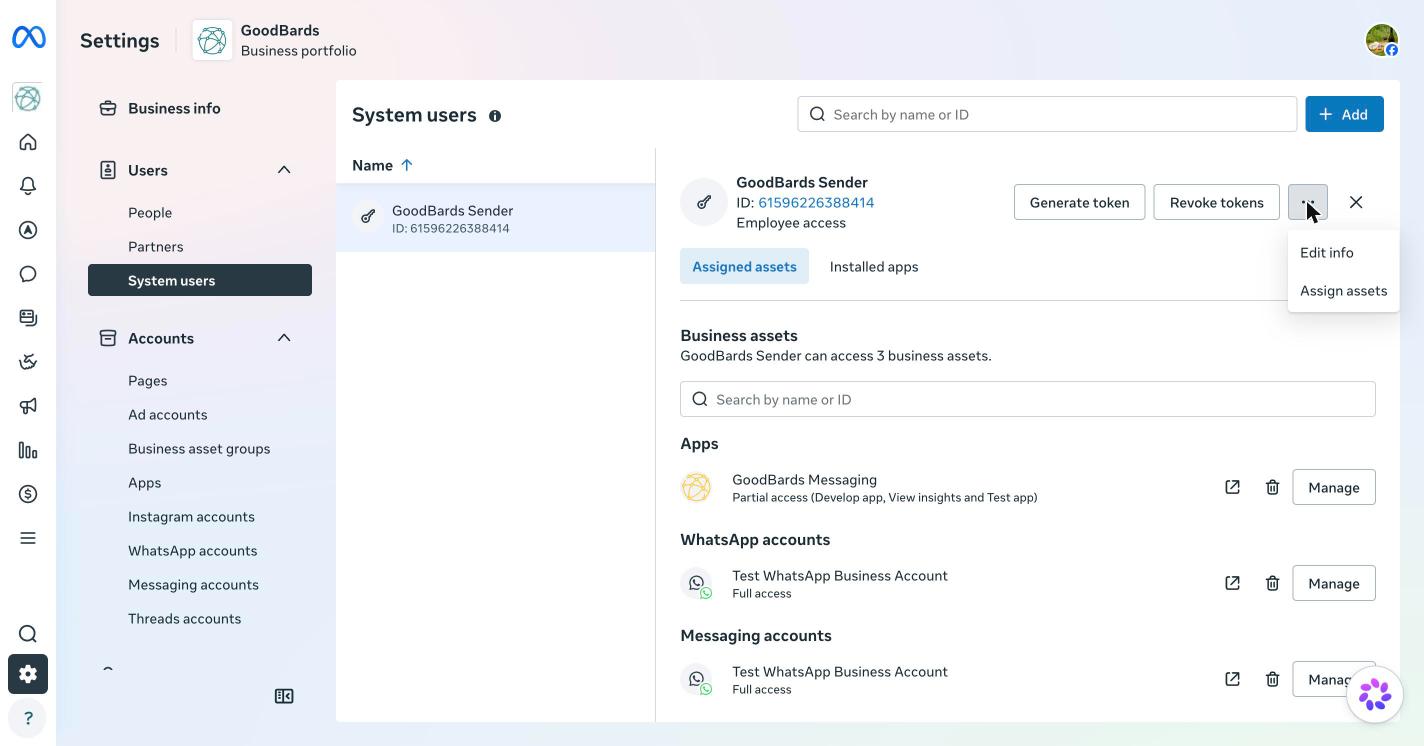
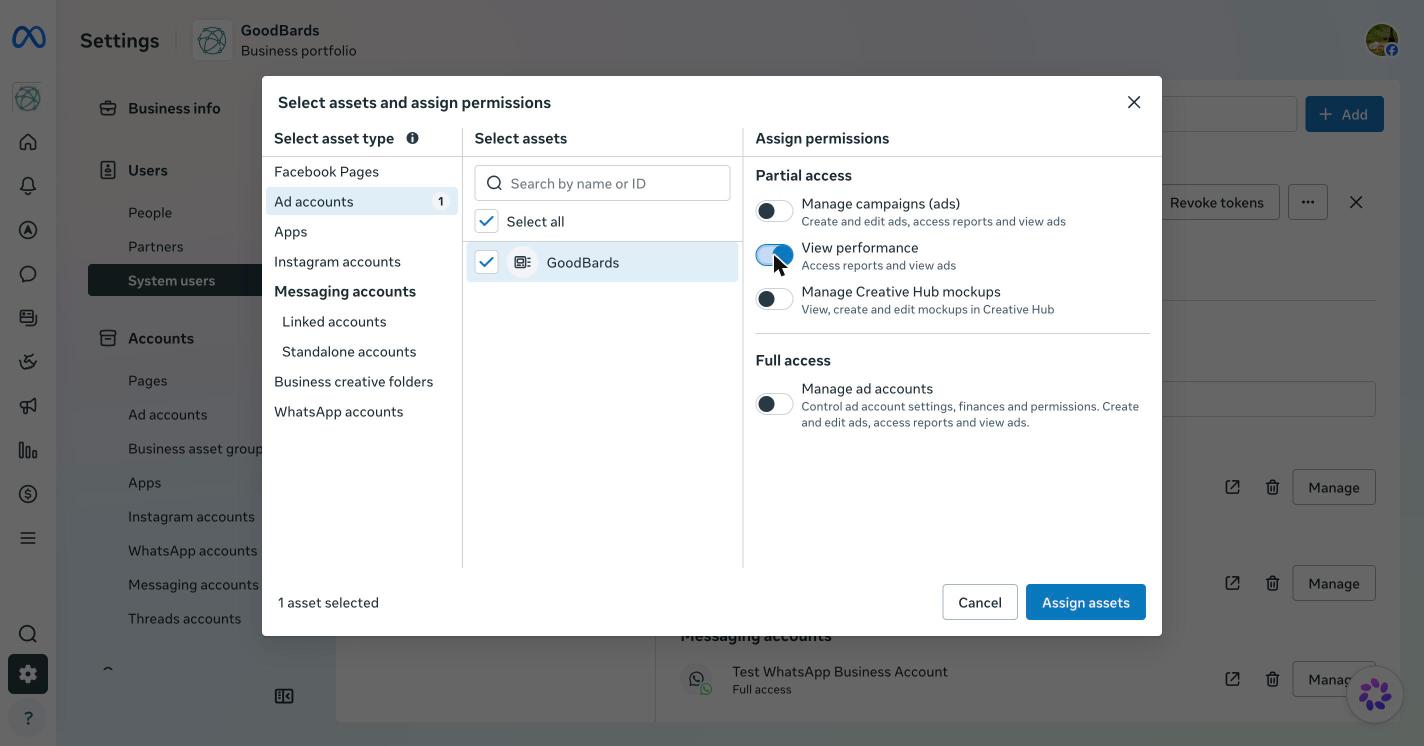
Open the … menu next to Revoke tokens and choose Assign assets.
-
Pick Ad accounts, tick your ad account, turn on View performance, then choose Assign assets.
3. Create the token
-
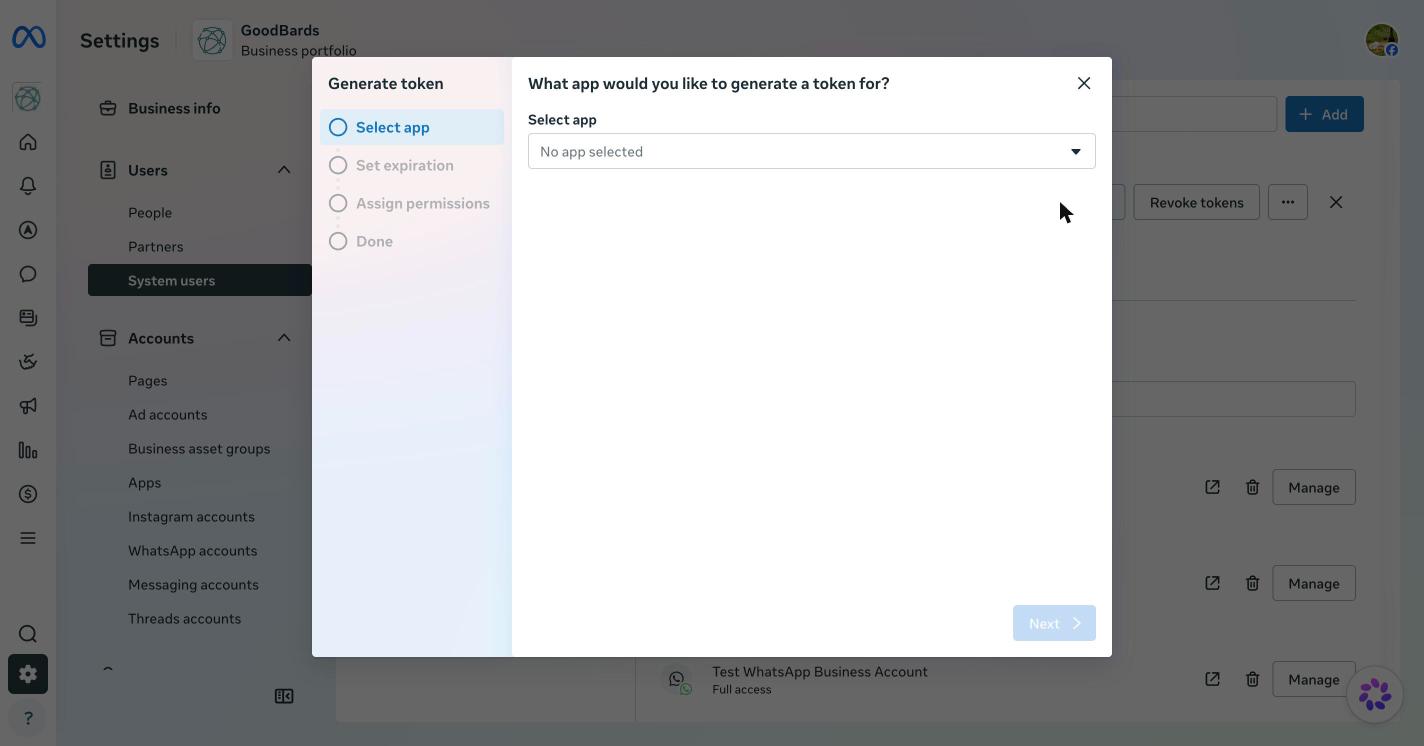
Still on the system user, choose Generate token and pick your app.
-
Under Set expiration, choose Never, then Next.
-
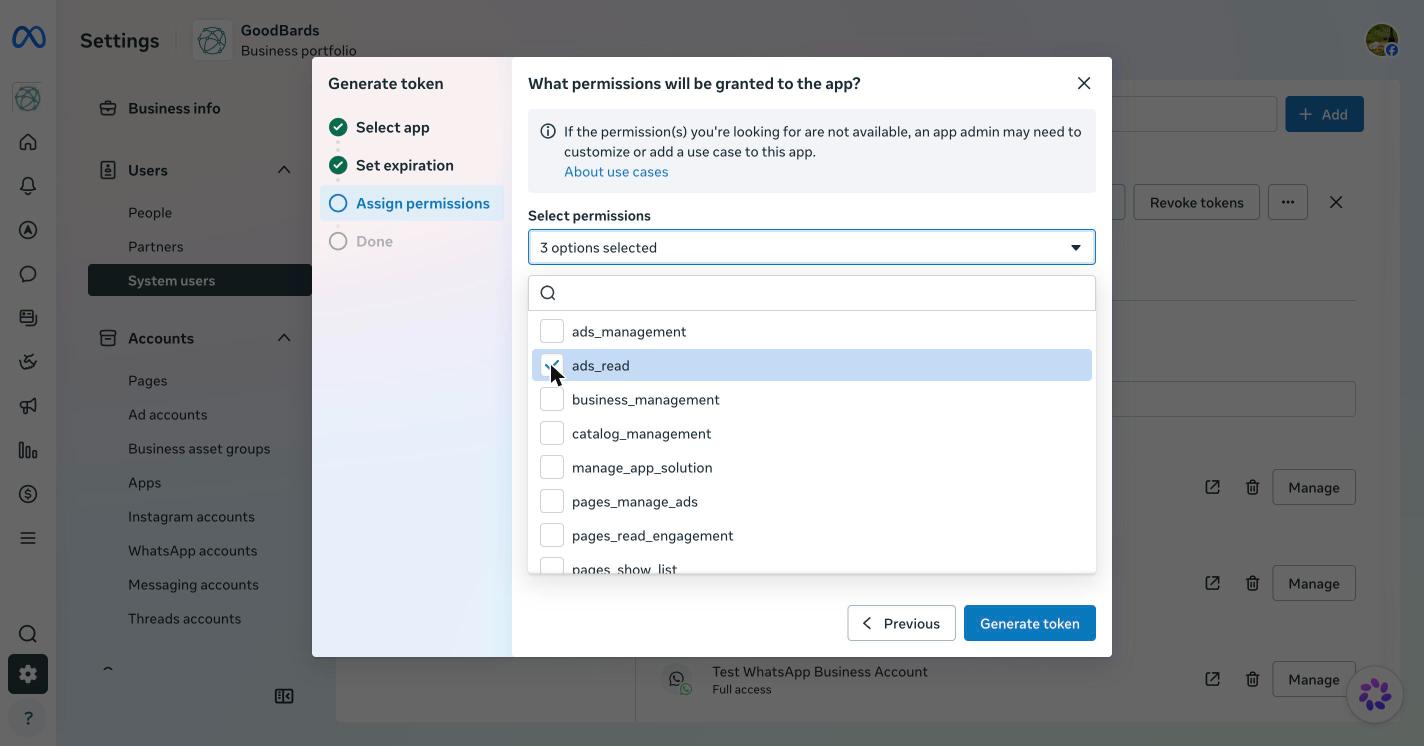
Under Assign permissions, open the list and tick ads_read. Leave the permissions that are already ticked as they are.
-
Choose Generate token and copy the token straight away: Meta shows it only once.
How to connect in GoodBards
- Open your account menu (your picture, top right), then choose Connections.
-
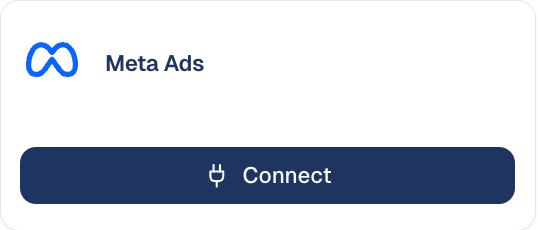
On the Digital Ads tab, find Meta Ads and choose Connect.
-
Paste the access token (and the app secret if your app requires it), then choose Check token. GoodBards asks Meta which ad accounts the token can read. If Meta refuses the token, nothing is saved and Meta's reason is shown.
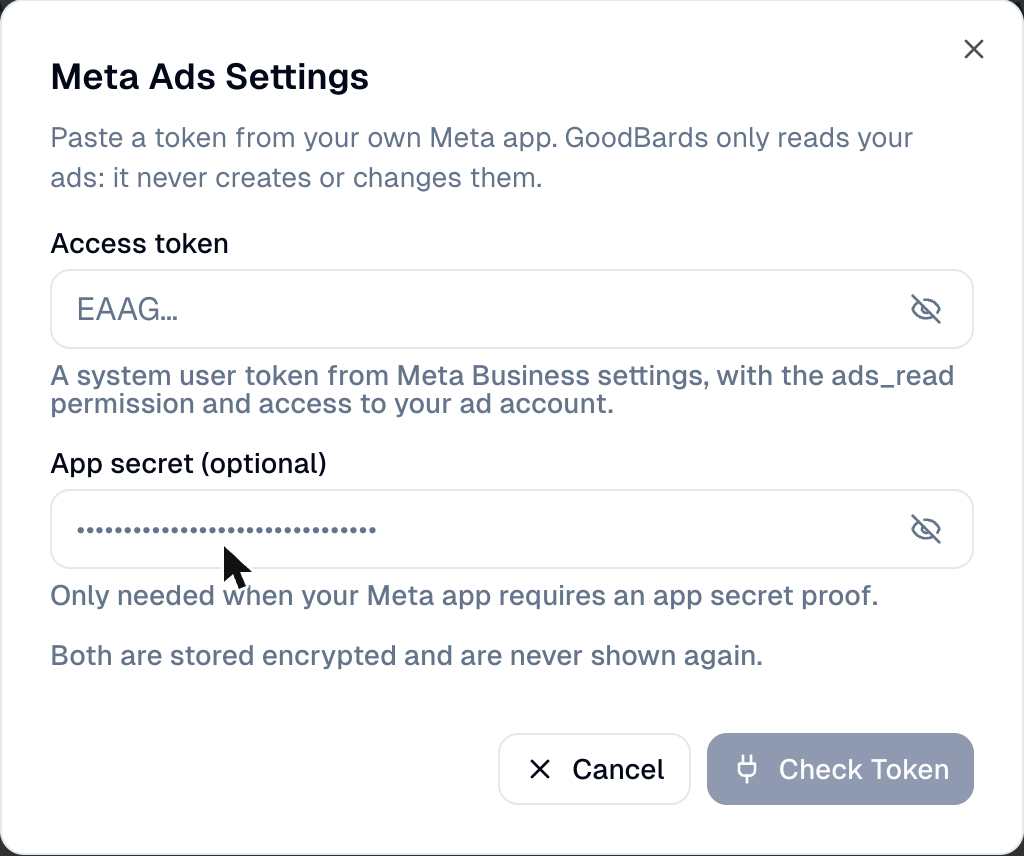
-
Choose your ad account, then Save.
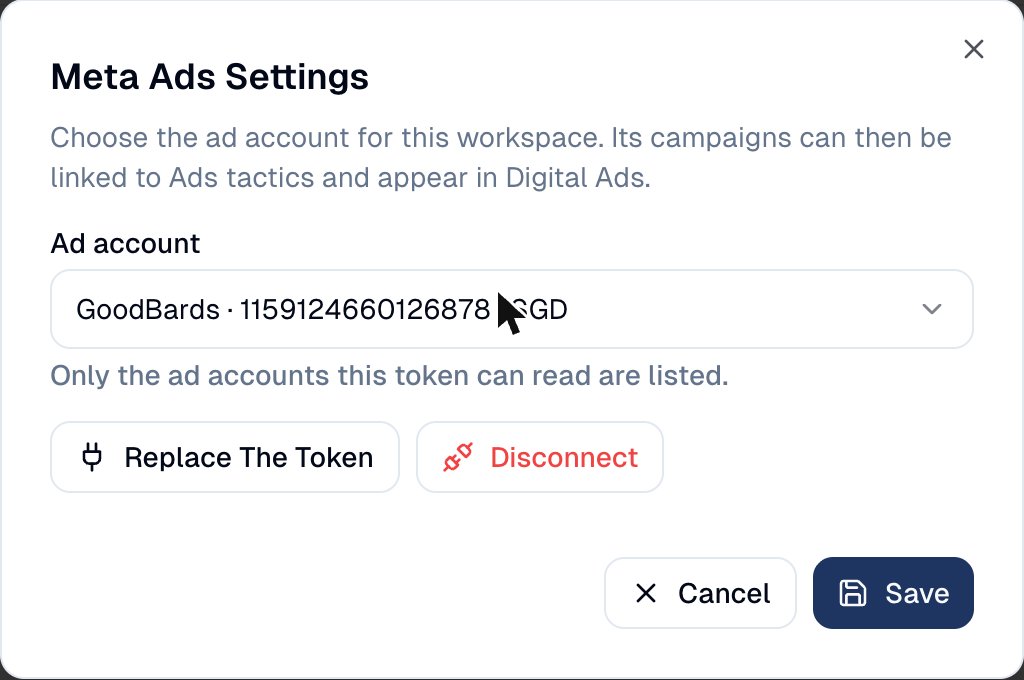
The card then shows the ad account's name, its number and its currency. Until an ad account is chosen, it shows No account selected.
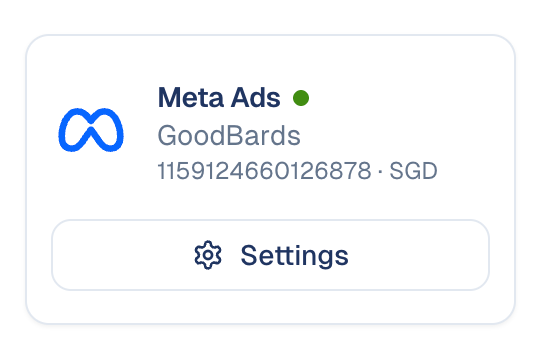
Your ad account now appears in Marketing → Digital Ads, on the Meta Ads tab:
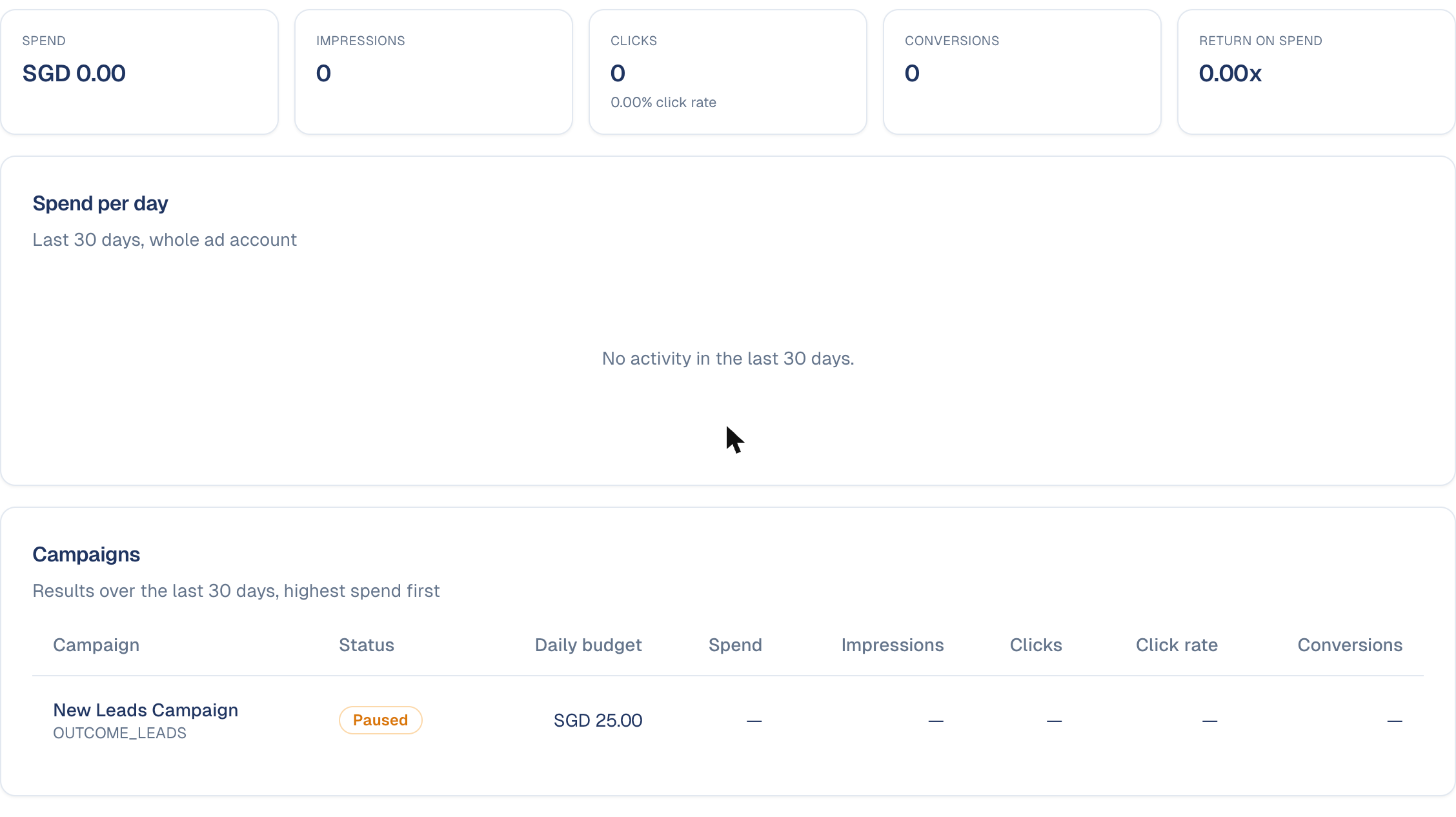
What GoodBards does with it
| GoodBards… | Details |
|---|---|
| Reads | Your ad accounts, the campaigns of the chosen ad account, and their daily results (spend, impressions, link clicks, conversions and their value). |
| Never does | Create, change, pause or delete anything in your ad account. |
How the numbers are counted
- Clicks are link clicks: people who clicked through to your destination.
- Conversions are purchases, leads and registrations, each counted once.
- Return on spend is the value of purchases divided by the spend.
- A campaign whose budget is set on its ad sets shows no daily budget.
People who see or click your ads
Meta only gives totals. It never says which person saw or clicked an ad, so GoodBards cannot attach an ad view or click to one of your contacts.
If it does not work
| What you see | What to do |
|---|---|
| Meta refused the token | The token expired or was revoked. Create a new one (step 3) and choose Replace The Token. |
| The token may not read ads | The token lacks ads_read, or the system user has no access to the ad account (step 2). |
| This token reaches no ad account | Assign your ad account to the system user (step 2), then check the token again. |
| Meta is limiting calls | Meta allows a limited number of reads per ad account. Wait a few minutes and reload. |
Good to know
- One ad account per workspace. Digital Ads and the campaign reports use the ad account you chose.
- To use a new token, choose Settings on the card, then Replace The Token. Your chosen ad account is kept if the new token can still read it.
Keep the token secret
Anyone with this token can read your ad account's results. Paste it only in GoodBards, never in an email or a chat.
How to disconnect
- On the Meta Ads card, choose Settings.
- Choose Disconnect.
GoodBards forgets the token and the ad account. Tactics already linked keep their link and show that Meta Ads is no longer connected. Nothing changes in your Meta account; to stop the token completely, revoke it in Business settings (Revoke tokens).
Still stuck? Contact support.