Automations
Take each contact through emails, waits, branches, AI steps and tasks for your team, on their own, at their own pace.
What it's for
A flow is a path one contact walks through: a welcome email, a wait of three days, a second email only for those who clicked the first, a task for their owner, a tag at the end. You design it once; GoodBards then runs it separately for every contact who enters.
Use it for welcome series after a sign-up form, nurture tracks for new leads, win-back emails for quiet contacts, a monthly check-in with a segment, or an AI-assisted follow-up that a colleague approves before it goes out.
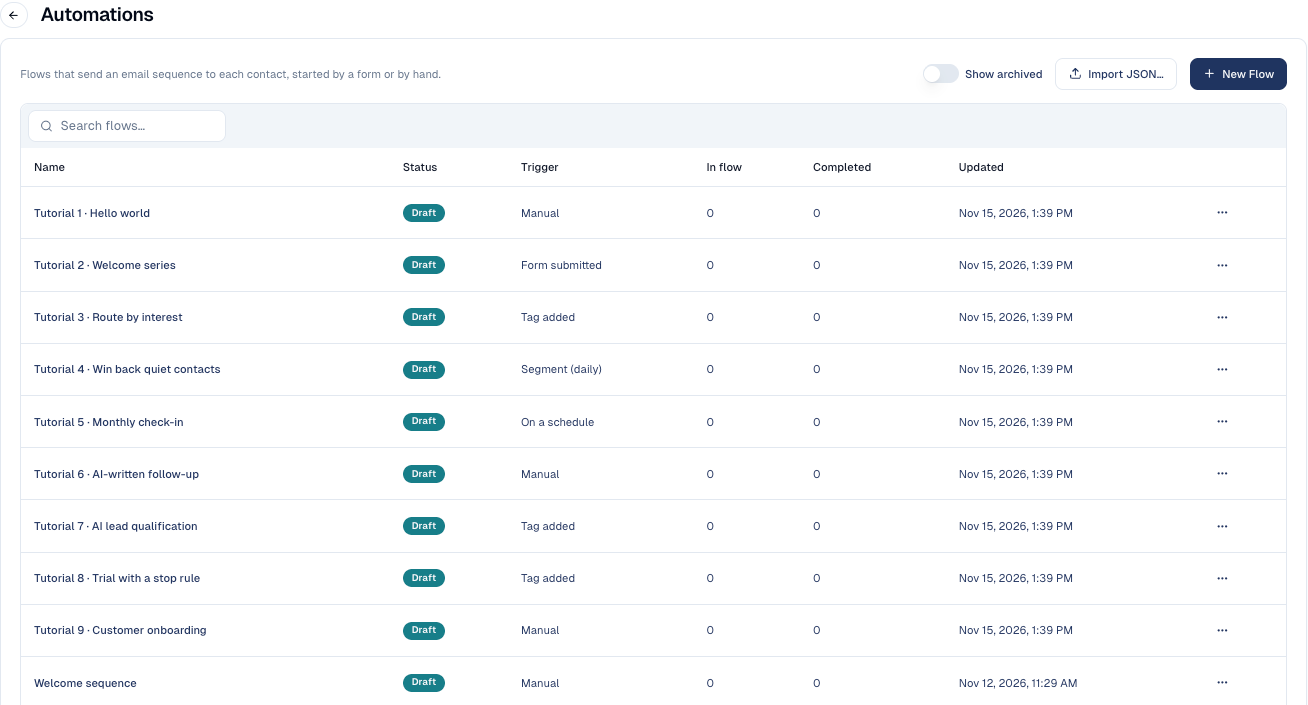
New here? Start with the tutorial
Your first flow: Hello world builds a three-step flow in ten minutes and runs it on you. Then browse the Sample flows: nine ready-made flows, each teaching a few building blocks.
Before you start
- Your plan. Automations is part of the Pro and Team plans. If Automations shows a crown in the sidebar, your plan does not include it; speak to your account contact.
- Your access. Flows sit with emails, so you need the Emails and forms access (write, to build and activate flows). See Users, roles & permissions.
- An email server. Flows send through the server connected under Connections. See Email sending.
- The emails themselves. Each email in a flow is one of your Emails. Create them first, or add the steps and pick the emails afterwards.
- Subscribed contacts. Only contacts whose status is Subscribed stay in a flow (see Good to know).
The guide, page by page
| Page | What you learn |
|---|---|
| Your first flow: Hello world | Build, save, activate and test a flow, step by step. |
| Triggers | The six ways contacts enter a flow. |
| Steps | Every step of the palette and its settings. |
| Branches and conditions | Yes / No branches, routing, AI decides, and the conditions they check. |
| AI and human steps | Ask an agent, Task for the owner, Send drafted email, and the AI budget. |
| Segments and schedules | Flows that run on a segment every day, week or month. |
| Flow settings | Re-entry, goals, stop rules and handing a contact to another flow. |
| Results and analytics | Who is where, each contact's path, and the report on the canvas. |
| Flows in a campaign | A flow as a campaign tactic. |
| The AI assistant | Describe a flow, or a change to one, in your own words. |
| Sample flows | Nine tutorial flows and what each one teaches. |
The designer at a glance
Open a flow from the list (its menu, then Open designer). The designer has three columns:
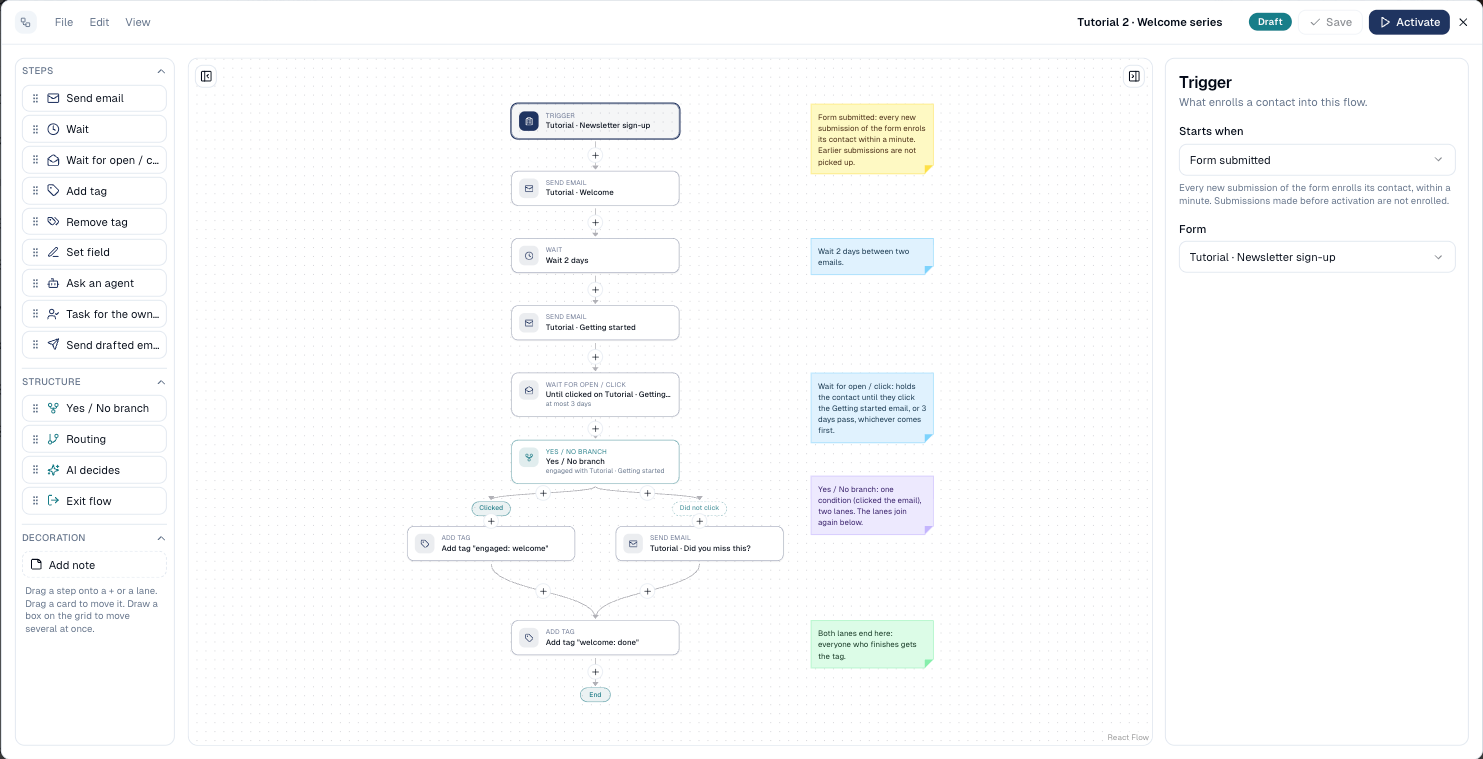
- The palette (left) lists every step. Drag one onto a + of the canvas, or choose the + itself.
- The canvas (middle) draws the flow from top to bottom. Lanes of a branch sit side by side and join again below. Select a card to edit it.
- The side panel (right) shows the settings of the selected card.
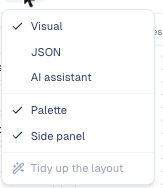
The menus at the top hold the rest: File (save, activate, pause, Flow settings, export and import as JSON, archive), Edit, and View, which switches between the Visual canvas, the JSON of the flow and the AI assistant.
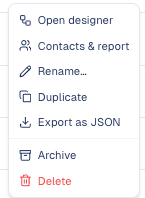
Each flow in the list has a menu with Open designer, Contacts & report, Rename…, Duplicate, Export as JSON, Archive and Delete.
A flow's status
| Status | What it means |
|---|---|
| Draft | Being built. Nobody enters. |
| Active | Running. New contacts enrol as the trigger fires. |
| Paused | Contacts hold where they are, and nobody new enrols until you choose Resume. |
| Archived | Finished for good. Everyone still in it leaves. It can be viewed but not edited. |
Changing an active flow
Edits go into a draft; the flow keeps running as it was. Choose Activate changes to publish them. Contacts already in the flow finish on the version they started; new contacts get the new one.
Good to know
Only subscribed contacts stay in a flow
A contact who is not Subscribed (regular, unsubscribed, bounced, do not contact) leaves every flow within a minute, wherever they are, even if the flow sends no email. An unsubscribe from any email therefore ends their flows.
- One flow at a time. A contact already in a flow is skipped by any other flow's trigger. The skip is listed on that flow's Contacts tab under Skipped, so you can see who missed out.
- Nothing is backfilled. Only events after you activate the flow count. To include people from before, enrol them yourself.
- Emails are sent as they are at send time. Editing an email changes what the next contacts receive, even mid-flow.
- A failing step is retried twice. After the third failure, for example with no email server connected, the contact is marked Failed and leaves.
- A flow has at most 50 steps.
Archiving cannot be undone
You can only delete a draft, or an archived flow that never had a contact. Otherwise, archive it. Everyone still in an archived flow leaves it.
Still stuck? Contact support.