Users, roles & permissions
Invite your colleagues and decide, module by module, what each one can see and change.
What it's for
Not everyone in your company needs everything. A sales colleague needs the contacts, not the ad budget; an agency client may only need the reports. GoodBards gives access per module, each in read-only or read-and-write, and bundles those permissions into roles you give to people.
Before you start
- You need to be an administrator or the owner of your company account.
The 12 modules
Access is given per module. They match the sections of the sidebar and of this documentation.
| Module | What it covers |
|---|---|
| Home | Home, the Daily Pulse, Actions, Calendar |
| Audience | Contacts, companies, segments, mailing lists |
| Marketing | Campaigns and tactics |
| Emails and forms | Emails, email designs, forms |
| Events | Event Management |
| Social media | Social posts and analysis |
| Digital ads | Digital Ads |
| Content hub | Content Workspace, Research & Plan, Content Repository, Translator |
| Website and SEO | Organic Visibility, Google Analytics, Google Trends |
| AI studio | Agentic AI |
| Tool box | QR codes, short links, chatbot, scheduler, image editor |
| Settings | Brand & Context, Brand Kit, connectors, AI settings |
Each module is either read (see only) or write (see and change). A module someone has no access to disappears from their sidebar. Their own Personal Settings are always open to them.
How to invite a user
- Open your account menu (your picture, top right), choose Tenant Settings, then open the Security tab.
- Under Users, choose Invite User, enter their email and pick their role.
- They receive an invitation by email. The number of users your plan allows is shown above the list.
Invitations last 7 days
Pending invitations are listed under Users until accepted, where you can extend or cancel them. If the email did not arrive, invite the same address again: the same link is sent and its validity restarts.
Someone who is already a member cannot be invited; change their role instead.
To change someone's role later, use the pencil next to their roles.
The roles
Under Roles, the Platform roles are ready to use:
| Role | What they can do |
|---|---|
| Tenant Owner | Everything, plus billing and transferring ownership. |
| Tenant Administrator | Everything, plus users and company settings. |
| Marketer | Every module in read and write, and every contact, including creating and editing segments. The usual role for your marketing team. Contacts' emails and phones stay hidden until you give them Access sensitive data. |
| Sales | Home and the Audience only, with Access sensitive data. With contact ownership on, they see only the contacts they own. |
| Event host | Only the events they are assigned to, on a simple screen: guest list, check-in, walk-ins and the event reminder. Assign them on each event; see Event hosts. |
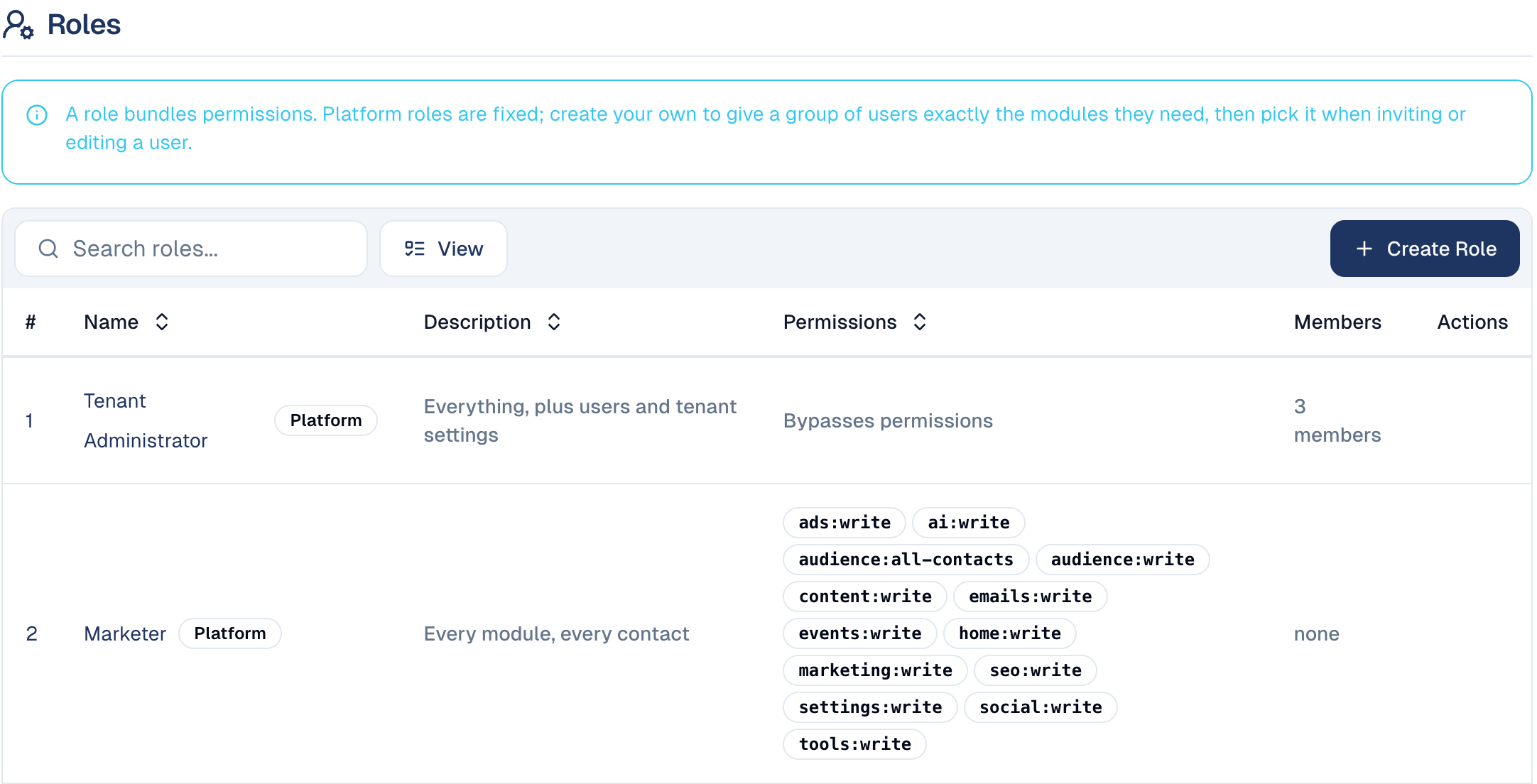
To give a group exactly the modules it needs, choose Create Role, name it, and pick the permissions. For example, a Reporting role with read access to Home, Marketing and Website and SEO, for a client who only follows results.
What each Audience action needs
Owners and administrators pass every module check. For everyone else, the action needs the permission in the second column. "Audience write" is the write access to the Audience module, which the Marketer and Sales roles include.
Access sensitive data is the exception: it is given to a person, not a role, so an owner or administrator needs it ticked too before they can add or import contacts. See Additional permissions.
| Action | Needs |
|---|---|
| See contacts, companies and segments | Audience read |
| Add or edit a contact | Audience write, and Access sensitive data (the form holds phone and address) |
| Add or edit a company | Audience write |
| Create, edit or delete a segment | Audience write |
| Import contacts (Bulk Add Contacts) | Administrator, and Access sensitive data |
| Create a mailing list, add or revoke members | Administrator, and Access sensitive data |
| Assign contact owners | Administrator |
A colleague who lacks a permission sees the button greyed out with the reason, or does not see it at all.
Additional permissions
Three permissions are not tied to a module. They are given to a person, not to a role, and no role grants them except Sales, which includes Access sensitive data. A Marketer or an administrator does not have them until you tick them.
| Permission | What it gives |
|---|---|
| Access sensitive data | See contacts' email addresses, phone numbers and other personal details, and add or import contacts. Without it, these fields are hidden everywhere: lists, contact pages, exports and the assistant. |
| Recipient for daily report emails | Receive the Daily Pulse by email each morning: what changed, what needs attention, and the state of your connectors. |
| Recipient for lead capture alert emails | Receive an email each time your chatbot captures a new lead, with their details and a summary of the conversation. |
To give one of them:
- Open your account menu (your picture, top right), choose Tenant Settings, then open the Security tab.
- Under Users, choose the pencil in the person's Permissions column (Edit permissions).
- Under Additional permissions, tick the ones they need, then choose Update Permissions.
The change applies at their next login, or when they switch workspace.
Nobody receives the emails until you choose who
If no one in your company has Recipient for daily report emails, the Daily Pulse email is not sent. If no one has Recipient for lead capture alert emails, new chatbot leads are still saved as contacts, but nobody is told. Give each to at least one person.
Keep sensitive data to the people who need it
Access sensitive data is what lets someone read and download personal details. Under Singapore's PDPA and similar laws, give it only to colleagues who work with contacts directly.
Contact ownership
Each contact can have owners: the colleagues responsible for them. Turn on Restrict contacts to their owners to make people without the see every contact permission (the Sales role) see only the contacts and companies they own. Administrators and Marketers keep seeing everything.

Owners are assigned on the contacts list: select contacts, then Assign Owners. See Contacts.
Good to know
- Write includes read. Someone with write on a module can also see it.
- Owners and administrators are never restricted. Their access cannot be reduced by a role.
- Owners are recorded even when the restriction is off, so you can turn it on later without reassigning anyone.
- API keys for connecting your own tools are on the same tab, below the roles. See Use the GoodBards API.
Still stuck? Contact support.