Companies
The organisations your contacts work for, and how complete your picture of them is.
What it's for
In B2B marketing the company matters as much as the person. Several contacts may work at the same organisation, and a decision usually involves more than one of them.
Companies group your contacts by the organisation they belong to, so you can see account-level activity rather than isolated individuals.
How to read the Companies home
In the sidebar, choose Audience → Companies. The page opens on Home, which summarises your data rather than listing organisations.
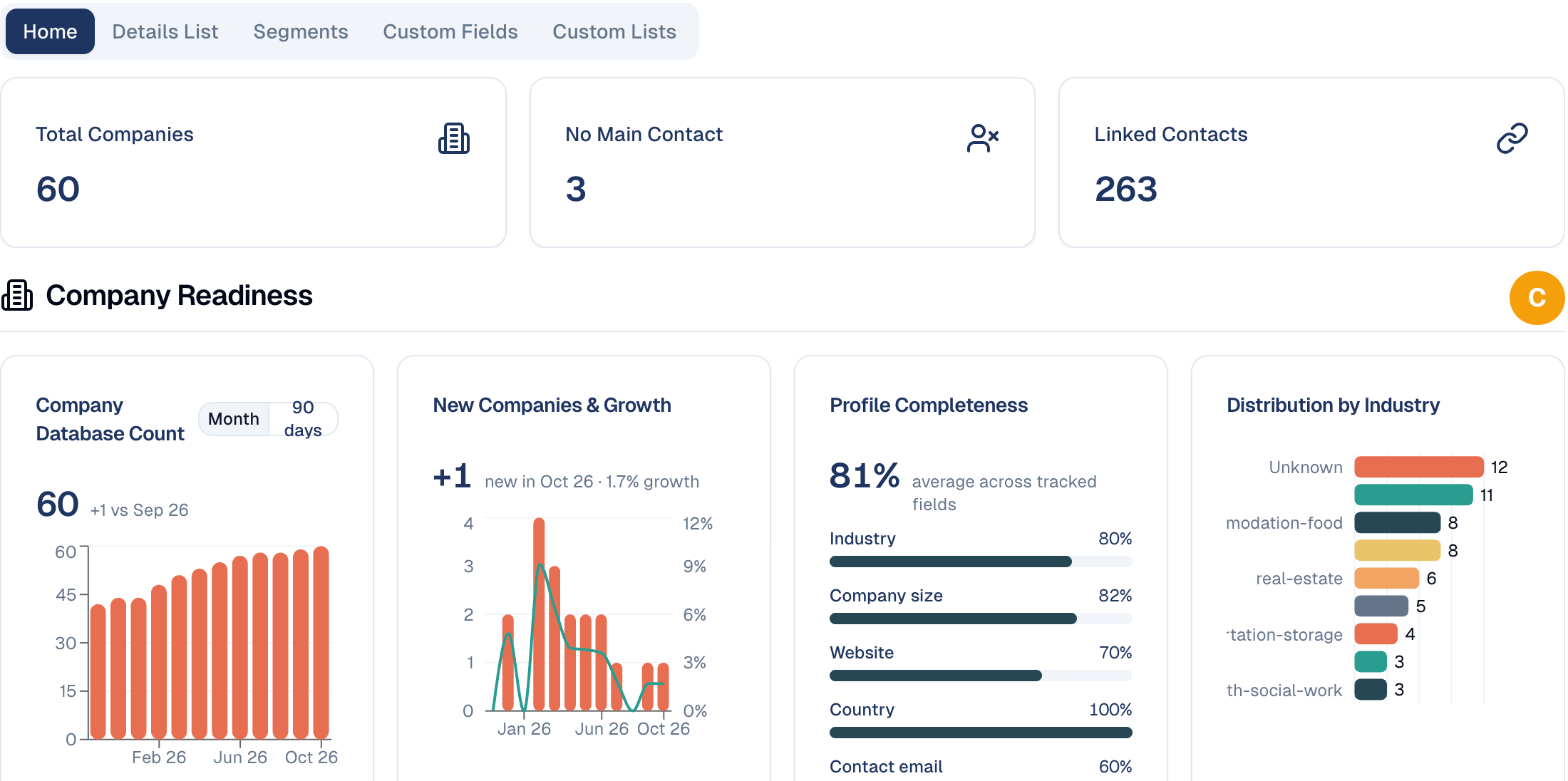
Total Companies, top left, shows how many organisations you hold.
Data quality, next to it, is your clean-up list for accounts. Each tile counts the companies that need attention, with their share of the total; hover it to read what it checks, and choose it to open the list filtered to those companies:
- No contacts: organisations nobody at your company can reach. Add or link a contact.
- Under 5 contacts: accounts below the number of contacts you aim for. On the filtered list, change the number in the filter chip above the table to use your own target.
In the Details List, the Contacts column shows how many contacts each company has; sort on it to see the thinnest accounts first.
Ask the assistant instead
The assistant in the top bar answers the same questions in plain words, for example companies with fewer than 5 contacts or top 10 companies by clicks in the last 30 days. See Asking the assistant.
Database Health
The charts below score how complete your data is:
- Company Database Count: how it has grown.
- New Companies & Growth: the rate of growth.
- Profile Completeness: the percentage of fields filled in. Low completeness limits how well you can segment.
- Distribution by Industry: which sectors you hold. Companies with no industry set show as Unknown.
- Distribution by Company Size: the spread from small to large.
The letter badge beside Database Health grades your data overall, and the small line next to it shows the score over the last 90 days. Treat a low grade as a prompt to fill in missing fields rather than a problem with the platform. Engagement, further down, grades how much your accounts interact with you.
How to add a company
- On the Details List tab, choose Add Company and fill in the form.
- Link contacts to it from the company field of each contact.
A company's page
Choose a company's code in the Details List to open its page.
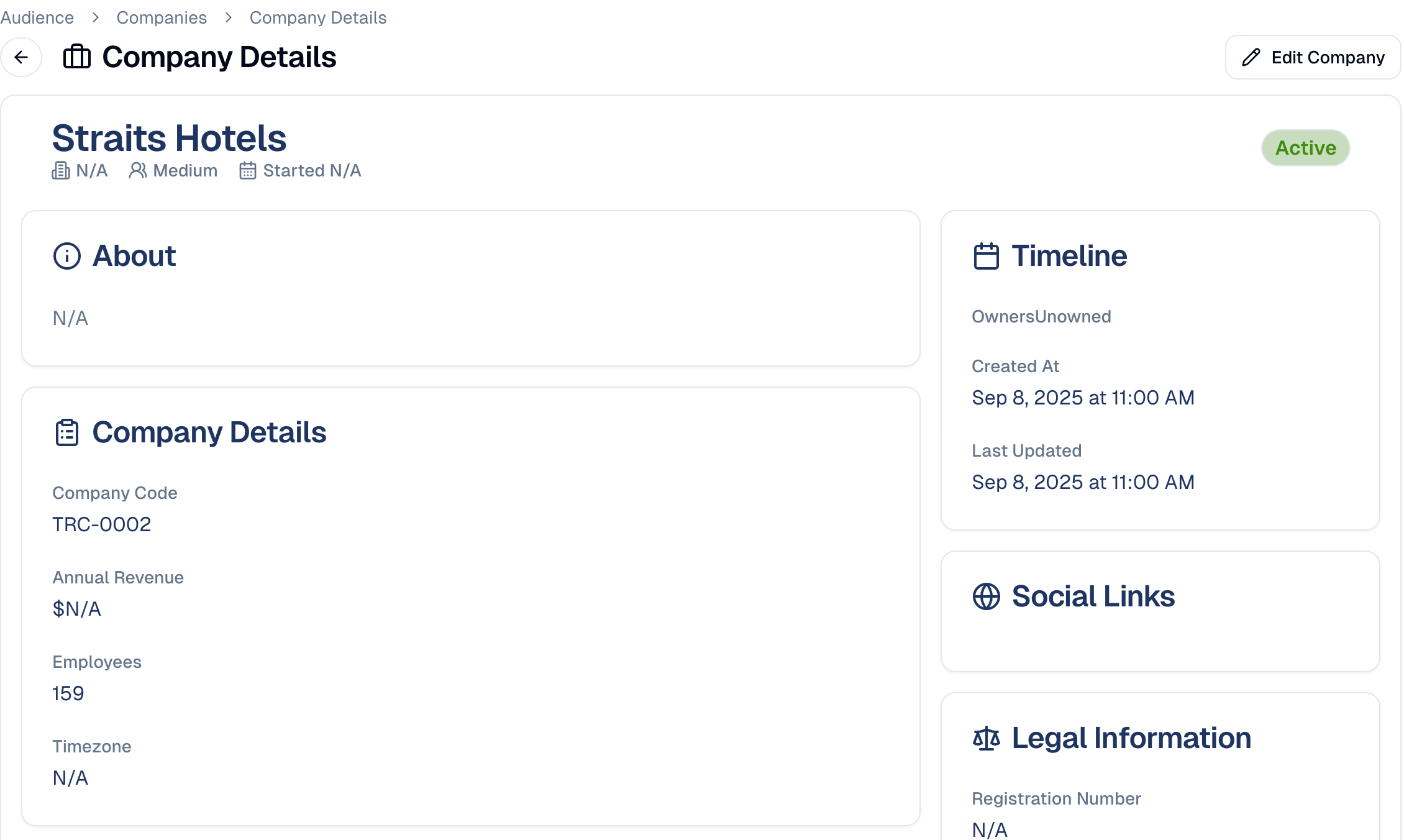
| Section | What it shows |
|---|---|
| About and Company Details | The description, code, annual revenue, employees and timezone. |
| Location | Country, city and address. |
| Custom Fields | Your own company fields, such as a gifting budget. |
| Timeline | Owners, and when the record was created and last updated. |
| Social Links and Legal Information | Social profiles, registration number and legal entity type. |
| Contact List | The people who work there, with their status, and which one is marked as the main recipient. |
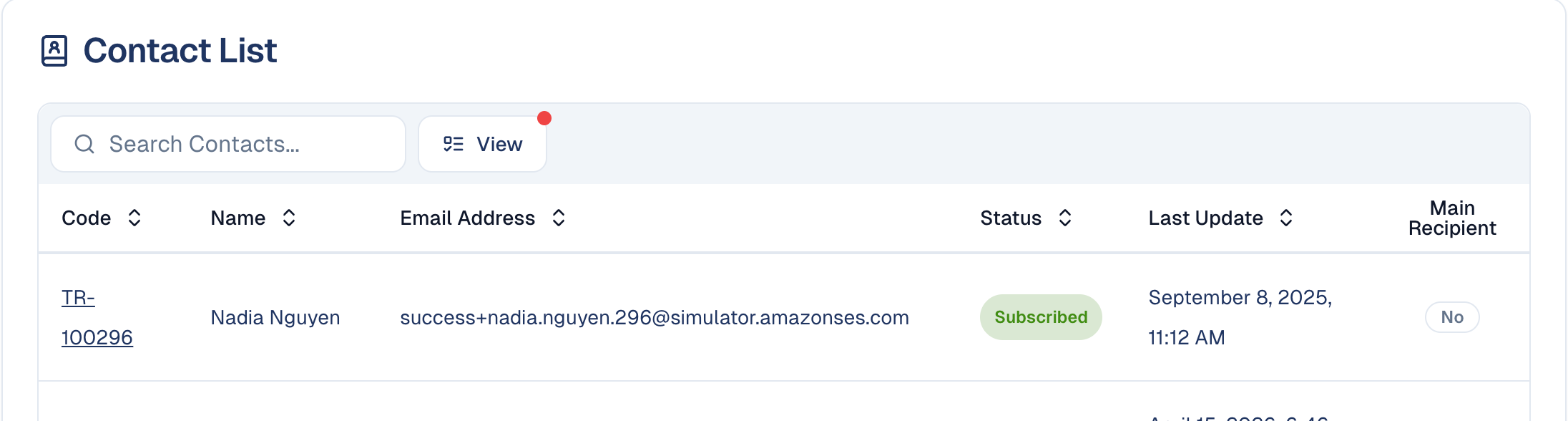
Choose Edit Company to change the details.
The other tabs
| Tab | What it holds |
|---|---|
| Details List | All your companies, with owners; assign owners in bulk with Assign Owners. |
| Segments | Saved filters over companies, for example hotels in Singapore. |
| Custom Fields | Your own company fields. Same as for contacts: see Custom Fields. |
| Custom Lists | The value lists for Select fields. See Custom Lists. |
Good to know
- Unknown industry limits targeting. You cannot segment by a field you have not filled in.
- Nominate a main contact. It is who the platform treats as your route into that organisation.
Unlinked contacts do not count
A contact who is not linked to a company cannot be counted towards the account they work for.
Still stuck? Contact support.