Branches and conditions
Send different contacts down different lanes: those who clicked and those who did not, retail and education, hot and cold leads.
What it's for
A branch checks something about the contact and splits the flow into lanes, one per answer. The lanes sit side by side on the canvas and join again below, so the steps after the branch run for everyone, unless a lane ends with Exit flow.
In short
| You want | Use |
|---|---|
| Two lanes: yes or no | Yes / No branch |
| Three or more lanes, checked in order | Routing |
| The AI to judge, for example hot / warm / cold | AI decides |
| Some contacts to stop here | A lane that ends with Exit flow |
| Some contacts to skip a step | An empty lane |
Yes / No branch
One condition, two lanes: contacts who match it, and everyone else.
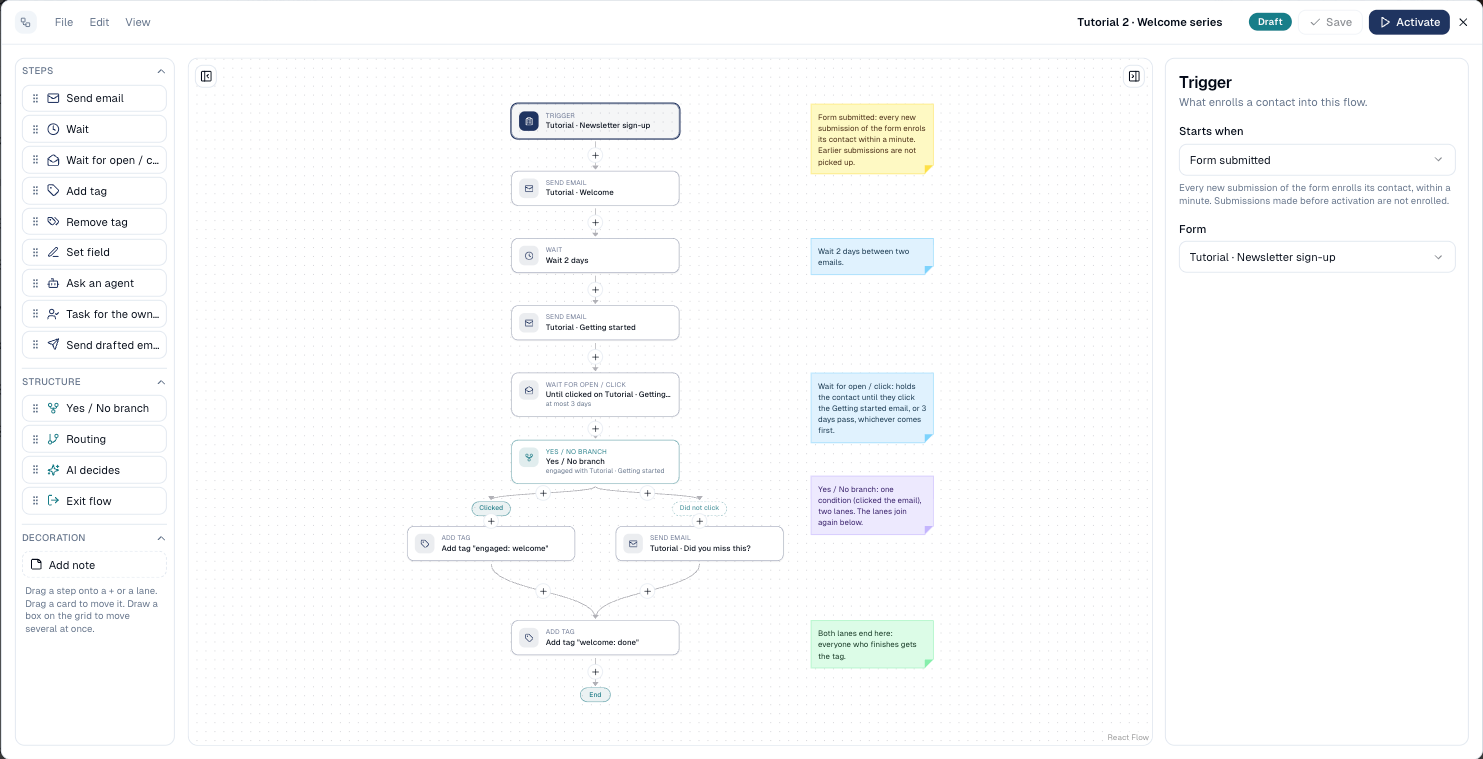
- Add Yes / No branch where the flow should split.
- In the side panel, name the first lane under Lane label and pick its Condition.
- Name the Last lane (everyone else).
- Add steps inside each lane with its +.
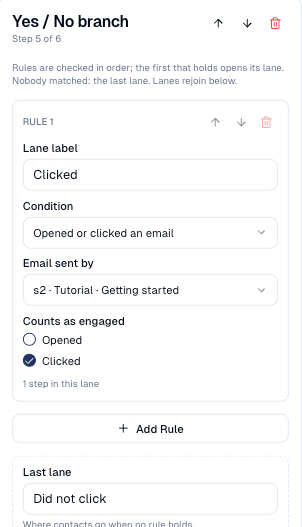
Sample: Tutorial 2 · Welcome series.
Routing
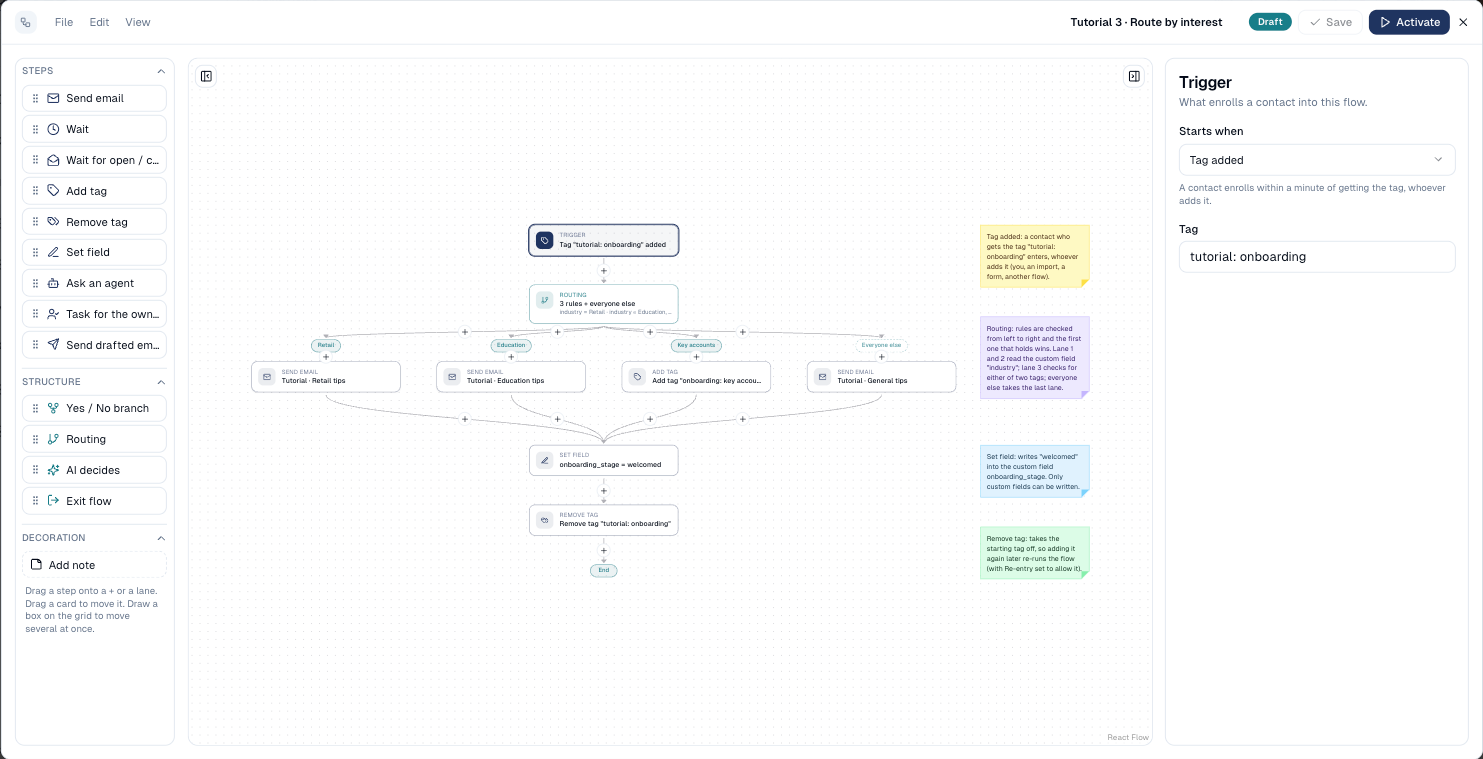
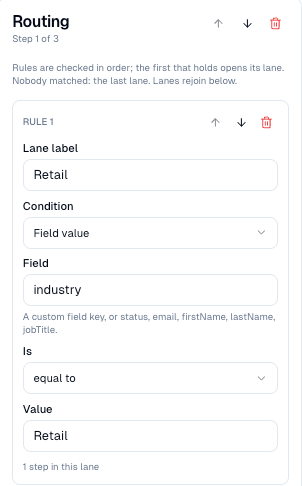
Several rules, checked from left to right: the first that holds opens its lane. Contacts who match none take the last lane.
Choose Add Rule in the panel for each lane, and reorder rules with the ↑ ↓ arrows: order matters when a contact could match two rules.
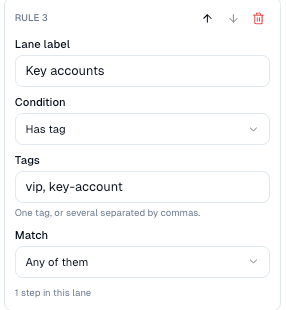
Sample: Tutorial 3 · Route by interest.
AI decides
The AI answers one question about the contact and picks a lane. See AI and human steps.
The conditions
The same conditions work in branches, routing, goals and stop rules:
| Condition | True when |
|---|---|
| Has tag | The contact has the tag. Several tags: any or all of them. |
| Field value | A contact field is equal to, not equal to, contains, is one of, is empty, is not empty, greater or less than a value. Works on custom fields and on status, email, first name, last name and job title. |
| In segment | The contact is a member of the segment right now. |
| Opened or clicked an email | The contact opened (or clicked) an email sent earlier in this flow. |
| Outcome of a task | A Task for the owner earlier in the flow was done, dismissed or timed out. |
| What an earlier step wrote | A value an agent, a task or an AI decision stored for this contact. |
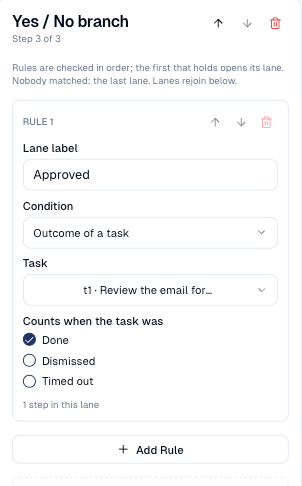
Exit lanes and empty lanes
-
A lane that ends with Exit flow takes its contacts out: the lanes that join again below are the others.
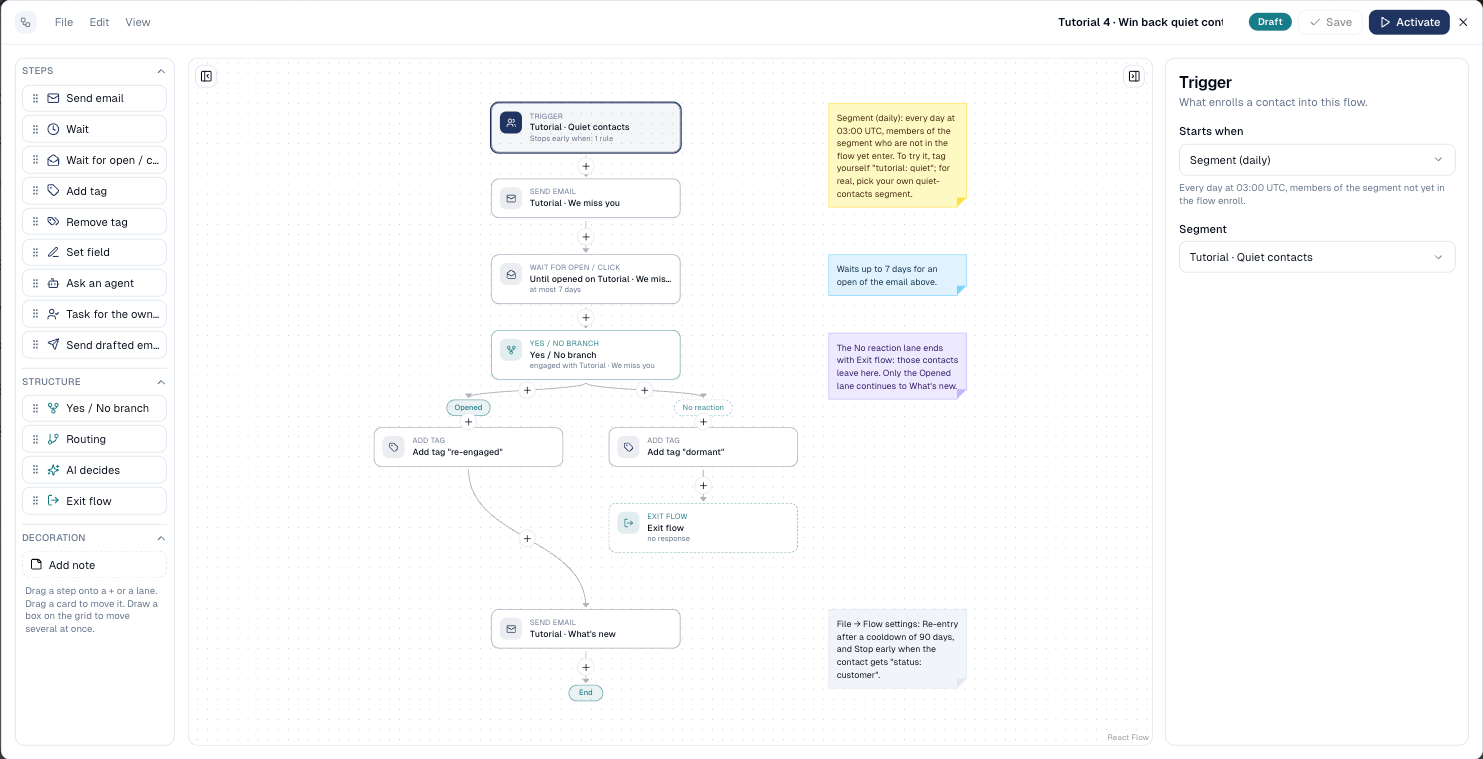
-
An empty lane means "skip": its contacts go straight to the step after the branch. Sample: Tutorial 5.
Good to know
- Checked once, when the contact reaches the branch. A branch does not wait: put a Wait for open / click before a branch on an email.
- Lanes can hold branches, but keep flows readable: past three levels, split into two flows connected by a tag.
- Stop anywhere is not a branch: for "stop as soon as they buy", use a stop rule in Flow settings.
Still stuck? Contact support.