Web Scraping
Pull the content of a web page into GoodBards so you can work with it.
What it's for
Sometimes the information you need is on a page rather than in a file: a competitor's pricing, a partner's announcement, an article you want summarised. Scraping extracts the text so an agent can read it or you can store it.
Three ways to gather content, on the tabs across the top:
| Tab | What it does |
|---|---|
| Scrape | One page, once. |
| Crawl | Follows links to gather several pages. |
| Feed Scan | Watches an RSS feed for new items. |
How to scrape a page
- In the sidebar, choose Tool Box → Web Scraping.
- On the Scrape tab, paste the address into URL.
- Adjust the options if you need to.
- Choose Scrape Page. The text appears under Result.
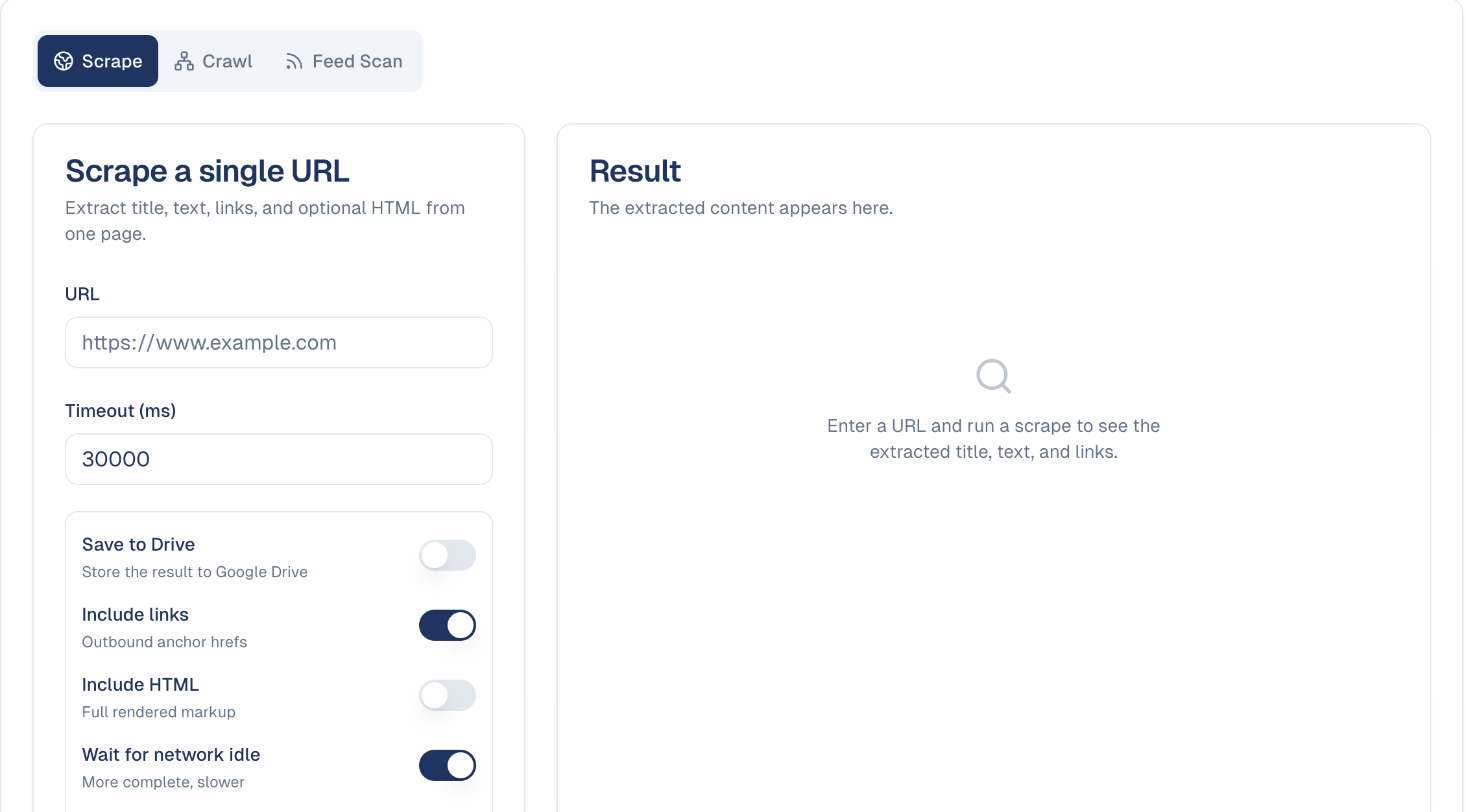
The options
| Option | What it does | When to change it |
|---|---|---|
| Timeout (ms) | How long to wait before giving up. Defaults to 30,000 (30 seconds). | Raise it for slow sites. |
| Save to Drive | Stores the result as a file. | When you want to keep it rather than read it once. |
| Include links | Captures outbound links as well as text. | On by default; useful for finding related pages. |
| Include HTML | Returns the full markup, not just the text. | Rarely needed: the text is usually what you want. |
| Wait for network idle | Waits for the page to finish loading. | On by default. More complete, but slower. |
| Force refresh | Fetches again rather than reusing a cached copy. | When checking a page you know has just changed. |
Leave the defaults alone to start
The default settings work for most pages. If a scrape comes back empty or incomplete, raise the timeout first: slow-loading pages are the usual cause.
How to crawl a whole site
- On the Crawl tab, give a Start URL. GoodBards follows the links from that page.
- Set Max depth (how many clicks away) and Max pages. Keep Same domain only on to stay on that website.
- Choose Start Crawl. A crawl runs in the background and can take several minutes.
- Under Crawl jobs, newest first, expand a finished crawl to see its pages.
How to follow a news feed
- On the Feed Scan tab, give an RSS or Atom feed, or a page that has one.
- Set Max entries, how many entries to read.
- Turn on Save to Drive to save each entry in your Content Repository, so your agents can use it.
- Choose Start Feed Scan.
Use it to follow an industry blog or a competitor's news.
GoodBards respects robots.txt
When a site's owner does not allow automated access to a page, GoodBards does not fetch it. A scrape stops with The site owner does not allow automated access to this page (robots.txt). A crawl skips those pages and carries on. You can still copy the text from the page yourself.
Good to know
- Some sites cannot be scraped. Pages behind a login, or ones that block automated access, will not return content.
- Scrape responsibly. Check the site's terms before pulling content repeatedly, and do not republish what you collect as your own.
- Content is a snapshot. A scrape captures the page as it was at that moment; re-run it if you need current information.
- Text, not layout. Extraction gives you the words. Design, images and formatting are not preserved.
Still stuck? Contact support.