Content Workspace
Write articles and posts with an AI writer and an AI reviewer: you give a short brief, the writer drafts in your brand voice, the reviewer scores it, and you revise until it is ready.
What it's for
A blank page is slow, and a first AI draft is rarely publishable. The workspace splits the job: one AI writes, a second one reviews the draft against your brief and your brand, gives it a score out of 100 and says what to improve. You stay in charge of what gets saved.
Before you start
- Your plan. Content Workspace is included in the Lite, Pro and Full plans.
- Your brand voice set up, so the writer sounds like you. See How the AI knows your brand.
How to write a piece
- In the sidebar, choose Content Hub → Content Workspace, then New Content. You can also start from a topic in Research & Plan, or from an action in Actions.
- Fill in the form: the topic, who it is for, the format (for example a LinkedIn post or a blog article) and the tone. Under Sources and model, give the AI material to work from: Notes & facts, web pages (up to 3) and files from your Content Repository (up to 5). A link pasted in your notes is read like an imported page. In the same section, AI model picks which model writes the draft and its rewrites: choose a provider, then a model. Leave it on Default (recommended) unless you have a reason; some models use more credits and take longer. Use the default goes back to it.
- Choose Write It. Everything runs from here, one step after the other: your materials are read, a brief is written, the writer drafts the piece, the reviewer scores it, and the writer revises once if the score asks for it. About two minutes.
- Read the score and the reviewer's notes. Show The Brief opens the brief the piece was written from, with the list of pages and files the AI could read (a page the site owner blocks is listed as blocked, not silently skipped). If the angle or the facts are off, edit the brief and choose Write Again From This Brief.
- Not there yet? Ask for a revision in your own words, for example shorter, with a Singapore example. Each revision is scored again.
- When you are happy, choose Save As Asset. It goes to your Content Repository, ready to edit, schedule or post.
Saving does not publish
A saved piece is a draft in the Content Repository until you post or send it.
Your briefs and pieces
The Content Workspace lists every brief with the piece written from it, its format, its status and its score. Resume one where you left off, open the saved piece with Open Asset, or Discard it.
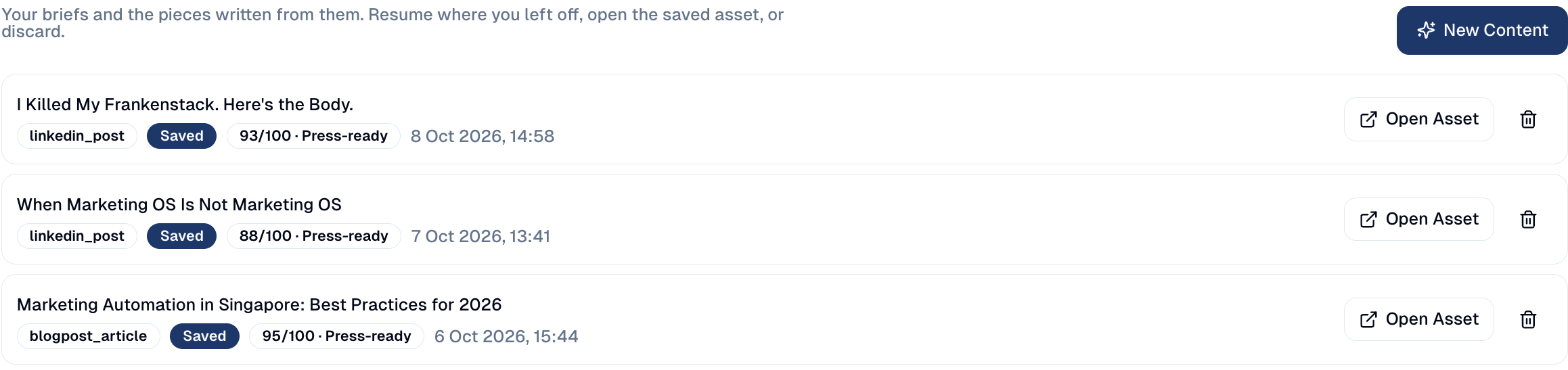
Discarding keeps the saved piece
Discard removes the brief and its drafts. A piece already saved from it stays in your Content Repository.
Good to know
- The score is a guide, not a gate. Press-ready means the reviewer found nothing important to fix; you can still save a lower score.
- The writer uses your data. Started from Research & Plan, the brief already holds the searches and questions behind the topic.
- Your materials reach every step. The pages, files and notes you give are read by the writer and by the reviewer, not only by the brief. A fact that is in one of your pages counts as a fact, not as something the AI made up.
- Writing content for a whole campaign is different. From a campaign's dashboard, Write content with AI still shows you the brief before it writes several pieces at once, so you can check it before the batch runs.
Still stuck? Contact support.