Run an email marketing campaign
Choose who to reach, write the email, send it from a campaign, and read what happened.
What it's for
A newsletter or a promotion is more than one email: it has an audience, a goal, a send date and results you will want to compare with the next one. Running it as a tactic inside a campaign keeps all of that together, and the results feed the campaign report.
Before you start
- A mailing list or a segment to send to. See Mailing lists and Contacts.
- An email design with your brand, so you only write the content. See Email designs.
- Your email sending set up under Connections. Until it is, the tactic shows You need to setup your email provider. See Email sending.
1. Set up the campaign
- In the sidebar, choose Marketing → Campaigns, then Create New Campaign (or open an existing one).
- Fill in the objective, dates, audience and description. The description is what the AI reads when it writes for this campaign, so say who you target and what you offer.
See Campaigns.
2. Add the email tactic
- In the campaign, under Tactics, choose Add Tactic and pick Email Campaign.
- Give it a name and a Send date.
3. Write the email
- Open the tactic. Under Email Management, choose Add Email: create a new one, or pick one from your Email Gallery.
- Write it in the editor, or let the AI draft it from the campaign's
description. To greet each recipient by name, type
{{contact_firstname}}where the name should go; see Personalising an email. -
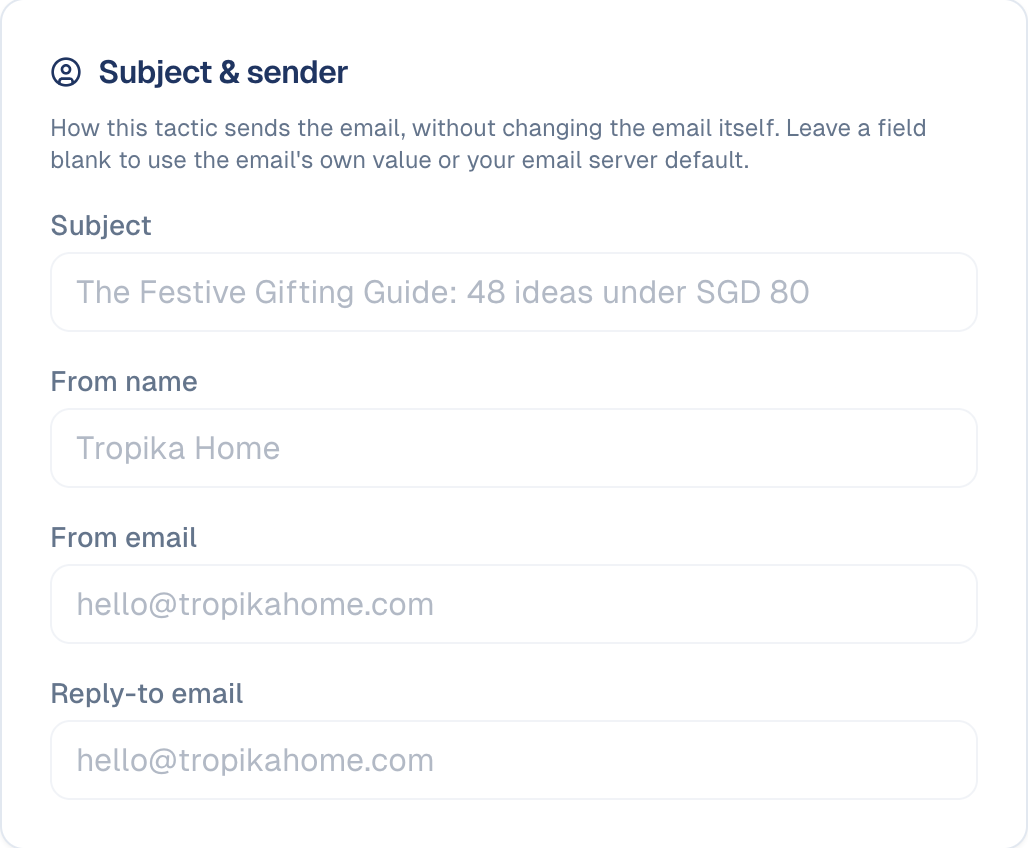
Under Subject & sender, set the subject and who it comes from for this send. Leave a field blank to use the email's own value or your default.
-
Under Recipients, choose the mailing list or segment.
4. Test, then send or schedule
- Choose Send Test Email to send yourself a test, and check it on your phone and in Gmail or Outlook.
- Choose Send Now, or let it go at the send date. The email shows Published with the date once it is out.
- To reach more people later, for example contacts who joined the list since, use Send To More People.
5. Read the results
The tactic's Performance panel shows how the email did:
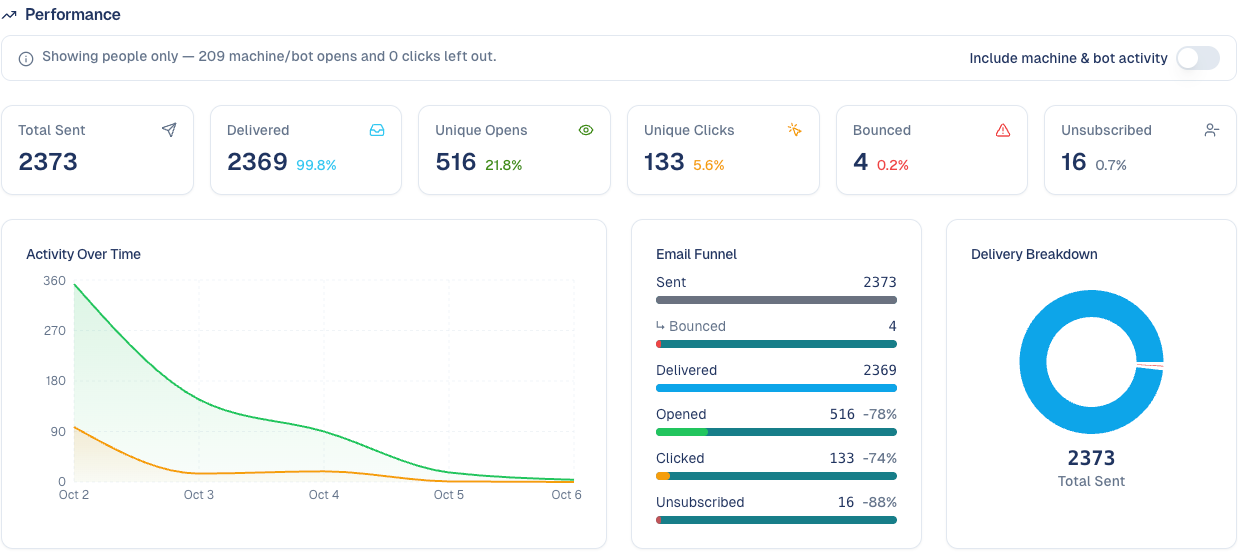
- Sent, Delivered, Unique Opens, Unique Clicks, Bounced and Unsubscribed, each with its rate.
- Activity Over Time: opens and clicks day by day after the send.
- Email Funnel: from sent to clicked, where people dropped off.
Robot opens are left out
Opens by mail-provider robots and security scanners are not counted, so the open rate reflects people. Turn on Include machine & bot activity to see everything.
Below the funnel:
-
Who opened and clicked separates real people from Apple Mail Privacy Protection, which opens every email automatically and is filtered out of your open rate. Opens by device shows mobile, desktop and tablet.

-
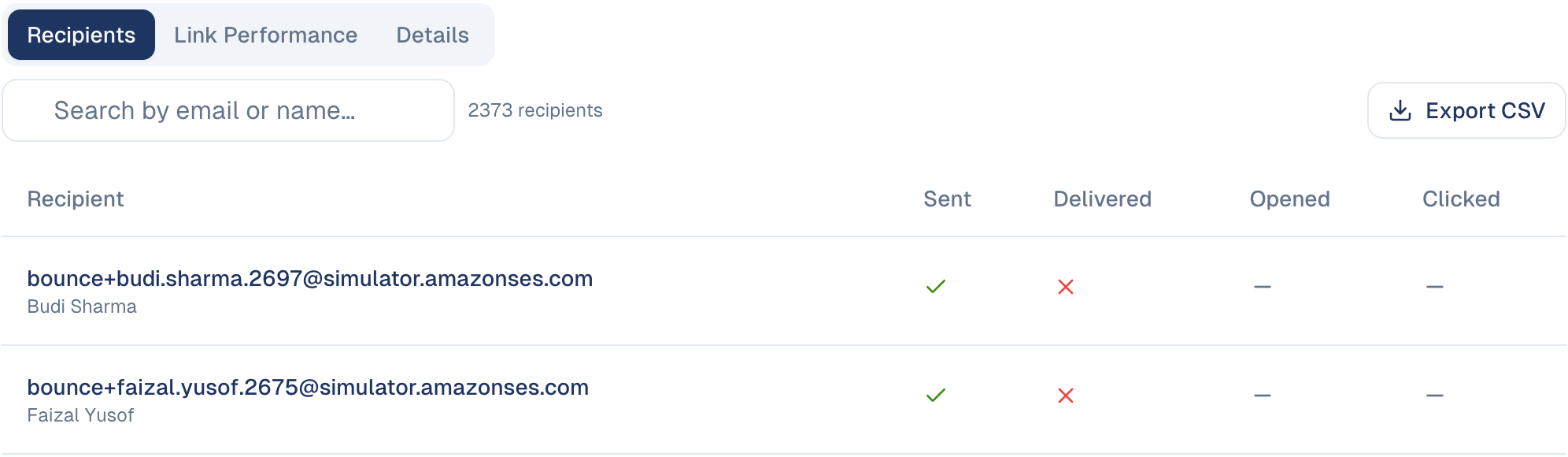
Recipients: each recipient with whether the email was sent, delivered, opened and clicked. Search by email or name, and Export CSV for your own analysis.
-
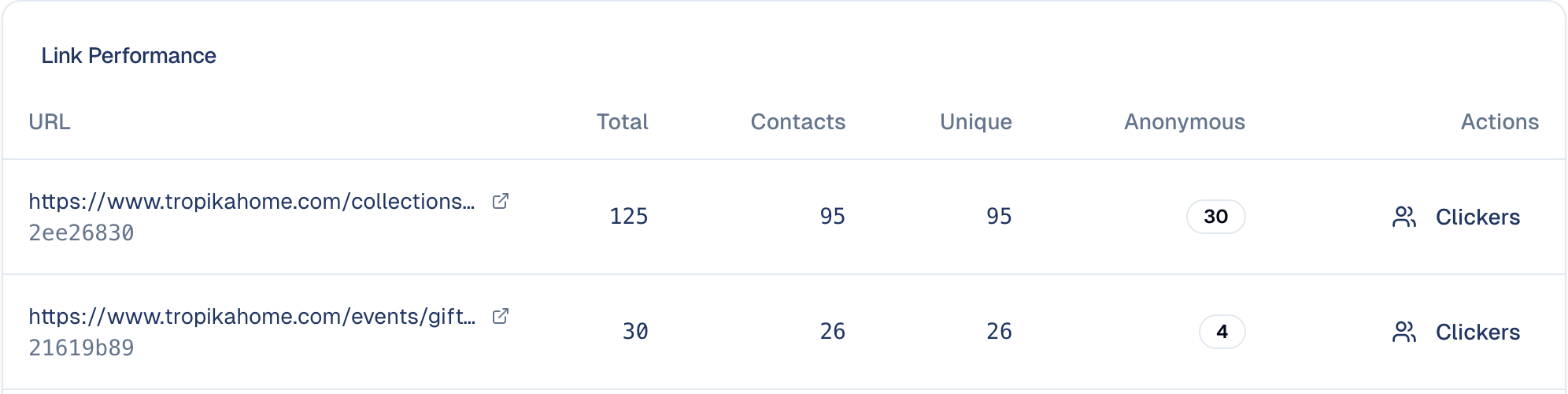
Link Performance: each link with its total clicks, clicks by known contacts, unique clickers and anonymous clicks. Clickers lists who clicked a link: a ready-made list of interested people.
-
Details: every count in one table: sent, delivered, opens, clicks, bounces, errors and unsubscribes.
The same figures appear in the campaign's Analytics tab, next to the other tactics. See The campaign report.
Good to know
Only subscribed contacts are emailed
Contacts who unsubscribed, bounced, or never gave consent are left out of the send automatically. See Unsubscribed contacts.
- A tactic sends one email. For a reminder or a follow-up, add another email tactic to the same campaign; each keeps its own results.
- Compare like with like. Open rates vary with the list and the day; compare this email with earlier sends to the same list.
Still stuck? Contact support.