Chat Agents
Assistants you can hold a conversation with, each one set up for a particular kind of marketing work.
What it's for
A chat agent is an AI assistant you talk to in plain language. Rather than one general-purpose chatbot, GoodBards gives you several, each pointed at a different job: one that understands your brand narrative, one that reads your contact data, one that looks after retention.
Agents know your business. They can draw on your Brand Kit and, depending on the tools they are given, on your campaigns, contacts and analytics.
Before you start
- Your plan. Chat agents are included in the Pro and Full plans. If Chat Agents shows a crown in the sidebar, your plan does not include them: speak to your account contact.
- Access. If Agentic AI is missing from your sidebar, ask your administrator for the AI studio access.
How to start a chat
- In the sidebar, choose Agentic AI → Chat Agents.
- Browse the agents, or use Search agents… to find one by name.
- Choose the agent that fits what you need, and start typing.
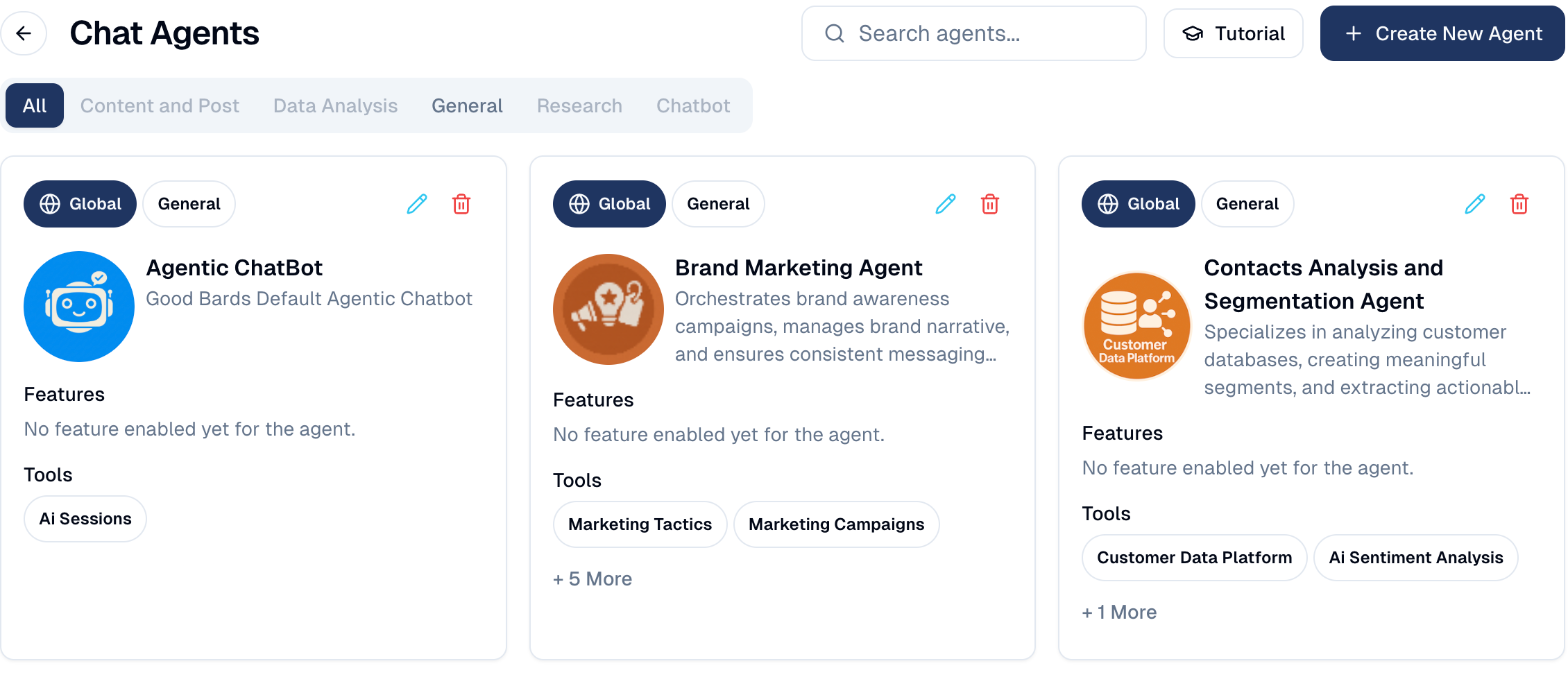
Reading an agent card
Each card tells you what the agent is and what it can reach:
| On the card | What it means |
|---|---|
| Global / Local | Global agents are provided by GoodBards. Local agents were created inside your own account. |
| Category | The kind of work it is for: General, Data Analysis, Content and Post, Research, Chatbot. |
| Description | What the agent is designed to do. |
| Features | Capabilities switched on for it. Some agents show No feature enabled yet. |
| Tools | What it can actually reach: Marketing Campaigns, Google Analytics, Google Trends and so on. |
Tools are the part that matters
Two agents with similar descriptions can behave very differently depending on their tools. An agent with Google Analytics in its tool list can answer questions about your traffic; one without it cannot.
Filtering by category
The buttons under the title narrow the list: All, Content and Post, Data Analysis, General, Research, Chatbot. A greyed-out category has no agents in it.
How to create your own agent
- On Chat Agents, choose + Create New Agent. The Tutorial button at the top walks you through the form.
- Fill in each part of the form (see the table below).
- Choose Create Agent. The agent appears for your account as Local.
Your plan sets how many custom agents you may have.
| Part | What to set |
|---|---|
| General Information | A name, an avatar, the agent type and its category, and a short description your team will see on its card. |
| Prompt Definition | The AI model, and the System Prompt: who the agent is and how it should behave. A good starting prompt is already filled in; adapt it to the agent's job. Optional: a User Prompt added to every conversation, a Welcome Message and Sample Requests shown when a chat starts. |
| Data Retrievers | Search Knowledge Base: let the agent read your Content Repository files marked for AI. Web Search: let it search the web. |
| Tools | The actions the agent may take inside GoodBards, and outside tools connected under AI Settings → MCP Tools. As you pick internal tools, a table under the selector lists what each one lets the agent do: one row per tool, one chip per operation (for example listMarketingCampaigns or createMarketingAsset). Hover a chip to read what the operation does and what it needs. The last rows, marked Always on, are the core abilities every agent has, such as web search and the current date. |
| Agent Skills | Ready-made expertise, assigned once the agent exists. |
| Memory | Persistent Memory lets the agent remember facts from past conversations; Promote Facts to Tenant shares important ones with all your agents. Leave the numbers at their defaults unless support asks you to change them. |
To change an agent later, use the pencil on its card.
Global agents cannot be edited
Agents provided by GoodBards are maintained for you and may gain capabilities over time. To change how one behaves, create your own.
Good to know
- Agents are not identical. Pick by tools, not by name.
- An agent only knows what its tools reach. If it cannot see your contacts, it cannot answer questions about them.
- Conversations use credits. See Usage & Billing.
Still stuck? Contact support.