WhatsApp
Send your campaign messages on WhatsApp, from your own WhatsApp Business number.
What it's for
With the WhatsApp connector, GoodBards sends WhatsApp messages to the contacts who agreed to receive them, from your number and under your business name. Everything goes through your own Meta account: Meta bills you directly for the messages, and GoodBards never pays or sees your Meta bill.
A campaign can then send an approved message template to each contact of an audience, filled with their own details, and show you who received it, who read it, who clicked and who replied.
Setting up with us
Meta's screens are made for developers: if you would rather not do the setup alone, contact support and we do it with you on a short call.
Before you start
- WhatsApp is included in the Pro and Full plans.
- You must be an administrator or the owner of your GoodBards company account.
- You need a Facebook account that is an administrator of your company's Meta business portfolio (business.facebook.com). Ideally the portfolio is already verified by Meta.
- Allow 20 to 30 minutes. You do this once.
The GoodBards form, field by field
At the end, GoodBards asks for four details. Here is what each one is, in plain words, and where it comes from. The steps below collect them one by one.
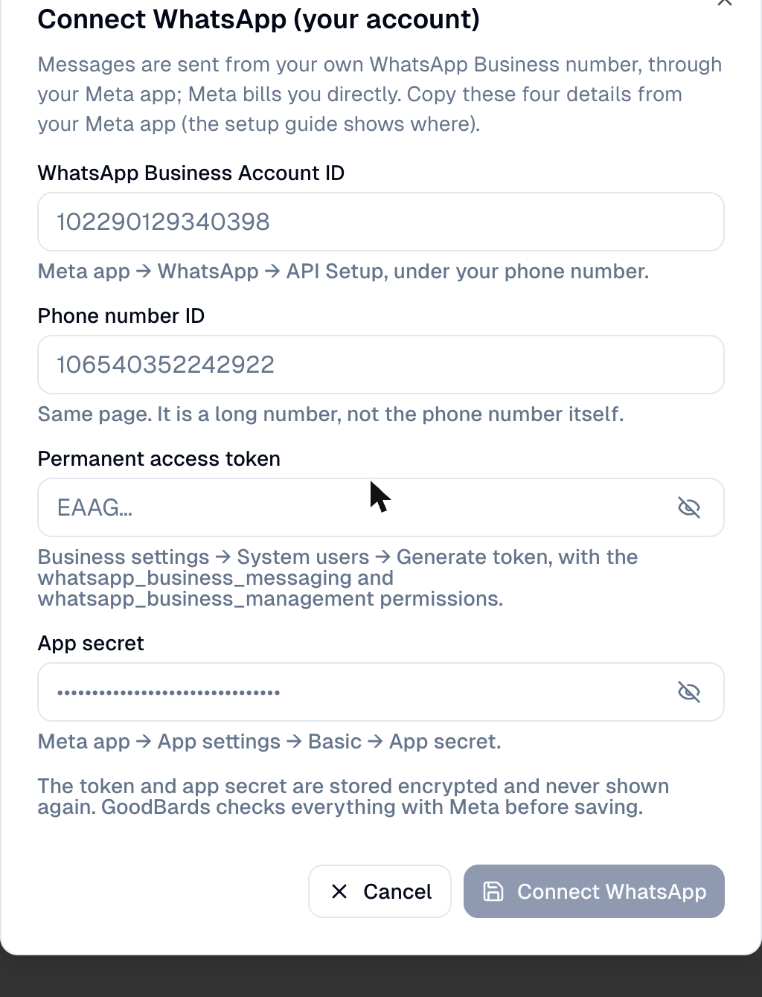
| Field in GoodBards | What it is | Where Meta shows it | Looks like |
|---|---|---|---|
| WhatsApp Business Account ID | Your WhatsApp account at Meta, which holds your number(s) and message templates. Meta now calls it Messaging account ID. | Your app's WhatsApp setup page (step 2), or Business settings → Messaging accounts → your account → ID | 15–16 digits, e.g. 102290129340398 |
| Phone number ID | Meta's internal number for your sending phone line. Not the phone number itself. | Your app's WhatsApp setup page, next to the number (step 2) | 15–16 digits, e.g. 106540352242922 |
| Permanent access token | The key that lets GoodBards send in your name. Shown only once. | Business settings → System users → Generate token (step 4) | A long text starting with EAA |
| App secret | Proves that messages and updates really come from your Meta app. | Your app → App settings → Basic → App secret → Show (step 3) | 32 letters and digits |
Keep a note open
Paste each detail in a private note as you go (your password manager is ideal), then copy them into GoodBards at the end.
How to set up WhatsApp in Meta
1. Create a Meta app
The app is your company's "mailbox" at Meta for sending WhatsApp messages.
- Go to developers.facebook.com, log in, and choose My Apps → Create App.
-
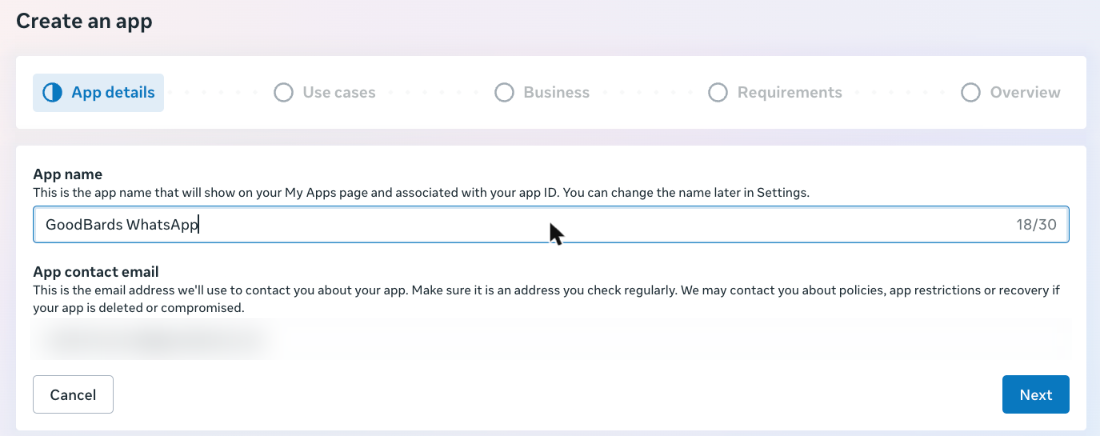
Give the app a name, for example Your brand Messaging. Meta refuses names that contain "WhatsApp".
-
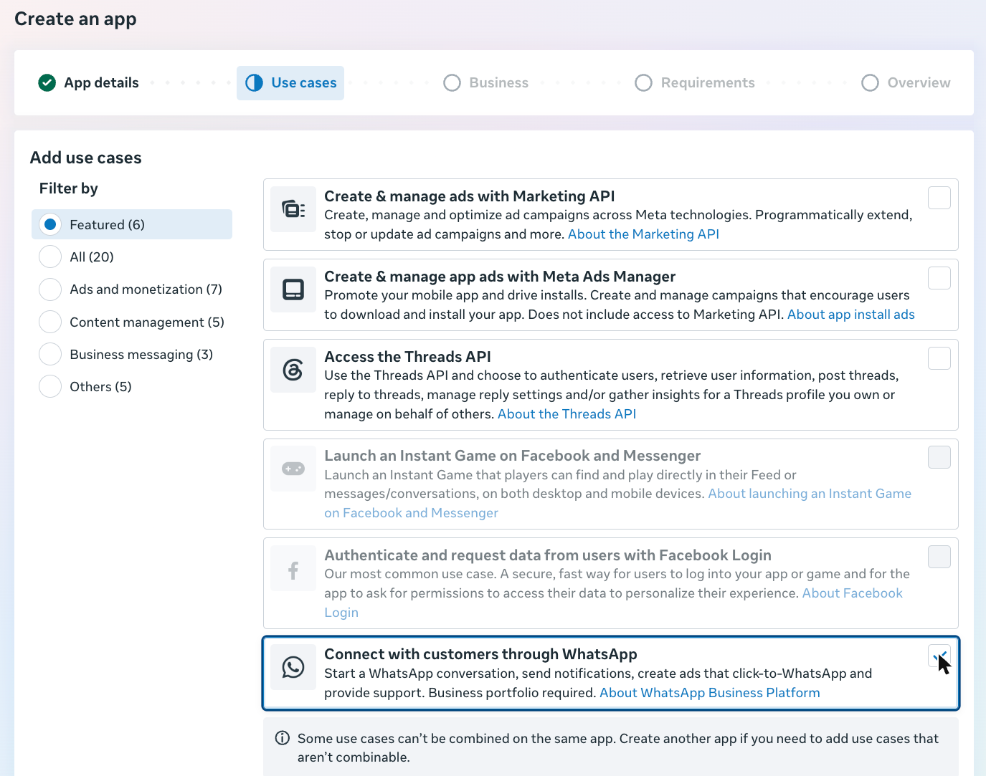
Choose Next, then tick Connect with customers through WhatsApp.
-
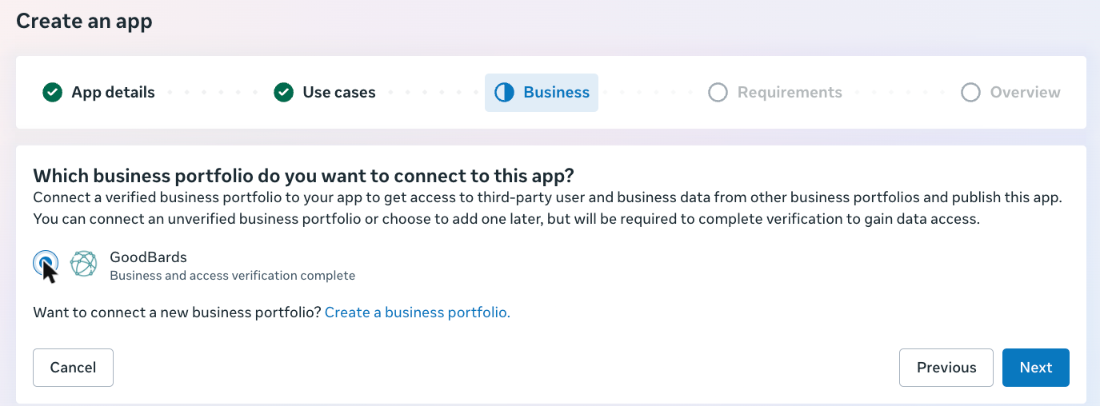
Choose Next and pick your company's business portfolio.
-
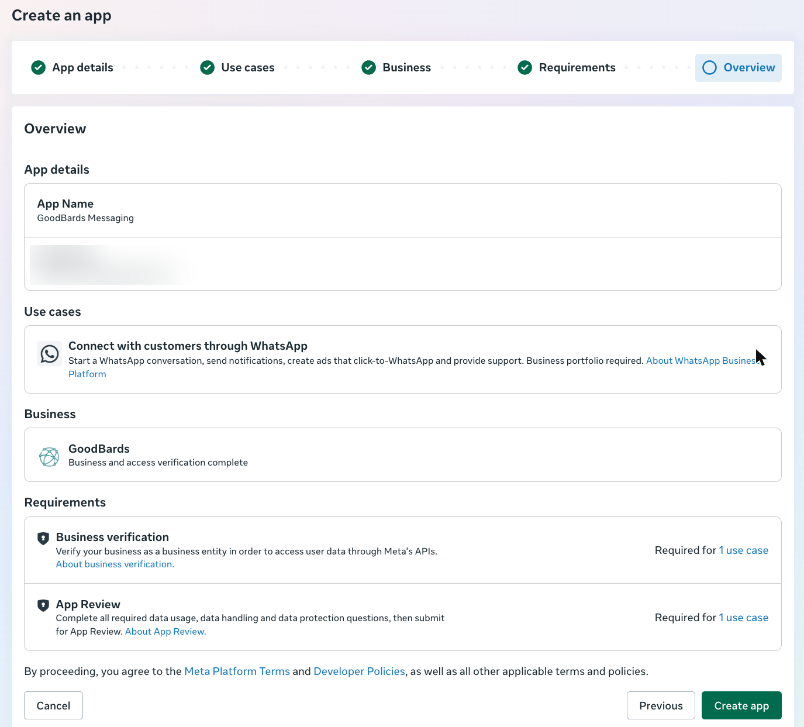
Choose Next twice. The Requirements step lists Business verification and App Review: App Review is only for apps that access other businesses' accounts, so it does not stop you from sending from your own number.
-
Check the summary and choose Create app. This accepts Meta's Platform Terms for your business.
2. Copy the Phone number ID and the WhatsApp Business Account ID
-
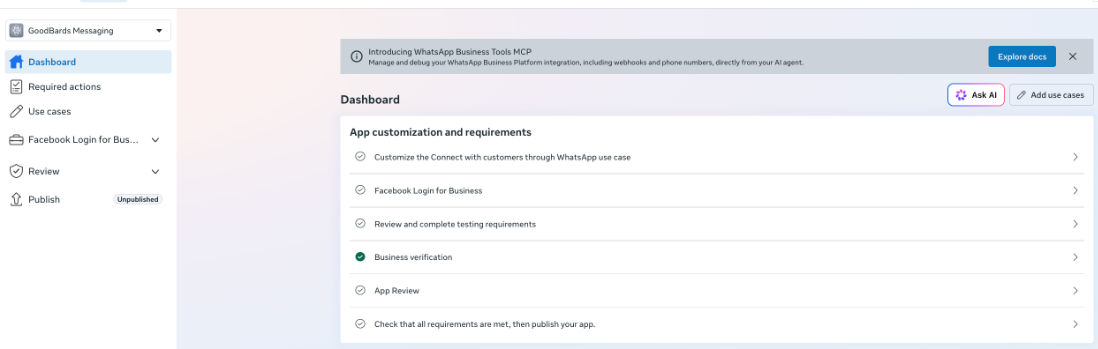
On the app's dashboard, choose Customize the Connect with customers through WhatsApp use case.
-
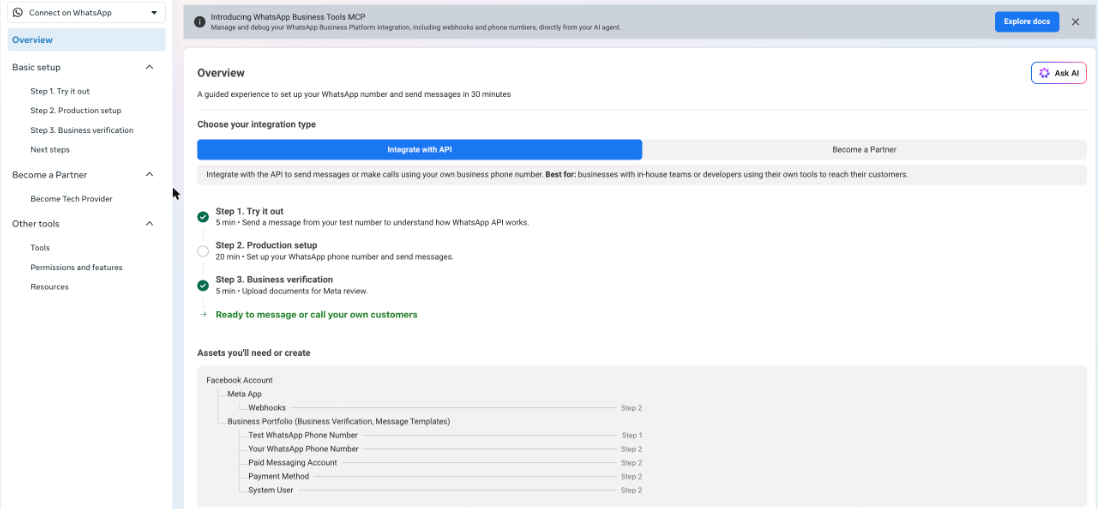
Meta shows a guided setup. Choose Step 1. Try it out.
-
Meta gives you a free test number. Next to it:
- Phone Number ID → paste it in GoodBards' Phone number ID.
- Messaging account ID → paste it in GoodBards' WhatsApp Business Account ID.

The test number is enough to try GoodBards. To send from your real number, follow Step 2. Production setup on the same page: add your number, then a payment method. Your real number then has its own Phone number ID, shown in the same place.
3. Copy the app secret
- In the app, open App settings → Basic (left menu, near the bottom).
- Next to App secret, choose Show. Meta asks for your Facebook password.
- Copy the secret → GoodBards' App secret.

4. Create the permanent access token
GoodBards needs a key that does not expire. Meta gives such keys to a system user: a robot account of your company that can only do what you allow. You create it, give it access to your app and to your WhatsApp account, then generate its key.
a. Create the system user
-
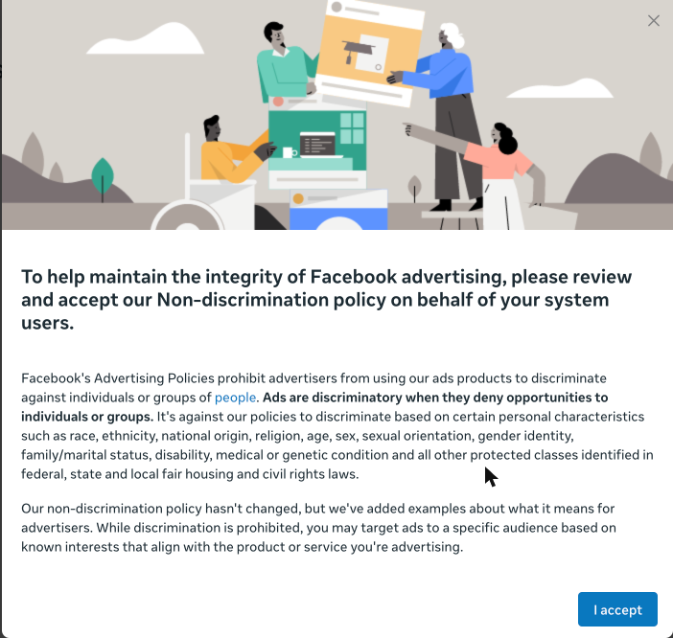
Go to business.facebook.com → Settings → Users → System users and choose Add. The first time, Meta asks you to accept its non-discrimination policy.
-
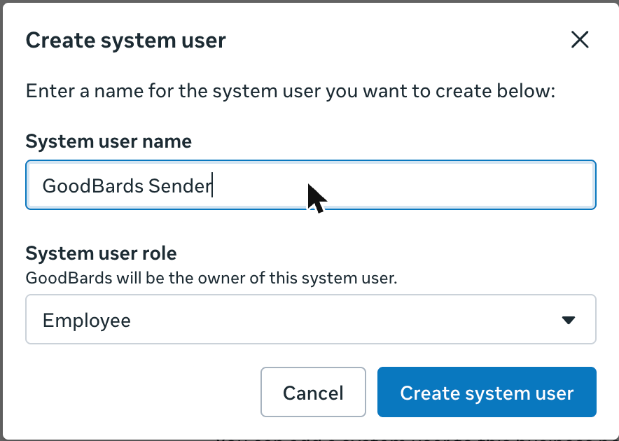
Name it, for example GoodBards Sender, keep the role Employee, and choose Create system user.
-
With the system user selected, choose Assign assets → Apps, tick your new app, turn on Develop app, and choose Assign assets.
b. Give it access to your WhatsApp account (the step people miss)
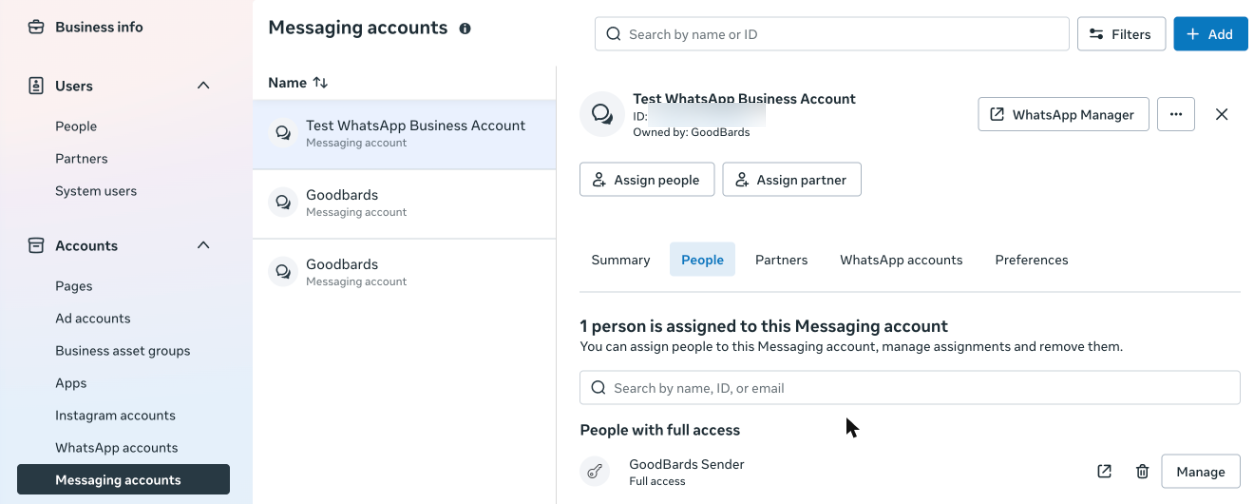
- Still in Settings, open Accounts → Messaging accounts and select your WhatsApp account.
-
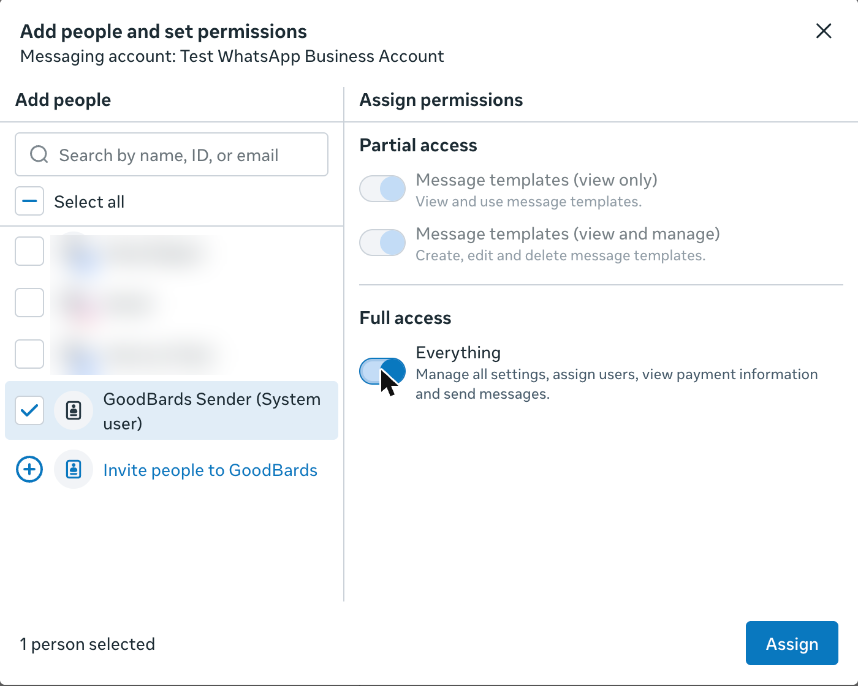
Choose Assign people, tick your system user, turn on Everything (full access), and choose Assign.
-
On the account's People tab, check that your system user is listed under People with full access.
Use Messaging accounts, not WhatsApp accounts
Meta also lists your account under Assign assets → WhatsApp accounts on the system user page. Giving access there is not enough: GoodBards then shows "Meta cannot find this WhatsApp Business Account". Always check the People tab of the messaging account.
c. Generate the key
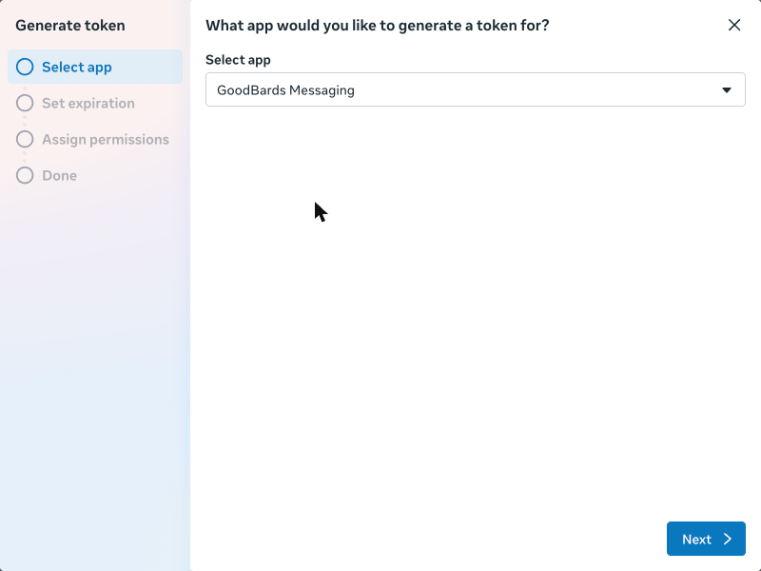
- Back in System users, select your system user and choose Generate token.
-
Pick your app.
-
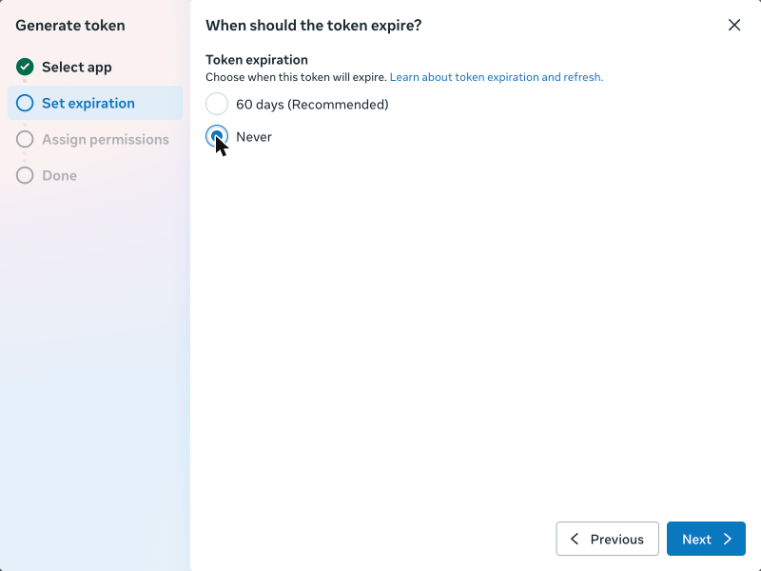
Set the expiry to Never. With 60 days, your WhatsApp sending would stop until you create a new token.
-
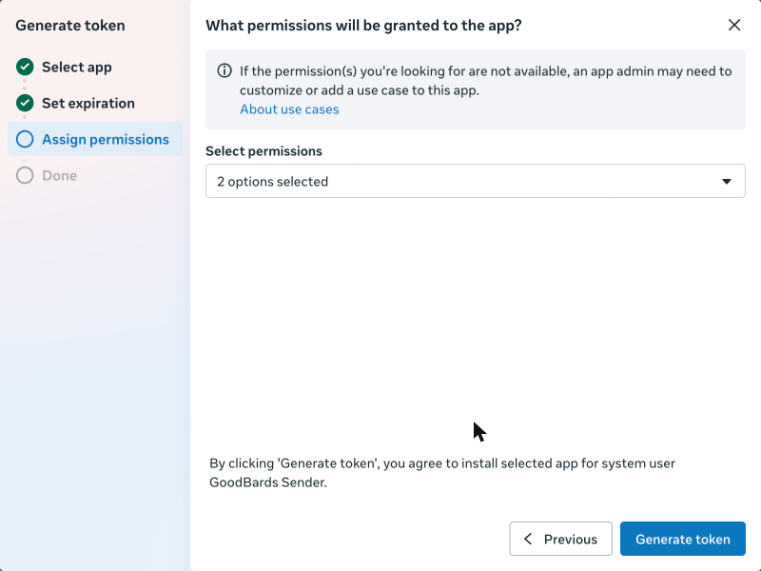
Tick whatsapp_business_management and whatsapp_business_messaging, then choose Generate token.
-
Copy the token right away → GoodBards' Permanent access token. Meta shows it only once; if you lose it, generate a new one.
Keep the token secret
Anyone with this token can send WhatsApp messages as your business. Paste it only in GoodBards, never in an email or a chat.
How to connect in GoodBards
- Open your account menu (your picture, top right), then choose Connections.
-
On the Messaging tab, find WhatsApp and choose Connect.

-
Paste the four details (see the table above) and choose Connect WhatsApp.
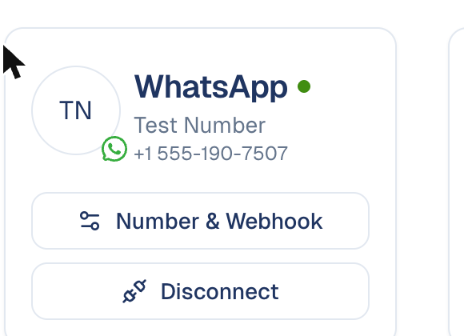
GoodBards checks everything with Meta before saving. If Meta refuses, nothing is saved and the message says which detail is wrong: see If it does not work below. Once connected, the card shows your business name, your number and your WhatsApp profile picture (or your initials when you have none); Number & webhook shows Meta's quality rating.
How to receive delivery updates and replies
Meta tells GoodBards when a message is delivered or read, and when someone replies or asks to stop, through a webhook. You set it once:
- In GoodBards, on the WhatsApp card, choose Number & webhook and copy the Callback URL and Verify token.
- In your Meta app, open WhatsApp → Configuration → Webhook → Edit, paste both, and choose Verify and save.
- Under Webhook fields, subscribe to messages and message_template_status_update.
Without the webhook, you see only Sent
Messages are still sent, but GoodBards never learns whether they were delivered, read or answered, and "STOP" replies are not recorded.
How to prepare a message template
WhatsApp only lets a business start a conversation with a template that Meta approved. You write it once and reuse it in as many campaigns as you like.
- In Content Hub, create a WhatsApp message.
- Choose New Template and fill in:
- a name (lowercase letters, digits and
_, for examplesummer_offer), a language and a category (Marketing for offers and news, Utility for order or booking updates); - the text, up to 1,024 characters. Put
{{1}},{{2}}… where something changes from one person to the next, and give an example for each: Meta reviews the template with your examples; - optionally a short title, a footer and a link button.
- a name (lowercase letters, digits and
- Choose Submit to Meta. The template shows as in review. Meta usually answers within minutes, sometimes a day; you get a notification when it is approved or rejected, with Meta's reason.
Meta's rules, checked by GoodBards before sending anything to Meta: variables are numbered in order without gaps, and the text cannot start or end with a variable.
Not supported yet
Templates with a variable in the title, an image as title, or a variable in the link button can be created in WhatsApp Manager but cannot be sent from GoodBards for now.
How to send a WhatsApp campaign
- In a campaign, choose Add Tactic and pick WhatsApp.
-
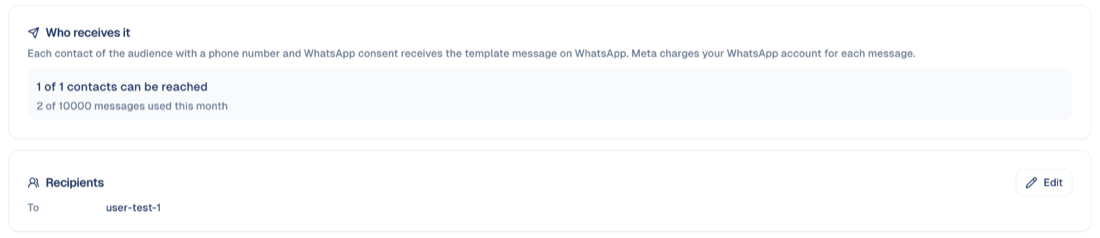
In Recipients, choose contacts, segments or mailing lists. The Who receives it box tells you how many can be reached and why the others cannot: no usable phone number, no WhatsApp consent, or marked do not contact. It also shows how many messages you have used this month.
-
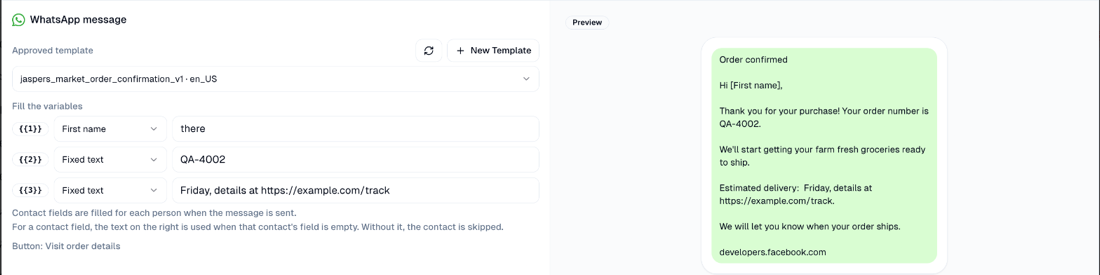
Create the message: in Content Hub, create a WhatsApp message, pick an approved template, then say what fills each variable:
- First name, Last name or Job title: taken from each contact. In
the field on the right, type what a contact with an empty field should get
(for example
there). Without it, that contact is skipped. - Fixed text: the same for everyone. A link typed here is replaced by a short link of its own for each contact, so you see who clicked.
The preview on the right shows the message as the contact will read it.
- First name, Last name or Job title: taken from each contact. In
the field on the right, type what a contact with an empty field should get
(for example
-
Back on the tactic, choose Import Asset, pick your message and choose Attach Asset. Then open the ⋮ menu of that line, choose Publish or Schedule, and pick Contacts of this tactic. Messages go out over the next minutes.
GoodBards checks the template with Meta again when you publish: if Meta paused or removed it in the meantime, nothing is sent and the message says why.
A contact needs two things
A phone number in international format (for example +65 9123 4567) and
WhatsApp consent, recorded on the contact page, by a form, or by an
import. A contact who only gave an email address is never messaged on
WhatsApp.
What happens after sending
On the tactic page, Delivery status lists every message: sent, delivered, read and clicked, each with its time, or the reason it failed (for example Not on WhatsApp, or cannot receive this message). A dash means Meta did not report that step: a person who turned off read receipts stays at "delivered".

Every step also appears on the contact's own timeline: sent, delivered, read, clicked, replied, stopped.
- A reply appears on the contact's timeline, and its text is kept in the contact's Notes. Your account gets a notification naming the contact and the tactic.
-
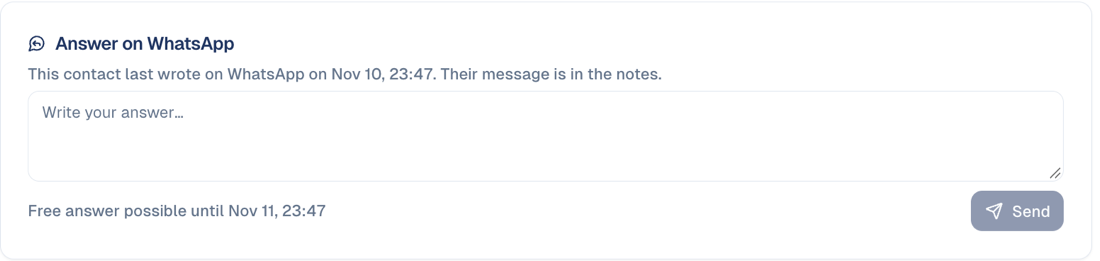
You can answer it. On the contact's page, Answer on WhatsApp lets you write back in your own words for 24 hours after the contact's last message. That is WhatsApp's rule: inside those 24 hours the answer needs no template and Meta does not charge for it; after that, only an approved template in a campaign can reach the contact. Your answer is kept in the contact's notes, next to their message, and does not count in your monthly limit. It is one answer at a time, not a chat window: for a real conversation, pick up the phone. The box shows until when you can answer; it is not offered for a contact who asked to stop.
-
"STOP", or the Stop promotions button, withdraws the contact's WhatsApp consent at once. They are left out of your next messages.
- A failed message can be sent again: fix the cause, then publish the same message again. Only the contacts whose message failed are retried; nobody receives it twice.
- A message that could not be sent within a day of publishing (for example because of a payment problem in your Meta account) is cancelled rather than sent late.
What you see in reports
In the campaign's Analytics tab, WhatsApp tactics are listed under Messaging. Choose a line to open its detail:
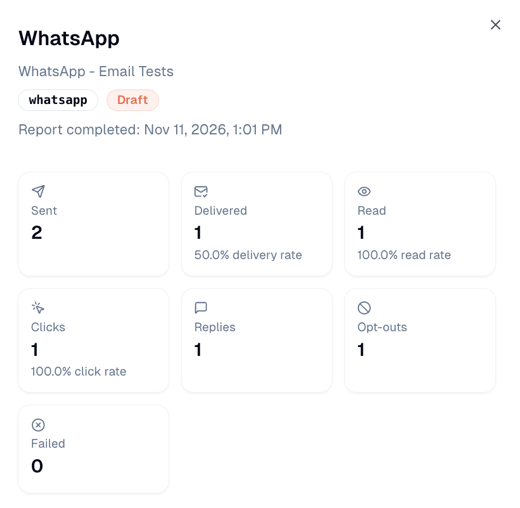
The report is refreshed every night.
| In the campaign report | Meaning |
|---|---|
| Sent | Messages Meta accepted |
| Delivered / Read | Reached the phone / opened, with their rates |
| Clicks | Clicks on your links, people only (WhatsApp's own link preview is not counted) |
| Replies | Contacts who wrote back |
| Opt-outs | Contacts who asked to stop |
| Failed | Messages that could not be delivered |
| Billed by Meta | Delivered messages Meta charges you for. GoodBards shows the count, not the amount: Meta's price depends on each recipient's country, and your invoice is in WhatsApp Manager |
What GoodBards does with it
| GoodBards… | Details |
|---|---|
| Sends | Your approved templates to contacts with WhatsApp consent, from your number, and your answers within 24 hours of a contact's last message. |
| Submits | New message templates to Meta for approval. |
| Receives | Delivery and read updates, replies and "STOP" requests, through the webhook. |
| Does not | Message contacts without WhatsApp consent, pay Meta for you, or see your Meta bill. |
If it does not work
GoodBards shows Meta's refusal in plain words, with Meta's own text in brackets.
| GoodBards says | Why | What to do |
|---|---|---|
| Meta cannot find this WhatsApp Business Account or phone number with this token. Most often the system user has no access to the account… (Meta: Object with ID … does not exist, cannot be loaded due to missing permissions) | Most often: the system user has no access to the WhatsApp account. Or an ID was mistyped. | Do step 4b: Messaging accounts → your account → People → your system user with Everything. Check both IDs. Then choose Connect WhatsApp again; the same token works. |
| The access token is not valid or has expired | The token was copied incompletely, revoked, or set to expire. | Generate a new token (step 4c) with expiry Never, and paste it again. |
| The app secret does not belong to the app that created this token | The secret comes from another app, or the token was generated for another app. | Copy the secret from the app you picked in step 4c (App settings → Basic). |
| The token is missing a permission | One of the two permissions was not ticked. | Generate a new token with whatsapp_business_management and whatsapp_business_messaging. |
| The phone number ID is a number… | The phone number itself was pasted. | Paste the Phone Number ID shown next to the number (step 2). |
| This phone number ID is not part of this WhatsApp Business Account | The two IDs come from different accounts. | Copy both from the same place (step 2). |
| Messages are sent but never show Delivered or Read, and replies do not arrive | The webhook is not set, the messages field is not subscribed, or your Meta app is still Unpublished: Meta says some updates are not sent to an unpublished app. | Check How to receive delivery updates and replies. Then publish your Meta app: in App settings → Basic, fill in Privacy policy URL (your own privacy page) and Category (Business and pages), choose Save changes, then open Publish and choose Publish. It takes a minute and Meta asks for no review. |
You do not need Meta's App Review
Your Meta app shows App Review and Facebook Login for Business as steps that are not done. Leave them. They are for apps that connect other companies' WhatsApp accounts. An app that only sends from your own account needs neither, and the two permissions it uses work as they are.
Good to know
- Meta bills you, per marketing message, at Meta's rate for the recipient's country. Add a payment method in WhatsApp Manager before sending from your real number.
- The test number can only message a few phone numbers that you add in Meta (up to 5). Use it to try things, not for campaigns.
- Quality rating. Meta rates your number from how people react to your messages. A low rating lowers how many people you can message per day: only message contacts who agreed.
- Monthly limit. Your plan includes a number of WhatsApp messages per month (2,000 on Pro, 10,000 on Full, unless agreed otherwise). It protects your number's quality rating. You see what you have used in Tenant Usage → Guardrails (account menu) and on each WhatsApp tactic; a send that would go over is refused before anything leaves.
- To use a new token or number, choose Connect again with the new details: your webhook keeps working.
Only message contacts who agreed
GoodBards only sends to contacts with WhatsApp consent, and a "STOP" reply withdraws it. Recording consent you do not have breaks PDPA and similar laws, and lowers your number's quality rating.
How to disconnect
- On the WhatsApp card, choose Disconnect.
- GoodBards forgets the token and app secret. Nothing changes in your Meta account; to stop the key completely, remove the system user's token in Business settings (Revoke tokens).
Still stuck? Contact support.