Image Generation
Create images for campaigns, posts and emails by describing what you want.
What it's for
Marketing needs images constantly, and stock photography rarely fits. Describe the image you need and GoodBards creates it: no design software, no photo shoot.
Generated images are useful for social posts, email headers and campaign visuals. They are less suited to anything needing your actual products or people.
Before you start
- Your plan. Image Generation is included in the Lite, Pro and Full plans.
- Credits. Each image counts against your monthly AI credits. See Usage & Billing.
How to generate an image
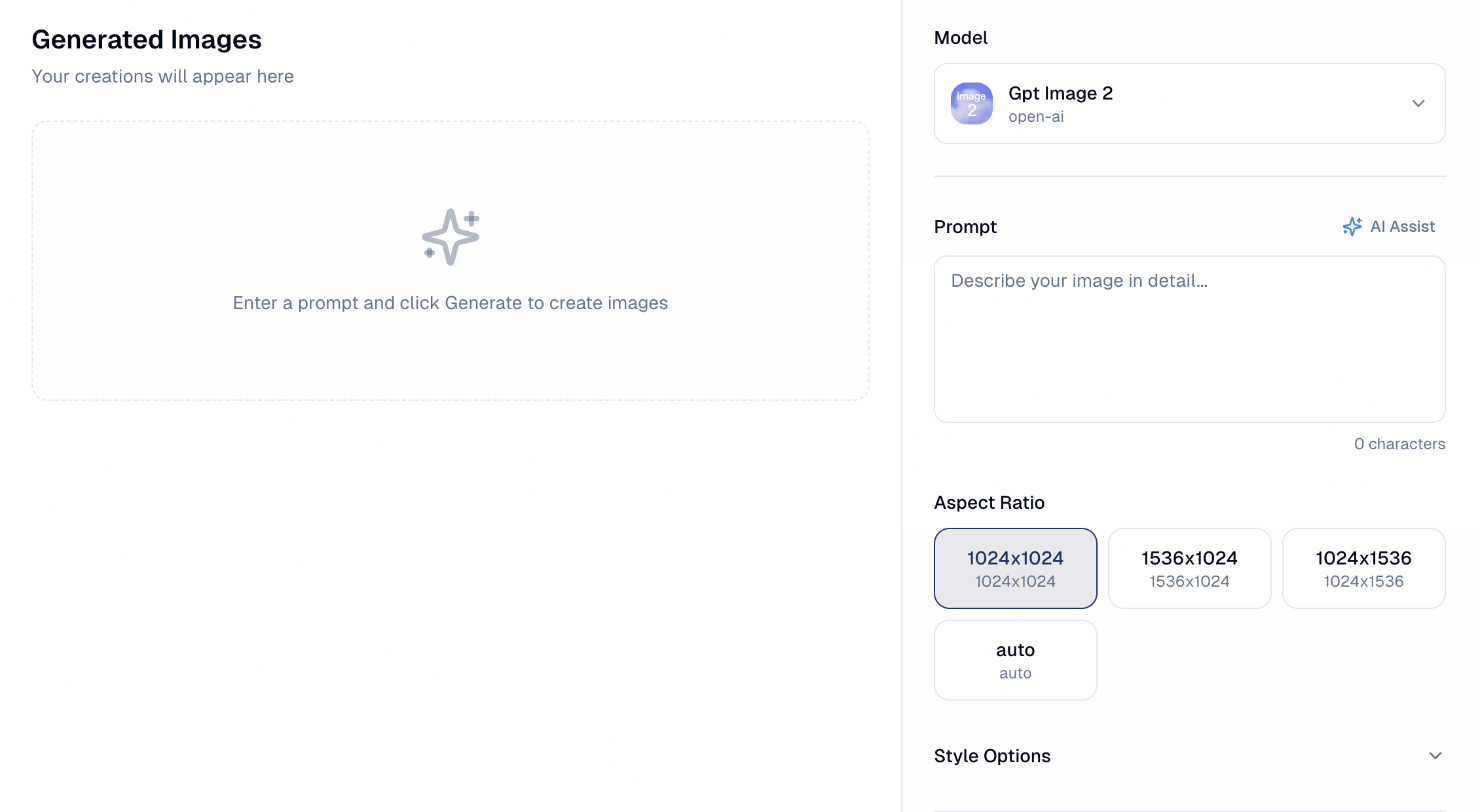
- In the sidebar, choose Agentic AI → Image Generation.
- Describe what you want in Prompt. Detail helps.
- Aspect Ratio, Brand and Style Options are folded sections. Each shows its current choice next to its name (for example 1:1 or Tropika Home · Logo stamped). Open one to change it. Your primary brand kit is already selected under Brand (see below).
- Choose Generate Images, always at the bottom of the panel.
Your images appear under Generated Images on the left.
Keeping images on brand
Brand kit lists your company's brand kits. Your primary kit is selected when you open the screen. Choose None to generate without it.
What the brand kit adds
GoodBards adds the kit's colours and its imagery guidelines to your prompt, so the result leans towards your palette and style. AI follows colours closely but not exactly: check important brand colours by eye.
Adding your logo
Turn on Add logo to place your real logo on the image:
- Logo: if the kit has several logos, Auto starts with your usual logo and switches to another one if that one would be hard to read on the background. Or pick a logo yourself, and GoodBards remembers your choice for that kit.
- Variant: for a logo you picked, Auto chooses the version that stands out best on the background. You can also pick a version yourself.
- Position and Size: choose the corner and how large the logo is.
If an amber message says the logo may be hard to read, try another position or logo, or add a lighter or darker version to your brand kit.
To place the logo anywhere on the image, use the Image Editor.
The logo is your actual logo file placed on top of the image. The AI never redraws it, so it is never distorted. Changing the logo, position or size updates the image instantly and uses no credits. Download, Edit and Save to Drive all keep the logo.
Brand rules about logo placement
If your brand kit says the logo belongs top-left, Position starts there.
Putting your logo inside the scene
With a Nano Banana or GPT Image model, you can also turn on Blend logo into the scene. The AI then draws your logo into the picture itself: printed on a cup, a bag, a shop sign. Pick the logo and variant as above.
The AI redraws a blended logo
It may not reproduce it perfectly. Check its shape, colours and lettering before you use the image. For an exact logo, use Add logo instead; you can only use one of the two at a time.
The same Brand kit choice appears when you generate an image for a campaign tactic. That screen adds your colours and guidelines, but not the logo.
Choosing an aspect ratio
| Ratio | Shape | Good for |
|---|---|---|
| 1:1 | Square | Instagram posts, profile images. |
| 16:9 | Wide | Email headers, website banners, LinkedIn. |
| 9:16 | Portrait | Stories, vertical mobile formats. |
The choices depend on the model
Some models offer more ratios, such as 4:5 or 3:2. If you switch model, the ratio changes to one the new model supports.
Pick the ratio for where the image will be used. Cropping a square image into a banner afterwards usually spoils the composition.
Writing a good prompt
Be specific about subject, setting, style and mood. "A flat-lay of tropical fruit on a pale marble table, bright daylight, minimal styling" gives a far better result than "fruit picture".
AI Assist writes the prompt for you
AI Assist, above the prompt box, expands a rough idea into a fuller description. Useful when you know what you want but not how to describe it.
Choosing a model
Model at the top sets which AI generates the image. The default comes from your company's AI Settings; change it here to use a different one for this image.
Good to know
- Expect to iterate. The first result is rarely the one you use. Adjust the prompt and generate again.
- Check faces, hands and text. AI images still get these wrong, and mistakes are more obvious to your audience than to you.
- Do not generate real people or brands. Images resembling identifiable people or another company's branding carry legal risk.
Still stuck? Contact support.