Momentum
Your pages that are gaining or losing ground right now, so you can act while the trend is on your side.
What it's for
A page that suddenly gets more attention is worth a push now, not next quarter: a link from your newsletter, a social post, an update. A page that is losing ground needs a look before it disappears. Momentum ranks your pages by how fast they are moving.
Before you start
- Your plan. Momentum is included in the Pro and Full plans.
- Google Search Console and Google Analytics connected under Connectors. See Connections.
- To write a follow-up article straight from Momentum: the article writer (Content Workspace) in your plan.
How to read it
- In the sidebar, choose Content Hub → Momentum.
- Filter by stage: Rising, Peaking, Plateau or Declining.
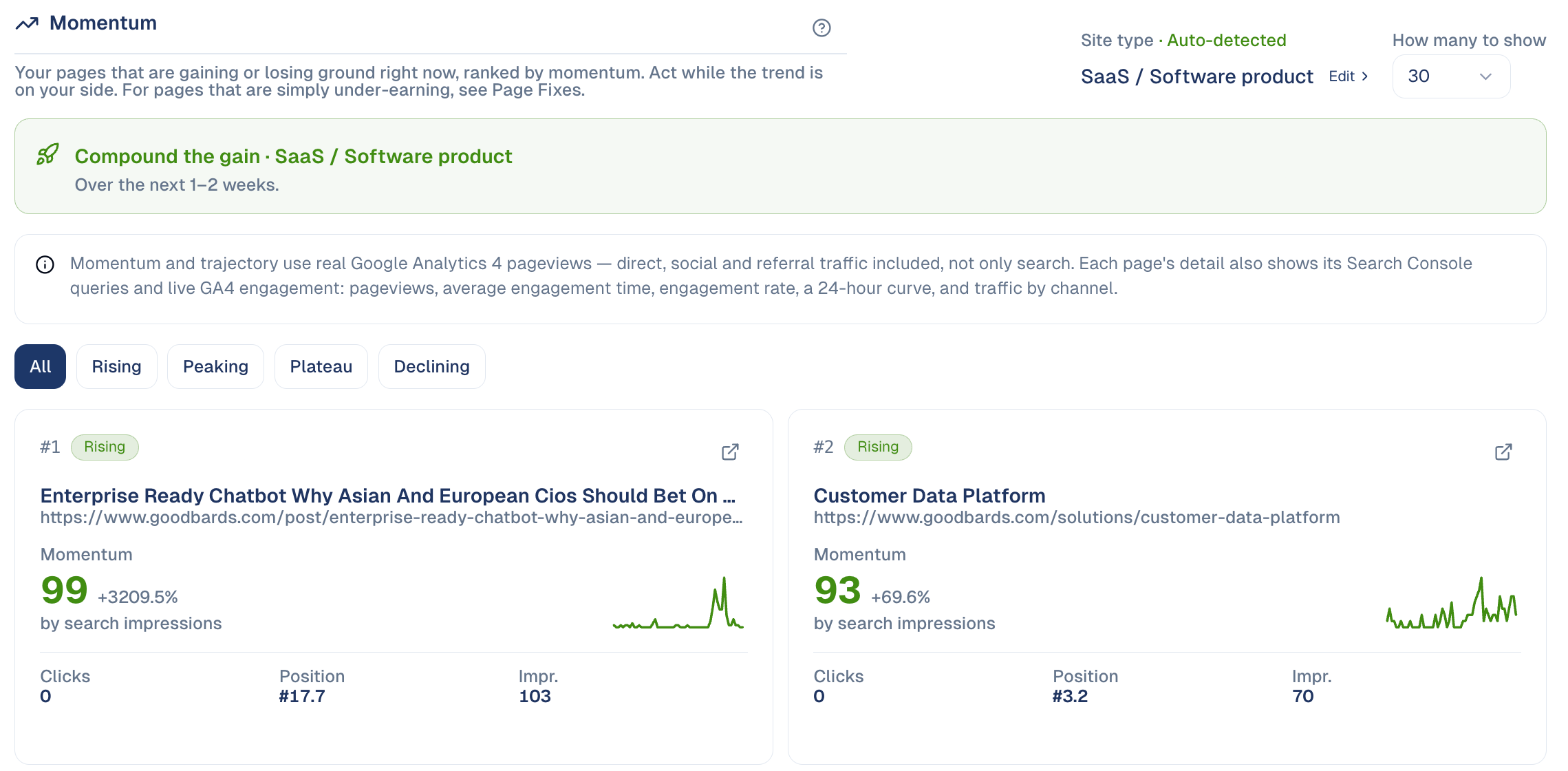
Each card shows the page, its momentum score out of 100 with the change, the trend line, and its clicks, position and impressions. Open a card for the search queries behind it and the visitors' engagement.
How to write a follow-up article
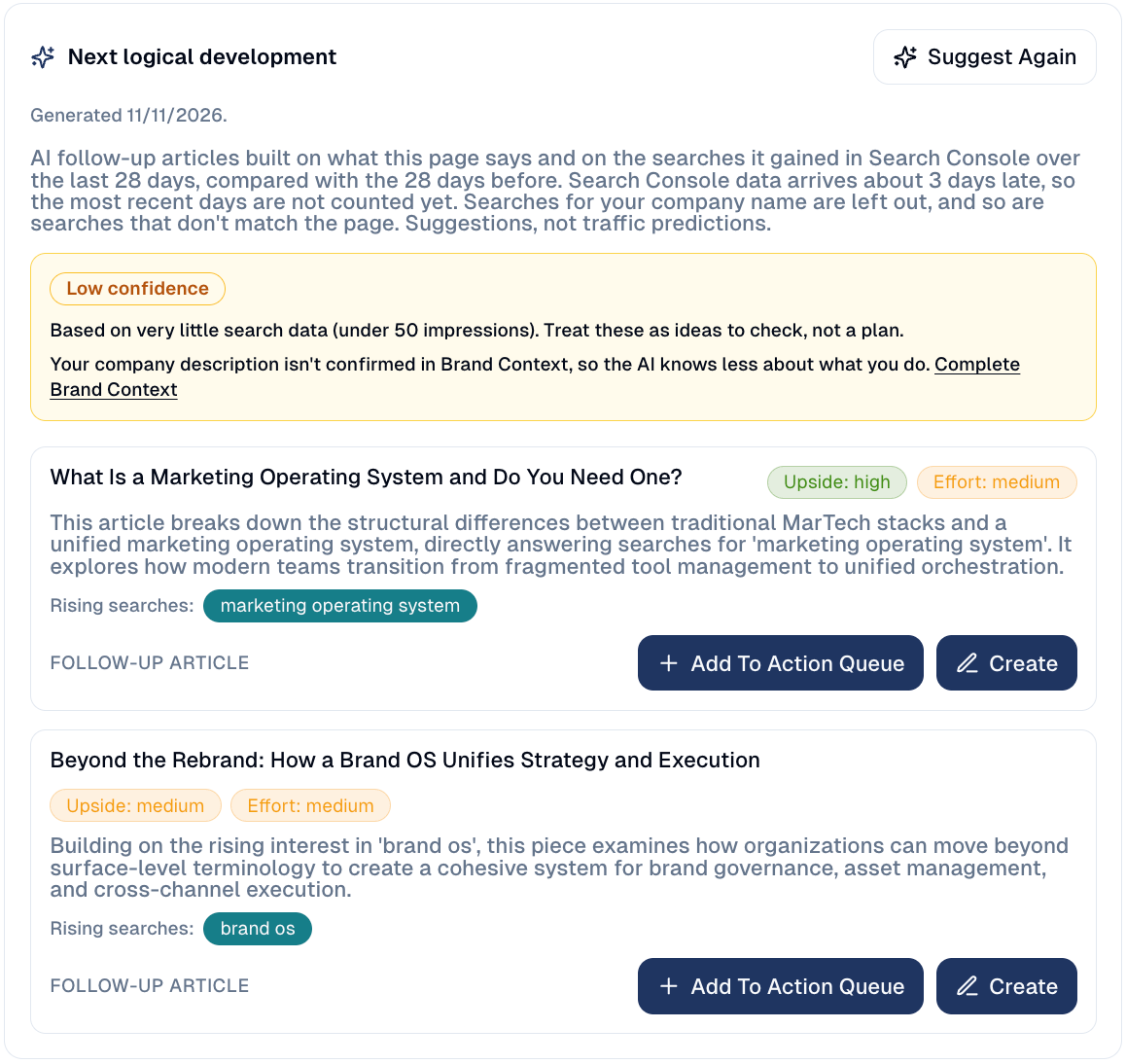
For a Rising or Peaking page, the AI can suggest follow-up articles built on what people are searching for more and more on that page. It reads the page first, so the articles stay on the page's subject.
- Open the page's card.
- Under Next logical development, choose Suggest Articles.
-
Read the suggestions. Each one shows a working title, a short description of the article, and the rising searches it is built on.
-
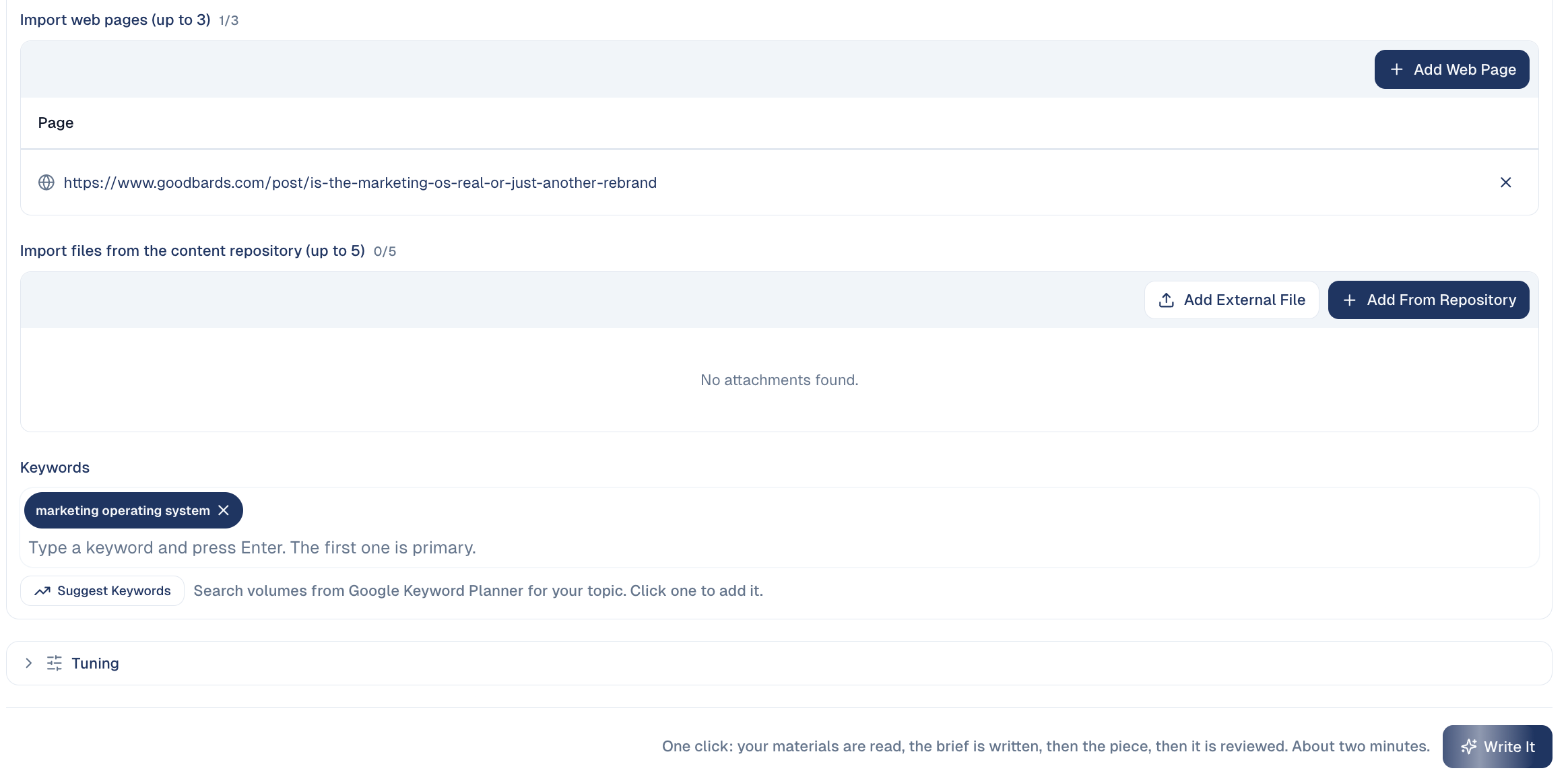
Choose Create on the one you want. The article writer opens with the title under What is it about? and the suggestion's description under Instructions for the AI.

-
Scroll down to Sources and model. Your page is already listed as a web page to read, and the rising searches as Keywords.
-
Change anything you like, for example the angle under Instructions for the AI, then choose Write It.
Not ready to write? Choose Add To Action Queue on the suggestion instead, and find it later under Actions.
Credits are used only when you choose Write It
Create only opens the article writer with everything filled in. Nothing is written, and no credit is used, until you choose Write It.
The suggestions stay on the page until you choose Suggest Again.
No Create button?
Create needs the article writer (Content Workspace) in your plan. Without it you can still choose Add To Action Queue.
Good to know
- Rising searches come from your own Search Console: the searches this page gained over the last 28 days compared with the 28 days before. For a News / Media site the comparison is over 7 days, because news searches rise and fall within days. Check your site type under Brand & Context → Website.
- The last 3 days are not counted yet. Google Search Console publishes its figures about 3 days late, so a search that took off yesterday shows up in Momentum a few days later.
- Searches for your company name are left out, because an article about your own name rarely brings new readers. Make sure your company name is filled in under Brand & Context → General Information.
- No suggestions? If no search is growing on the page, there is nothing to build a follow-up on, and Momentum says so instead of guessing. The same happens when the growing searches mean something else than the page: a page about AI tools for founders can show up for "ai startup accelerator", which people mostly use for accelerator programmes.
- Low confidence means the growing searches add up to fewer than 50 impressions. Treat those suggestions as ideas to check, not a plan.
- Fill in your company description under Brand & Context → General Information. Without it the AI only knows what the page says, and Momentum reminds you next to the suggestions.
- The page could not be read? If your site blocks it (robots.txt) or does not answer, the suggestions are built on the searches alone, and Momentum says so.
- Plateau and Declining pages get Add Refresh Task instead: a page that is losing ground needs an update, not a new article next to it.
- Momentum counts all visits, from search, social, email and other sites, not only Google search.
- The advice at the top depends on your site type, detected automatically; choose Edit to correct it.
- For pages that rank but under-perform, use Page Fixes instead.
Still stuck? Contact support.