Brand & Context
Everything GoodBards knows about your business, and what the AI is allowed to use when it writes for you.
What it's for
When an agent drafts an email or a social post, it needs to know who you are: what the company does, how it talks, who it competes with. This is where you tell it once, so you are not re-explaining your business in every prompt.
Get this right and everything the AI produces improves. Leave it empty and you get generic copy.
The seven tabs
| Tab | What it holds |
|---|---|
| General Information | Company name, tagline, website and other basics. |
| Brand Kit | Colours, fonts and logos. See Brand Kit. |
| Voices Bank | How your brand sounds, so the AI writes in your voice. |
| Brand Check | Check a text or an email against your brand guidelines. See Brand Check. |
| Marketing Campaigns | Context about the campaigns you run. |
| Competitors | Who you compete with. |
| Website | Your website, as the AI reads it. |
How to fill in your company details
- Open your account menu (your picture, top right), then choose Brand & Context.
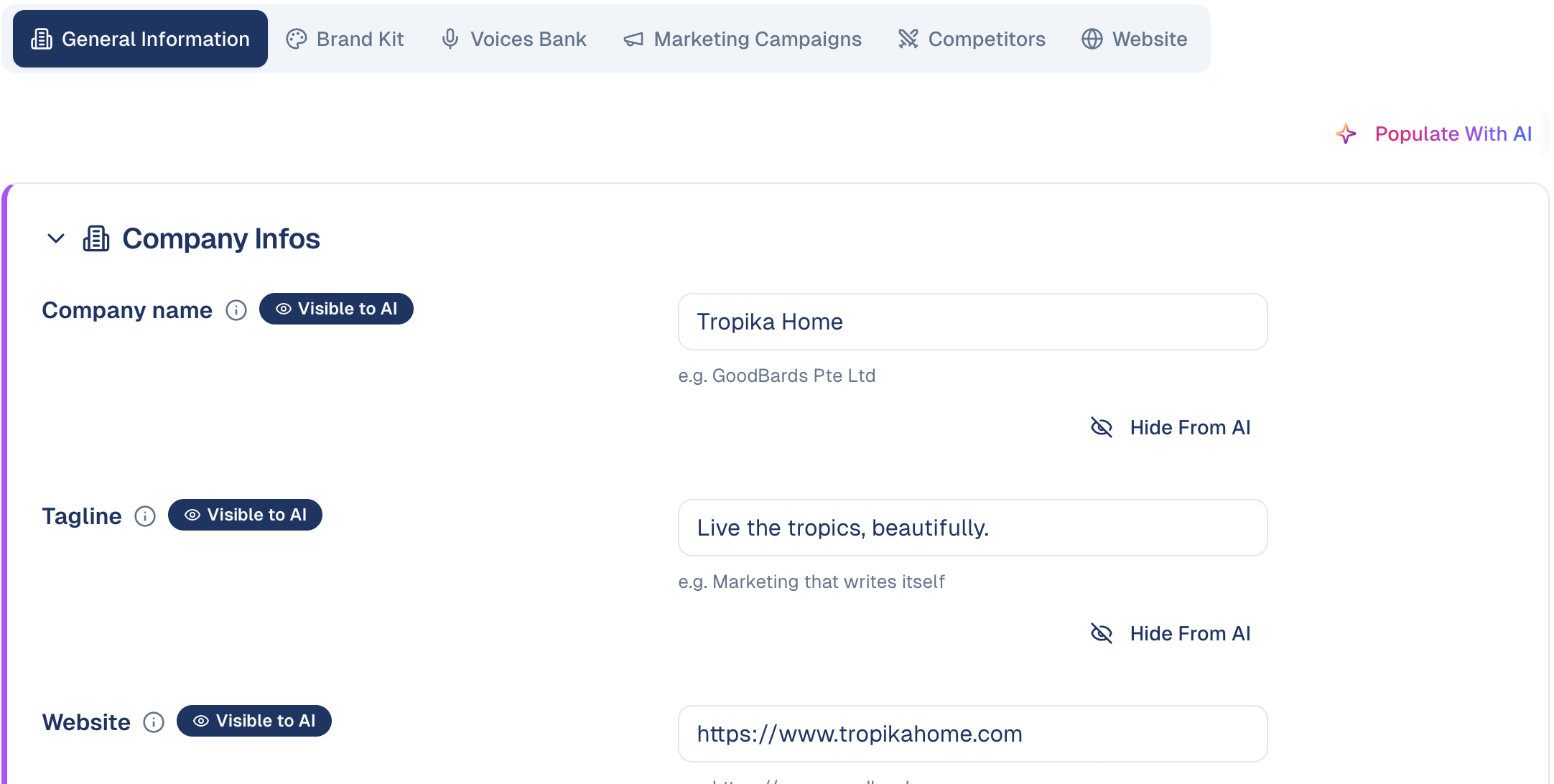
- On General Information, fill in each field. Grey example text under each one shows the kind of answer expected.
- Choose Save next to the field you changed. A saved field shows Visible to AI.
Let the AI fill it in first
Populate With AI, at the top right, reads your website and fills these fields in as drafts. It is a fast start, but read what it wrote before choosing Show To AI: everything the AI writes later builds on it.
The General Information blocks
| Block | What to put |
|---|---|
| Company Infos | Company name, tagline, website, industry and addresses. |
| Positioning | What you do, your value proposition, target audience, mission, elevator pitch and differentiators. The AI reuses these in everything it writes, so be specific. |
| Guardrails | Never discuss: subjects the AI must stay away from, for example politics, religion or competitor bashing. |
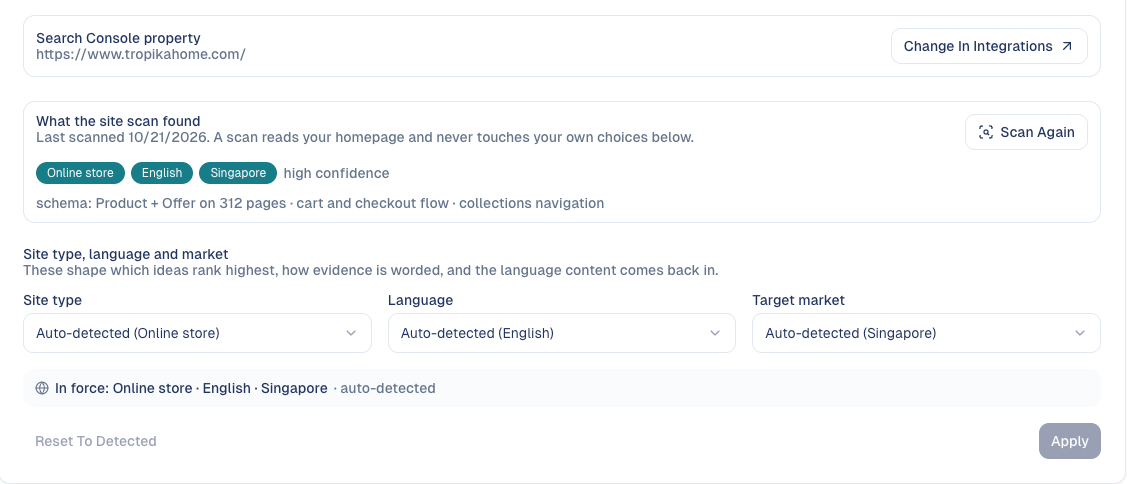
| Products & Services | Each product or service with a description, its web page and keywords. The AI links to the right page and uses the right words. |
| Press Release Information | The CEO's name and title, your boilerplate in 25, 50 and 100 words, and the media contact. Used for every press release the AI drafts. |
| Privacy Statements | The statements contacts accept on your forms; one is the default. A statement is a text (any length, with bold, italic and bullet lists) or a link to a page on your site. See Adding contacts. |
Marketing Campaigns: campaign defaults
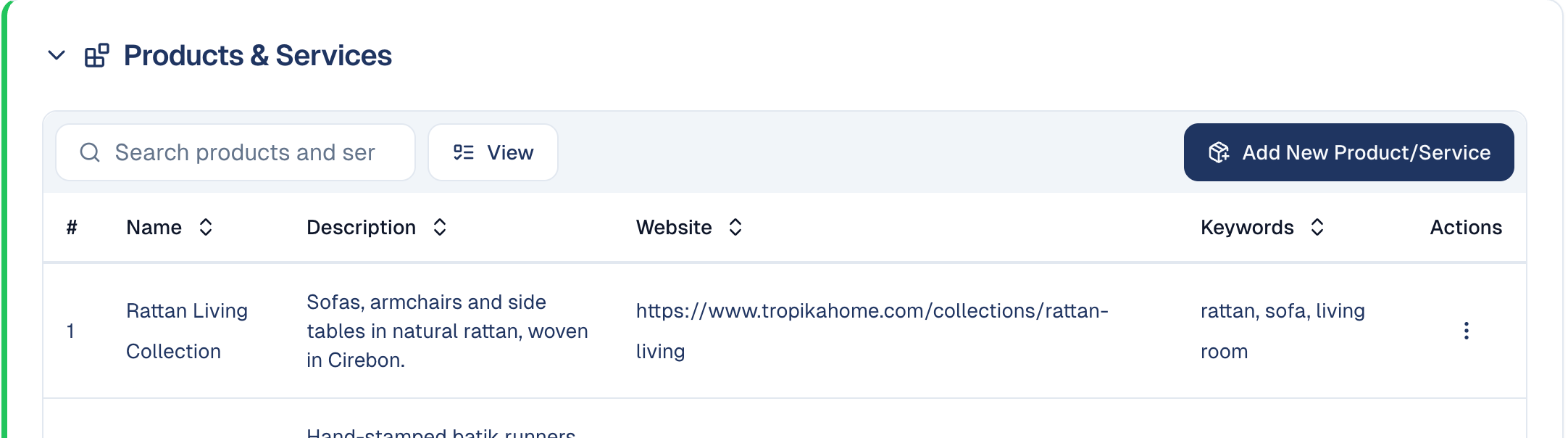
Set once the values every new campaign starts from: marketing objective, budget, customer type, audience, regions and countries, target industry and campaign duration. The fields marked Visible to AI prefill new campaigns, so Create New Campaign opens already filled in. See Campaigns.
Website: what GoodBards knows about your site
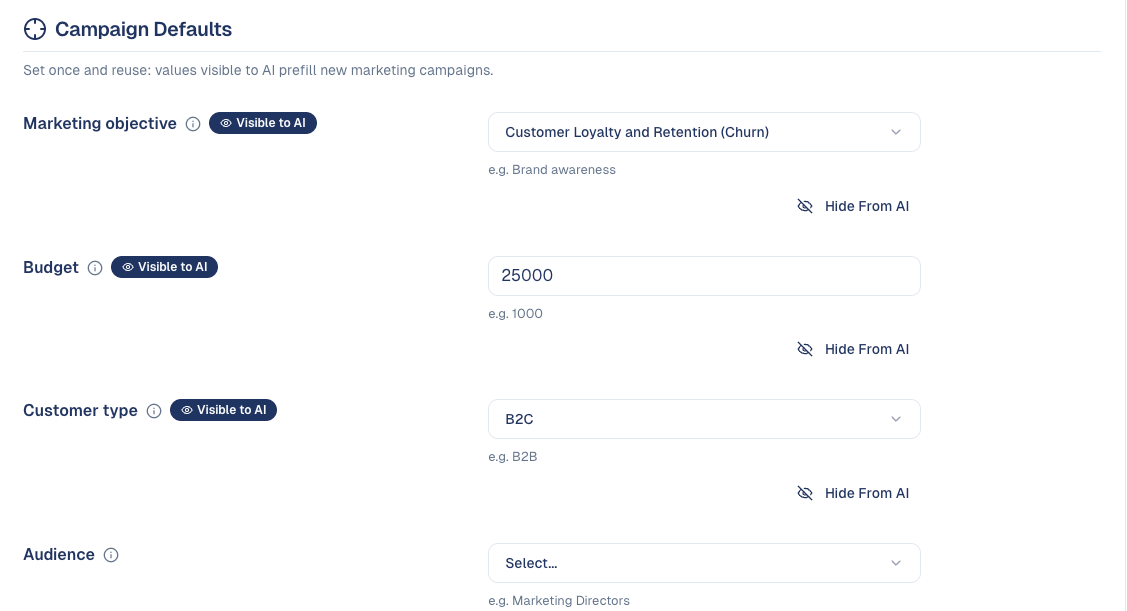
- Search Console property: which site the Organic Visibility screens read; change it under Connections.
- What the site scan found: GoodBards reads your homepage and detects your site type (for example Online store), language and target market, with the evidence it used. Scan Again after a redesign.
- Site type, language and market: keep the detected values or choose your own, then Apply. They decide which ideas rank highest in Research & Plan and Page Fixes, and the language content is written in. Reset To Detected goes back to the scan's values.
Competitors
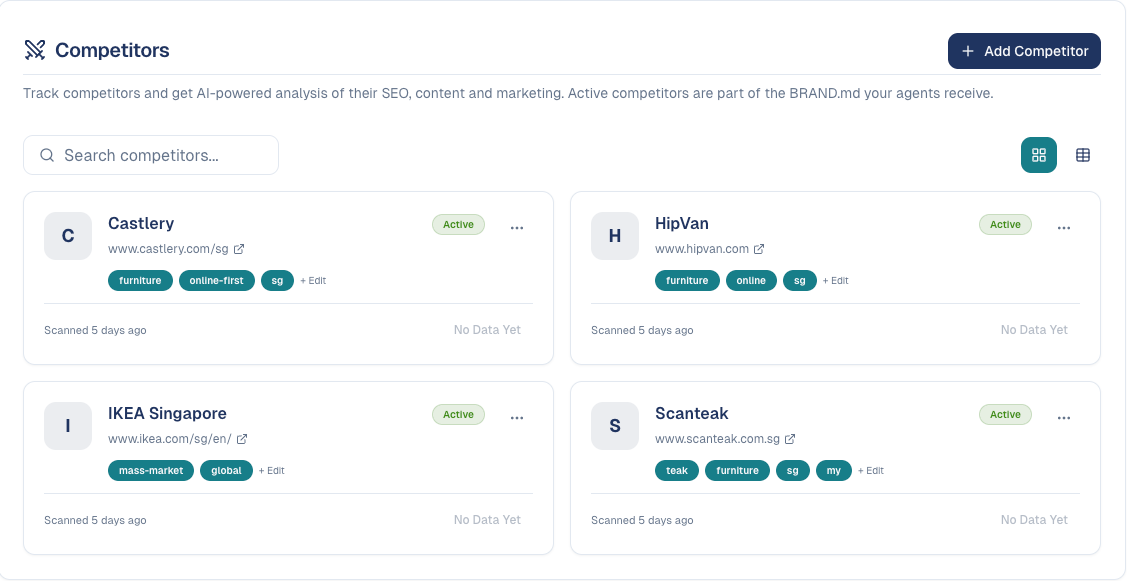
List the companies you compete with, and GoodBards analyses their websites.
-
On the Competitors tab, choose Add Competitor and give its website.
-
GoodBards scans the site. Open a competitor's Details for:
- Overview: an AI summary, estimated domain authority, an SEO score and estimated monthly traffic, with their key strengths and weaknesses;
- SEO Data, Content and Marketing: what they rank for, publish and promote.
- Tag competitors (for example furniture, online-first) with + Edit to keep the list readable.
Active competitors are given to your AI agents, and feed Research & Plan's content gaps. Figures marked AI Estimate are estimates, not measurements.
Controlling what the AI can see
Every field carries a badge showing whether the AI can use it:
- Visible to AI: agents may use this when writing. Choose Hide From AI to keep it out of AI-generated content.
- Hidden from AI: agents never see it. AI drafts you have not reviewed stay hidden until you choose Show To AI.
Hide what must not appear in a draft
Most details are safe and useful to share. Hide anything commercially sensitive, such as unannounced prices or client names, before agents write with it.
Good to know
- Do this before generating content. Agents use whatever is here at the time they write. Filling it in afterwards does not improve drafts already produced.
- Be specific. "We help companies grow" tells the AI nothing. What you sell, to whom, and what makes you different is what gets used.
- Revisit it. When your positioning changes, update this, or the AI keeps writing last year's message.
Still stuck? Contact support.