Scheduler
Run recurring work on a schedule: an AI agent's report every Monday, a social report every month, a web page checked every morning.
What it's for
Some work is the same every week: summarise last week's results, check a competitor's page, collect the social figures for a client. The Scheduler does it for you at the time you choose, and sends you the result by email or saves it in your Content Repository.
Before you start
- Your plan. The Scheduler is included in the Pro and Full plans.
- What the task needs. An agent for an agent run, a connected social account for a social report, a connected Google Drive for a Drive sync. See Connections.
How to schedule a task
- In the sidebar, choose Tool Box → Scheduler, then New Task.
-
Give the task a Name and, if you like, a Description, then pick the Task type:
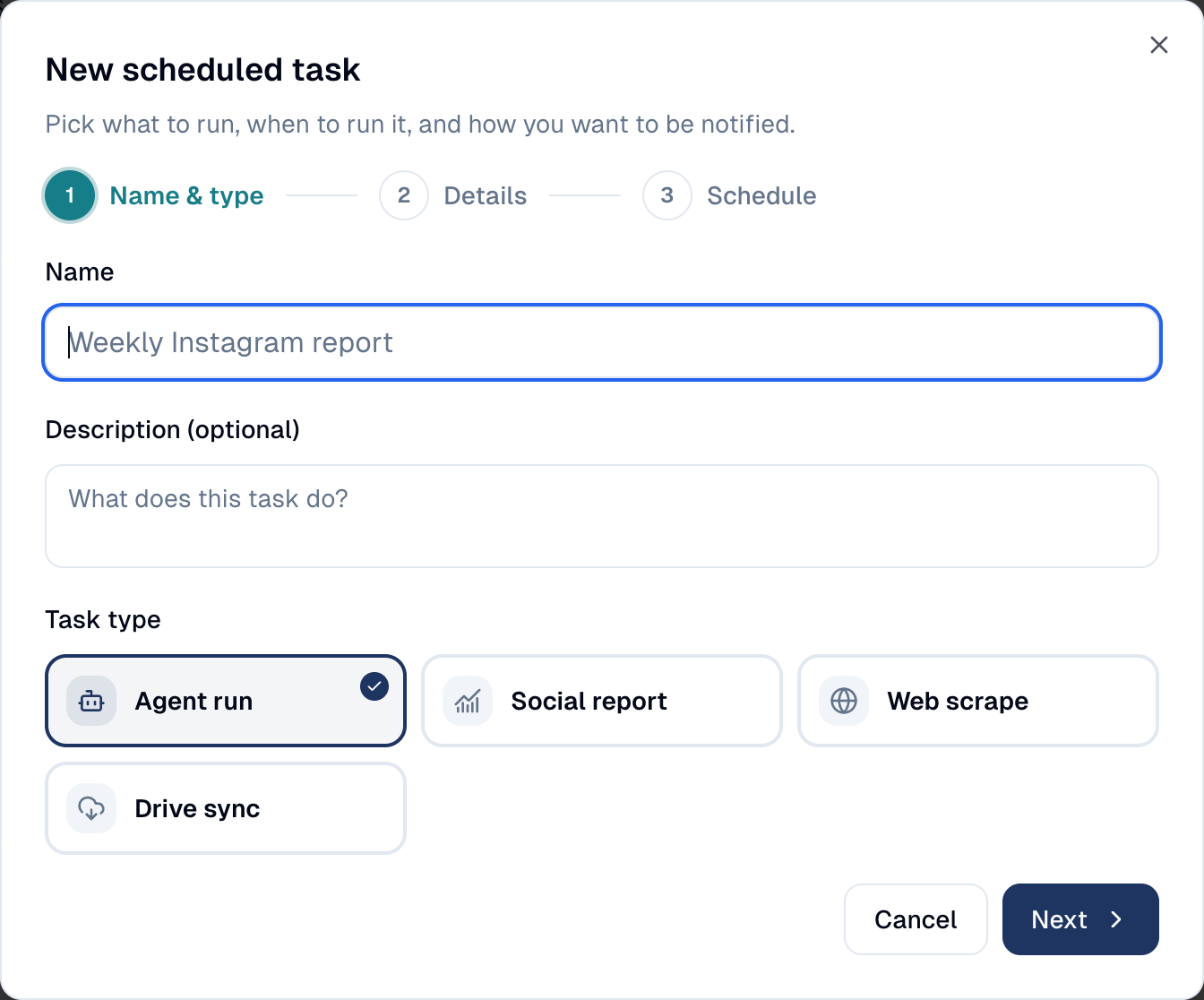
Task type What it does Agent run Asks one of your AI agents, chat or workflow, a question, for example "Summarise last week's campaign results". Social report Builds the period report of one of your social accounts. Web scrape Scrapes a page, crawls a website or reads a feed into your Content Repository, for example a competitor's pricing page. Drive sync Keeps a Google Drive folder in sync with your Content Repository. -
Choose Next, then fill in the Details: which agent and what to ask, which social account, which page. For an agent run, choose where the answer goes: an email to you or your colleagues, a document in your Content Repository, or both.
- Choose Next, then set the Schedule: how often and at what time.
- Choose Create Task. The task appears in the list with its schedule.
From the task's menu, Run now starts it straight away, History shows its past runs, and Edit or Delete change or remove it.
Deleting a task also deletes its history
The task and its run history are removed, and this cannot be undone. To pause a task instead, turn off Enabled.
Good to know
A scheduled agent does not act on its own
When it runs unattended, it will not send a campaign email or publish content; it can prepare them for you.
- A task runs as the person who created it, with that person's access. An administrator can choose someone else under Run as.
- If the delivery fails, the run still counts. For example, the agent answers but the email cannot be sent: the history shows the run in amber with the reason.
Still stuck? Contact support.