Forms
Collect sign-ups, registrations and feedback, and have the responses flow into your audience automatically.
What it's for
A form is how people tell you something: registering for an event, asking to be contacted, or rating an experience. Responses land in GoodBards rather than in a spreadsheet, so the people who reply become contacts you can market to.
Forms are also how you run satisfaction surveys (NPS, CSAT and similar) without a separate survey tool.
Before you start
- A privacy statement, if you collect personal data: Brand & Context → General Information → Privacy Statements. Mark one as the company default and every form uses it unless you pick another.
How to create a form
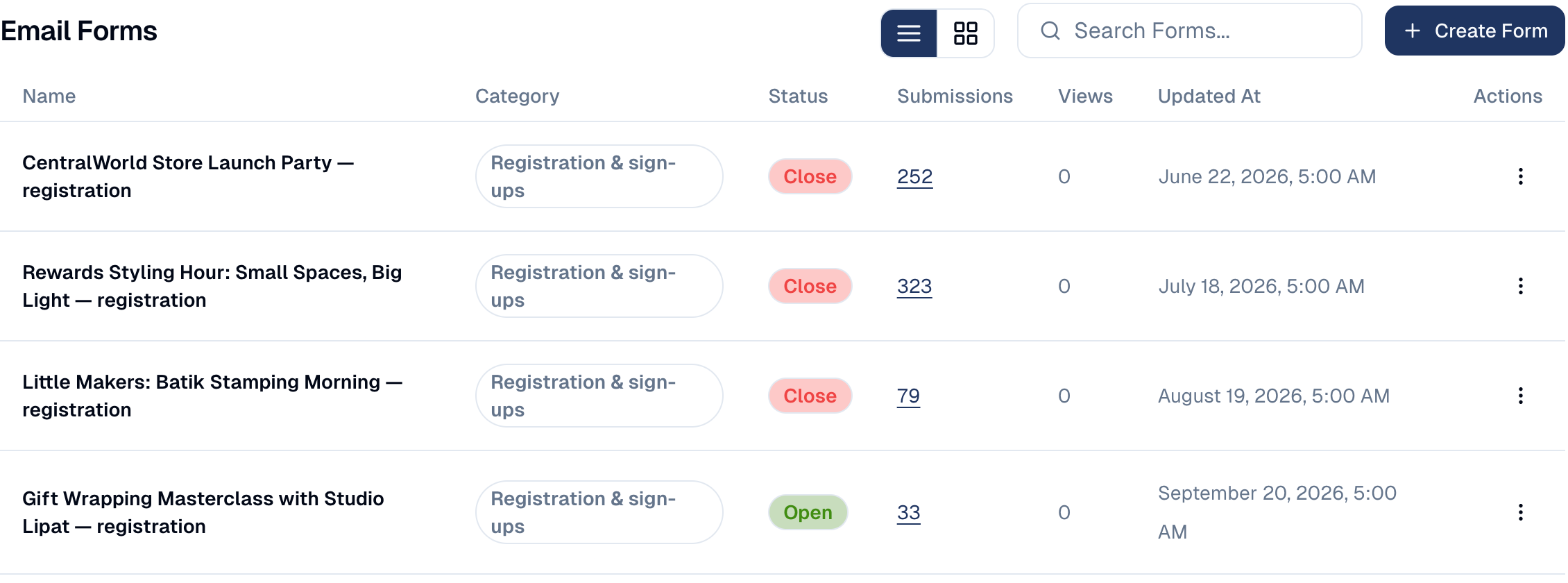
- In the sidebar, choose Marketing → Forms, then Create Form.
-
Choose how to start:
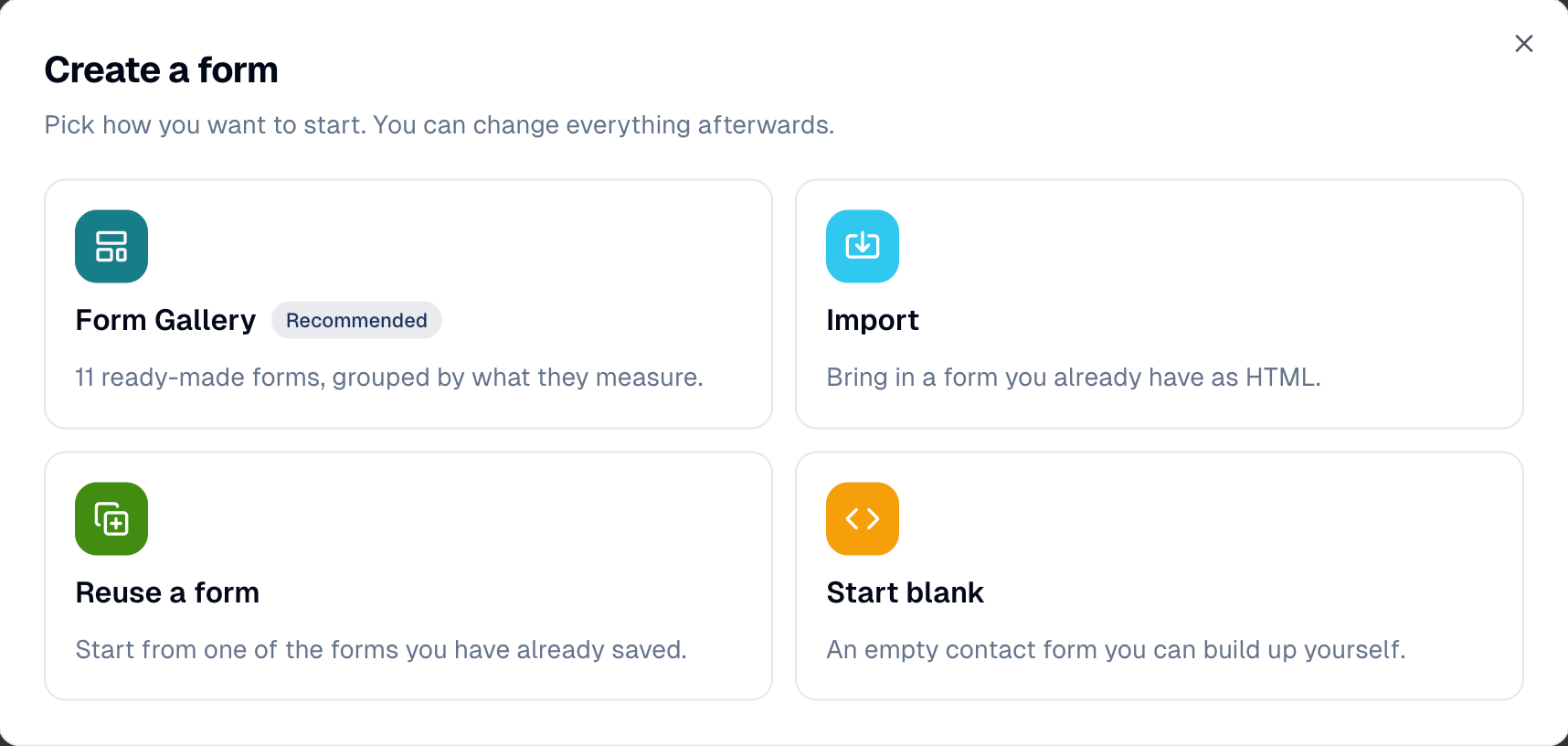
- Form Gallery (recommended): ready-made forms grouped by what they measure, such as Contact / demo request, Net Promoter Score (NPS), Event registration or Newsletter signup.
- Reuse a form: a copy of one of your own forms.
- Import: paste the HTML of a form you already have.
- Start blank: an empty contact form.
- Fill in Core definition: the Name, a Category and a Description.
- Choose Edit form to change the fields (see below).
- Choose Create. Set the form to Open when it should accept responses.
Change the fields
Edit form opens the visual builder. It has the same menu bar as the email editor (File, Edit, AI, View), with Desktop, Tablet and Mobile widths on the right; see Editing an email.
- Add a field: drag it from Add to form, the left column, onto the form: Text field, Email field, Phone field, Multi-line text, Dropdown, Checkbox, Radio buttons, Checkboxes, Consent, Submit button or Two fields side by side.
- Reorder: drag a field to its new place.
- Make a field required: select it, open Settings on the right and tick Required.
- Choose Apply to keep your changes, then save the form. ✕ closes the builder; if you changed something, it asks Discard changes? first.
Radio buttons asks one question with one answer allowed; Checkboxes lets people tick several. To change the answers of either, or of a Dropdown:
- Choose the question on the form. The whole group is selected.
- In Settings, edit the Options box: one option per line. Add a line to add an answer, delete a line to remove one.
- Select anywhere outside the box. The answers on the form update.
A choice question needs at least one option
If you empty the Options box, the previous answers come back.
Turn responses into contacts
In the Customer Data Platform block:
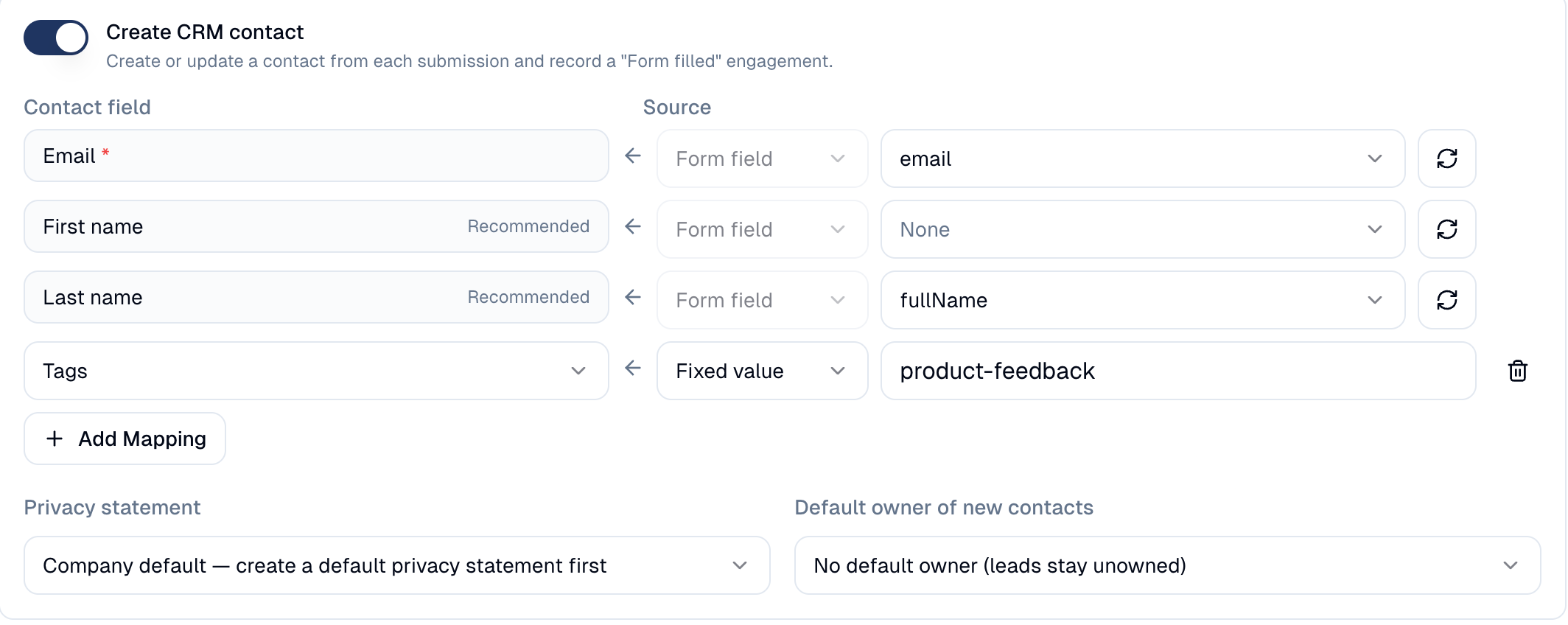
- Switch on Create CRM contact.
- Check the mapping table. Email must point to the field that holds the person's email address. First name and Last name are recommended.
- To fill more of the contact, choose Add Mapping and pick a contact field (Phone, Job title, Tags or one of your custom fields). Fill it from a Form field, or with a Fixed value (for example, tag everyone who replies with webinar-oct).
- Under Privacy statement, keep Company default or pick another statement.
Responses fill in, never overwrite
A submission with an email address you already hold fills in that contact's empty fields; it never overwrites what is there. Renaming a form field is safe: the mapping follows the new name.
Use a form to register for an event
Open the event, then Registration → Registration form. Pick your form, or choose Create new to start from the event registration template. The event then manages the form's confirmation email and thank-you page, under Registration → Confirmation. See Event Management.
How to share a form
From a form's menu in the list:
- Copy Link copies the form's short link, to share in a post, a message or a QR code.
- Embed form gives you a code to paste into your own website, so visitors fill in the form without leaving your site. Set the height you want; the form keeps its own design and adapts its height to the page.
Categories and status
| Category | Use it for |
|---|---|
| Registration & sign-ups | Event registration, newsletter and webinar sign-ups. |
| Experience metrics | Satisfaction surveys: NPS, CSAT, CES, star ratings. |
| Feedback & research | Event and product feedback, general surveys. |
| Data capture | Contact and demo requests. |
A form is a Draft while you build it and Open when it accepts responses.
How to read the answers
In a form's menu, choose View Analytics to open its results: views and submissions over time, then every submission with its answers and date.
- Download Raw CSV: every answer, one row per submission, for your own analysis.
- Download Contact CSV: the people who answered, as contacts.
A view is one display of the form, whether people come from its link, an email button or your website. Your own clicks on Open Form and visits by robots are not counted.
Many views, few submissions?
That usually means the form asks too much. Remove the fields you can live without.
Good to know
Consent is only recorded when the box is ticked
A form records a person's acceptance of your privacy statement only if it has a Consent field and they tick it. Without one, the editor warns you: drag the Consent block in.
- A form must be Open to collect anything, even if you have shared the link.
- One form, one event. Picking a form already used by another event links a copy, so the two events never share answers.
Still stuck? Contact support.