Facebook
Publish posts to your Facebook Page and get reports on how it performs.
What it's for
The Facebook connector links GoodBards to one of your Facebook Pages. With it you can:
- Publish and schedule posts from a campaign's social tactic. See Launch a tactic and Social Post.
- Link a post you published outside GoodBards, so its results count in the campaign report.
- Analyse your Page: followers, post results and comments. See Social Media Analysis and Reports.
- Schedule recurring reports with the Scheduler.
- Feed the daily summary on your home page.
- Let your AI agents list your Pages and read or create analysis reports.
Before you start
- You must be an administrator or the owner of your GoodBards company account.
- Use a Facebook profile that manages the Page you want to publish to.
How to connect
- Open your account menu (your picture, top right), then choose Connections.
-
On the Social Media tab, find Facebook and choose Connect.
-
Sign in to Facebook. When Facebook asks which Pages GoodBards may use, select the Pages you want.
- Back in GoodBards, choose Choose Destination on the Facebook card.
- Under Destination (one per tenant), pick your Page, then choose Save Configuration.
Select your Pages in step 3
Pages you leave out on Facebook's screen never appear in GoodBards. If the list is empty in step 5, connect again and select them.
What GoodBards does with it
| GoodBards… | Details |
|---|---|
| Publishes | Posts on the chosen Page: text, text with a link preview, or text with one or several pictures. |
| Deletes | A published post, when you remove it from GoodBards. |
| Reads | Your Pages, their fans and followers, posts, post statistics, comments and daily Page statistics. |
| Does not | Publish videos, reels or stories, or read your messages. |
Good to know
One Page per workspace
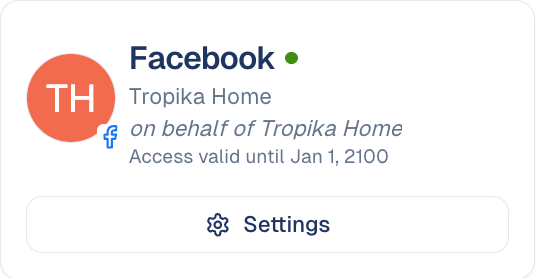
The Page you pick is used for publishing and for the automated reports. To change it, choose Settings on the card.
- Picture or link preview, not both. Without a picture, the first link in the text becomes a preview card.
- Some figures are no longer available. Facebook no longer provides impressions or reach for every post through its API.
- Access expires. When Facebook's access runs out, the connector switches off and you need to connect again.
How to disconnect
- On the Facebook card, choose Settings.
- Choose Disconnect, then confirm.
GoodBards forgets the access and the chosen Page. Posts already published stay on Facebook. To remove GoodBards' access on Facebook's side too, do it from your Facebook settings, under business integrations.
Still stuck? Contact support.