Social Post
Write social posts with AI or from your articles, attach them to a campaign, then publish or schedule them to your connected accounts.
What it's for
A social post usually starts from something you already have, a blog article or a press release, or from a short idea. GoodBards drafts the post for each channel, checks it against the channel's limits and your brand, and publishes it from the campaign it belongs to, so its results show up in the campaign report.
Before you start
- Your plan. Social Media is included in the Pro and Full plans.
- A connected account. Connect LinkedIn, Facebook, Instagram, X or TikTok under Connectors (in the menu behind your avatar), and choose the page to publish to in Destination. Without it, Publish and Schedule stay greyed out.
- A campaign with a social tactic, to publish from.
How to create posts from an article
Turn one article into a series of posts for several channels at once.
- In the sidebar, choose Content Hub → Content Repository.
- On the article, open the ⋮ menu and choose Create social posts.
- Under Campaign, choose the campaign the posts belong to, then Next.
- Tick the posts you want: Launch, Key figure, Question, In case you missed it. Each one shows when it is suggested to go out. Tick the channels.
- Check Link to the article. Add anything to emphasise under Anything to stress? (optional).
- Choose Write The Brief, check it, then choose Generate.
- Choose a post to review it, change its picture or plan it. You can close the window while the posts are written.
Nothing is published
Every post waits on its channel as a draft for you to review.
How to write a post yourself
Choose New Post, pick the Asset Type, keep New Empty as the Creation Method, give it a Title and choose Create. Type the post, save it, then add it to a campaign and publish or schedule it. The full walkthrough, with screenshots, is in Create a social post from scratch.
How to write a post with AI
- In the sidebar, choose Social Media → Social Post, then New Post.
- Pick the Asset Type, for example a LinkedIn post.
- Under Creation Method, choose Write with AI, then Continue.
-
Fill in What is it about?. Optionally tell the AI how to write it in Instructions for the AI: the angle, what to stress or leave out, the length or the hashtags (for example "Focus on the ROI for agencies, under 150 words, end with a question"). Under Brand context, check the language and the voice. Then open Sources and model: the facts the post may use, typed in Notes & facts, web pages, files from your Content Repository, and keywords. There, AI model picks which model writes the post; keep Default (recommended) unless you have a reason, as some models use more credits and take longer. Finish with Tuning (audience, tone, length).
Instructions or notes?
Instructions say how to write the post; the AI follows them. Notes & facts say what is true; the AI only uses them as facts to cite, and never takes orders from them.
- Choose Write It. The AI writes a brief, drafts the post, reviews it and revises it once.
- Read the score and the checks. Apply the suggestions you agree with, or use Ask for a change. Then choose Save As Asset.
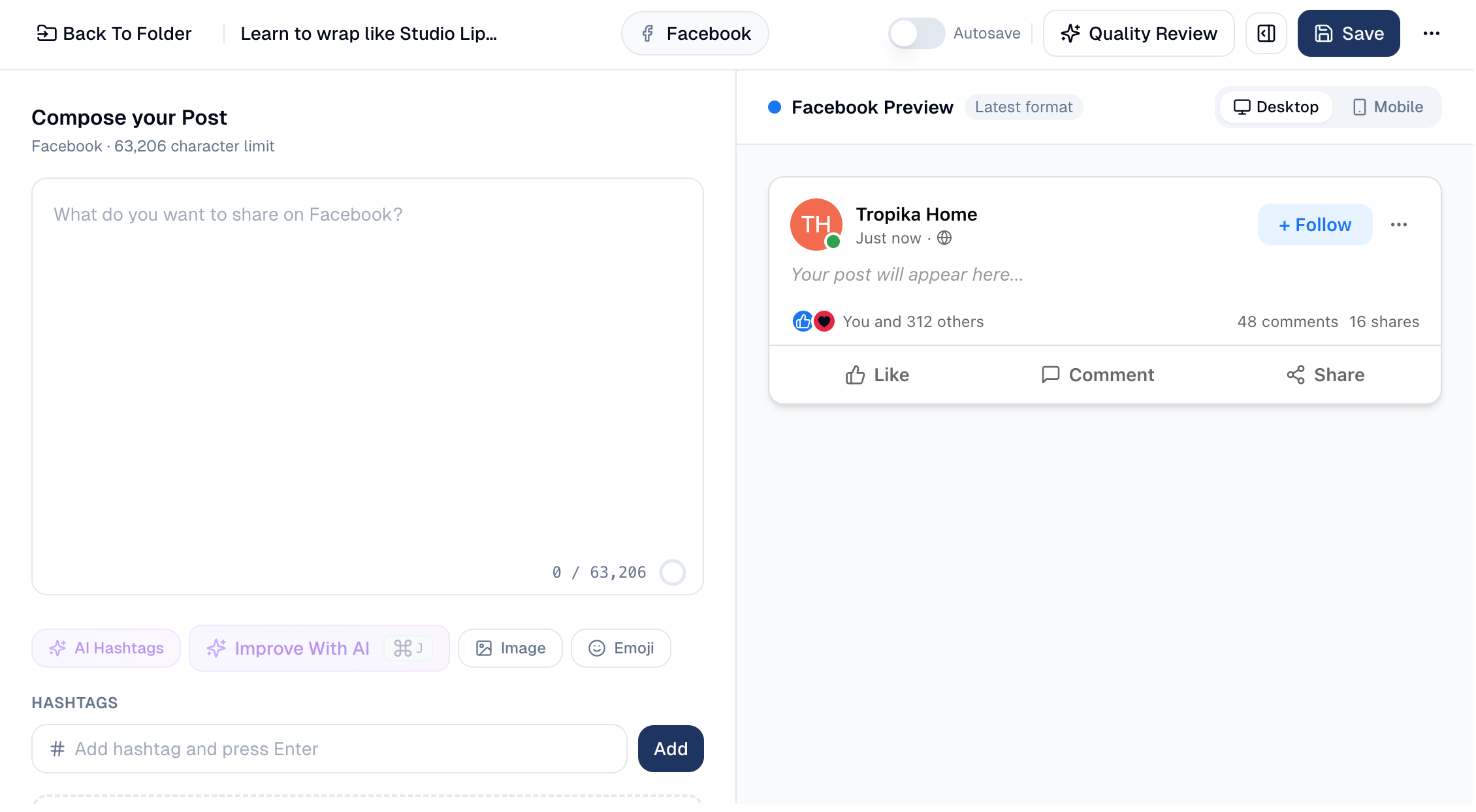
In the post editor, Improve With AI opens a small chat with the AI: ask for a change (more punchy, add three hashtags) and the post is rewritten within the channel's character limit, with Revert to undo. Paste a link (write a post about https://…) and the page is read first, so the post draws on what it actually says. AI Hashtags suggests hashtags once the post has ten words. The preview on the right shows the post as it will appear on the network, on desktop or mobile.
Videos, documents, Reels and stories
A post can carry a video or a document instead of pictures. The file comes from your Content Repository: upload it there first, with + New → Video or Upload. Videos up to 2 GB are accepted, and a progress bar shows the upload.
One kind of media per post
A post holds pictures, one video, or one document. Adding one removes the other, and with a video or a document attached, no link preview card is shown.
A video on LinkedIn
- In the post editor, open Insert → Video… and pick the video.
- Check the title under it: LinkedIn prints it under the video. It starts as the file's name.
- The preview on the right plays the video.
LinkedIn takes MP4 files from 75 KB to 500 MB, between 3 seconds and 30 minutes long. Videos it does not take are greyed out in the list, with the reason.
A document on LinkedIn
A PDF, PowerPoint or Word file is shown on LinkedIn as a document people swipe through, page by page. It is the way to post a carousel on a company page: put one slide per page in a PDF.
- In the post editor, open Insert → Document (PDF, PowerPoint, Word)… and pick the file.
- Check the title: LinkedIn prints it above the document.
LinkedIn takes files up to 100 MB and 300 pages.
Instagram: Post or Reel
Instagram has two asset types. Choose the right one in New Post:
| Asset type | Holds |
|---|---|
| Instagram Post (images) | One picture, or a carousel of 2 to 10 pictures. |
| Instagram Reel (video) | One video, published as a Reel and also shown in your grid. |
For a Reel, choose Pick the Reel video from the Drive (or Insert → Reel video…), then set the Cover frame at, in seconds: the moment of the video shown as its cover. The preview plays the video in the vertical 9:16 frame.
Instagram takes Reels in MP4 or MOV, up to 300 MB, between 3 seconds and 15 minutes. Vertical 9:16 videos look best.
Publish to Instagram as a story
Any Instagram post or Reel can go out as a story instead: in the Publish or Schedule window, set Publish as to Story.
- A story shows for 24 hours. It shows the main picture, or the video, without the caption.
- A video story must be under 100 MB, and 60 seconds at most.
- Its numbers (views, reach, replies) are collected every 2 hours while it is live, and appear on the Stories card of your Instagram report. See Social Media Analysis.
How to publish or schedule a post
Social Media → Social Post lists your posts as cards. The band on top shows whether a post is Scheduled or Published, and on which date.
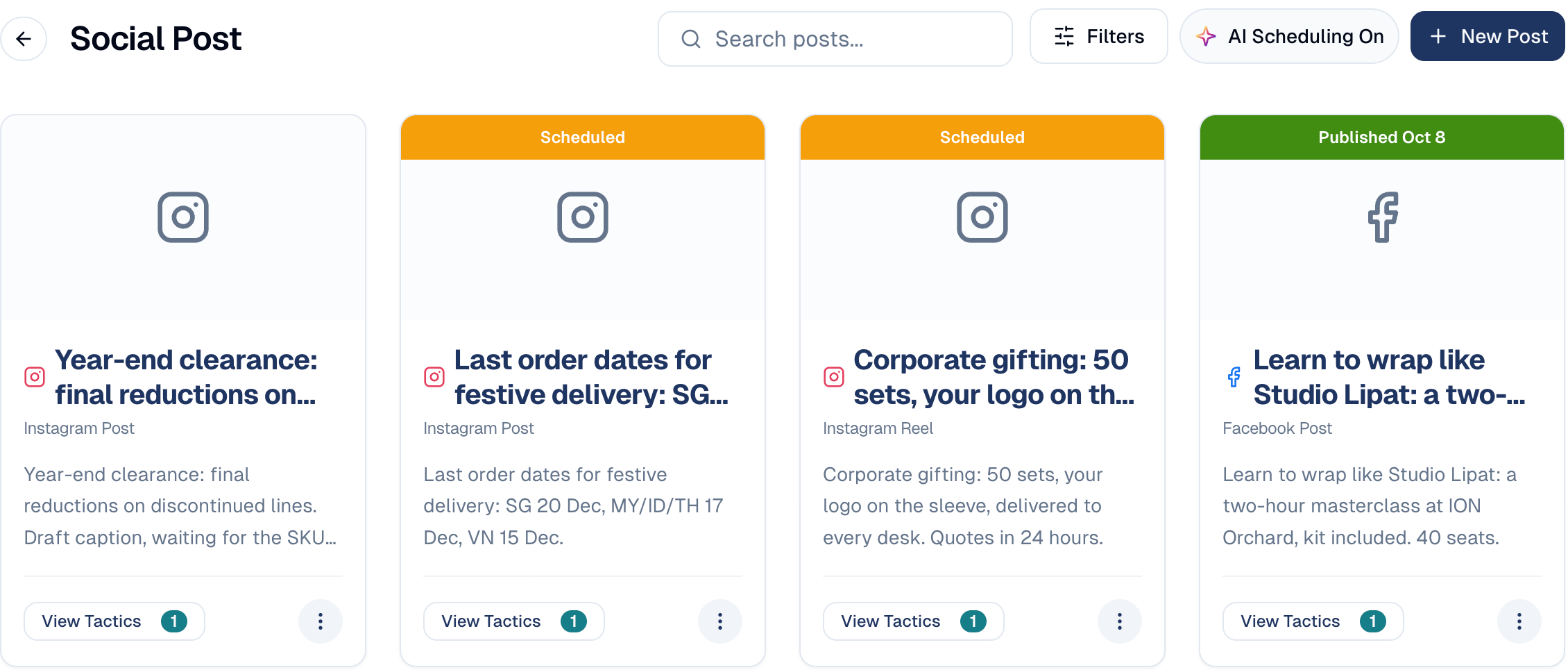
- On Social Post, choose View Tactics on the post's card, then Add to Tactic. Choose the campaign and a compatible tactic, then Add to Tactic. (Or, from the campaign's social tactic, choose Import Asset and pick the post.)
- In the tactic, open the post's ⋮ menu:
- Publish: choose the Destination and confirm.
- Schedule: choose a Date & Time, or use AI Recommendations for the best slot, then Confirm Schedule.
- The card shows Scheduled or Published with the date.
A post with a video or a document takes longer: the file is sent to the network, which then processes it. The post shows Sending in the tactic, then Published, usually within a few minutes. You can leave the page meanwhile. If the network refuses the file, the post shows Error: hover it to read the network's reason, fix the file, and publish again.
Published posts are locked
Once a post is published, you cannot edit or delete it from GoodBards. Check the text, the picture and the destination before you confirm.
Good to know
- Character limits are per channel: 3,000 on LinkedIn, 280 on X, 2,200 on Instagram and TikTok. The text box turns red past the limit.
- Media or link preview, not both. With a picture, a video or a document attached, LinkedIn and Facebook do not show the link's preview card. Without one, the preview card shows, but Instagram still needs a picture or a video.
- Videos and documents are for LinkedIn and Instagram. Documents are for LinkedIn only. Instagram carousels hold pictures only, not videos.
- Posted outside GoodBards? In the tactic, choose Link Published Post and paste its link: its results then count in the campaign report.
- LinkedIn personal profiles do not give analytics; publish to a company page if you want results.
Still stuck? Contact support.