Video Generation
Create short video clips from a written description.
What it's for
Short video performs well on social, and producing it normally means a camera, an editor and a week. This generates a clip from a description instead, for social posts, ad creative and background footage.
Clips are short by design: a few seconds, suited to social rather than long-form storytelling.
Before you start
- Your plan. Video Generation is included in the Lite, Pro and Full plans.
- Credits. Video uses more credits than images. See Usage & Billing.
How to generate a video
- In the sidebar, choose Agentic AI → Video Generation.
- Describe the clip you want in Prompt.
- Starting Image, Aspect Ratio, Duration, Brand and Style Options are folded sections. Each shows its current choice next to its name (for example 16:9 or 8s). Open one to change it. Your primary brand kit is already selected under Brand.
- Choose Generate Video, always at the bottom of the panel.
Your clip appears under Video Preview on the left.
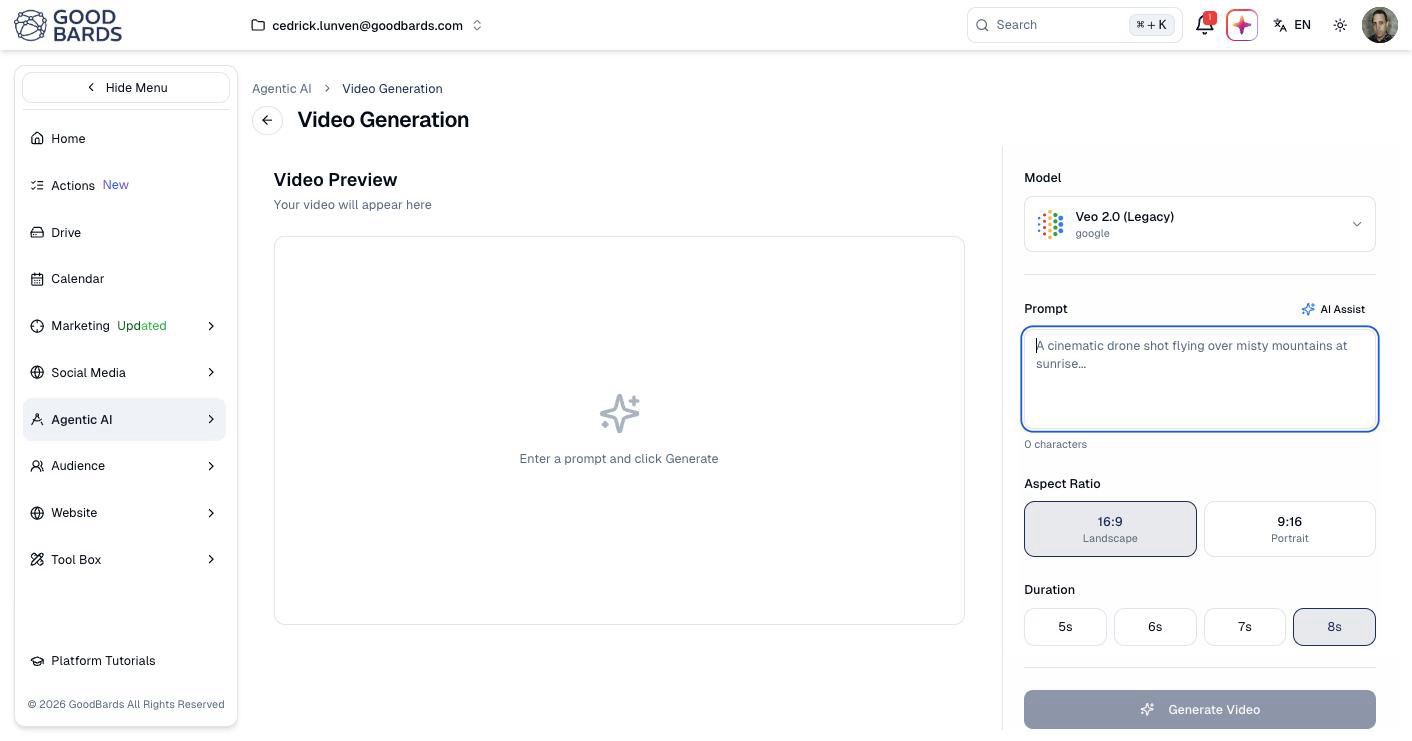
Aspect ratio
| Ratio | Use it for |
|---|---|
| 16:9 Landscape | YouTube, website embeds, presentations. |
| 9:16 Portrait | Stories, Reels, TikTok: anything watched on a phone held upright. |
Choose before generating. Cropping landscape footage into portrait afterwards cuts the sides off your subject.
Duration
Clips run from 5s to 8s. Shorter is usually better on social, where the first two seconds decide whether anyone keeps watching.
Starting from an image
Under Starting Image, choose Upload or From Drive. The video starts from that picture and brings it to life. GoodBards switches the aspect ratio to the one closest to your picture.
This is how you get your logo into the scene, for example on a flag, a shop sign or a product.
Video models never see your logo file
A prompt like "use our logo" on its own produces a video without it. Start from an image that already shows the logo, as below.
- In Image Generation, create the opening shot with Blend logo into the scene on. Use the aspect ratio you want for the video. Keep the version where the logo looks best, and choose Save to Drive.
- In Video Generation, open Starting Image, choose From Drive and pick that image.
- In the prompt, describe the motion and the camera. Say that the emblem is already correct and must stay identical. Don't ask for an uploaded logo.
The logo can drift
The AI redraws every frame from the first one. With a lot of motion, your logo can lose detail as the clip goes on. Calmer camera moves keep it sharper. Watch the whole clip before you publish it.
Keeping videos on brand
Brand lists your company's brand kits. With a kit selected, GoodBards adds its colours and imagery guidelines to your prompt. Choose None to generate without it.
Turn on Add logo to stamp your real logo file in a corner, as in Image Generation: pick the logo, the variant, the position and the size. The preview shows it straight away. Download and Save to Drive then record the clip again with the logo on every frame.
Keep the tab open while it records
Recording takes as long as the clip itself. You get an MP4 in Chrome, Edge and Brave, and a WebM file in some other browsers.
Style options
Style, Lighting, Mood, Camera / Angle and Color Palette add a look to your prompt without you having to write it, for example Photorealistic with Golden Hour lighting. They are the same options as in Image Generation. Leave them on Any to rely on the prompt alone, or choose Reset Style Options to clear them.
Writing a good prompt
Describe the shot the way you would brief a videographer: subject, movement, setting, light. The placeholder on screen is a good model: a cinematic drone shot flying over misty mountains at sunrise.
AI Assist above the prompt box expands a rough idea into a fuller description.
Good to know
- Video is slower than images. A clip takes longer to generate.
- Expect several attempts. Getting the motion right usually takes a few tries, so allow time before a deadline.
- Watch for artefacts. Faces, hands and text are where AI video still fails. Watch the clip fully before publishing.
- Add captions. Most social video is watched with the sound off.
Still stuck? Contact support.