Check-in and badges
On the day: check guests in with their QR code, at the door or at a self-service kiosk, and print name badges.
What it's for
A paper list at the door is slow and tells you nothing afterwards. Every confirmed guest of a GoodBards event has a personal QR code; scanning it checks them in in a second, and their attendance is recorded on their contact for the follow-up.
Before you start
- A phone, tablet or laptop with a camera.
- Guests confirmed: only confirmed guests receive a QR code, in their confirmation email and in the event reminders.
How to check guests in
In the sidebar, choose Marketing → Event Management, open the event, then its Actions menu.
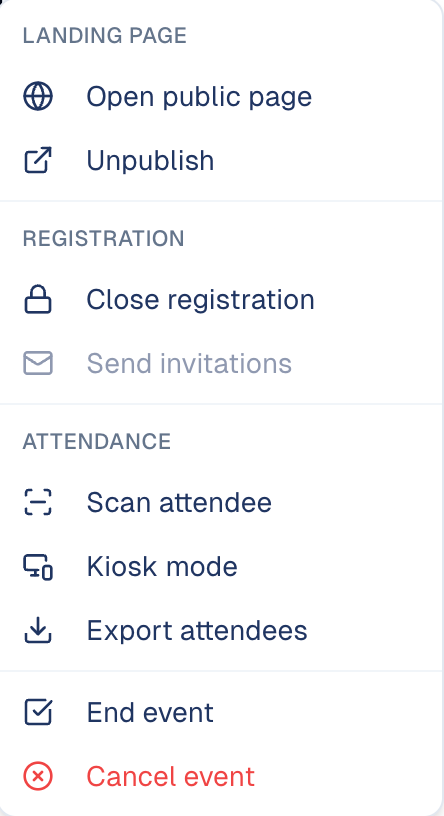
- Scan attendee: for a host at the door. Point the camera at the guest's QR code and the guest is checked in.
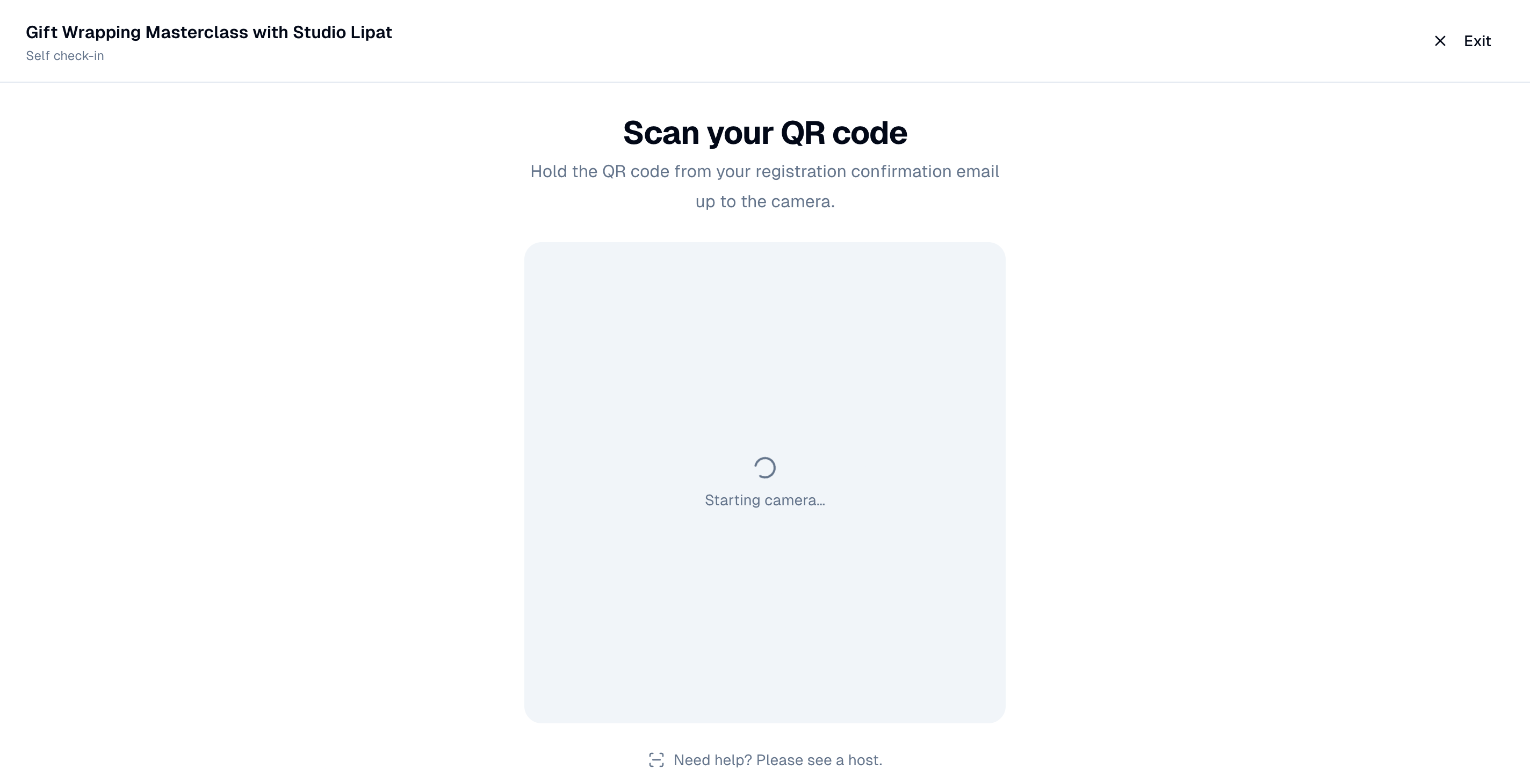
- Kiosk mode: for self-service. Put a tablet at the entrance; guests hold up their QR code and check themselves in. Choose Exit to leave kiosk mode.
A guest lost their email?
Find them on the Attendance tab: search for their name and set their status to Attended.
How to print badges
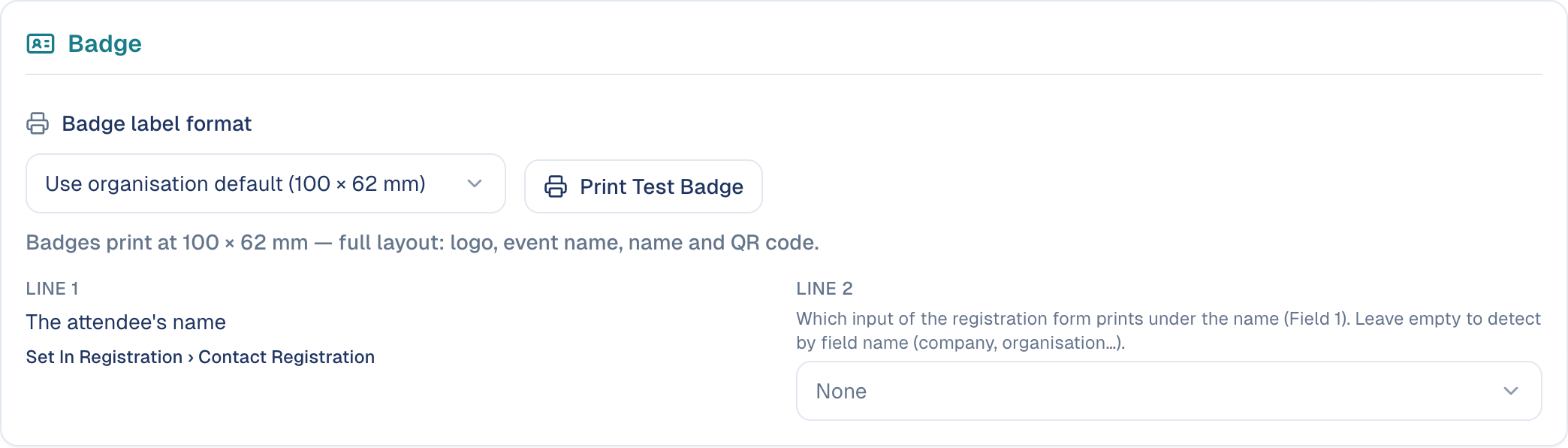
- On the Attendance tab, under Badge, choose the Badge label format for your label printer, or keep your company's default. The list covers Brother 100 × 62 mm labels and the NIIMBOT M2 rolls (40 × 20, 40 × 40, 50 × 30, 50 × 50 and 50 × 80 mm); Custom size takes any other roll. Labels under 80 mm wide print a compact badge: name, company and event date. The logo is printed only when the label is at least 40 mm tall, and the 20 mm-tall label keeps the name to one line.
- Line 1 is the guest's name. For line 2, pick the form field to print under it, for example their company.
- Choose Print Test Badge to check the layout, then print badges from the guests' rows.
How to end the event
- Choose Actions → End event.
- Guests who were not checked in are marked Absent, so the Follow-up tab can thank those who came and reach those who missed it.
- To keep the list, choose Actions → Export attendees.
Good to know
The QR code is personal
It checks in that one registration: a screenshot forwarded to a friend still checks in the original guest.
- Pending and waitlisted guests have no QR code. They get one in the email that confirms their seat.
- Check the camera before doors open. The browser asks for permission to use it the first time.
Still stuck? Contact support.