Contacts
The people you market to: how to add them, keep their details current, and group them into segments.
What it's for
Every email you send and every form someone fills in comes back to a contact. Contacts are the centre of the platform: get them right and the rest of your marketing has something to work with.
In short
In the sidebar, choose Audience → Contacts. Home summarises your database, Details List lists every contact, Segments groups them by rule, and Mailing Lists, Card Scanner, Custom Fields, Custom Lists and Import Jobs cover the rest. Only Subscribed contacts receive marketing email.
How to add contacts
There is more than one way, depending on how many you have:
| Method | Use it when |
|---|---|
| Add one at a time | You met someone and want them in straight away. |
| Import | You have a list to bring across. Progress shows under Import Jobs. |
| Card Scanner | You came back from an event with a stack of business cards. Scan them and the details are read for you. |
| Forms | Someone signs up themselves. See Forms. |
Adding and importing need the Access sensitive data permission
Without it, Add Contact and Bulk Add Contacts are greyed out (hover them to see why). Importing also requires being an administrator. See Additional permissions.
How to read the Contacts home
In the sidebar, choose Audience → Contacts. The page opens on the Home tab, which summarises your database rather than listing individuals.
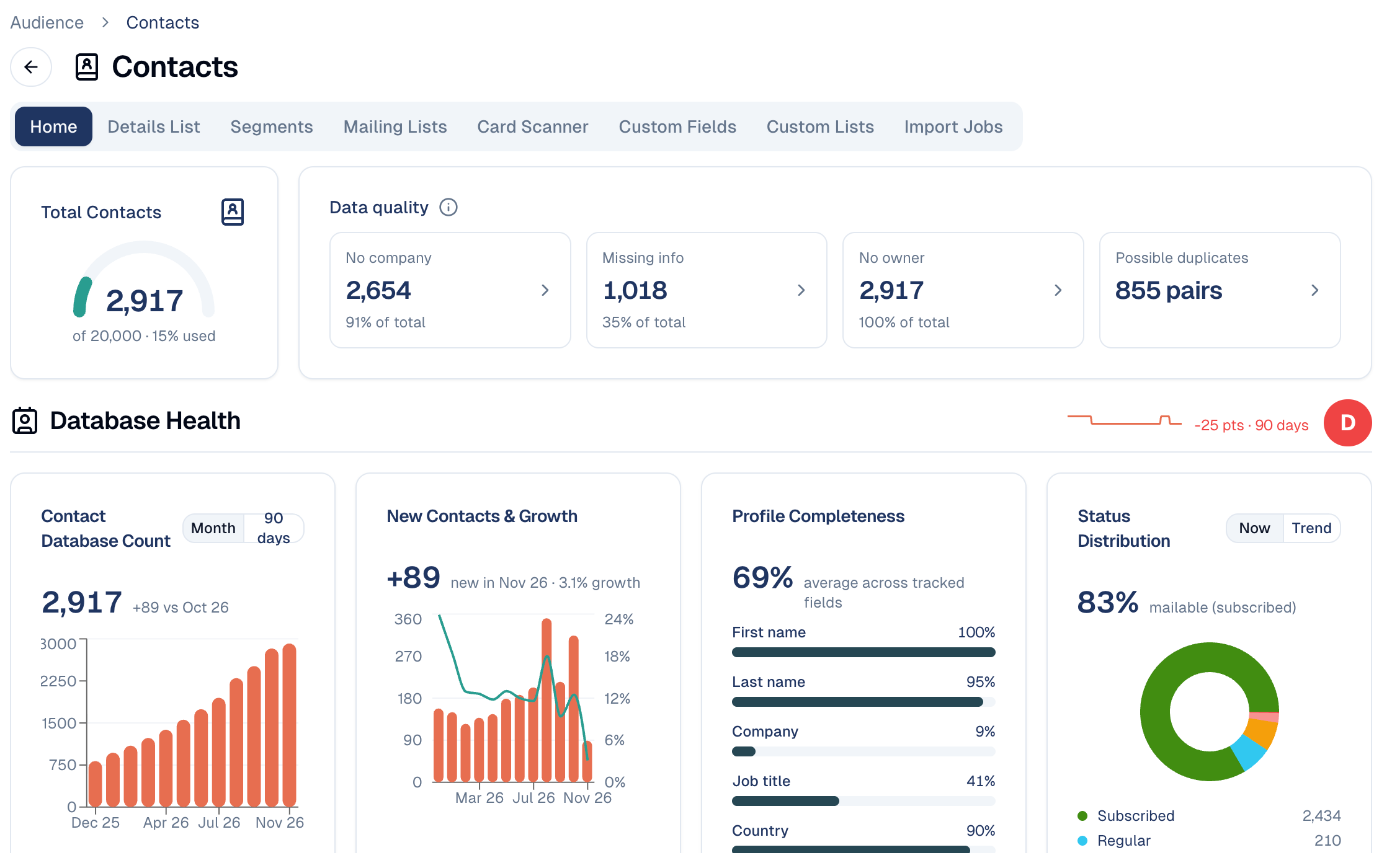
Total Contacts, top left, shows how many contacts you hold. The gauge fills as you approach your plan's limit and turns orange, then red, near it. On a plan without a limit, it shows the number alone.
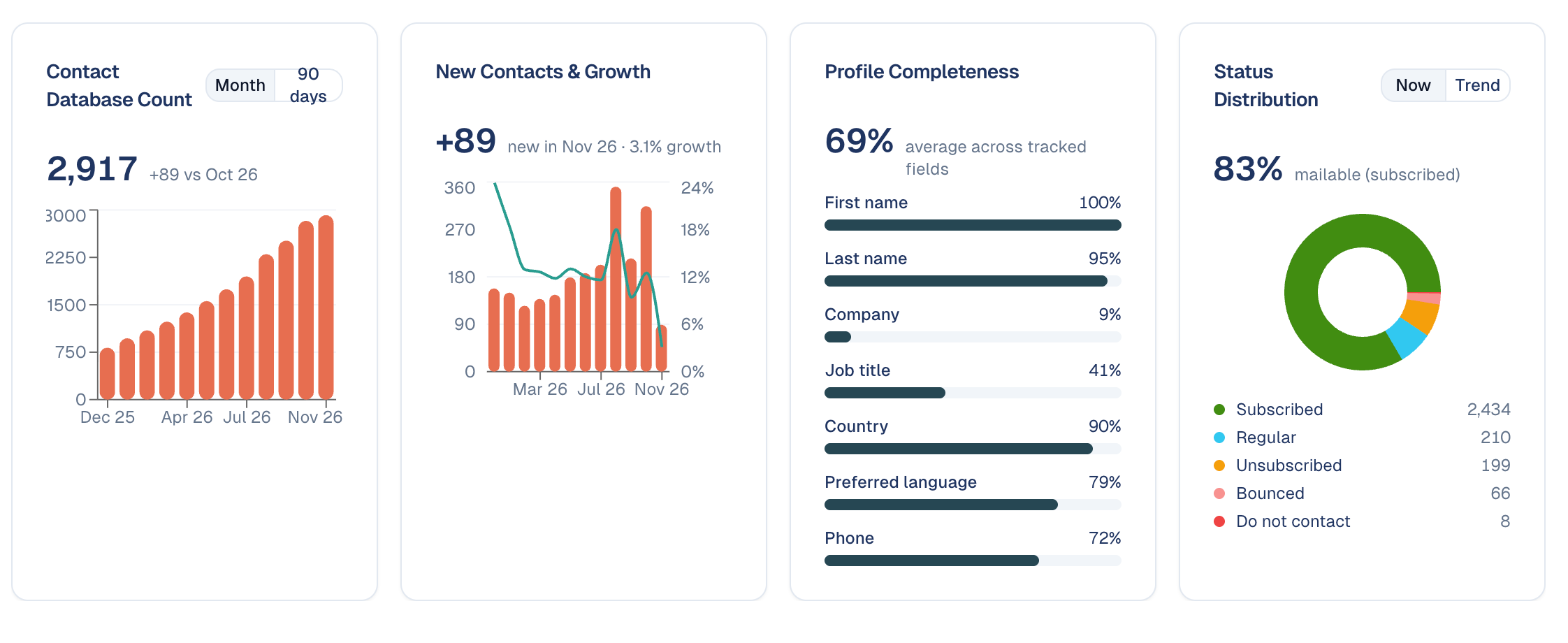
The Status Distribution card, under Database Health, shows how those contacts split between statuses:
- Subscribed: contacts who have agreed to hear from you.
- Regular: contacts with no marketing consent yet. You can work with them, but not email them marketing.
- Unsubscribed, Bounced and Do not contact: people you must not email.
Subscribed is the number that matters
A large database is not much use if most of it has unsubscribed. Only Subscribed contacts can receive marketing email. See Unsubscribed and unengaged contacts for how each status is set and what you can do about the quiet ones.
Bounced and Do not contact are set for you
An address that does not exist, or whose server rejects the email outright, becomes Bounced at once; a temporary problem (full mailbox, message too large) does so after three sends. A recipient who reports your email as spam becomes Do not contact. Both stop every further send.
The reason for a bounce or a complaint stays in the contact's engagement timeline and notes. A temporary bounce only adds a note until the third one.
Data quality, next to it, is your clean-up list. Each tile counts the contacts that need attention, with their share of your database. Hover a tile to read exactly what it checks:
- No company: people you cannot count towards an account.
- Missing info: contacts missing an email, phone or country, so records you cannot reach or segment. Email and phone are only checked when your role can see them.
- No owner: nobody is responsible for them.
- Possible duplicates: pairs of records with the same first and last name. Review them before merging anything.
Choose a tile to open the list filtered to exactly those rows; a chip above the table shows the filter and the count, with a cross to clear it. A tile with nothing to fix shows All good.
The grades
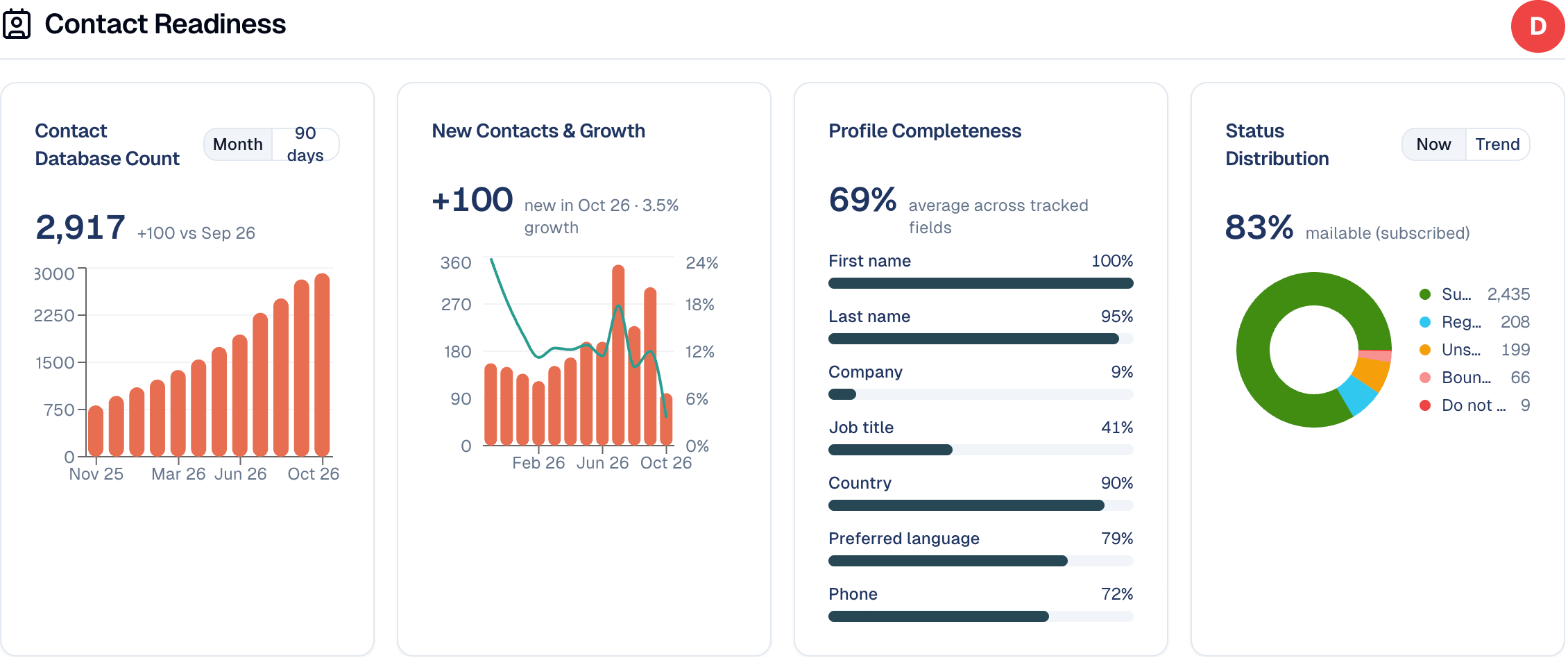
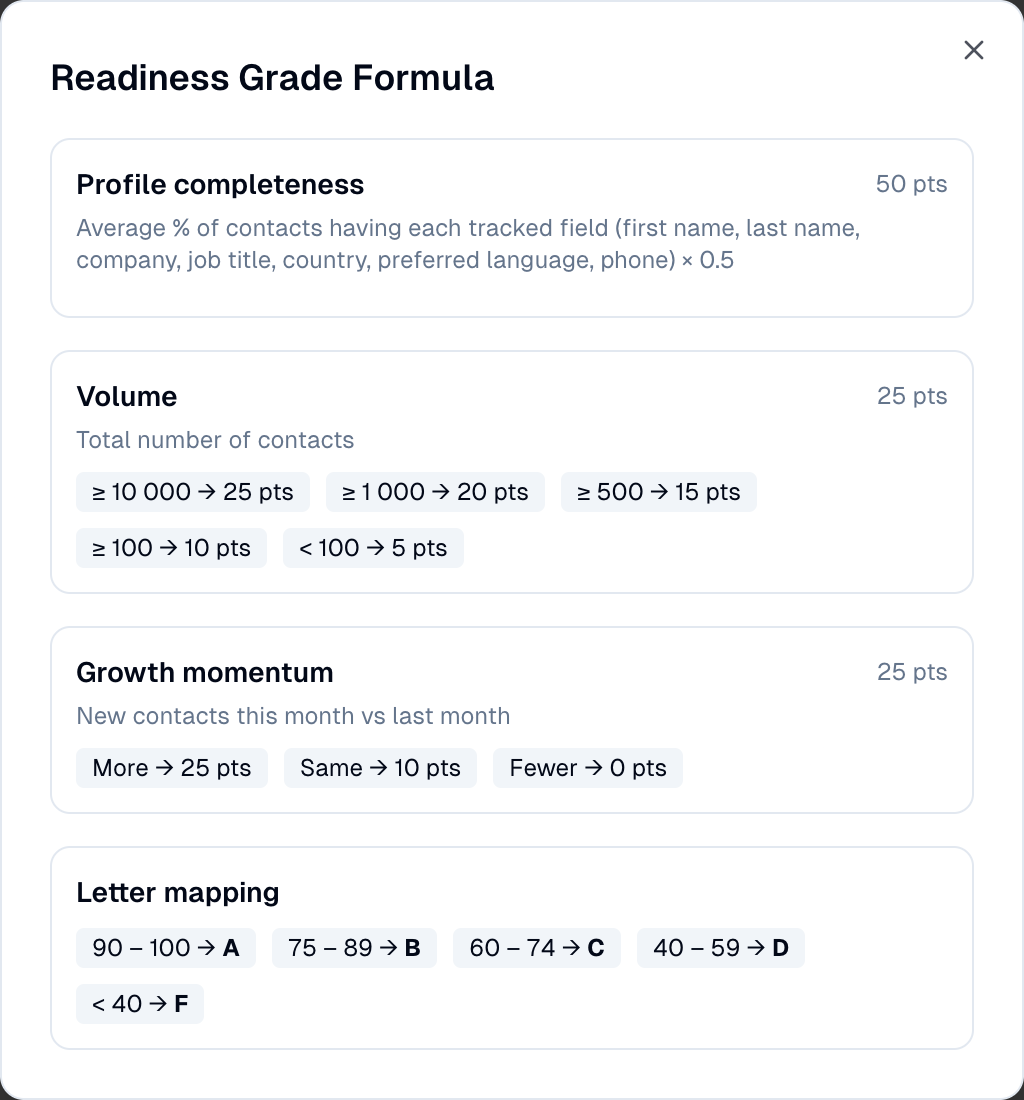
Database Health grades how usable your database is, and Engagement how much your contacts interact with you. Each is a score out of 100 shown as a letter: A (90–100), B (75–89), C (60–74), D (40–59) or F (below 40). Choose the grade to see its formula.
Beside each grade, a small line shows the score over the last 90 days, with how many points it gained or lost. Hover the line to read the score on a given day. It builds up day by day.
Why the Database Health line can jump
Part of the score compares this month's new contacts with last month's. On the first days of a month the comparison starts again, so the line can drop even though nothing got worse. The score also steps up as your database passes 100, 500, 1,000 and 10,000 contacts.
| Grade | Made of |
|---|---|
| Database Health | Profile completeness (50 points): how many contacts have a first and last name, company, job title, country, preferred language and phone. Volume (25 points): how many contacts you hold. Growth momentum (25 points): new contacts this month against last month. |
| Engagement | Engaged share (50 points): contacts with a score of 40 or more. Reach (25 points): contacts with any engagement at all. Depth (25 points): the average score per contact. |
To raise database health, fill in the missing details (an import with the Overwrite conflict action can complete existing contacts). To raise engagement, send your contacts something worth opening. See Lead scoring.
Companies have the same two grades, built from company data. See Companies.
How to find a contact
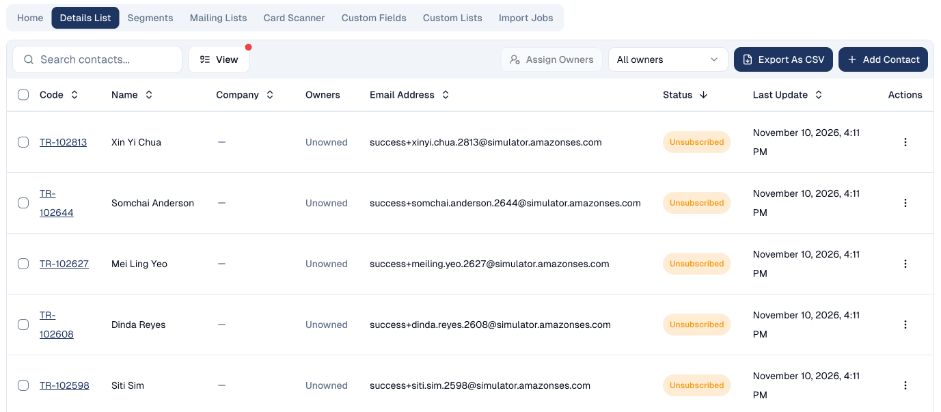
The Details List tab lists every contact: their code, name, owner, email, status and last update.
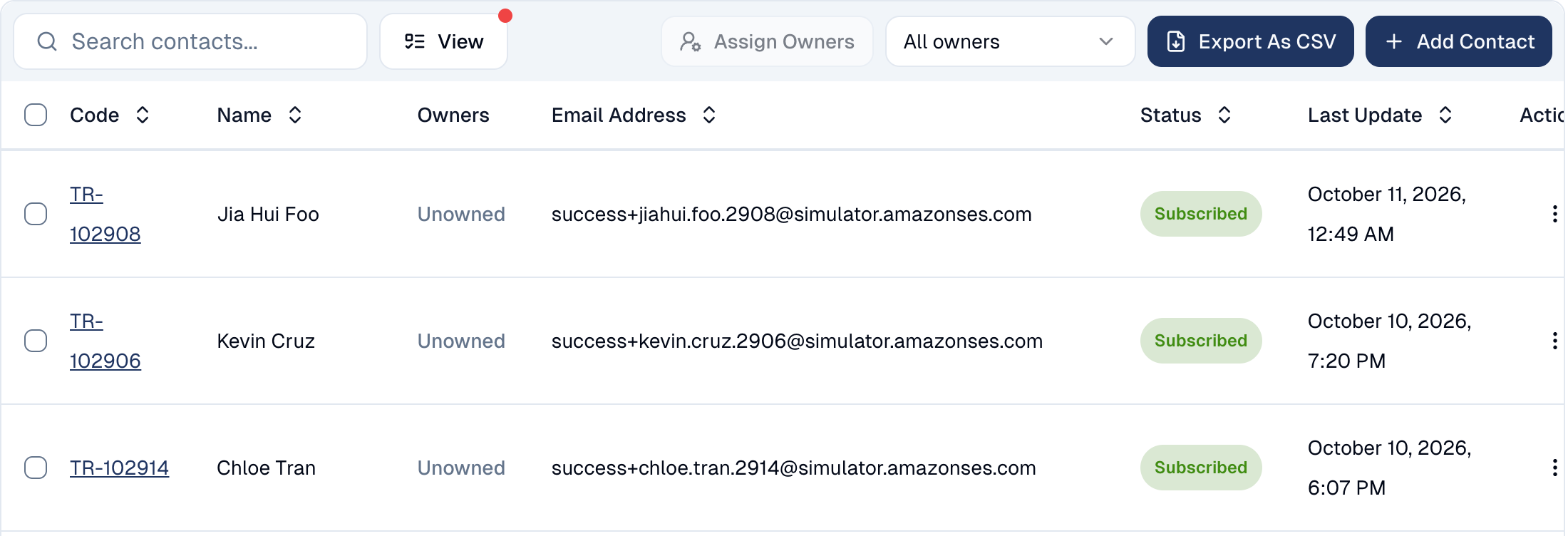
- Search by name or email, and choose the columns to show with View.
- The Company column shows the account a contact is linked to (a +1 badge means more than one; hover to see them all). Sort on it to group contacts by company, or to bring the unlinked ones to the top.
- Each contact can have owners, the colleagues responsible for them. Filter by owner, or select contacts and choose Assign Owners. Depending on their role, a colleague may only see the contacts they own.
- Export As CSV downloads the list; Add Contact creates one.
- Choose a contact's code to open their record: details, custom fields, mailing lists, and the history of every email, form and event.
Asking the assistant
On the Contacts and Companies pages, the assistant in the top bar answers questions about your audience, in plain words:
- Which contacts have no company?
- Find Jon Tan from DBS, I am not sure of the spelling.
- Who opened the last newsletter but never clicked?
- Who went cold in the last six months?
- Top 10 companies by clicks in the last 30 days.
When you open a contact's record, "this contact" in your question means that person. Each answer states the rule it applied (for example contacts with no positive engagement in the last 180 days), so you can check it before acting.
The assistant sees what you see, and edits nothing
It reads the same data as the screens, under the same rules: only the contacts you can see, never an email or phone your role cannot see. It does not change anything.
A contact's page
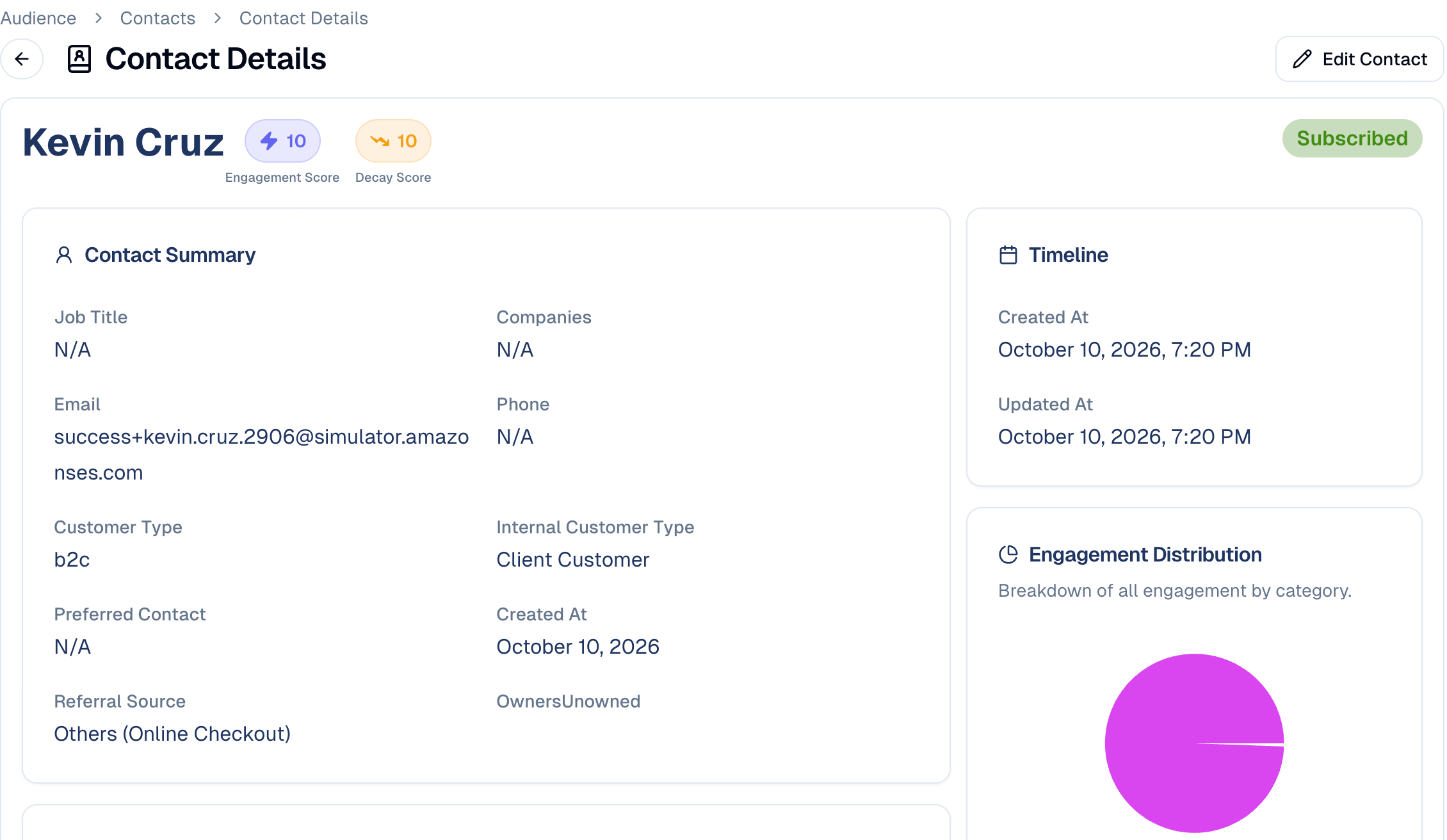
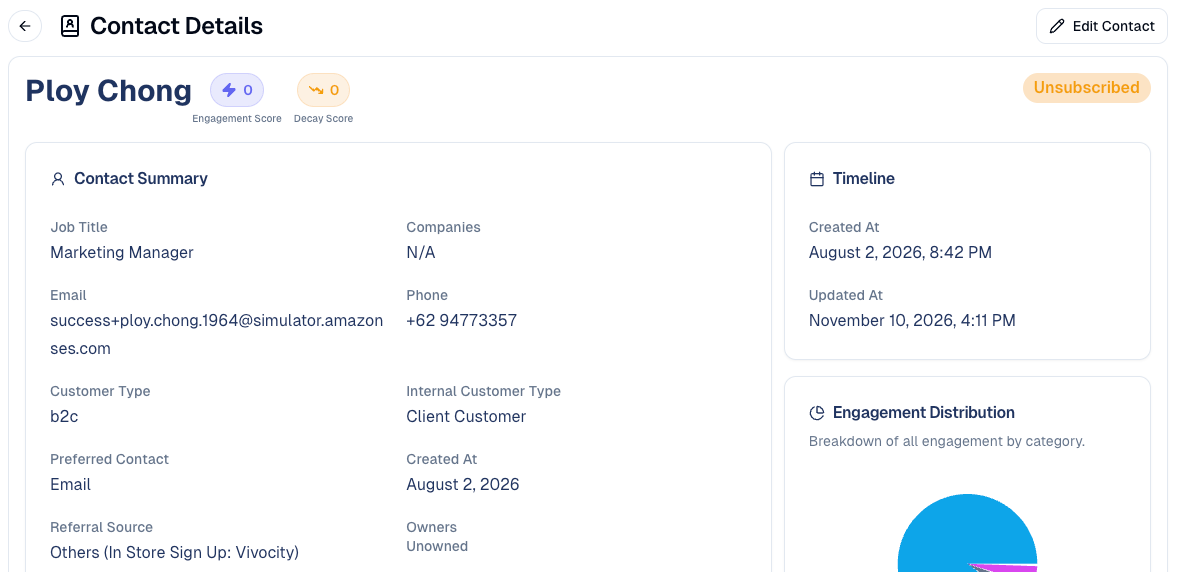
Choose a contact's code in the list to open their page: everything GoodBards knows about them, in one place.
| Section | What it shows |
|---|---|
| Scores | The engagement score and the decay score next to the name. See Lead scoring. |
| Contact Summary | Job, companies, email, phone, customer type, preferred contact method, referral source and owners. |
| Location | Country, city, address and timezone. |
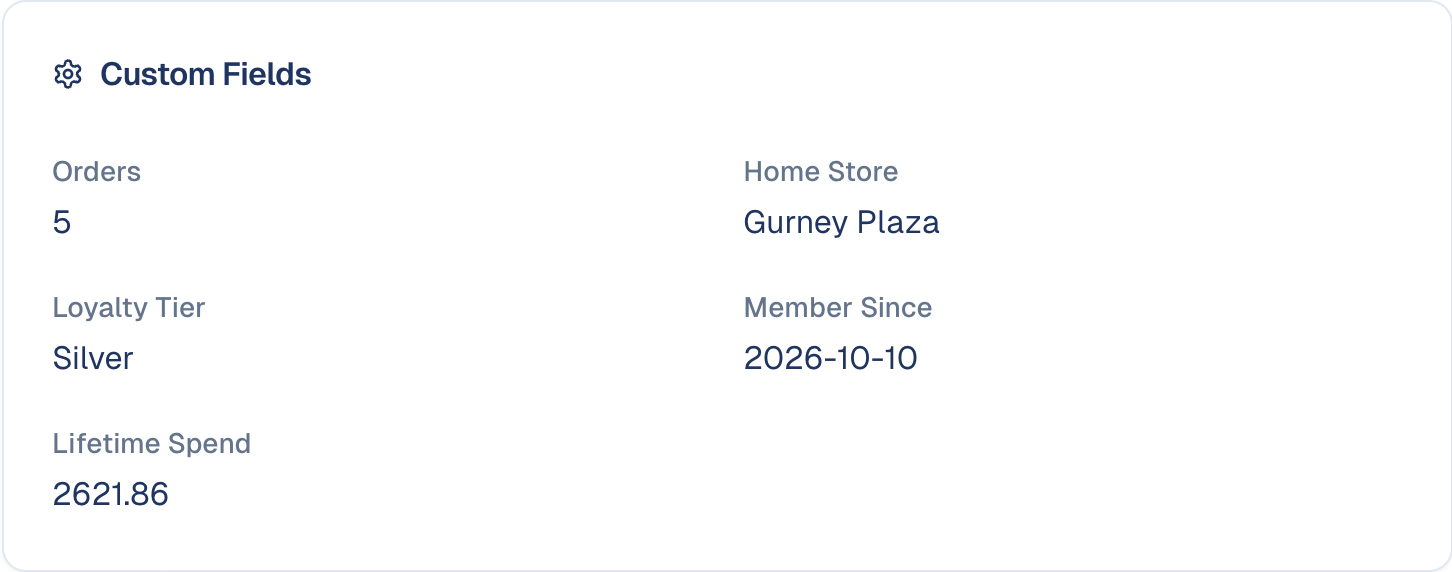
| Custom Fields | Your own fields, such as a loyalty tier or a home store. |
| Messaging consent | Whether the contact agreed to WhatsApp, Telegram and SMS messages, since when and how. For Telegram, also their personal link (QR code, Email link, Copy link) until they subscribe. See Telegram. |
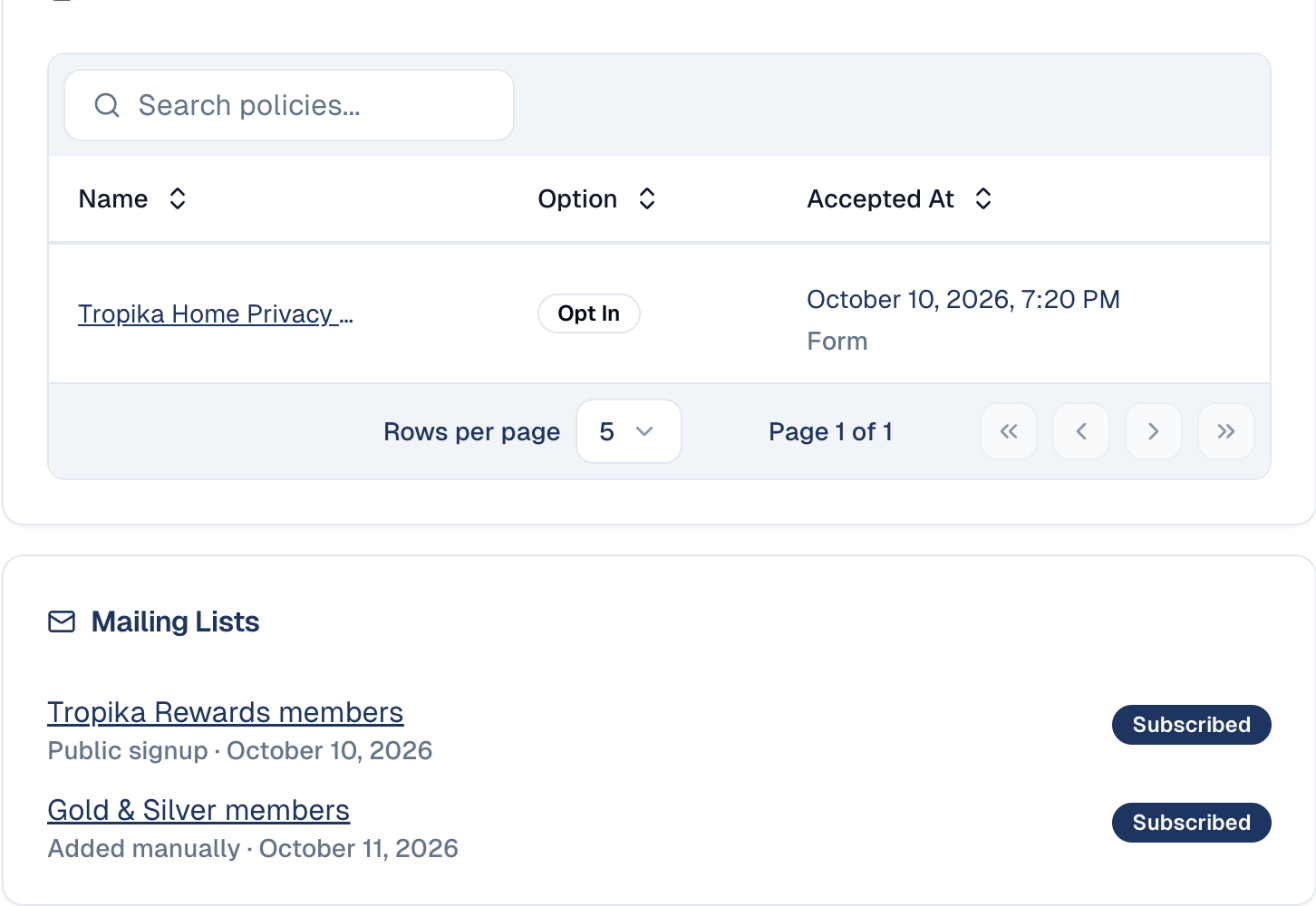
| Policies | The privacy statements the contact accepted, when, and how (for example through a form). This is your proof of consent. |
| Mailing Lists | The lists they belong to, how they joined (public sign-up, added manually) and whether they are still subscribed. |
| Events and Form submissions | The events they registered for and the forms they filled in. |
| Social Links, Referral Info, Tags | Their social profiles, where they came from, and your tags. |
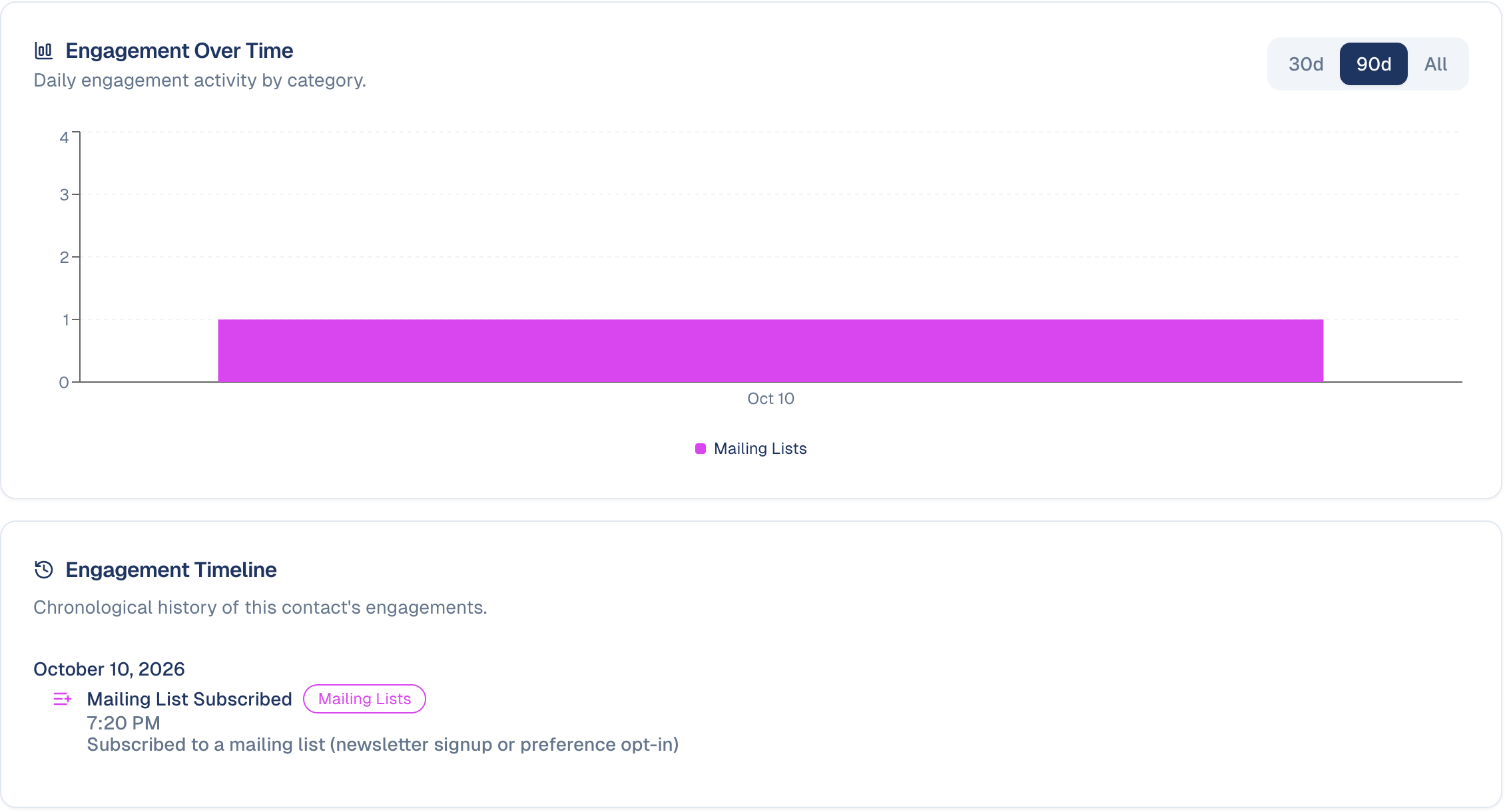
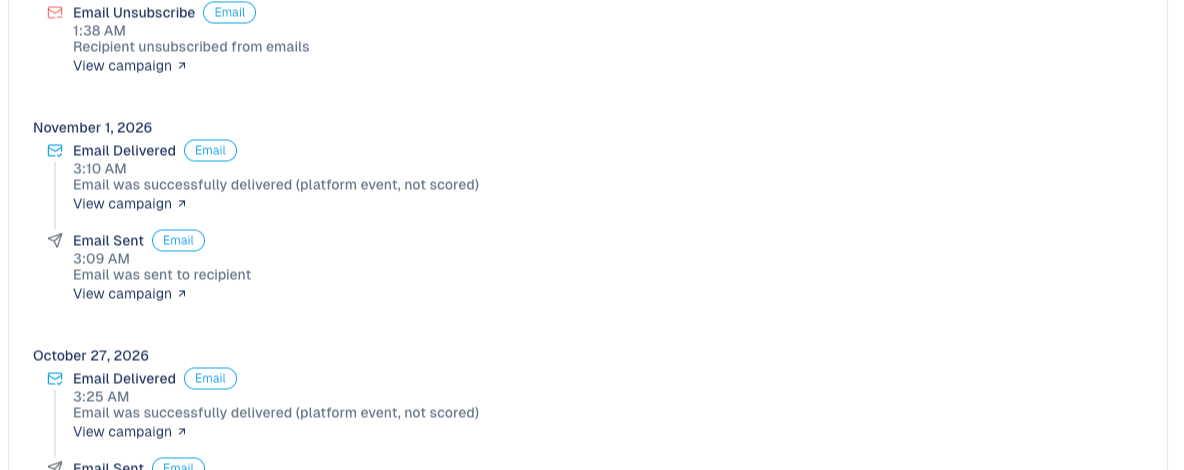
| Engagement Over Time and Engagement Timeline | Every open, click, form, registration and subscription, day by day and in order. |
How to edit a contact
- On the contact's page, choose Edit Contact at the top right.
- Change what you need: personal details, address and timezone, job and companies, subscription status, social handles, referral source, preferred contact method, customer type, privacy statement, mailing lists, tags and Contact Notes.
- Choose Save Contact.
Adding a mailing list here subscribes the contact at once
Only do it for people who agreed to receive that list.
- Notes keep what your team knows that fits no field: met at the Mid Valley styling clinic. Choose Add Note.
- Owners can be changed here by an administrator. See Users, roles & permissions.
Segments
A segment is a saved filter: a rule that decides who belongs, evaluated when you use it, so it stays current as contacts change.
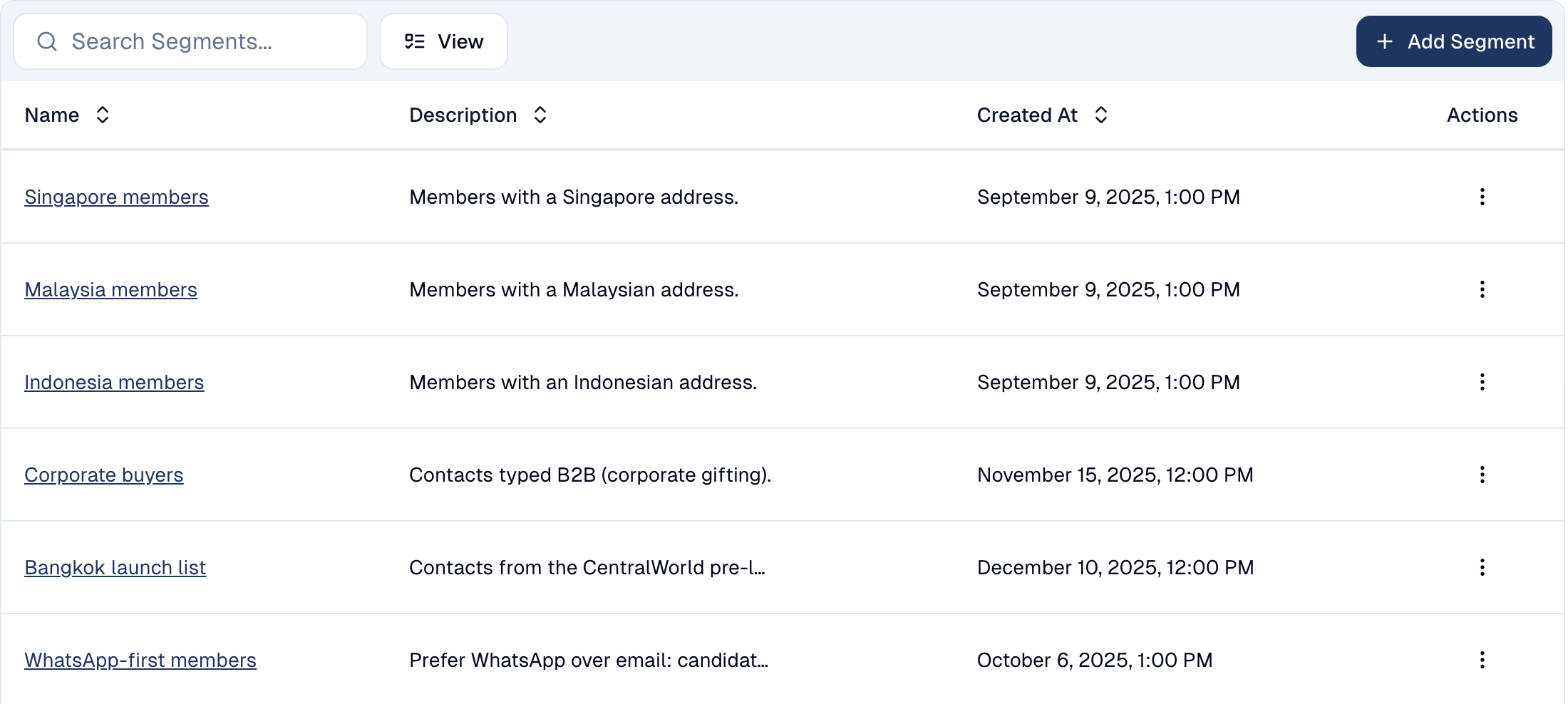
To create one, open the Segments tab and choose Add Segment, then set the rule. Anyone who can edit contacts (the Marketer and Sales roles, and administrators) can add, edit and delete segments. A rule is made of up to three blocks. Each block is optional, and a contact must match every block you fill in:
- Contact Profile Block: a detail of the contact, such as status, country, job title, tags or a custom field.
- Behavior Block: what the contact did (email opened, email clicked, form filled, event attended…), how many times (Min Count, Max Count) and when (Relative Days with Last n Days, or a Specific Range of dates).
- Alert & KPI Block: the contact's Engagement Score or Decay Score compared with a number. See Lead scoring.
Inside a block, Add Condition adds a line.
A segment is always up to date
You never refresh a segment. Its rule is evaluated each time you open it and each time an email is sent to it, so the people in it today may not be the same next week. For a worked example, see How to find unengaged contacts.
Choose a segment's name to open it: its description, its filters, a summary of which kinds of filter are applied, and the list of contacts it holds right now. Edit Segment changes the rule.
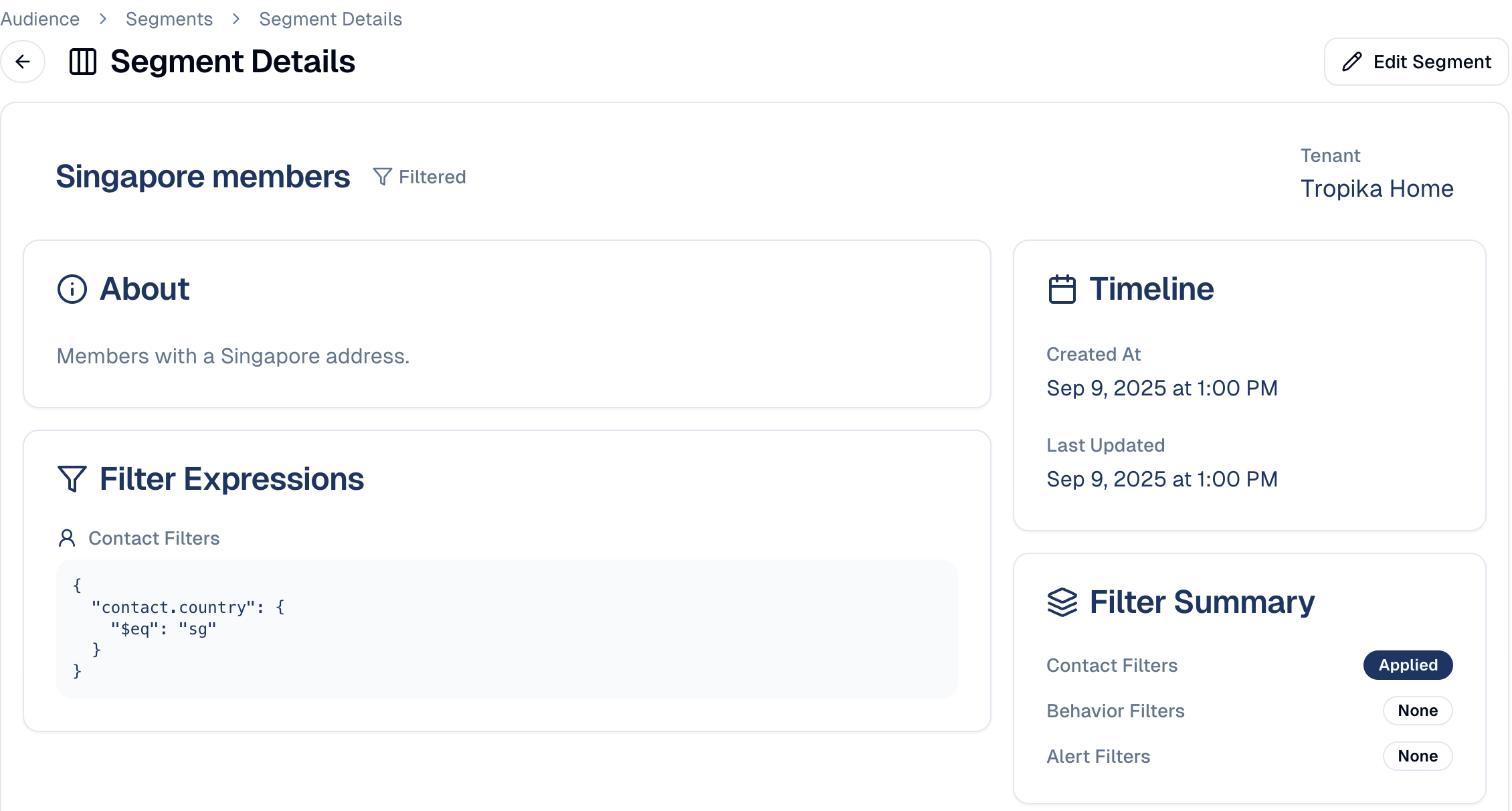
Useful segments look like:
- Singapore members: everyone in one market
- Corporate buyers: one type of customer
- Bangkok launch list: the people from one event
Segments beat one-off filters
If you find yourself applying the same filter repeatedly, save it as a segment. Give it a description too: in six months you will not remember what the rule was.
Unsubscribed and unengaged contacts
Two groups to treat differently: people who told you to stop, and people who simply went quiet. GoodBards handles the first group for you. For the second, it gives every contact a score that fades with time, and you choose the rule.
In short
| Unsubscribed | Unengaged | |
|---|---|---|
| How they are captured | By the contact, from the unsubscribe link of an email; by a bounce or a spam complaint; or by your team. | By the score: every open, click, form or registration adds points, and points fade with time. |
| How you identify them | The contact's status: Unsubscribed, Bounced or Do not contact. | The Inactive tier: a decay score of 0, which means nothing positive within your decay period (4, 8 or 12 weeks). |
| When it happens | At once. | Scores are recalculated every night. The status never changes. |
| Can you configure it? | No. An opt-out is always respected. | The decay period, yes. The tier thresholds, no. For any other rule (for example no open in 90 days), build a segment. |
| Can you segment them? | Yes: Status Equals unsubscribed. | Yes, on the score or on behaviour. |
| Excluded from campaigns? | Always, automatically. | When you send to a segment that leaves them out. |
Unsubscribed contacts
How an unsubscribe is captured
A contact stops being Subscribed in one of three ways.
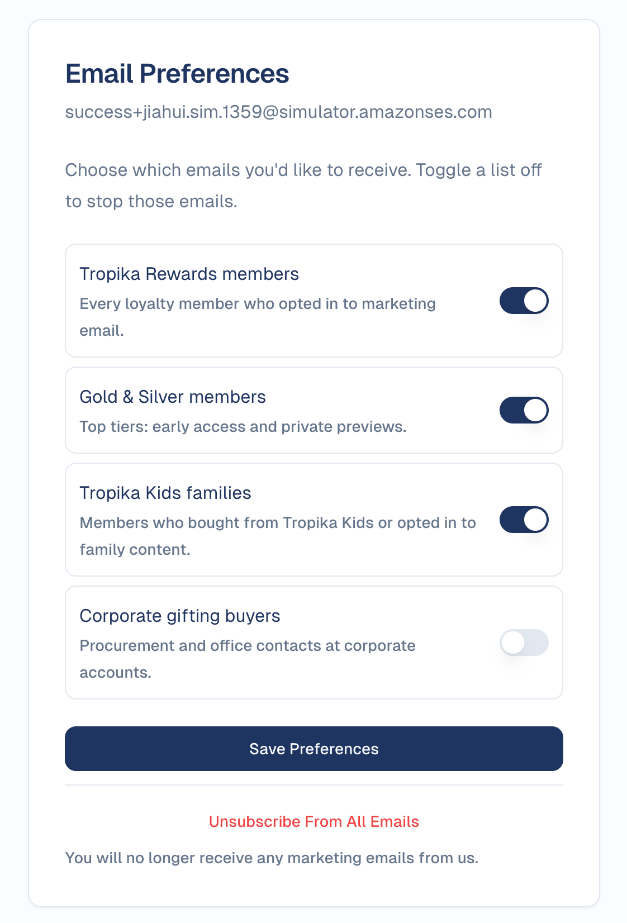
1. They choose it. The footer of every email design carries an unsubscribe link. It opens the contact's Email Preferences page, which lists your mailing lists with a switch for each:
| The contact does this | What changes |
|---|---|
| Switches one list off, then Save Preferences | They leave that list only. Their status stays Subscribed, and they still receive what your other lists and segments send. |
| Chooses Unsubscribe From All Emails | Their status becomes Unsubscribed, and an Email Unsubscribe line is added to their timeline. No marketing email reaches them any more. |
Mail scanners cannot unsubscribe anyone
The link is signed for that one contact, and opening it changes nothing: the contact has to confirm on the page. Security tools that open every link of an incoming email therefore never unsubscribe your contacts by accident.
An email without an unsubscribe link
Every design in the gallery has the link in its footer. If you write an
email from scratch, or import one, and it has no unsubscribe link,
GoodBards warns you on the email before you send it. Add the link with
{{unsubscribe_url}}. See
Personalising an email.
2. Their mail provider says so. A recipient who reports your email as spam becomes Do not contact. An address that cannot be delivered becomes Bounced. See How to read the Contacts home for the exact bounce rule.
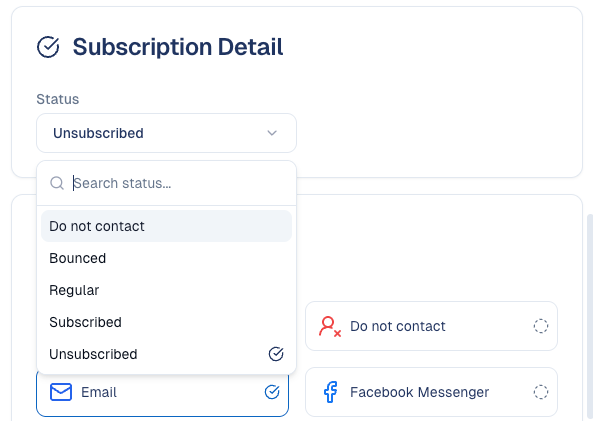
3. Your team sets it. For an opt-out received by phone, by email or in a
store: open the contact, choose Edit Contact, and change Status under
Subscription Detail. For many contacts at once, use the status column of
an import with the Overwrite conflict action.
How you identify them
-
In total. On the Contacts home, the Status Distribution card counts each status. Trend shows how the split moved over time.
-
In the list. In the Details List, choose the Status column header to sort by status and bring the unsubscribed contacts together.
-
One contact. Their page shows the status next to their name, and the Engagement Timeline shows when they unsubscribed.
-
One mailing list. A list shows its own Unsubscribed counter and each member's status on that list. See Mailing lists.
- As a group. Create a segment with one condition in the
Contact Profile Block: Contact, Status, Equals,
unsubscribed.
Type the status as its code
In a segment, the status value is typed, not picked from a list. Use the
code, in lower case: subscribed, regular, unsubscribed,
do-not-contact, or invalid-email for Bounced. The codes are the
same as in an import: see Accepted values.
How they are managed
Only Subscribed contacts receive marketing email, whatever audience you choose for the send: contacts, a segment, a mailing list or a company. Unsubscribed, Bounced and Do not contact contacts are removed when the email is sent, and there is no setting to switch this off. You do not need to exclude them yourself.
- Someone who left a mailing list stays off it until they rejoin themselves. Nobody on your team can add them back.
- A contact enrolled in an automation flow leaves the flow as soon as they are no longer Subscribed.
- They stay in your database, with their history, for reporting.
Do not re-subscribe people yourself
The status can be edited, but under Singapore's PDPA and similar laws an opt-out stands until the person opts in again, through a form or their Email Preferences page. Re-importing them as Subscribed is not consent.
Unengaged contacts
There is no Unengaged status
GoodBards never changes a contact's status because they went quiet: a silent subscriber is still Subscribed and still receives your emails. Instead, every contact carries a score that fades with time. You read it in the Inactive tier, or you build a segment with a rule of your own.
What counts as unengaged
- Engagement Score adds points for every open, click, form, registration and attendance. See Lead scoring.
- Decay Score is the same points, fading evenly to zero over a period you choose (see below). With 8 weeks, a click is worth half its points after four weeks and nothing after eight.
-
The contact's tier follows from the decay score:
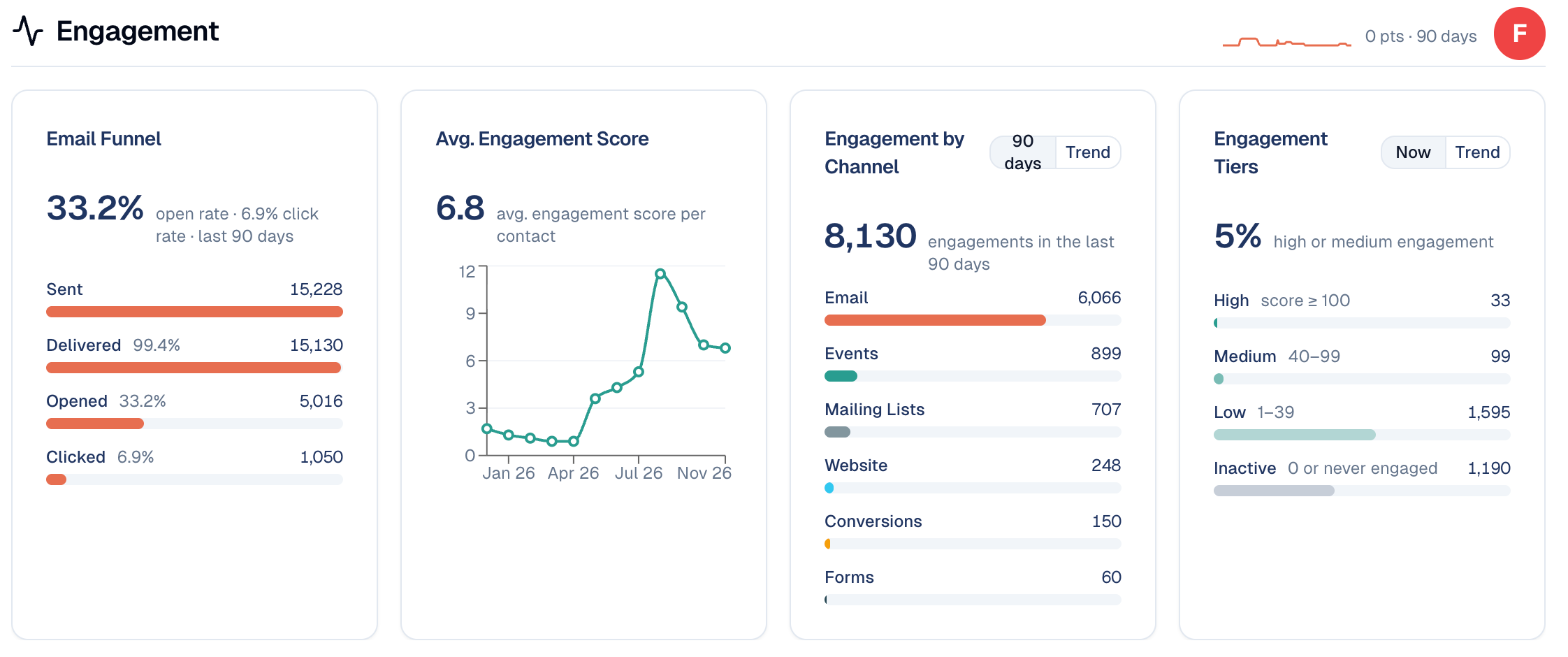
Tier Decay score In plain words High 100 and more Very active: about a guest who registered for an event and came. Medium 40 to 99 Active: at least a click or a registration recently. Low 1 to 39 A few opens, or older activity that is fading. Inactive 0 Unengaged: nothing positive within the decay period, or never engaged at all.
So an unengaged contact, for GoodBards, is a contact whose decay score has reached zero: no open, click, form, registration or attendance within the decay period. The rule counts time, not a number of campaigns: a contact who clicked last week and then ignored five emails is not unengaged yet, and a contact who has not reacted for the whole period is, however many emails you sent.
On the Contacts home, the Engagement Tiers card counts each tier. Trend shows how the tiers moved over time.
When a contact becomes unengaged
Scores are recalculated every night. A contact moves to Inactive on the night their last points fade out, and moves back up the night after they open, click or register again. Nothing else happens: no status change, no email, no removal from a list.
What you can configure
An administrator sets the decay period under Tenant Settings → Preferences → Engagement Decay Velocity: open the menu under your photo, top right, to find Tenant Settings.
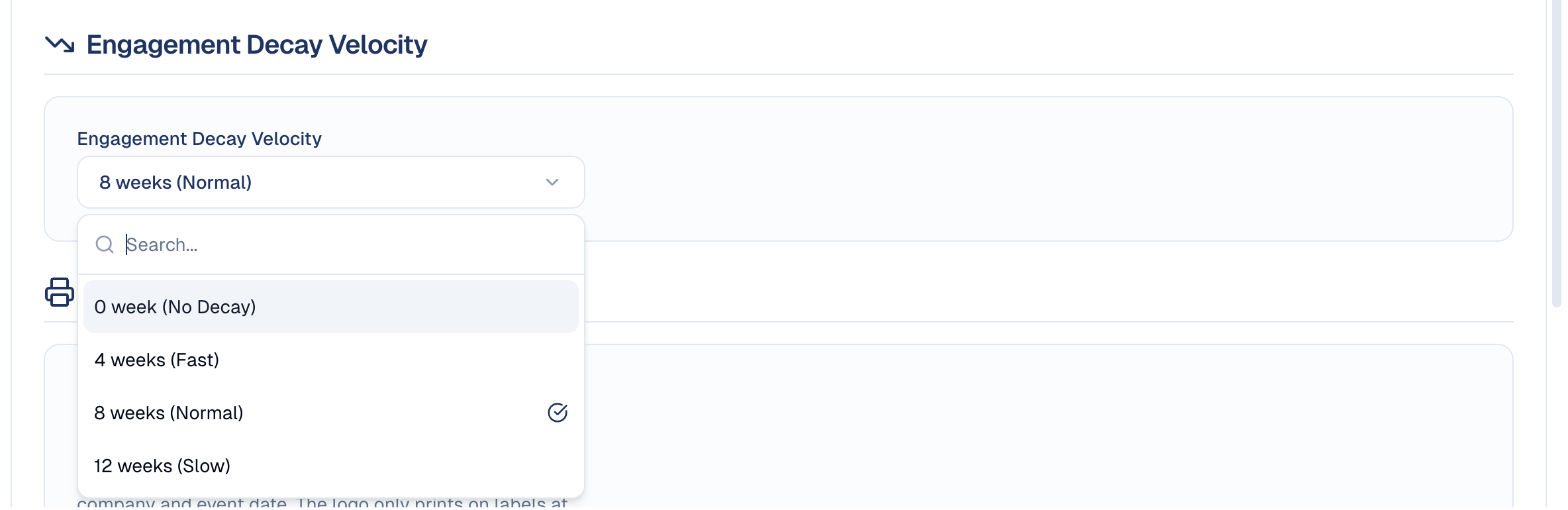
| Choice | A contact becomes Inactive after |
|---|---|
| 4 weeks (Fast) | 4 weeks without engagement. For brands that email several times a week. |
| 8 weeks (Normal) | 8 weeks without engagement. A good start for a weekly or monthly newsletter. |
| 12 weeks (Slow) | 12 weeks without engagement. For long buying cycles and occasional sends. |
| 0 week (No Decay) | Never: points do not fade, so only contacts who never engaged are Inactive. |
Check that a period is chosen
If the field shows Select decay velocity, nobody has chosen a period for your workspace yet. Pick one, so that everyone on your team reads the tiers the same way.
| What | Can you change it? |
|---|---|
| How fast scores fade | Yes: Engagement Decay Velocity, above. |
| The tier thresholds (100, 40, 1) | No. They are the same for every workspace. |
| A rule of your own (no open in 90 days, no click in 6 months) | Yes, with a segment. See below. |
| The assistant's "cold" period | Yes, per question. 180 days by default. |
| An automatic status change after a period of silence | No. A status only changes through the contact's own choice, a bounce, a spam complaint or your team. |
| A rule counted in campaigns rather than days | No. |
How to find unengaged contacts
Three ways, from the quickest to the most precise.
Ask the assistant. On the Contacts page, ask "Who went cold in the last six months?" It lists the contacts who engaged at least once and did nothing in the last 180 days, or the number of days you name.
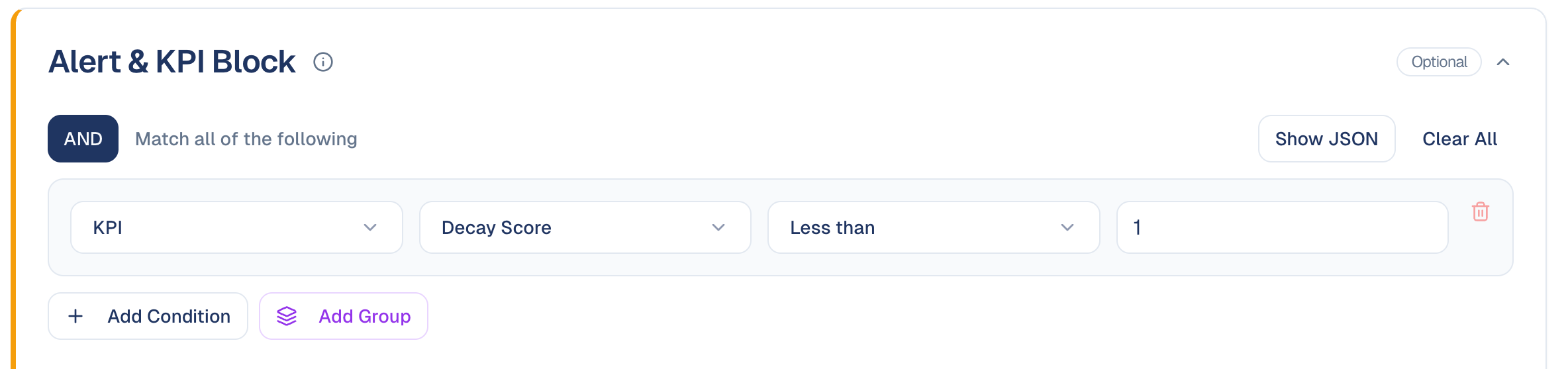
Segment on the score. This follows your decay period.
- Open Audience → Contacts, the Segments tab, then Add Segment.
- In the Alert & KPI Block, choose KPI, Decay Score, Less than, and
type
1. - Choose Add Segment.
Contacts with no history are not in this segment
A score exists once something has been recorded for a contact, such as an email sent to them. Contacts with no history at all (just imported, never emailed) have no score yet: the Inactive tier counts them, but this segment does not. To include them, use the rule on behaviour below.
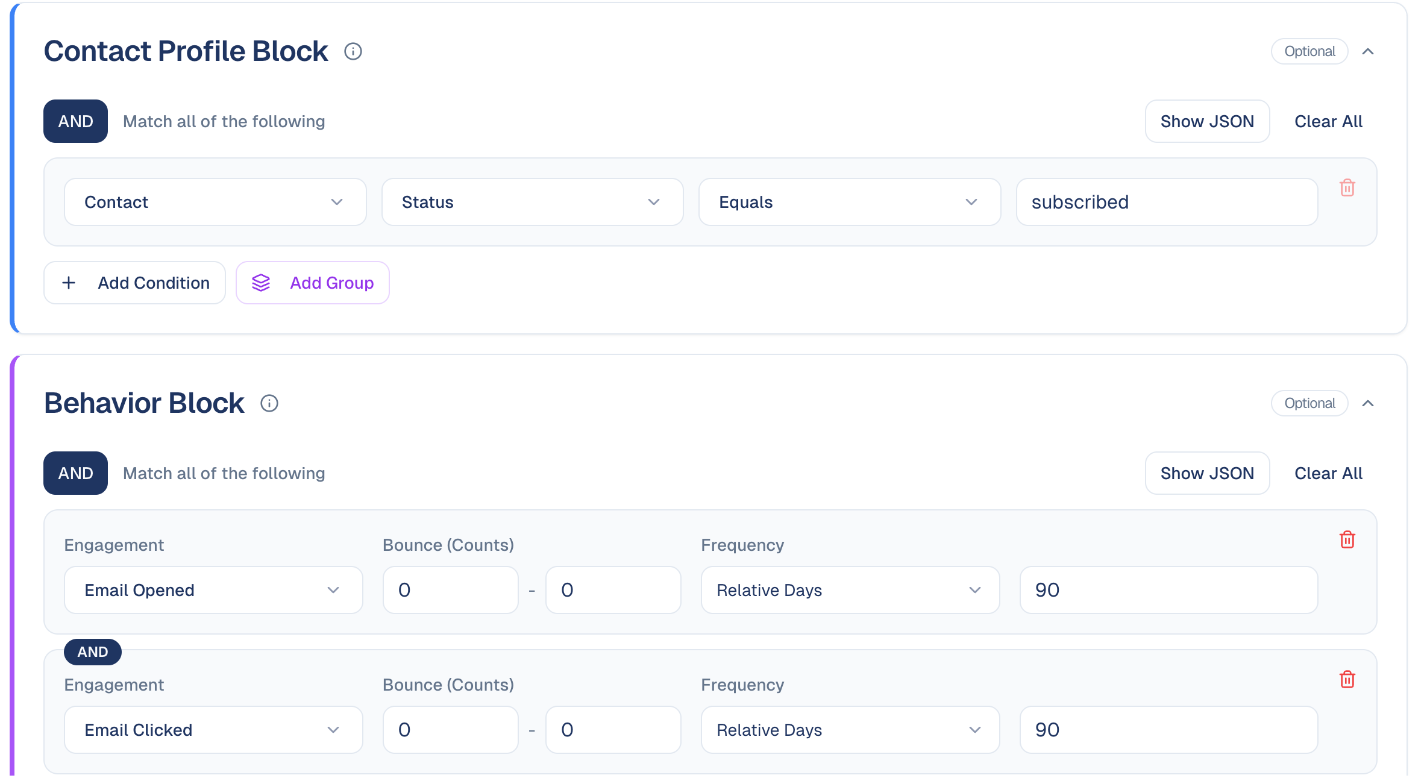
Segment on behaviour. This is a rule of your own, independent of the decay period. The example keeps the subscribers who neither opened nor clicked an email in the last 90 days.
- In Add Segment, in the Contact Profile Block, choose Contact,
Status, Equals, and type
subscribed. This keeps only the contacts you can still email. - In the Behavior Block, choose the engagement Email Opened, type
0in both Min Count and Max Count, set Frequency to Relative Days, and type90in Last n Days. - Choose Add Condition and do the same for Email Clicked.
- Choose Add Segment. Open the segment to see who is in it right now.
Type 0 in both counts
0 to 0 times is how you say "never" in a rule. If you leave Min Count empty it counts as 1, and the segment comes back empty. The period is required too: a behaviour condition always needs a number of days or a date range.
How to keep them out of a campaign
An email goes to the audience you choose. There is no separate exclusion or suppression list, so you leave unengaged contacts out through the segment you send to.
- Send to the engaged. Create a segment Decay Score, Greater than or equals, 1 (or Email Opened, 1 time or more, in the last 90 days) and choose it under Recipient Segments when you send, instead of sending to everyone. A segment is evaluated again each time an email is sent, so a contact who re-engages is back in without any action from you.
- Try to win them back first. Send one re-engagement email to your unengaged segment. Those who open it come back on their own.
- Then stop for good. For contacts who stay silent, set the status to Do not contact. They stay in your database for reporting, and stop receiving every marketing email, whatever the audience.
Why it is worth doing
Mail providers watch how recipients react to your emails. Sending again and again to people who never open lowers your reputation as a sender, and more of your emails end up in spam, including for the contacts who do want them. A smaller, engaged audience is delivered better.
Mailing Lists
Lists people subscribe to, for example from a sign-up form. See Mailing lists.
Card Scanner
Photograph a business card, or upload a picture of one: GoodBards reads it and fills in a new contact for you to check and save. See Adding contacts.
Custom Fields
The details GoodBards does not hold by default, but your business needs: a loyalty tier, a preferred store, a renewal date.
- Open the Custom Fields tab, then create a field.
-
Give it a Field Name and a Field Type:
Type Holds Text Free text. Number A number, for example a budget. Date A date, for example a renewal date. Boolean Yes or no. Select A value from a list you define under Custom Lists. Tick Allow multiple values (array) when a contact can have several, for example several preferred stores.
-
Choose whether it applies to Contact, Company or both, under Entity, then Create Field.
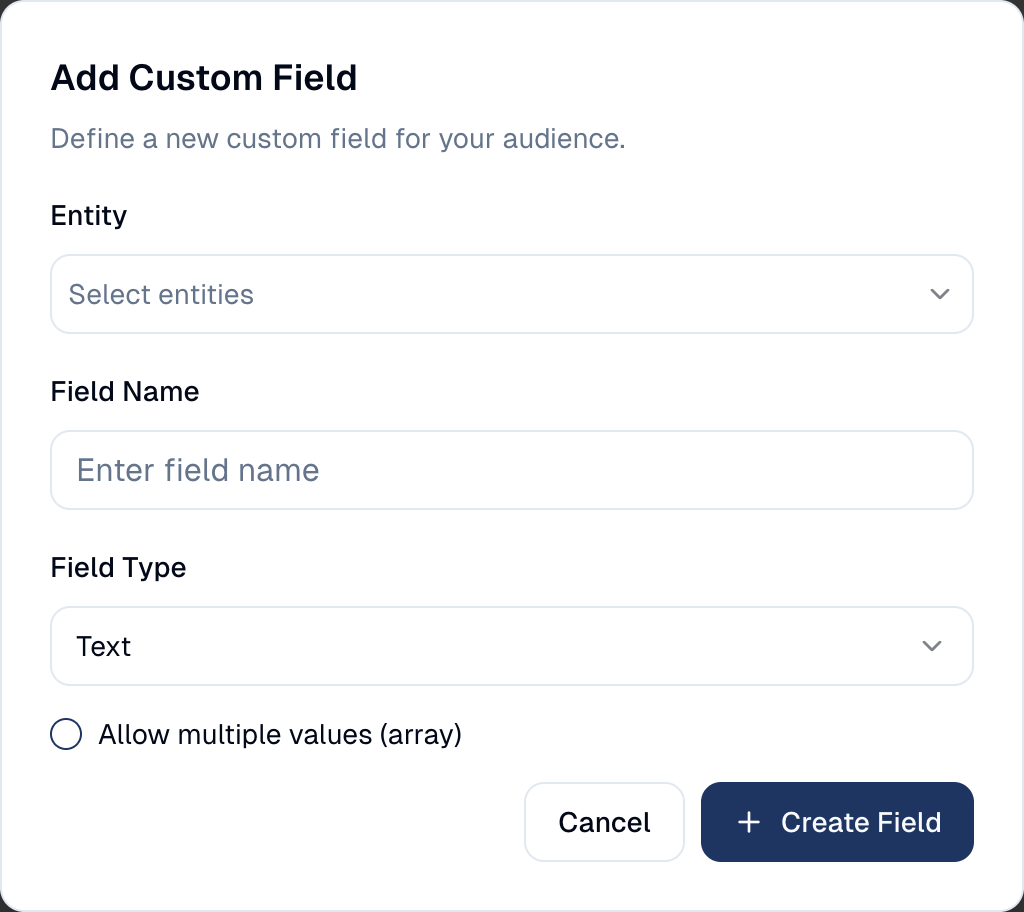
The field then appears on every contact's page and in the contact form, and can be shown as a column in the Details List with View.
Deleting a field deletes its values
Removing a custom field removes the values stored in it for every contact. It cannot be undone.
Custom Lists
The lists of values used by Select custom fields: statuses, categories, types. Example: a Store list with Jurong Point, Mid Valley and CentralWorld.
- Open the Custom Lists tab, then Add Reference List.
- Give it a Technical List Identifier (letters, digits,
-and_, for examplestore) and a List Name. - Add the entries with Add Entry, each with a code and a label. Drag them to reorder, or sort them alphabetically.
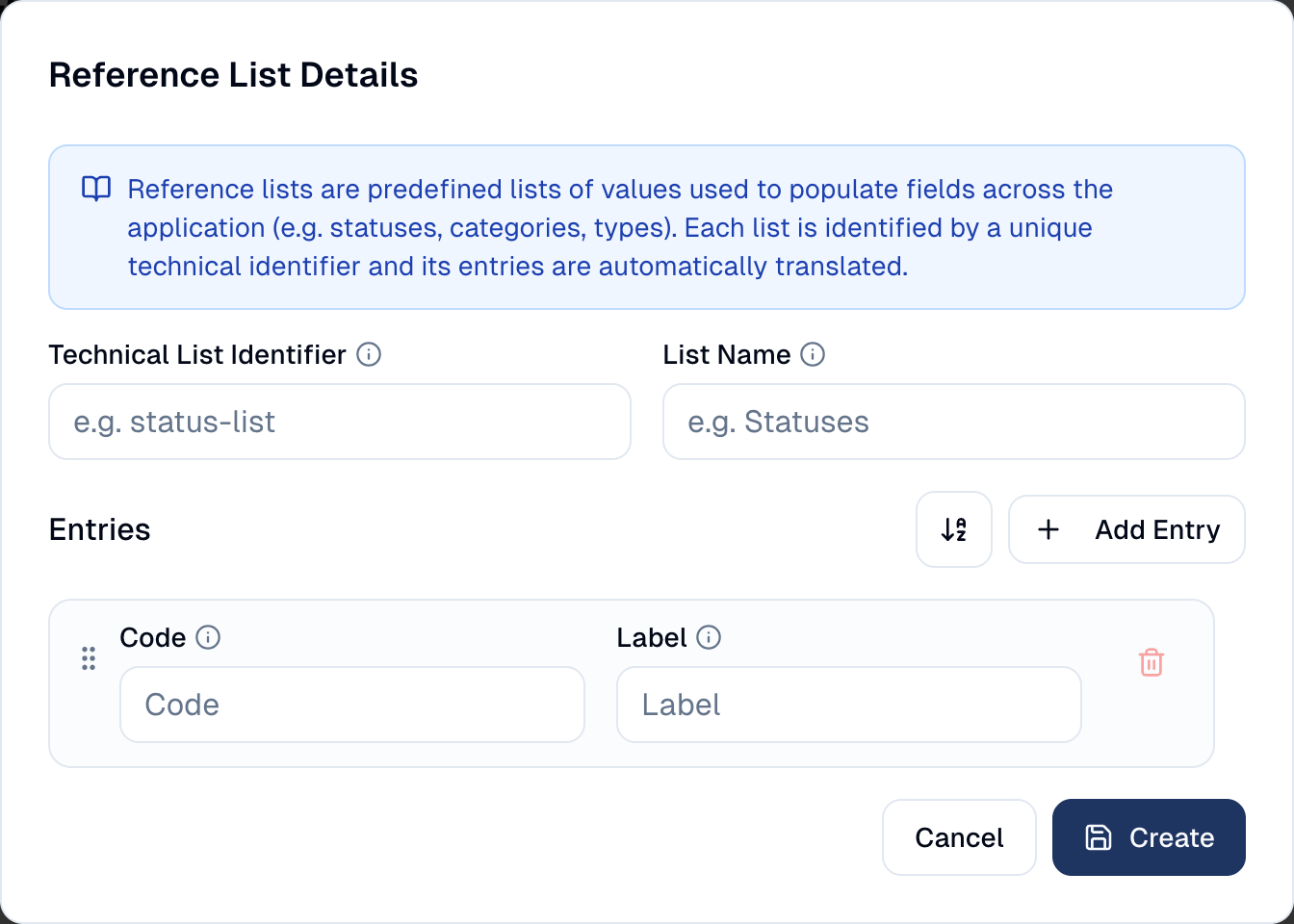
Write names and labels in English: GoodBards translates them automatically into the other languages of the app.
Import Jobs
Every spreadsheet import, with its status and how many rows were processed, so you can check that an import went through. Start a new one with Bulk Add Contacts, which requires the Access sensitive data permission and an administrator role. See Adding contacts.
An import happens in two steps
Uploading a file does not import anything yet. You first create the job, then you start it:
- Create the job. Choose Bulk Add Contacts → From a CSV file, upload your file and fill in the form, then choose Upload. The job appears in the list as READY TO START. No contact has been created or changed.
- Start the job. In the job's row, choose Start, then Start import to confirm. GoodBards reads the file row by row and creates or updates the contacts.
Once started, an import cannot be stopped
Until you start it, you can still Delete the job, for example if you picked the wrong file or the wrong Default Status, and create a new one.
Job statuses
| Status | What it means |
|---|---|
| READY TO START | The file is uploaded but not imported. Choose Start. |
| COMPLETED | Every row was imported. |
| INCOMPLETE | The import ran, but some rows were rejected. Open the job with View to see which. |
| FAILED | The file could not be read at all, for example because it has no header row. |
View opens the job's summary: rows processed, imported and failed, the choices made when it was created, and Download logs, which explains line by line why a row was rejected. Download original file gives back the file you uploaded, so you can fix it and import again.
Deleting a job removes it from the list. The contacts it imported stay.
Prepare your CSV file
The easiest start is Download Template in the Bulk Add Contacts form: it holds every column, including one for each of your custom fields, and an example row to replace.
Here is a short example you can copy, or download it:
email,customerCode,firstName,lastName,phone,status,customerType,customerTypeInternal,jobTitle,companyName,city,country,timezone,preferredContactMethod,tags,notes,engagementType,engagementDate
mei.tan@example.com,,Mei,Tan,+6591234567,subscribed,b2b,client-customer,Marketing Manager,Lion City Retail,Singapore,Singapore,Asia/Singapore,email,trade-show-2026;vip,Met at booth 12,event-attended,2026-09-24 14:30
arif.rahman@example.com,CUS00102,Arif,Rahman,+60123456789,regular,b2b,target-potential-customer,Head of Growth,Kopi Digital,Kuala Lumpur,Malaysia,Asia/Kuala_Lumpur,whatsapp,trade-show-2026,,,
linh.nguyen@example.com,,Linh,Nguyen,,,b2c,,,,Ho Chi Minh City,Vietnam,Asia/Ho_Chi_Minh,email,,,,
Linh's status is empty, so she gets the Default Status chosen for the job.
The rules of the file:
- The first row holds the column names, spelled exactly as below, capitals
included (
firstName, notFirst Name). A column whose name is not recognised is treated as a custom field, so a misspeltEmailcolumn is not read as the email address. - A custom field column is named after the field's key (
interest_category, notInterest category). For a field that allows multiple values, separate them with semicolons, as for tags:Fitness;Nutrition. - Keep only the columns you need, in any order. Every row must have as many cells as the header row, even when they are empty.
- Separate cells with commas, and put a cell in double quotes if it contains
a comma:
"Tan, Mei". - Save as UTF-8. In Excel, choose CSV UTF-8 (Comma delimited), so that accents and Chinese, Thai or Vietnamese characters come through.
- Codes are written in lower case, exactly as listed below:
subscribed, notSubscribed.
The columns
| Column | What to put in it |
|---|---|
email |
The contact's email address. This is how GoodBards recognises a contact who is already in your audience. |
customerCode |
Your own reference for the contact, for example from your CRM. Must be unique. Left empty, the email address is used. A row needs at least an email or a customerCode. |
firstName, lastName |
The contact's name. |
birthDate |
Date of birth, as YYYY-MM-DD: 1982-03-03. |
secondaryEmail, phone, secondaryPhone |
Other ways to reach them. Write phone numbers with the country code: +6591234567. |
status |
Whether you may email them. See Accepted values. |
customerType |
b2b (a business contact) or b2c (a consumer). |
customerTypeInternal |
Your relationship with them. See Accepted values. |
timezone |
Their time zone, as a city name: Asia/Singapore, Asia/Jakarta, Asia/Bangkok. |
jobTitle |
Their job title. |
companyCode, companyName |
Their company. A company that does not exist yet is created and linked to the contact. |
street, city, state, country, zipCode |
Their address. Write country as a two-letter code (SG, MY, ID): GoodBards also uses it to read phone numbers written without a country code. |
linkedin, facebook, twitter, instagram |
Their social media profiles. |
preferredContactMethod |
How they prefer to be contacted. See Accepted values. |
tags |
Tags for this contact, separated by a semicolon: trade-show-2026;vip. |
notes |
Free text, added as a note on the contact. |
engagementType, engagementDate |
Something the contact did, to record in their history. Fill in both or neither. The date is YYYY-MM-DD HH:MM: 2026-09-24 14:30. See Accepted values. |
whatsappConsent, telegramConsent, smsConsent |
Whether the contact agreed to receive messages on that channel: yes records their consent, no records that they withdrew it, and an empty cell changes nothing. Only import yes for people who really agreed: it is your proof of consent. Applied to new contacts and, with Overwrite, to existing ones. |
| your custom fields | One column per custom field, named as in Download Template. |
Accepted values
The columns below only accept the codes listed. A row with any other value is rejected, and the job ends as INCOMPLETE. An empty cell is always accepted.
status: whether you may send them marketing email.
| Code | Shown as | Meaning |
|---|---|---|
subscribed |
Subscribed | They agreed to receive your marketing emails. Only Subscribed contacts are emailed. |
regular |
Regular | No marketing consent yet. You can work with them, but not email them marketing. |
unsubscribed |
Unsubscribed | They opted out. |
do-not-contact |
Do not contact | They must not be contacted at all. |
invalid-email |
Bounced | Their address does not work. GoodBards usually sets this itself when an email bounces. |
Left empty, a new contact gets the Default Status you chose for the job.
customerTypeInternal: your relationship with the contact.
| Code | Shown as |
|---|---|
target-potential-customer |
Target (Potential Customer) |
client-customer |
Client/Customer |
partner |
Partner |
strategic-alliance |
Strategic Alliance |
technology-partner |
Technology Partner |
reseller-channel-partner |
Reseller/Channel Partner |
distributor |
Distributor |
supplier-vendor |
Supplier/Vendor |
competitor |
Competitor |
customerType: b2b or b2c.
preferredContactMethod: email, phone-call, sms-text-message,
whatsapp, facebook-messenger, push-notifications, direct-mail,
in-person-visit or do-not-contact.
engagementType: the most useful for an import are event-registered,
event-attended, form-filled and list-subscribe. Email engagements
(email-sent, email-delivered, email-opened, email-clicked,
email-unsubscribe) are also accepted, for history brought over from another
tool.
When a contact already exists
A row whose email is already in your audience is handled by the job's
Choose Conflict Action:
- Ignore: the contact's details are kept as they are. The row's
notesare still added, and the contact still receives the job's tags, source and privacy statement. - Overwrite: every cell you filled in replaces the contact's current value.
An import never erases data
With Overwrite, empty cells leave the current value unchanged.
Good to know
- Segments update themselves; mailing lists do not. A segment re-evaluates its rule each time; a mailing list stays as you built it.
- Watch your plan limit. The Total Contacts gauge shows how close you are.
- Respect unsubscribes. Under Singapore's PDPA and equivalent rules elsewhere, contacts who opt out must not receive marketing email. GoodBards excludes them, but do not work around it by re-importing them.
Still stuck? Contact support.