Steps
Every card under the trigger is a step. This page shows each one and its settings.
What it's for
Steps are what the flow does to each contact: send an email, wait, tag them, write a field, ask an AI agent, hand them to a colleague. The structure steps (branches) are covered in Branches and conditions, the AI and human steps in AI and human steps.
How to add, move and remove a step
- Add: choose the + on a connector where the step should go, then pick it in Add a step. Or drag a step from the palette onto a + or a lane.
- Edit: select the card; its settings open in the side panel.
- Move: drag the card to another +, or use the ↑ ↓ arrows at the top of its panel.
- Remove: the bin at the top of its panel.
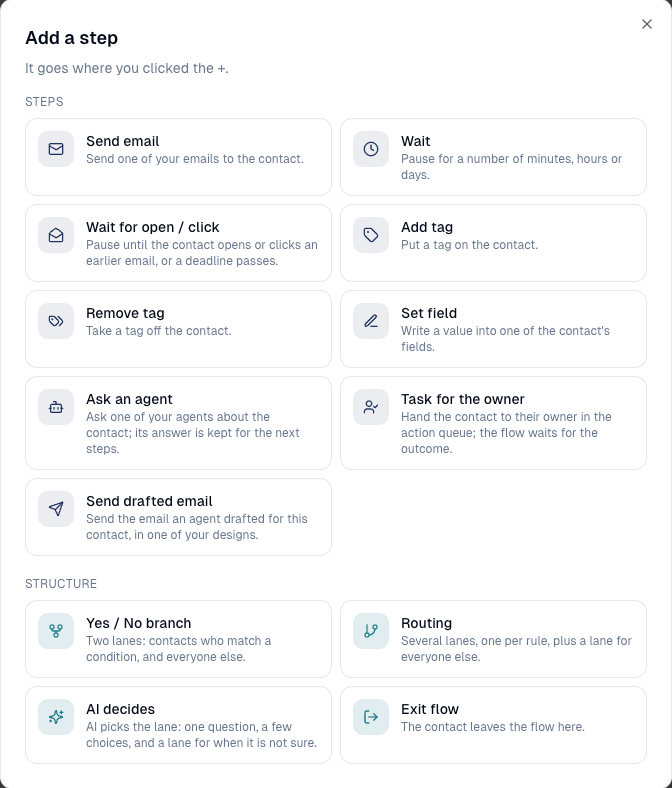
Send email
Sends one of your Emails, as it is at send time, with the contact's details filled in, tracking and the unsubscribe link.
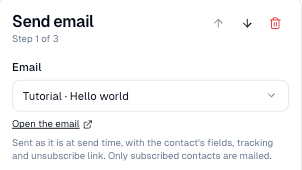
Open the email opens it in a new tab so you can check the copy.
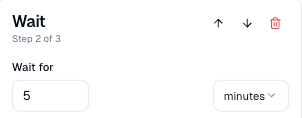
Wait
Pauses for a number of minutes, hours or days (from one minute to 365 days).
Wait for open / click
Holds the contact until they open (or click) an email sent earlier in this flow, or until At most passes, whichever comes first.
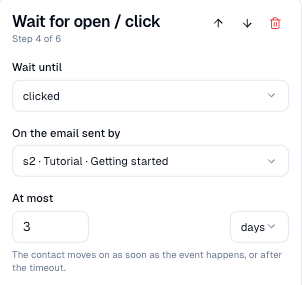
Follow it with a Yes / No branch on Opened or clicked an email to treat the two groups differently.
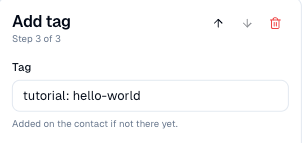
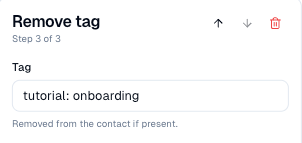
Add tag and Remove tag
Puts a tag on the contact, or takes one off. Tags are how flows talk to each other and to your segments.
Set field
Writes a value into one of the contact's custom fields, for example
onboarding_stage = welcomed.
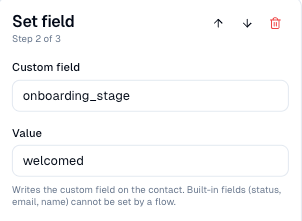
Built-in fields (status, email, name) cannot be set by a flow.
Exit flow
The contact leaves the flow here, with the reason you type. The reason shows on the Contacts tab.
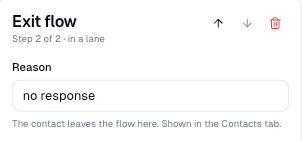
Exit is always the last step of its lane: nothing can follow it.
Ask an agent, Task for the owner, Send drafted email
The three steps that bring AI and your team into a flow. See AI and human steps.
Add note
Under Decoration in the palette, Add note puts a sticky note on the canvas for your colleagues: what a card is for, what to check before activating. Contacts never see it. Drag a note's corner to resize it and pick its colour in the side panel. The Sample flows use them to explain every card.
Good to know
- Merge fields. Email subjects and task titles can use
{{contact_firstname}}; agent and task instructions also accept{{custom_field_<key>}}and{{context.<key>}}(what earlier steps wrote). - Steps run in order, without delay unless a wait holds them: an email, a tag and a field in a row all happen within the same minute.
Still stuck? Contact support.