Social reports
A report per social account and period, kept in a history so you can compare weeks, and sent to you on a schedule if you want.
What it's for
Network figures change every day. A report freezes them for a period: what was posted, how it did, and what people said. Kept week after week, the reports show the trend; sent automatically, they save someone collecting the figures by hand for the Monday meeting or for a client.
Before you start
- Your plan. Social reports and the Scheduler are included in the Pro and Full plans.
- The social account connected under Connectors. See Connections.
How to read past reports
- In the sidebar, choose Social Media → Analysis, then the network's tab, for example LinkedIn.
-
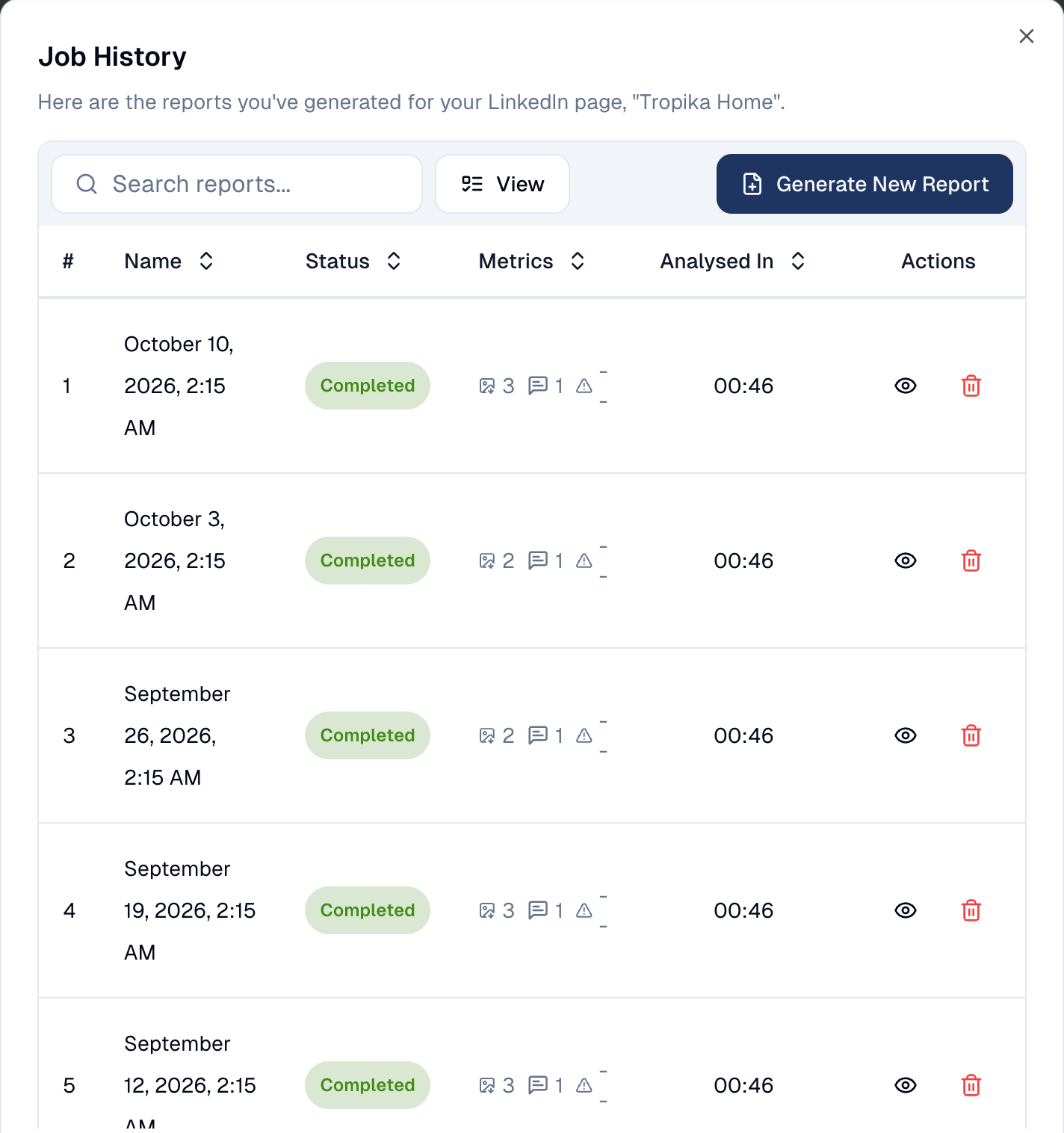
Choose History at the top right. Each line is one report, with its date, status and what it covers.
-
Choose the eye icon to open a report. The Analysis screen then shows that period.
Need figures now?
After a big campaign week, choose Generate New Report instead of waiting for the next one. It takes about a minute.
How to receive reports automatically
- In the sidebar, choose Tool Box → Scheduler, then New Task.
- Pick Social report as the Task type, then the account.
- Set how often, for example every Monday at 9:00, and who receives it.
See Scheduler.
Good to know
- One report per account. A company with a LinkedIn page and an Instagram account gets two reports.
- Channel-level figures are for the whole account. Tag filters on the Analysis screen apply to posts, not to those account-wide totals.
Deleting a report only removes it from the history
The posts and the network's own figures are not affected.
Still stuck? Contact support.