Sub-Workspaces
Run separate workspaces underneath your own: one per client, brand or business unit.
The app calls these sub tenants
You will see the word tenant on this screen. A tenant is simply a workspace: a self-contained account with its own data. This page says "workspace", but the buttons say "tenant".
What it's for
An agency running marketing for several clients does not want all that work in one pile. A sub-workspace is a self-contained space with its own contacts, campaigns and content, sitting under your main account.
Each has its own plan tier and its own credit allowance, so one client's heavy month does not consume another's.
Data never crosses between workspaces
Contacts and campaigns in one workspace are invisible to another. That is what makes the separation safe for client work.
If you run marketing for a single business, you will not need this.
Before you start
- Your plan must include sub-workspaces. If not, the Sub Tenants tab shows a crown.
- Open it from your main workspace: a sub-workspace cannot have sub-workspaces of its own.
How to create a sub-workspace
- Open your account menu (your picture, top right), then choose Tenant Settings.
- Open the Sub Tenants tab.
- Choose Create Sub Tenant.
- Give it a name and set its tier.
Reading the list
Each row shows:
| Column | What it tells you |
|---|---|
| Name | The sub-workspace. Choose it to open. |
| Tier | Its plan, for example Pro. |
| Users | Who has access. |
| Credit Usage | Consumption against that workspace's own allowance. |
The bar at the top right shows how many sub-workspaces you have against your limit, for example 1 / 5 tenants.
How to switch between workspaces
Use the workspace name at the top of the screen. Anything you then do, such as creating a campaign or adding contacts, happens inside the workspace you have selected.
Check which workspace you are in
The name at the top is the only thing distinguishing one from another. Before sending an email or publishing a post, confirm you are in the right workspace: content sent from the wrong one goes to the wrong audience.
The other tabs
| Tab | What it holds |
|---|---|
| Preferences | The workspace's name, timezone, engagement decay and badge format (below). |
| Security | Users, roles, contact ownership and API keys. See Users, roles & permissions. |
| Sub Tenants | The sub-workspaces described on this page. |
Preferences
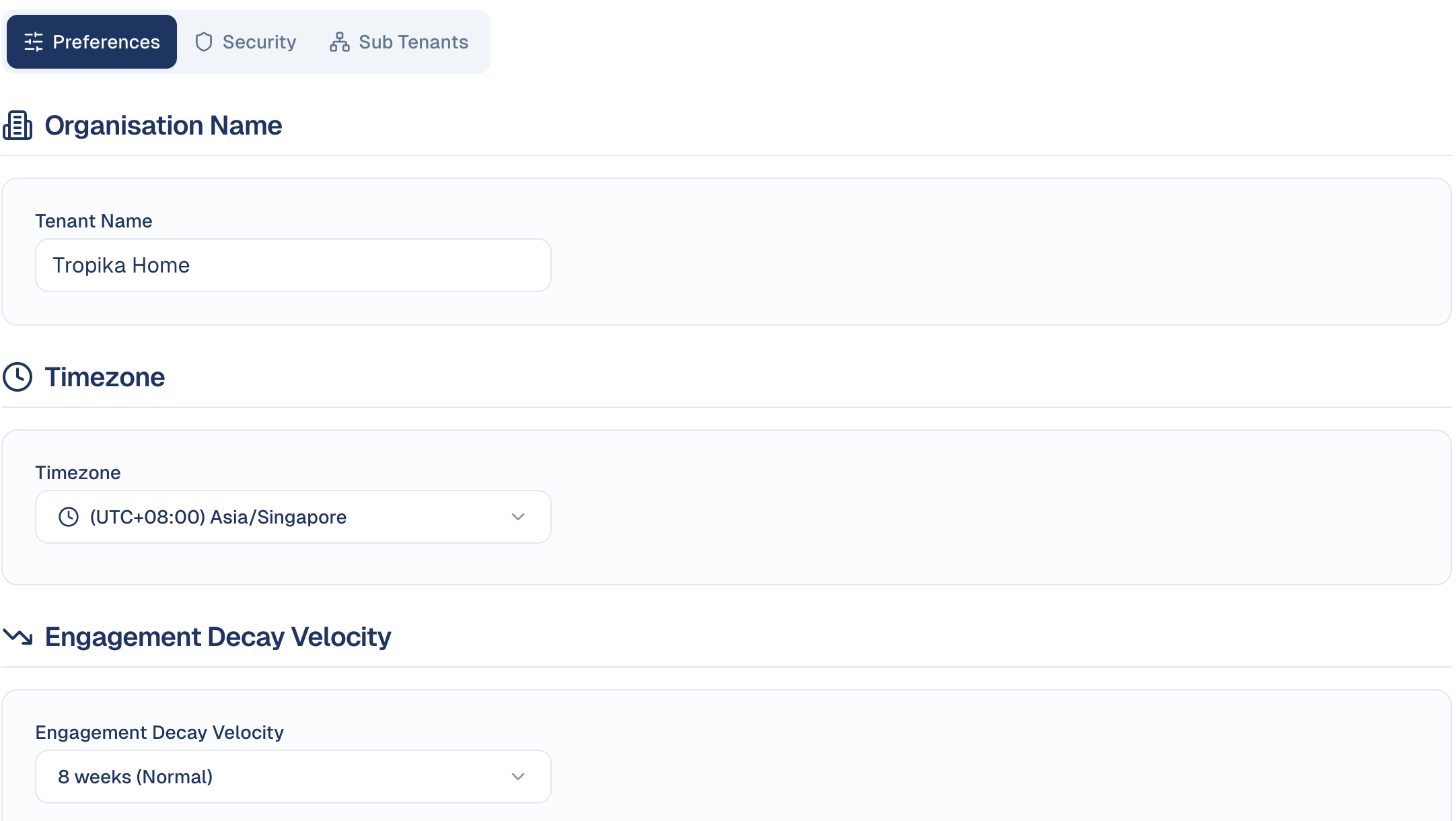
- Organisation Name: the workspace name everyone sees in the top bar.
- Timezone: the workspace's timezone, used for schedules and reports.
- Engagement Decay Velocity: how fast old engagement stops counting in the decay score, for example 8 weeks (Normal). Shorter suits fast buying cycles, longer suits long B2B ones. See Lead scoring.
- Attendee Badge Format: the default label size for event badges, with a preview and Print Test Badge. Badges under 80 mm wide print a compact layout. Each event can override it. See Check-in and badges.
Good to know
- Each has its own credits. Check usage per workspace rather than assuming a shared pool.
- Your limit depends on your plan. The counter at the top right shows how many more you may create.
Still stuck? Contact support.