Digital Ads
Manage your paid advertising (campaigns, keywords, conversion tracking and reporting) without leaving GoodBards.
What it's for
Paid advertising is where marketing budget turns into traffic, and where it disappears fastest if nobody is watching. This brings your ad campaigns and their performance in beside the rest of your marketing, so spend can be judged against everything else you are doing.
Before you start
- Your Google Ads account connected. See Google Ads.
Google Ads and Meta Ads today; LinkedIn to follow
Google Ads can be created, managed and reported on from GoodBards. Meta Ads is read-only: its tab shows your ad account's results and each campaign, once Meta Ads is connected. LinkedIn Ads appears marked Soon and cannot be used yet.
Getting your first campaign live
New campaigns do not start spending on their own. The three steps are:
- Create a campaign: on the Campaigns tab, launch a Search campaign with its daily budget. New campaigns start paused.
- Add ad groups & keywords: structure the campaign and choose the searches you want to appear for.
- Enable it to go live: a campaign needs at least one enabled ad. Enabling it is the moment spend starts.
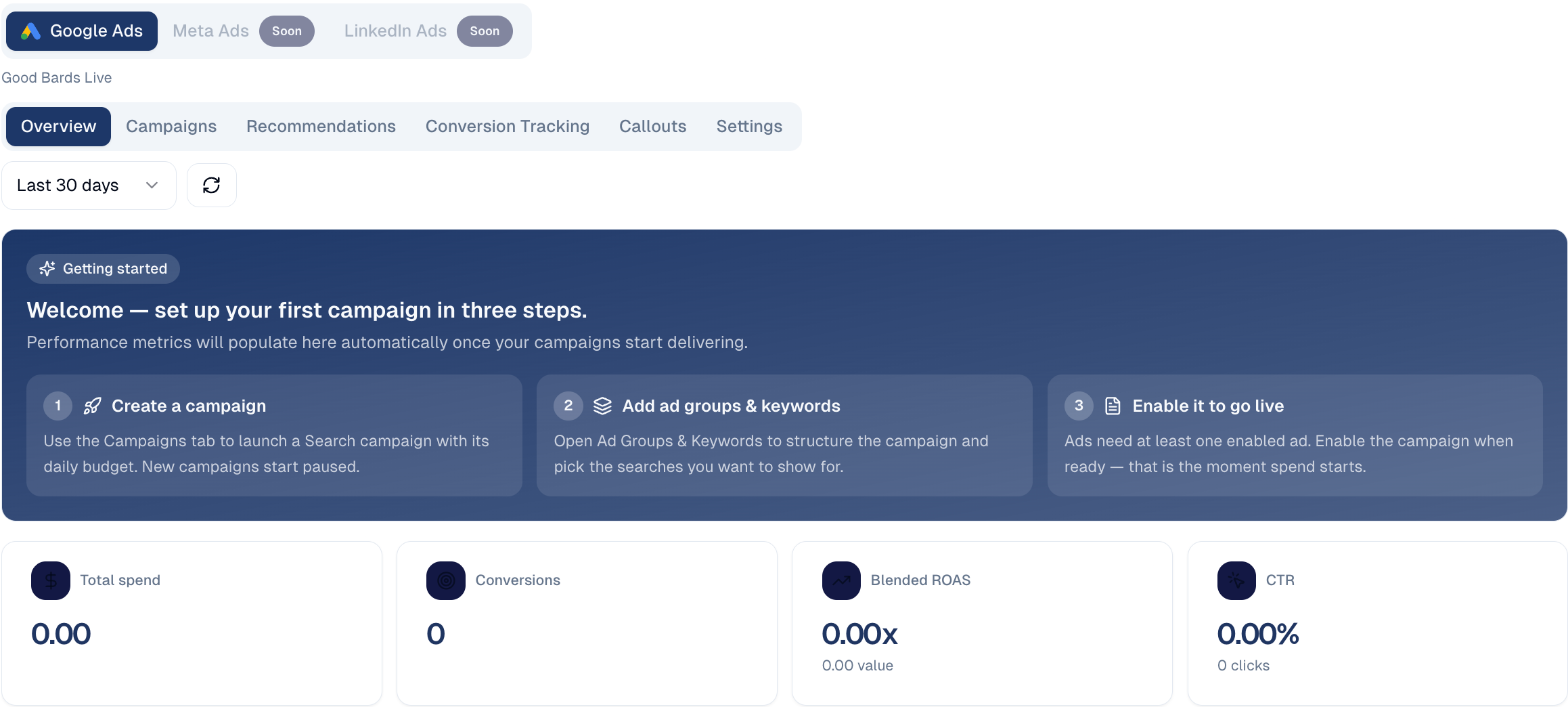
How to create a campaign
In the sidebar, choose Marketing → Digital Ads, then the Campaigns tab, and choose New Campaign. The wizard has four steps, and Google checks the campaign before anything is created:
-
Basics: the name, the objective (Sales, Leads or Traffic) and the channel. The bidding follows from the objective.
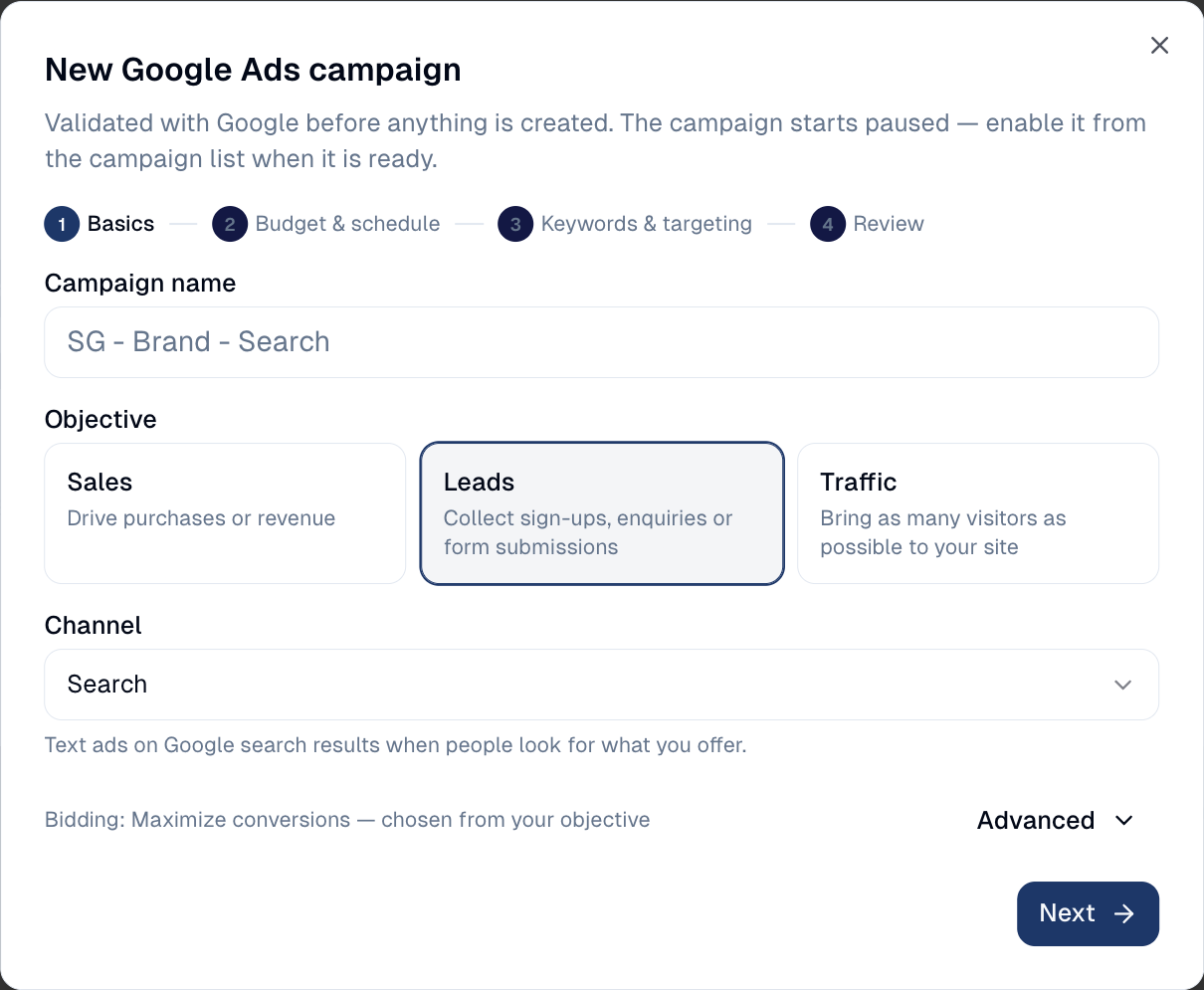
-
Budget & schedule: the daily budget, and optional start and end dates.
- Keywords & targeting: the searches to appear for, the locations and the language (see below).
- Review: check everything, then create. The campaign starts paused.
Choosing keywords
Step 3 offers five ways to find keywords:
| Source | What it gives you |
|---|---|
| Search Console | The searches that already bring people to your site. |
| Keyword Planner | Ideas from Google, with monthly searches, competition and the top-of-page bid. |
| CSV upload | Your own list, from a spreadsheet. |
| Competitors | Ideas taken from a competitor's website. |
| Manual | Type them yourself. |
In Keyword Planner, type a few seed keywords separated by commas and search. Choose + to add an idea to the campaign.
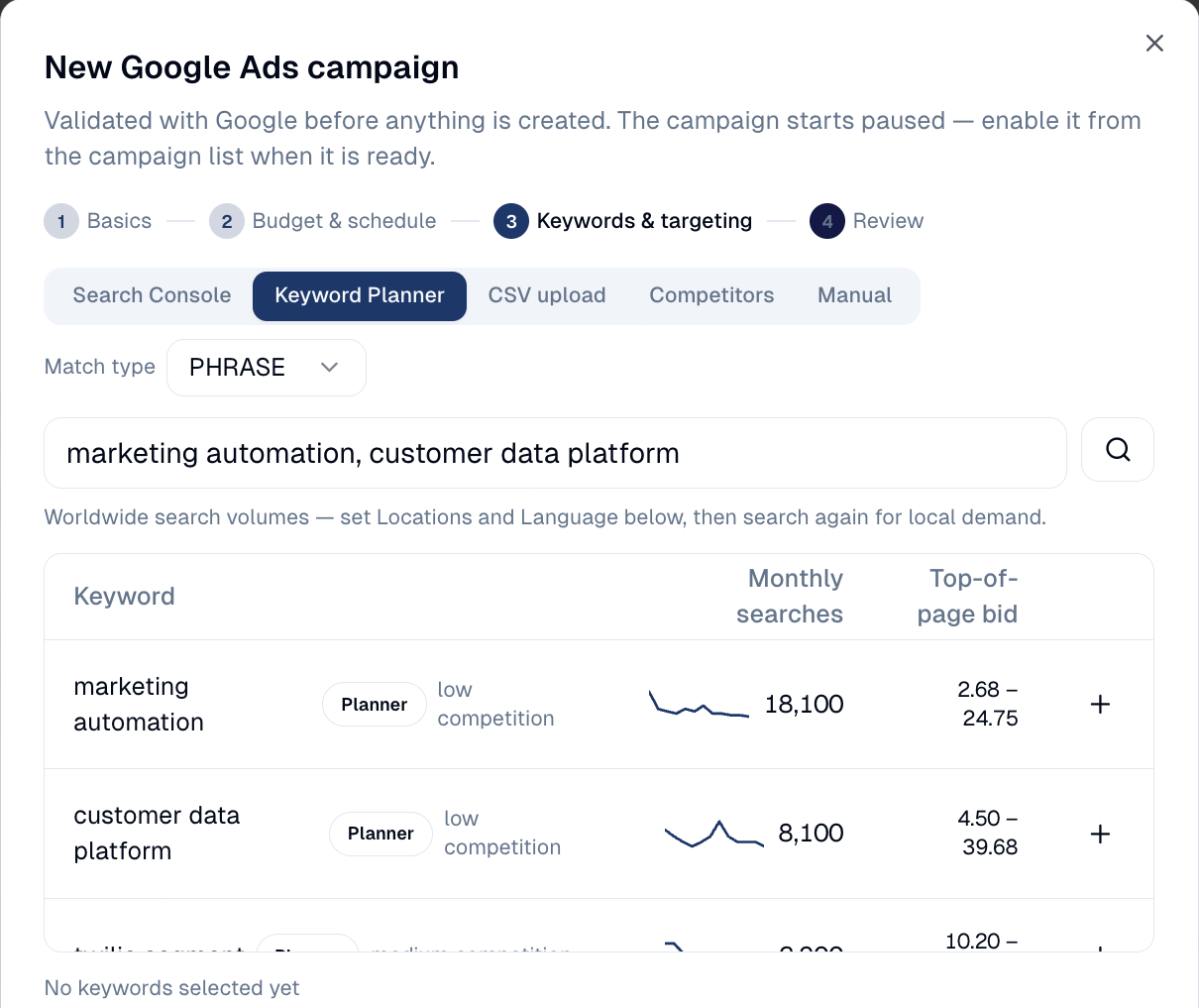
Volumes are worldwide until you set Locations and Language; search again afterwards for local demand, for example Singapore only.
Nothing spends until you enable it
A campaign sitting at zero spend is usually paused rather than broken. That is deliberate: it stops half-built campaigns burning budget. Check the campaign is enabled and has at least one enabled ad.
How to read the overview
Set the period with the date selector, then read the four headline figures:
| Metric | What it means |
|---|---|
| Total spend | What you have spent, in your account currency. |
| Conversions | How many people did the thing you were paying for. |
| Blended ROAS | Return on ad spend: revenue divided by spend. 2.00x means two dollars back for every one spent. |
| CTR | Click-through rate: the share of people who clicked after seeing your ad. |
ROAS is the number that decides whether a campaign continues. CTR tells you whether the ad itself is working: a low CTR usually means the ad copy or the keywords are wrong, not the budget.
Below, Spend by channel shows daily spend stacked by channel, and Budget allocation shows how spend is split across campaigns.
How to manage a campaign
On the Campaigns tab, choose a campaign to open its panel.
Changes reach Google Ads at once
Name, daily budget and dates apply immediately in Google Ads. Enable starts serving and spending, and Remove is permanent in Google Ads.
- Overview: its performance and spend over the period, and what stops it from serving, for example no ad groups or an ad group with no ads. Change the name, daily budget and dates here.
- Ad groups: each group's Keywords and Ads. New ads start paused. An ad's text, and a keyword's text and match type, cannot be changed once created: pause it and add a corrected one.
- Negatives: searches the campaign must not show on, for example free or jobs. A single ad group can also have its own negative keywords; the two lists are independent.
Video campaigns are read-only
Video campaigns are managed in Google Ads itself: GoodBards shows their performance but cannot edit them.
Ads in a campaign
To count an ad campaign in a marketing campaign's results, add an Ads tactic to the marketing campaign, open it, and pick the Google Ads campaign to link it to. The tactic then shows the ad campaign's last 30 days: spend and results.
Two budgets appear side by side on purpose: the tactic budget is what you planned for this tactic in the marketing campaign; the daily budget is what Google Ads spends. Neither changes the other. To create the Google Ads campaign itself, use Marketing → Digital Ads; the tactic only links to it. Unlink removes the link without touching the ad campaign.
Recommendations
Google's own suggestions for your account. You can apply keyword recommendations: they add keywords within your existing budget and bidding. Budget and bidding suggestions can only be dismissed here; handle them in Google Ads if you want them.
Applying cannot be undone
Once applied, a recommendation stays applied. A dismissed suggestion, on the other hand, may come back later.
When Google has nothing to suggest, the tab says All caught up.
Conversion Tracking
What counts as a result for your ads: a purchase, a lead form sent. Without it, conversions and ROAS stay at zero.
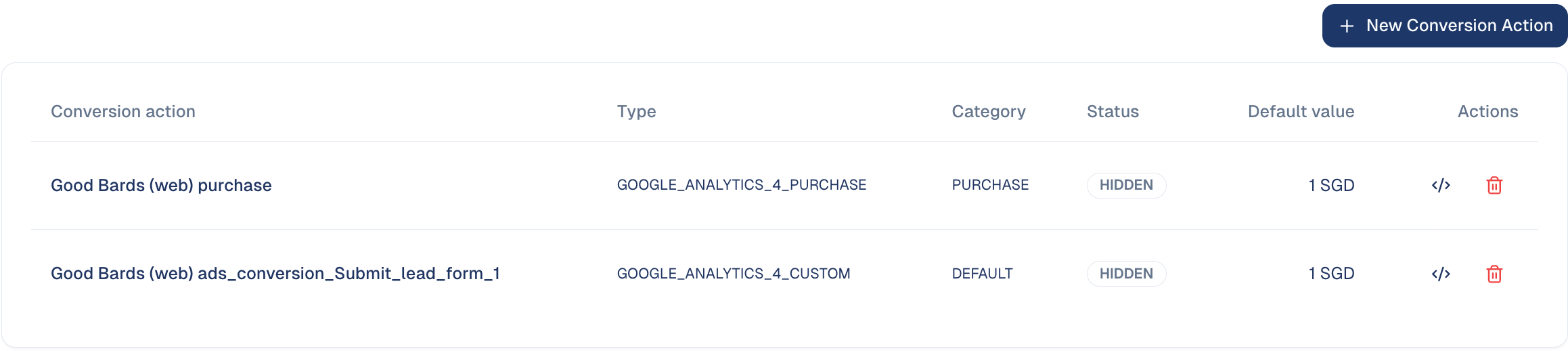
- New Conversion Action creates one.
- The code icon shows the tag to put on your website for that conversion.
- Actions imported from Google Analytics need no tag: Google Analytics already tracks them.
Callouts
Short extra lines shown with your ads across all campaigns, such as Free shipping or 24/7 support, up to 25 characters each. Type one and choose Add Callout.

Settings
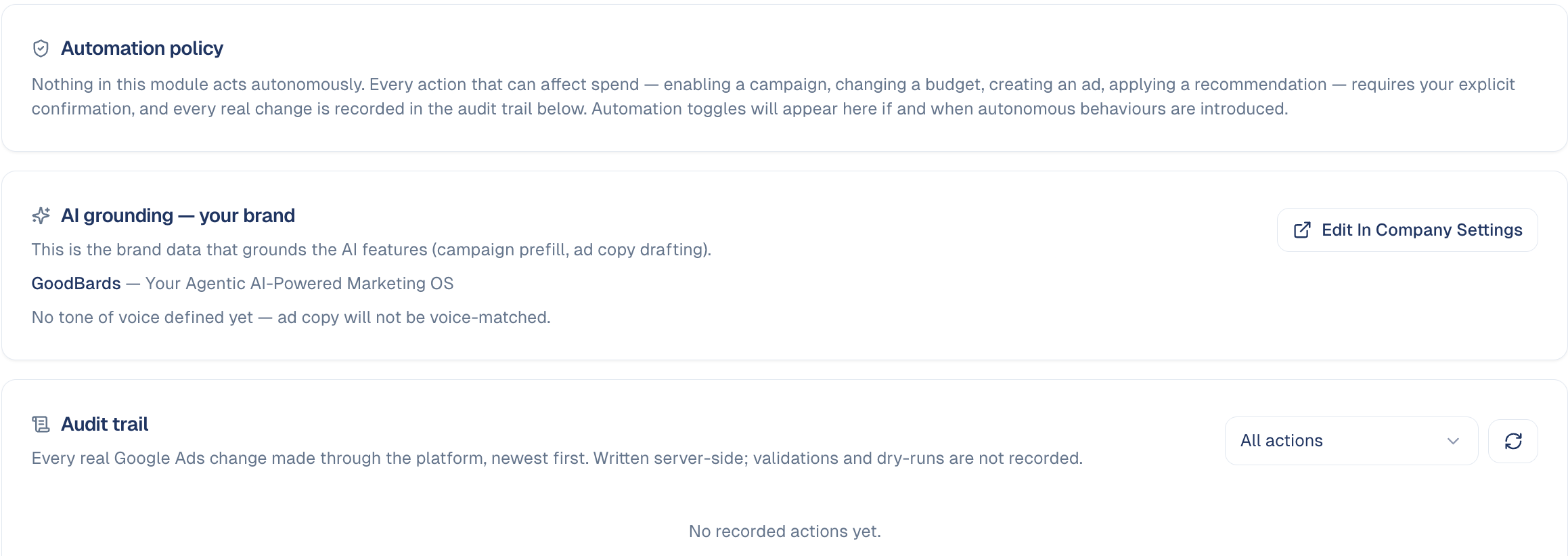
Nothing in Digital Ads acts on its own
Every action that can affect spend (enabling a campaign, changing a budget, creating an ad, applying a recommendation) asks for your confirmation.
- Automation policy: states that rule for your account.
- AI grounding: the brand data the AI uses to prefill campaigns and draft ad copy. Without a tone of voice, ad copy is not matched to your voice; choose Edit In Company Settings to add one.
- Audit trail: every real change made to Google Ads through GoodBards, newest first. Filter it by kind of action.
Good to know
Set up conversion tracking before spending
Without it, ROAS and conversions stay at zero and you are flying blind.
- Start with a small daily budget. Raise it once you can see which keywords convert. It is much easier to increase spend than to recover it.
- Check your currency. Spend is shown in the account currency, SGD in the example above.
- Judge over weeks, not days. Early figures are noisy; give a campaign enough clicks to mean something before rewriting it.
Still stuck? Contact support.