Event hosts
Give a helper at the door access to one event, and nothing else in your GoodBards account.
What it's for
On the day, you often need extra hands at the entrance: a colleague from another team, a volunteer, a student helper. They need the guest list and the check-in, but they should not see your campaigns, your contacts or your other events. An Event host sees only the events you assign to them, on a simple screen made for the door.
Before you start
- You can edit the event (the Events module in read and write, or an administrator).
- An administrator invites the helper with the Event host role (see Users and roles).
A host is a member of your account
An Event host signs in with their own email and password, like any other member, and counts as a user of your plan.
How to invite a host
- Open your account menu (your picture, top right), choose Tenant Settings, then open the Security tab.
- Under Users, choose Invite user and enter the helper's email.
- Tick the role Event host, then choose Send Invitation.
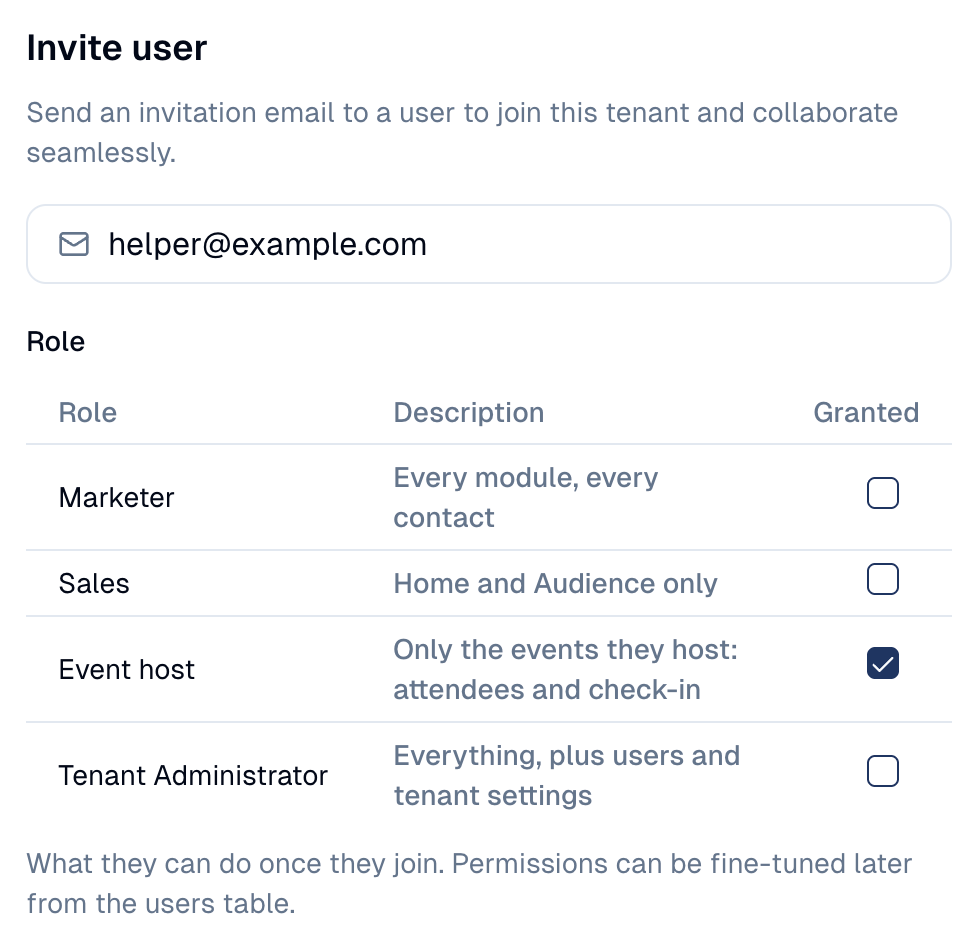
The helper receives an email and creates their password. Until you assign them to an event, they see an empty event list.
How to assign a host to an event
- Open the event from Marketing → Event Management.
- Open the Registration tab, then the Hosts block.
- Tick the people who will work this event. Only members with the Event host role are listed.

The change is saved at once. To remove a host, untick them.
One host, several events
Tick the same person on each event they help with. They see all of them in their list.
What the host sees
When the host signs in, GoodBards opens on Event Management with only their events. The sidebar shows nothing else.
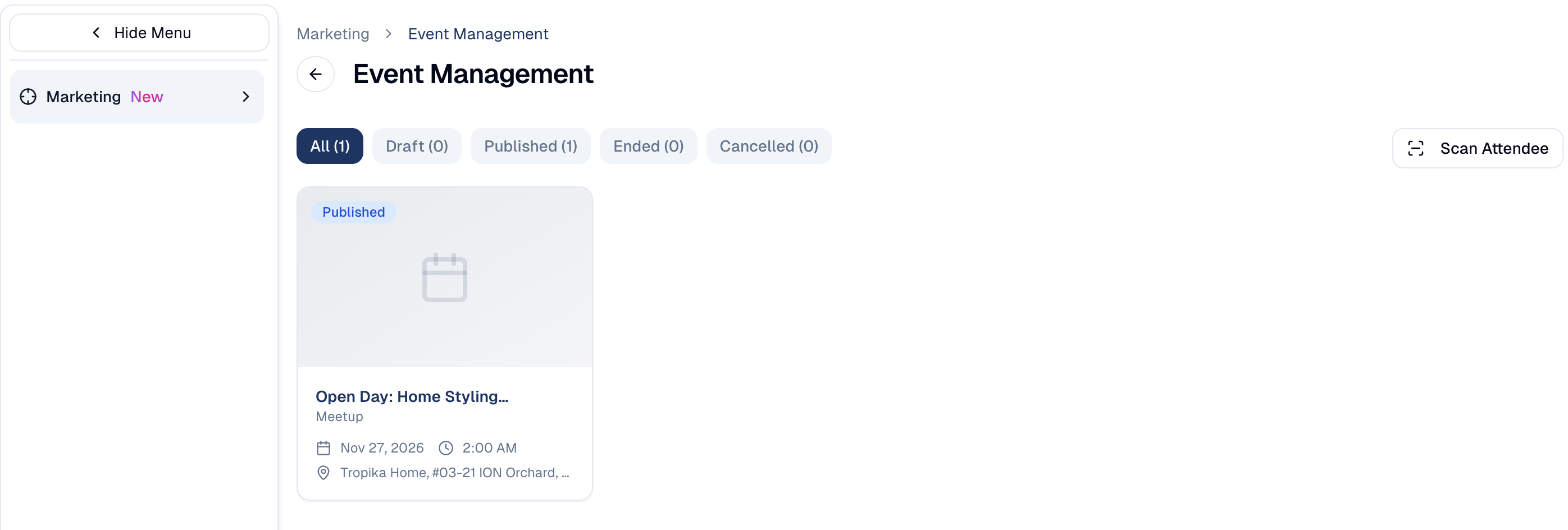
They choose an event to open its host screen:
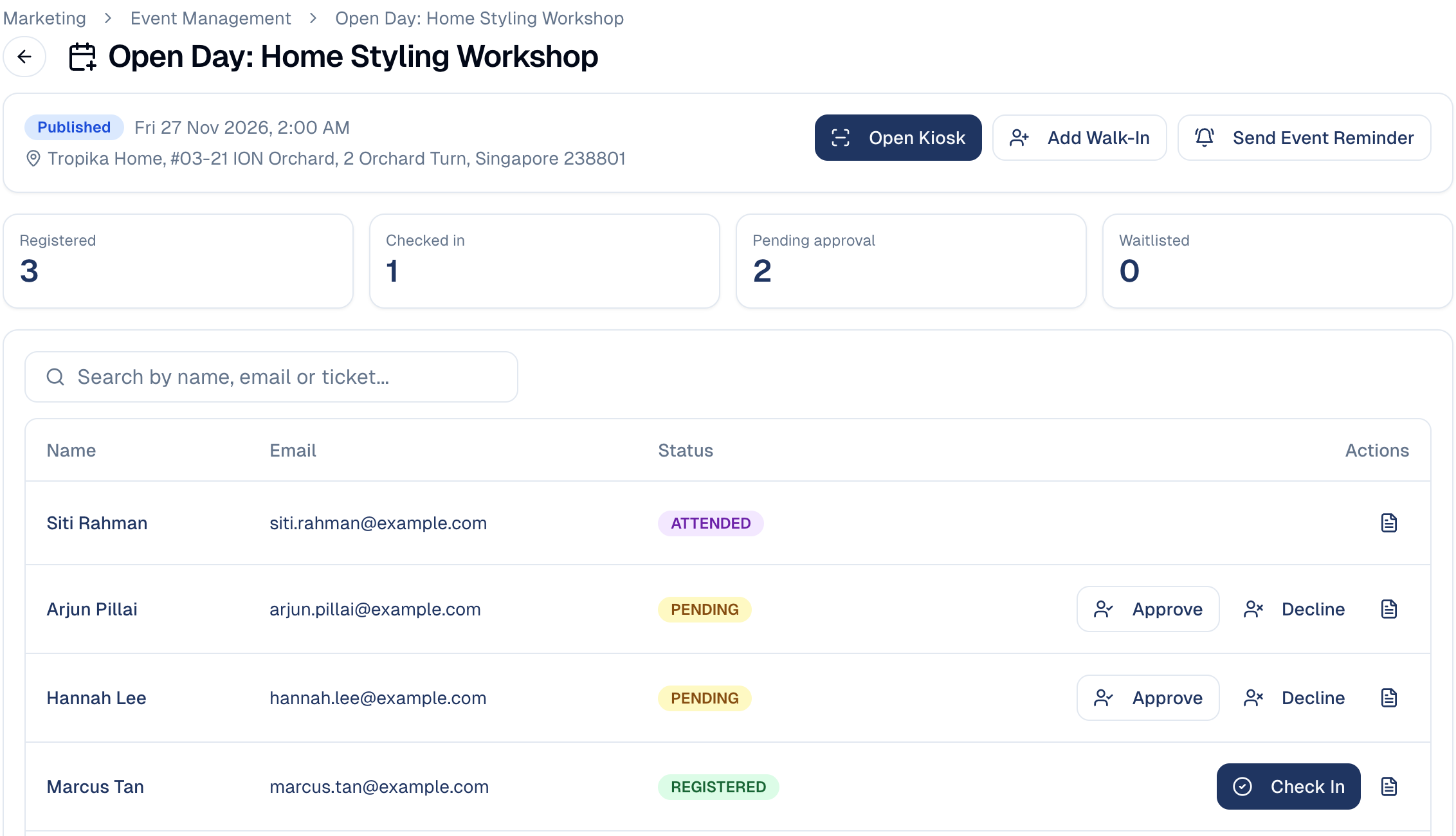
From there, the host can:
- See the guest list, search it by name, email or ticket, and open a guest's registration answers and check-in code.
- Approve or decline a pending registration.
- Check a guest in from their row, or choose Open kiosk to scan QR codes (see Check-in and badges).
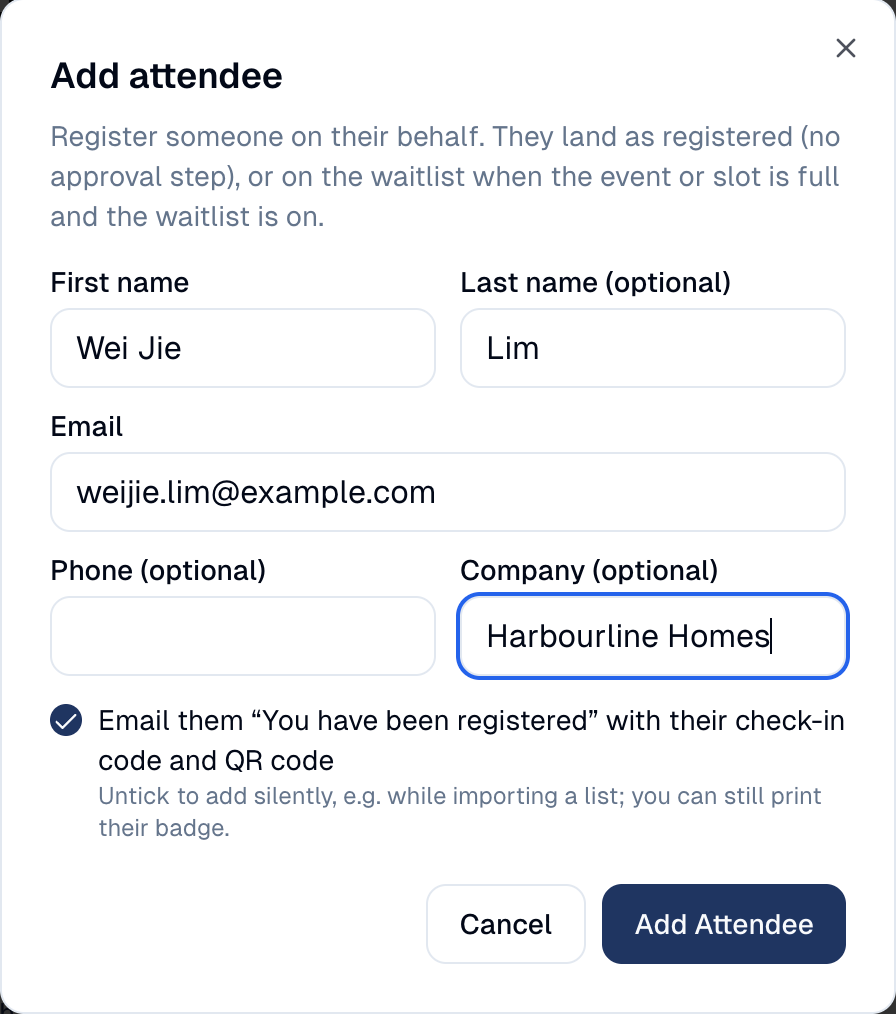
-
Add a walk-in: someone who turns up without registering. Enter their name and email; they join the guest list, ready to be checked in.
-
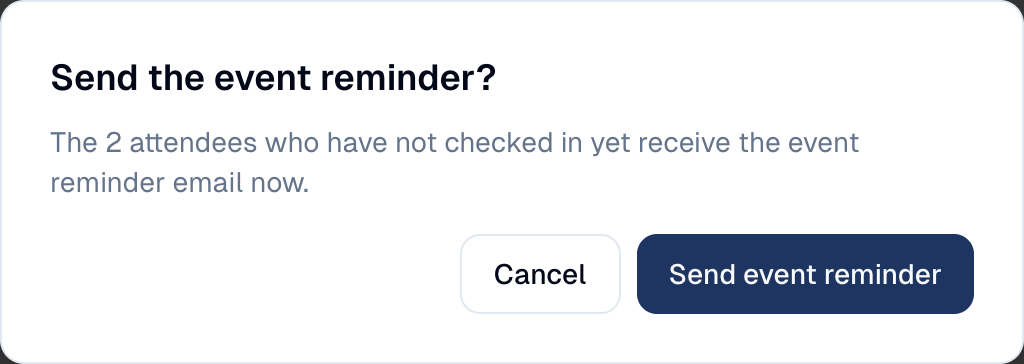
Send the event reminder to guests who have not checked in yet.
Good to know
Hosts see guests' names and emails
That is what they need at the door. They cannot export the guest list or open a guest's contact record, but brief them on handling personal data (PDPA) like anyone on your team.
- A host cannot change the event. No editing, publishing, cancelling, emails, tickets or waitlist moves: those stay with your team.
- The walk-in form does not search your contacts. If the email already belongs to a contact, GoodBards links the registration to it without showing the host anything about that contact.
- Hosts keep access after the event, so they can check who attended. Untick them in Hosts, or remove them from your account, when they no longer need it.
- Another event is out of reach. A link to an event they do not host shows Event not available.
Still stuck? Contact support.