External Chatbot
Put a GoodBards agent on your own website, to answer visitors' questions around the clock.
What it's for
Visitors ask the same questions at all hours: opening times, pricing, whether you serve their industry. The external chatbot puts one of your chat agents on your website to answer them, styled to match your brand.
Because it is one of your agents, it knows your business rather than reciting a scripted FAQ.
In short: three steps
- Configure the chatbot: agent, welcome message, colours.
- Create a key that only works on your website.
- Paste the code into your site, as a floating button or inside a page.
Before you start
- Your plan. External Chatbot is included in the Lite, Pro and Full plans.
- A chat agent to put on the site. See Chat Agents.
- A company administrator, to create the key in step 2.
- Your website's exact address, for example
https://www.example.com. - Someone who can add a snippet of code to your website.
How to configure the chatbot
- In the sidebar, choose Tool Box → External Chatbot.
- On the Settings tab, choose which Agent answers visitors.
- Write the Welcome message shown when the chat opens.
- Set the branding: icon, title, colours and sizes.
- Watch the Preview on the right update as you go.
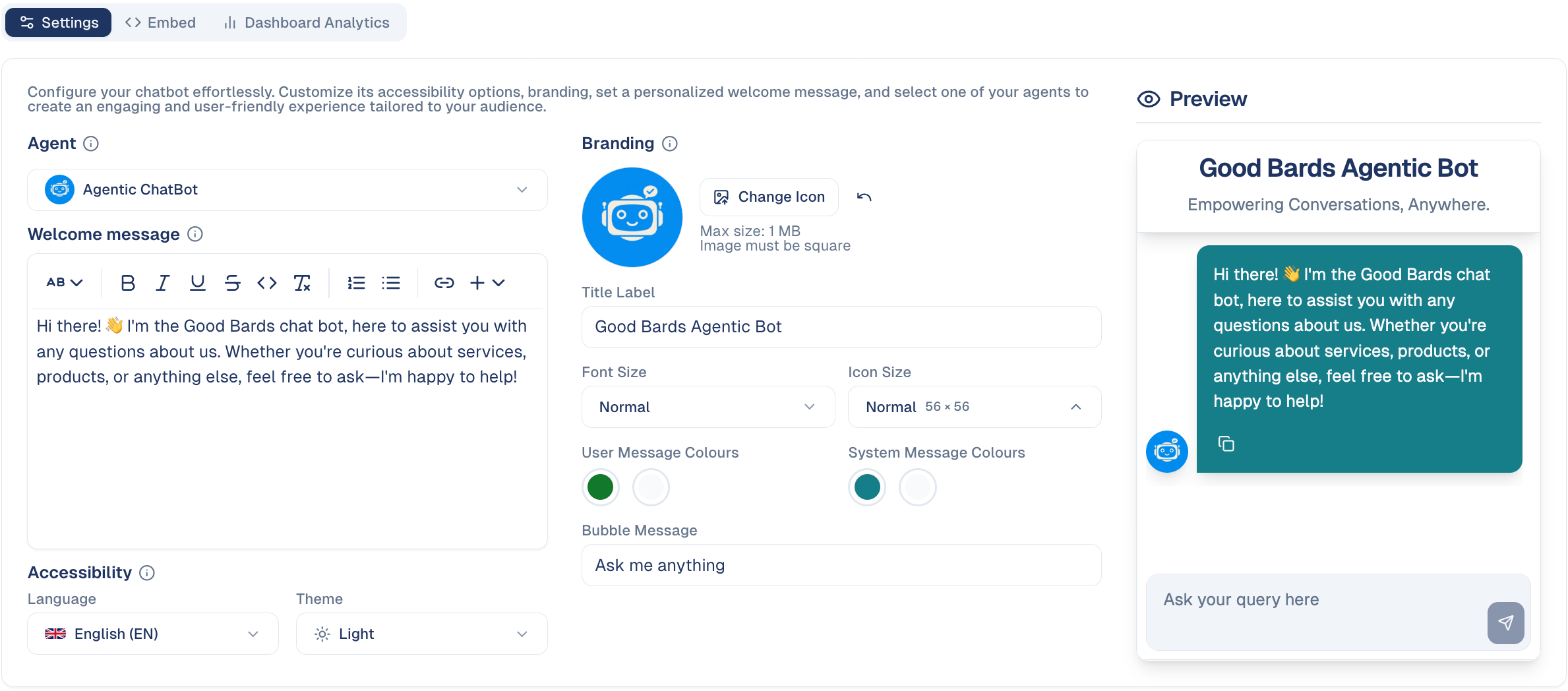
What you can change
| Setting | What it controls |
|---|---|
| Agent | Which of your agents answers. |
| Welcome message | The greeting when someone opens the chat. |
| Language | The interface language of the widget. |
| Theme | Light or dark. |
| Change Icon | Your logo on the chat bubble. Square, up to 1 MB. |
| Title Label | The name at the top of the window. |
| Font Size / Icon Size | How large the widget appears. |
| User / System Message Colours | Colours for visitor and bot messages. |
| Bubble Message | The prompt on the closed bubble, for example Hi there! Need help? |
The preview is live
The panel on the right shows exactly what visitors will see. Check it in both light and dark themes before publishing: colour choices that work in one can be unreadable in the other.
How to create a key for your website
The chatbot on your site needs an API key: it tells GoodBards which company the chat belongs to. Create one for the chatbot only, and tie it to your website.
- Open Tenant Settings from your account menu, then the Security tab.
-
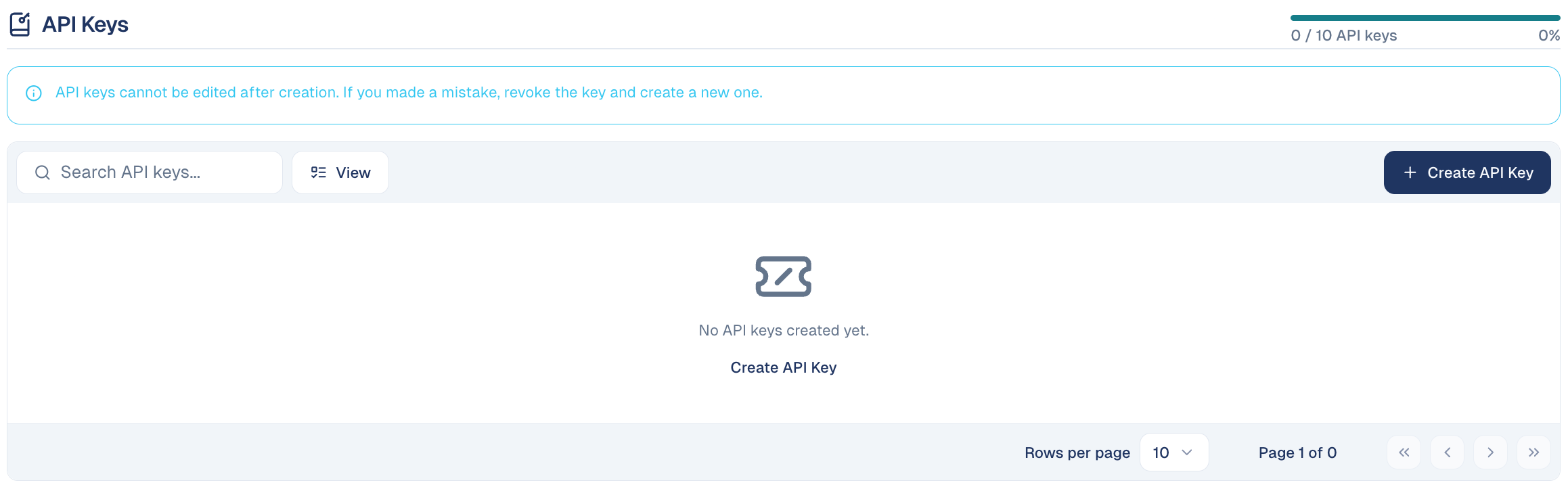
Under API Keys, choose Create API Key. The number of keys your plan allows is shown above the list.
-
Fill in the window:
Field What to put Description What the key is for, for example Website chatbot. Scope CHATBOT: the key can only drive the chatbot, nothing else. Restrict to a specific origin Tick it, then type your website's address under Allowed Origin. Expires at When the key stops working. It is set five years ahead. 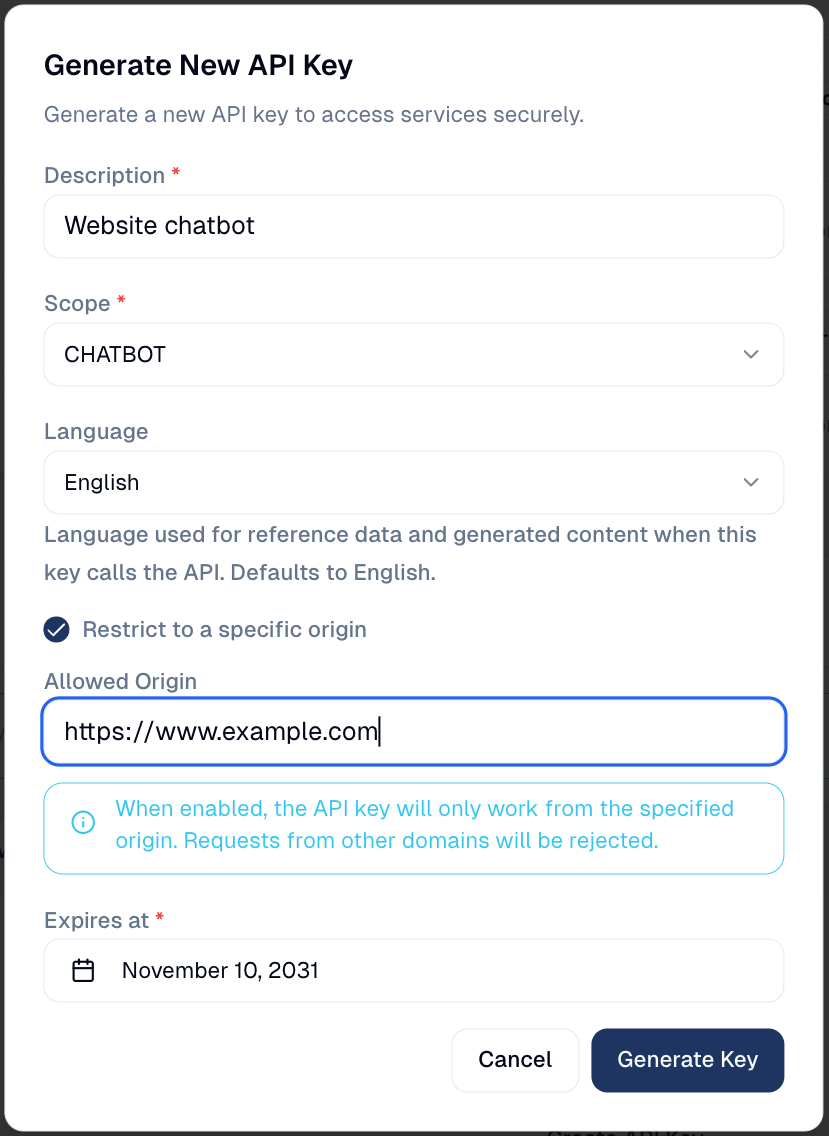
-
Choose Generate Key. The key appears in the list, with its scope and its website under Origin.
Type the address exactly
Use only the address, with https:// and nothing after it:
https://www.example.com. No page, no / at the end. https://example.com
and https://www.example.com are two different addresses: use the one
visitors see in their browser.
Why tie the key to your website
The key sits in your page's code, where anyone can read it. Tied to your website, it only works there: copied to another site, it is refused.
How to put it on your website
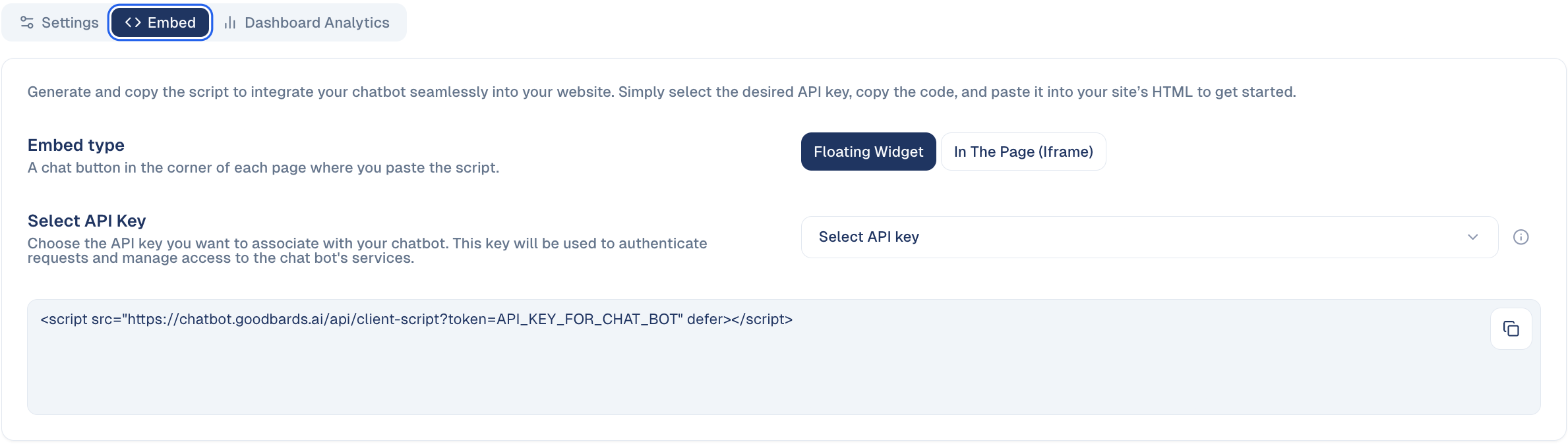
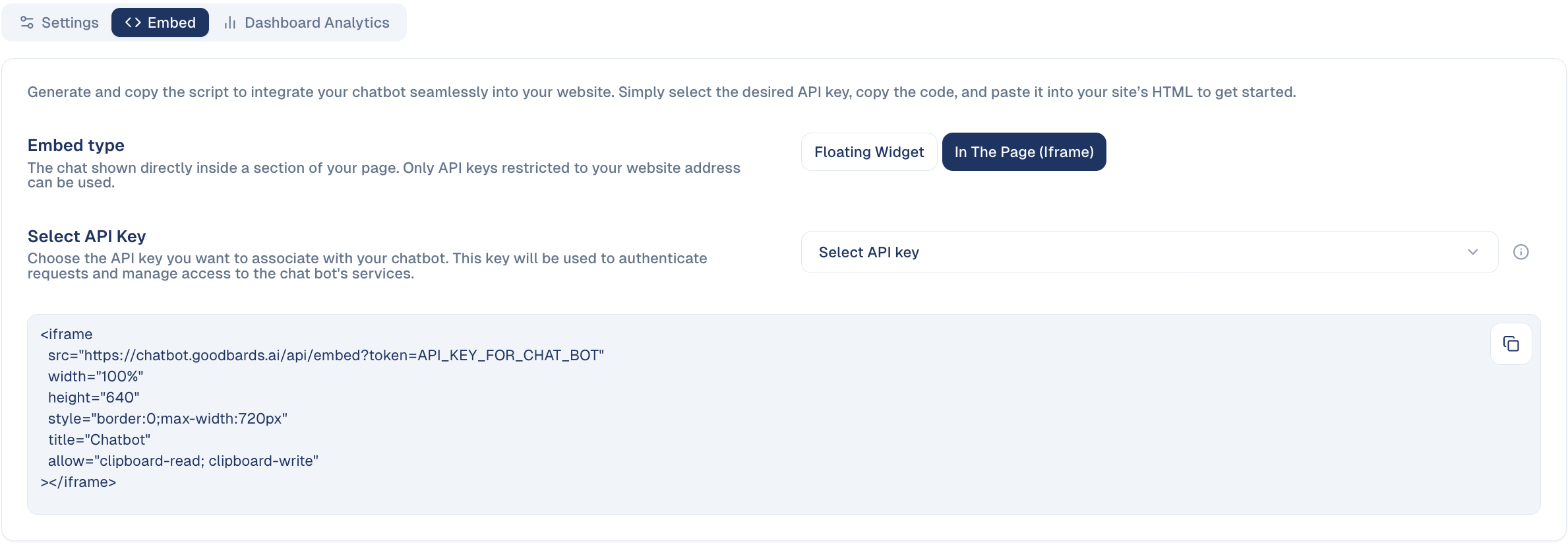
The Embed tab gives you the code to add to your site. Send it to whoever maintains your website, or paste it in yourself if you manage the site.
As a floating button
A chat button in the corner of every page where you paste the code.
- On the Embed tab, under Embed type, choose Floating widget.
- Under Select API Key, pick your key. Only keys with the CHATBOT scope are listed.
- Choose the copy button at the top right of the code, and paste the code into each page where the button should appear.
Inside a page
The chat shown directly in a section of a page, for example on a Contact us or Help page.
- Under Embed type, choose In the page (iframe).
- Under Select API Key, pick your key. Only keys tied to a website are listed here.
- Copy the code and paste it where the chat should appear in the page. You can
change
heightandmax-widthin the code to fit your layout.
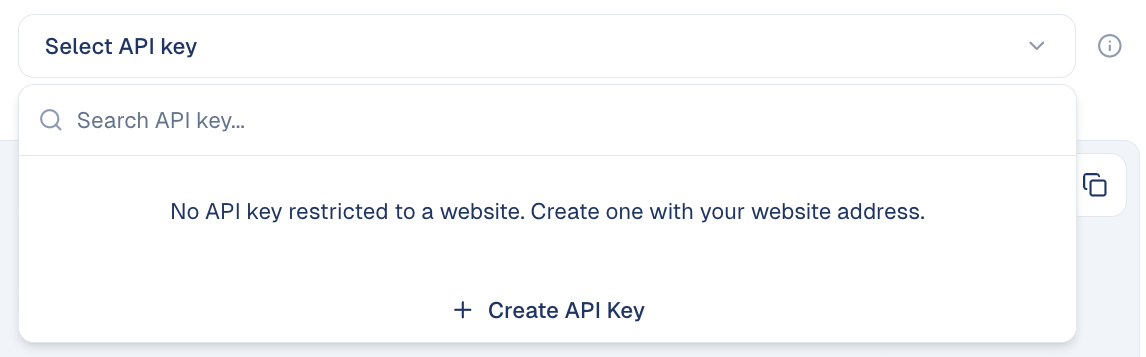
No key in the list? It means none of your keys is tied to a website. Choose Create API Key at the bottom of the list: the same window opens, with the scope already set to CHATBOT.
The chat only shows on the key's website
Inside a page, the chat appears only on the website the key is tied to. On any other address, including a test copy of your site, the frame stays empty.
If the frame shows a message instead of the chat:
| What you see | What to do |
|---|---|
| This API key is not restricted to a website… | The key has no website. Create a new one with Restrict to a specific origin ticked. |
| The website address on this API key is not valid… | The address has a page or a / at the end. Create a new key with only the address. |
| API key not provided. | The code was cut when pasting. Copy it again from the Embed tab. |
| An empty frame | The page is not on the key's website. Check www, https:// and the spelling. |
How to see how it performs
The Dashboard Analytics tab shows how much the chatbot is used and whether conversations turn into leads. Choose the period at the top right, from the last 24 hours to the last 90 days.
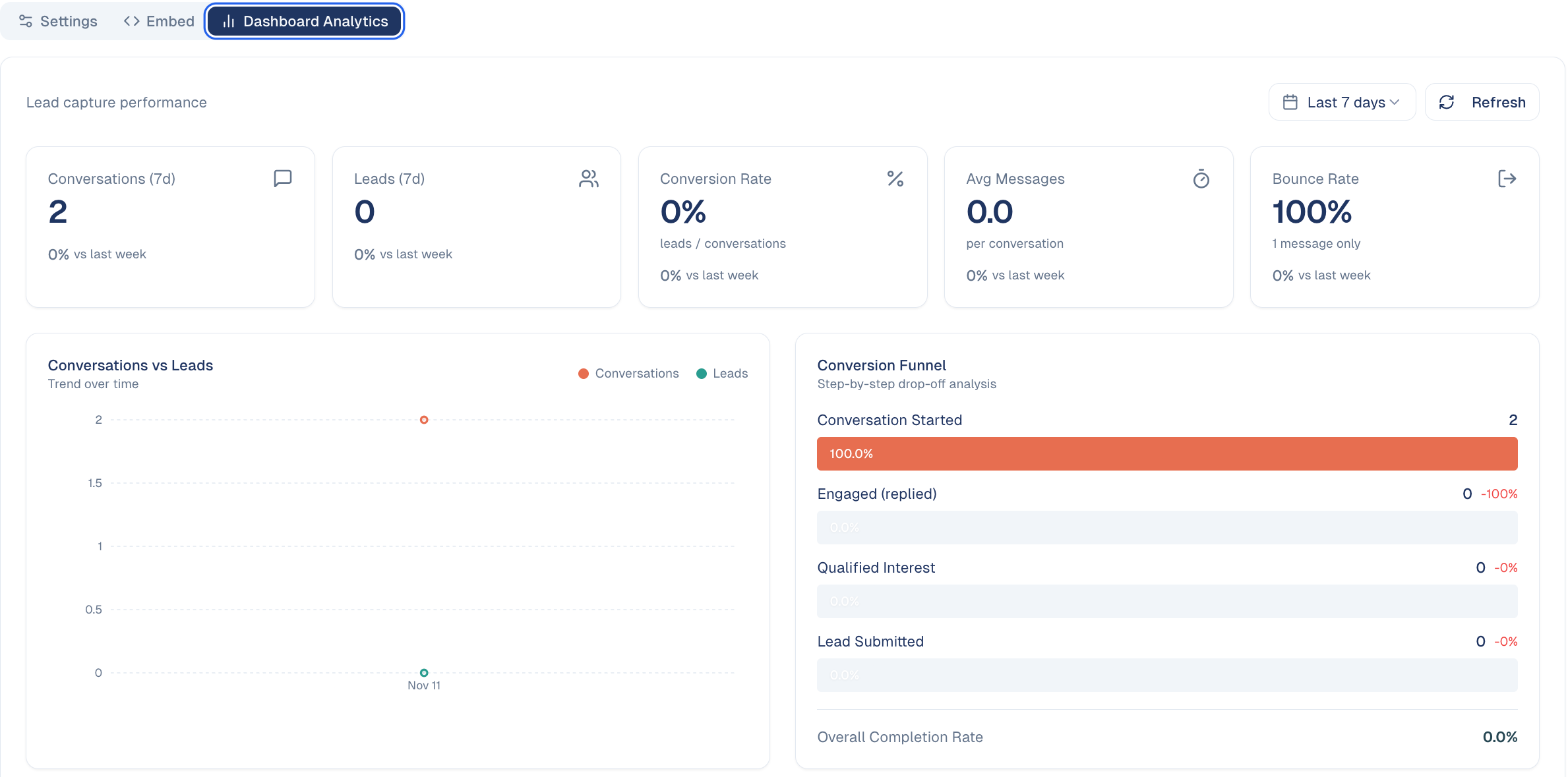
| Block | What it tells you |
|---|---|
| Conversations / Leads | How many chats started, and in how many the visitor left their contact details. |
| Conversion Rate | Leads divided by conversations. |
| Avg Messages | How long a conversation lasts. |
| Bounce Rate | Chats where the visitor sent one message and left. |
| Conversion Funnel | Where visitors drop off, from the first message to a lead. |
| Conversations by Hour | When visitors chat most. |
| Visitor Metadata | Their language, browser and platform. |
Each figure is compared with the period before. The dashboard stays empty until an agent is chosen on the Settings tab and visitors start chatting.
Good to know
Revoked or expired keys turn the chat off
Revoking a key stops the chat at once on every page that uses it. When a key reaches its expiry date, the chat stops answering too: note the date and replace the key before it.
- Test it before launch. Ask the questions your customers actually ask and check the answers are right.
- Your agent's knowledge is the bot's knowledge. If it cannot answer, improve the agent or your Brand & Context rather than the widget.
- Say it is a bot. Visitors dislike discovering late that they were not talking to a person.
- Keep a route to a human. Some questions need one: make sure the bot does not become a dead end.
- A key cannot be edited. If the website address is wrong, revoke the key under Tenant Settings → Security and create a new one, then paste the new code into your site.
- Visitors on a computer can enlarge the chat. The floating button's window has an expand button at the top. It is not shown on phones, or inside a page.
- Changes on the Settings tab apply without touching your website. The code you pasted stays the same.
Still stuck? Contact support.