How the AI knows your brand
Three things shape everything the AI writes for you: your Brand Context, the Brand Voice you pick, and what it has learned from working with you. This page explains what each one does and how to keep them right.
What it's for
Without them, an agent writes generic copy and you re-explain your business in every request. With them, the same request comes back with your company's facts, in your style, following the rules you set.
| What it is | Who sets it | When the AI uses it | |
|---|---|---|---|
| Brand Context | Facts about your company: what you do, who you serve, how you are positioned, what never to say. Plus your primary Brand Kit (tone, keywords, hashtags). | Your company admins, once. | Every request, by every agent. |
| Brand Voice | A writing style learned from real samples, such as your founder's posts. | Anyone builds voices; each person picks a default. | Only when a voice is selected for the conversation. |
| Memory | Short facts learned from your conversations, or added by hand. | Learned automatically, reviewed by you. | In conversations with agents that have memory on. |
Example. You ask: "Write a LinkedIn post announcing our webinar."
- With nothing set up, you get a generic announcement.
- With Brand Context, it names your product correctly, speaks to your target audience and never mentions pricing, because Guardrails says so.
- With a Brand Voice selected, it sounds like your founder: short sentences, a question to open, no exclamation marks.
- With Memory, it remembers you always add the registration link in the first comment, because you told it last week.
Before you start
- To edit Brand Context, you need to be an administrator of your company account.
How to set up your Brand Context
- Open your account menu (your picture, top right), then choose Brand & Context. It opens on General Information.
- Choose Populate With AI, enter your Website URL, then choose Start Extraction. GoodBards reads your home page and a few key pages, and fills in the fields as drafts. This takes about a minute.
- Review each field. AI drafts are Hidden from AI until you choose Show To AI. A field you edit and Save becomes Visible to AI.
- Fill in Guardrails → Never discuss with the topics the AI must avoid.
- On Marketing Campaigns, set your campaign defaults (audience, regions, objective).
See Brand & Context for every field.
How to create a Brand Voice
-
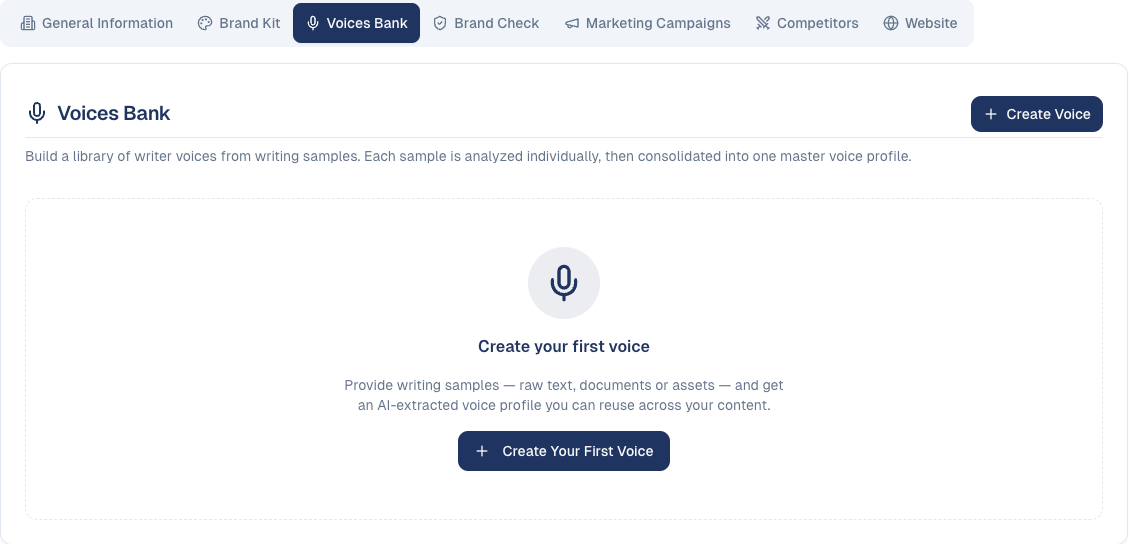
In Brand & Context, open the Voices Bank tab and choose Create Voice.
-
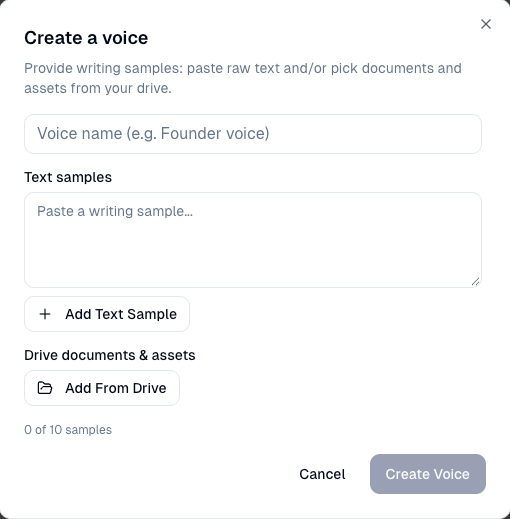
Give it a name, then add up to 10 samples of real writing: paste text with Add Text Sample, or choose documents with Add From Drive.
-
The voice goes from Analyzing to Active in a few minutes. Open Details to read the profile it built: tone, structure, favourite phrases, do's and don'ts. It also shows the voice's Language, detected from your samples. To correct it, choose Edit, pick the Language and choose Save changes.
- To use it by default, go to Personal Settings → Preferences → Default brand voice. You can also pick a voice for one conversation from the Voice menu in the chat box.
How to review what the AI has learned
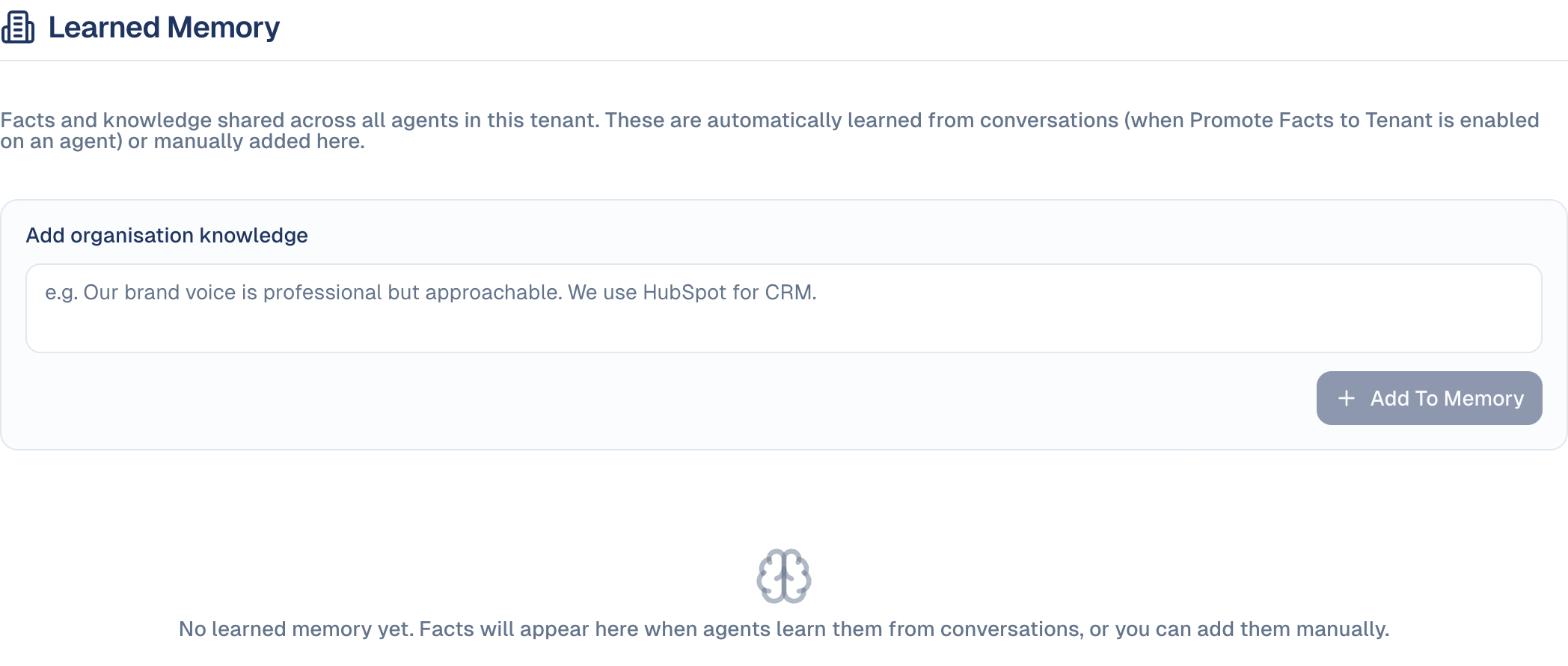
- Company memory: AI Settings → Learned Memory. Facts shared by every agent and every user of your company. Each shows whether it was Learned from conversation or Added manually. Edit or delete any of them, or add one with Add To Memory.
- Your own memory: Personal Settings → My Memory. Facts about you and how you work, seen only in your conversations. Turn Enable Personal Memory off to stop the AI using and collecting them.
Good to know
Hidden fields never reach the AI
That includes every AI draft you have not reviewed yet. If the AI ignores something, check its badge first. Changes take up to about ten minutes to reach the agents.
- Only your primary Brand Kit is used. Its tone of voice, keywords and hashtags apply to every request; a Voices Bank voice applies only when selected.
- One voice, one language. A voice writes in the language of its samples and is never translated. When you write a piece, choose the language first: the Voice list then offers only the voices in that language. If you change the language, a voice that does not write in it is removed, and GoodBards tells you. To write in another language with the same style, create a second voice from samples in that language.
- A voice is applied when the conversation starts. Changing it halfway through has no effect; start a new conversation.
- Agents learn company facts only if allowed. An agent adds to company memory only when Promote Facts to Tenant is on in its settings (off by default). Learning starts after a conversation of several exchanges.
Company memory is shared with everyone
Every colleague's agents read it, so never put personal or confidential details in it. Clear all memory cannot be undone.
Still stuck? Contact support.