Improve your presence with SEO
Get found by people searching for what you do, in Google and in AI assistants, and see the effect of your work in clicks.
This guide follows one loop: see where you stand, fix the pages that matter, write what your market searches for, and measure. Count about an hour to set up, then a regular hour a week.
Before you start
- Access to your website's Google Search Console property and Google Analytics account, to connect them in step 1.
1. Connect your site
Under Settings → Connections, connect Google Search Console for your website, and Google Analytics. Search Console gives clicks, impressions and positions; Analytics says what visitors did once they arrived.
See Connections.
Check the connection
If a screen stays empty, open Organic Visibility → Performance & Report → Diagnostics: it shows which site and property every screen reads, and whether each Google connection answers.
2. See where you stand
In the sidebar, choose Organic Visibility → Performance & Report. Note four numbers for the last 28 days: clicks, impressions, average position and click rate, and whether the trend goes up or down.
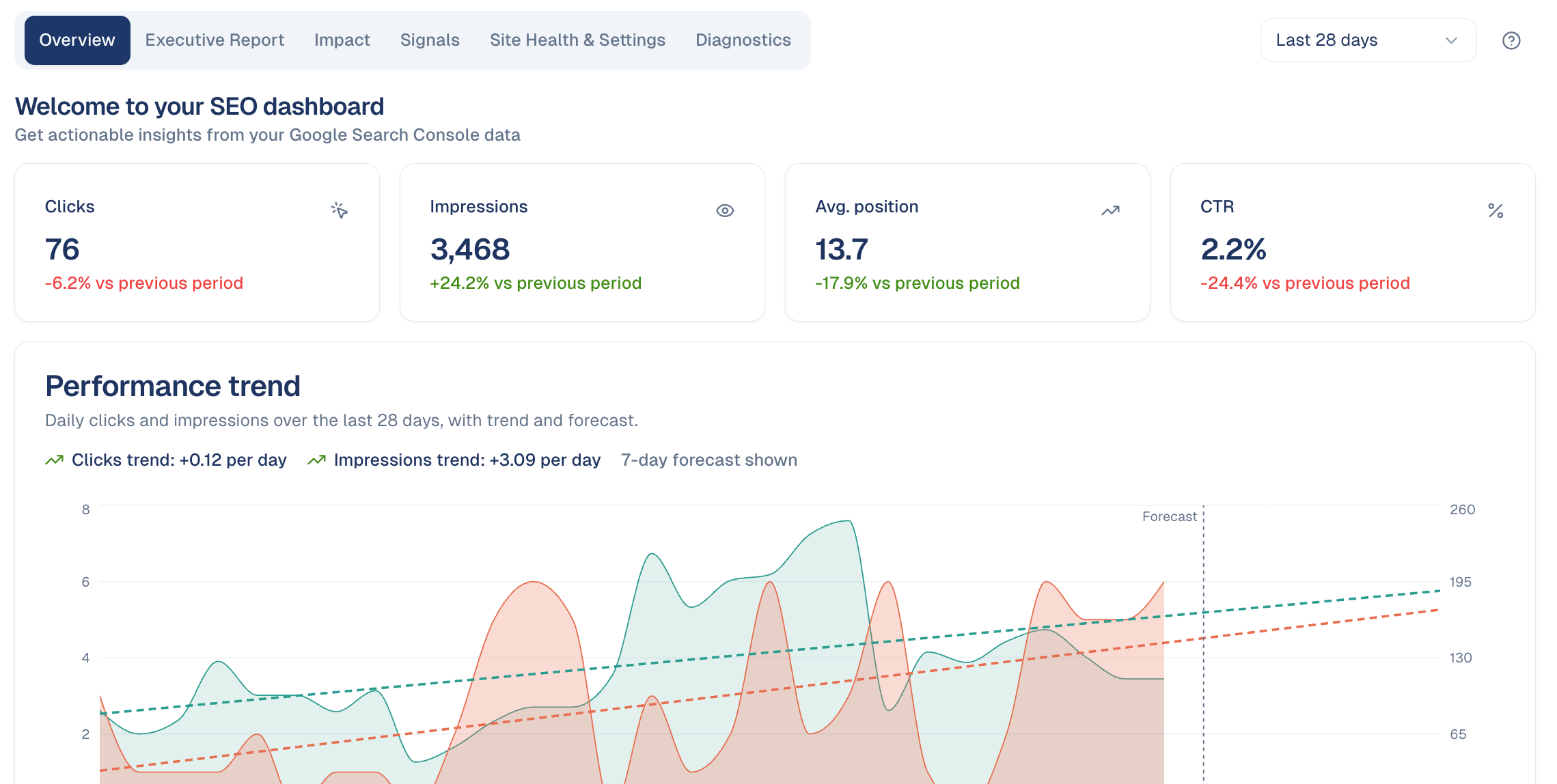
This is your starting point. The Executive Report tab puts it on one page for your manager.
See Performance & Report.
3. Fix the pages that matter most
In the sidebar, choose Organic Visibility → Page Fixes. The pages are ranked by the clicks a fix could bring. Start with Low CTR: pages people see but do not click. A better title and description take minutes.
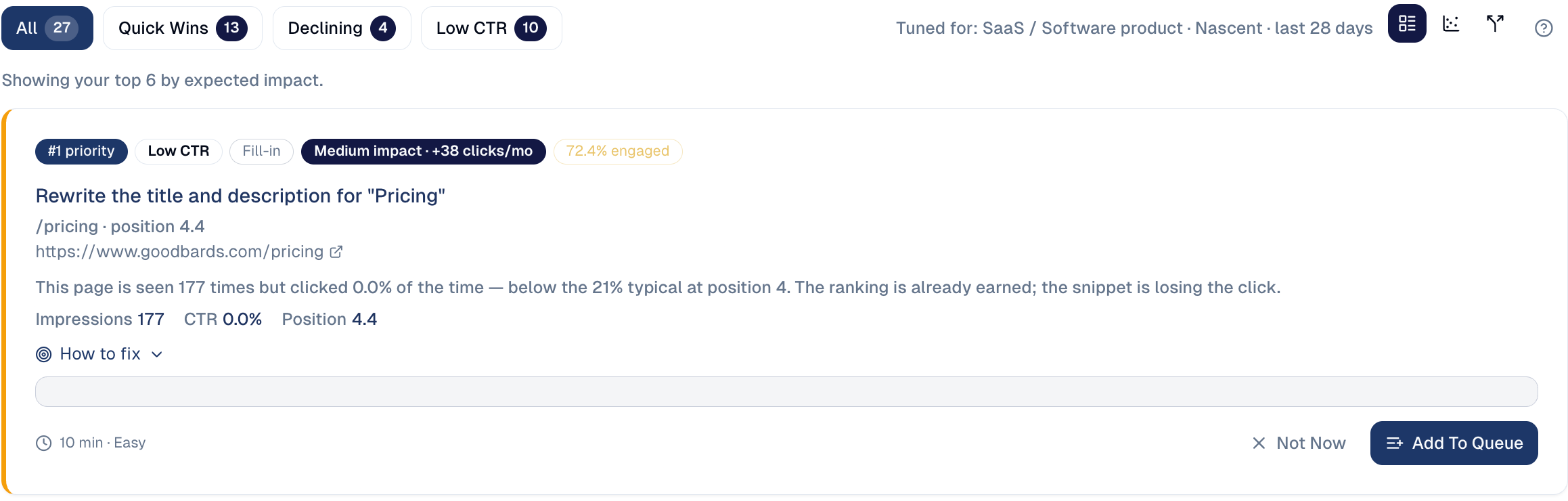
Choose Add To Queue on the fixes you will do. They land in Actions, with the steps, so the work is tracked until it is verified.
See Page Fixes and Actions.
4. Write what your market searches for
In the sidebar, choose Content Hub → Research & Plan. The topics are ranked from your own data: searches you could win, questions people ask, gaps against your competitors. Pick one with steady searches and low competition.
Write it in the Content Workspace: the AI writer drafts it in your brand voice from the topic's data, the reviewer scores it, and you revise until it is ready. Publish it on your site.
See Research & Plan and Content Workspace.
5. Make sure AI assistants can quote you
In the sidebar, choose Organic Visibility → AI Readiness & Authority. The score shows whether assistants such as ChatGPT or Gemini can read and trust your pages. The lowest pillar is usually Answers & FAQ: add the questions your customers really ask, with short answers.
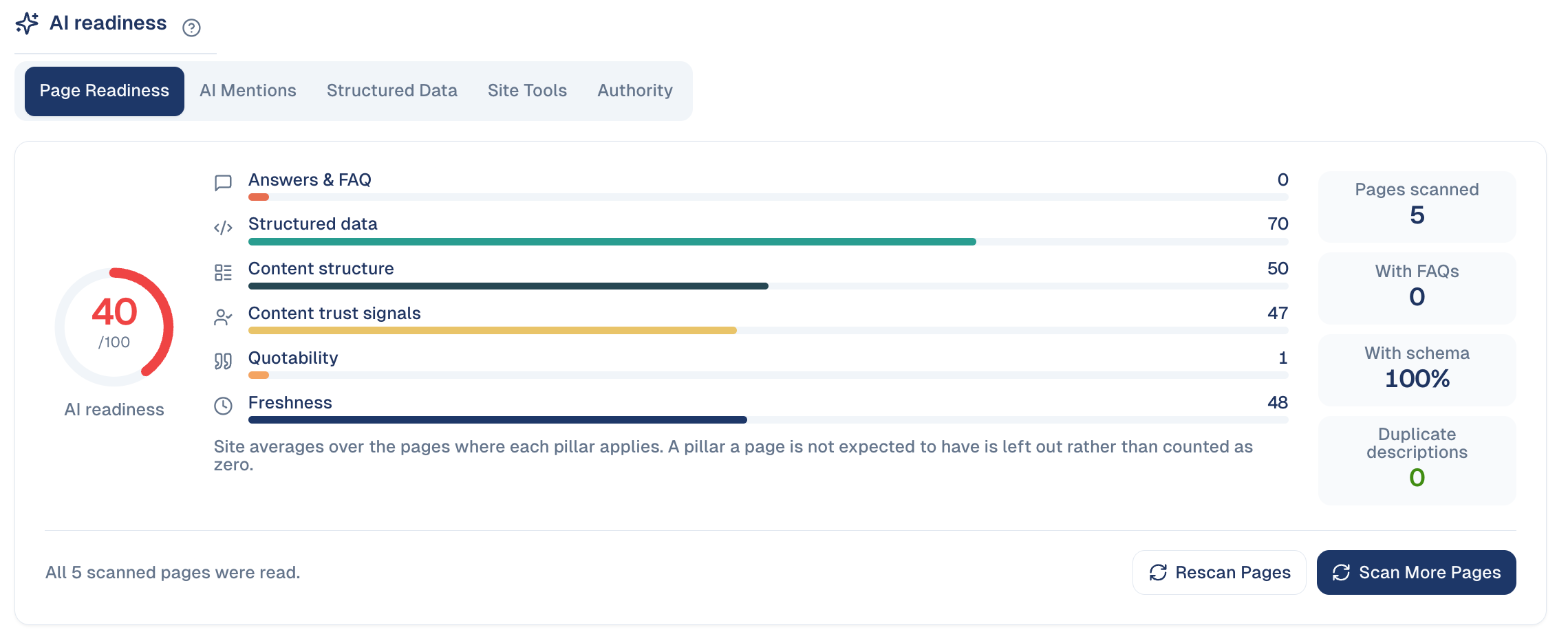
6. Measure, a few weeks later
Search results take two to six weeks to react
Search Console data is also two to three days behind. Do not judge a change after a few days.
Come back to Performance & Report:
- Impact shows what your shipped work actually changed.
- Content Hub → Momentum shows the pages rising right now: give them a push while the trend is with you, for example in your next newsletter.
See Momentum.
Your weekly hour
- Performance & Report: the four numbers, and any pattern detected.
- Page Fixes: add the top one or two to the queue.
- Actions: finish what is in progress.
- Momentum: push one rising page.
- Research & Plan: write one new piece a week or two.
Good to know
- Position going down is good. Position 1 is the top of the results.
One good page beats five thin ones
Write fewer pieces, each answering a real search fully.
Still stuck? Contact support.